


How to Restore Backup from One Computer to Another?
This guide provides easy steps to transfer and restore backups on a different computer. It addresses whether system image files can safely migrate to a new computer with different hardware.

By Irene Updated June 18, 2026


🌟Article Key Takeaways:
-
Hardware Is the Biggest Hurdle: Trying to restore a full operating system from an old PC to a new one usually fails because the new computer has different internal components like motherboards or processors.
-
Two Ways to Move Data: You have to choose between moving just your personal files or migrating your entire operating system setup.
-
The Full System Fix: To move your entire operating system, programs, and settings without reinstalling Windows, you need a specialized tool with "Universal Restore" technology, such as CBackup, along with a bootable USB drive to bypass compatibility errors.
-
The File Only Fix: If you only need documents, photos, and videos, the built-in Windows Backup tool works perfectly. You just connect your external drive, open the Control Panel, and select the specific folders you want to copy over.
-
The Ultimate Strategy: The smartest approach is to use a full system image for emergencies or major PC upgrades, while keeping separate, frequent backups of your individual files for quick daily recovery.
How to restore backup from one computer to another?
There are several ways to restore a backup to another computer, depending on whether you need to recover individual files or migrate an entire system. If the target computer has different hardware, using a tool with Universal Restore support is often the most reliable approach.
Method 1. Restore backup from one computer to another with universal restore
If you are wondering how to restore backup from one computer to another, hardware compatibility is often the biggest obstacle. Different motherboards, processors, storage controllers, and system configurations can cause a restored operating system to fail to boot on a new machine. CBackup addresses this challenge with its powerful Universal Restore technology, making system migration much easier and more reliable.
CBackup is a comprehensive backup and recovery solution that supports system backup, disk backup, partition backup, file backup, file synchronization, disk cloning, and entire hard drive backup. With Universal Restore, you can restore backup image from one computer to another even when the two computers have different hardware configurations.
Key benefits of using CBackup Universal Restore include:
• Restore the operating system, installed programs, settings, and personal files to a different computer.
• Reduce compatibility issues caused by hardware differences.
• Avoid time consuming Windows and application reinstallation.
• Support system migration, computer replacement, hardware upgrades, and disaster recovery.
• Support creating bootable recovery USB when Windows cannot start normally.
Compared with Windows Backup, which may have limitations when restoring a system image to different hardware, CBackup offers a more flexible and dependable solution. It helps ensure the restored system can boot successfully on the target device, saving significant time and effort. For users who need to transfer a complete Windows environment to a new PC, CBackup Universal Restore is one of the most effective and convenient methods available.
🔶Prerequisites:
- Create a bootable USB drive with CBackup in advance. This bootable media will be used to start the target computer. Prepare a system backup image created from a working computer.
- The backup image can be stored on a USB drive, external hard drive, or NAS device.
- Connect the backup storage device and the bootable USB drive to the target computer before starting the restoration process.
Now, you can first download CBackup and launch the software.
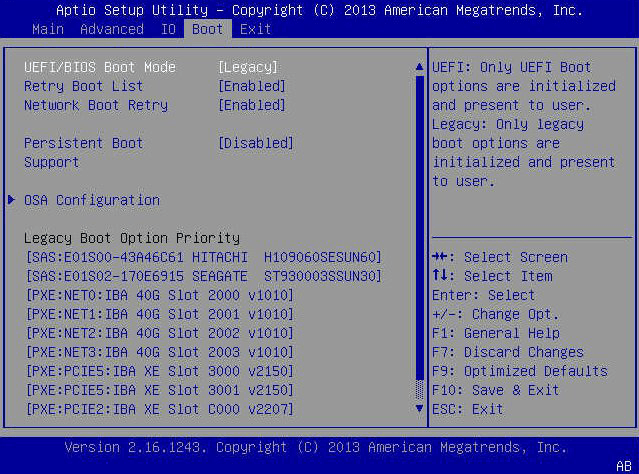
Step 1. Boot the target computer from the CBackup bootable USB drive. If necessary, enter BIOS or UEFI settings and change the boot order so the computer starts from the USB device.
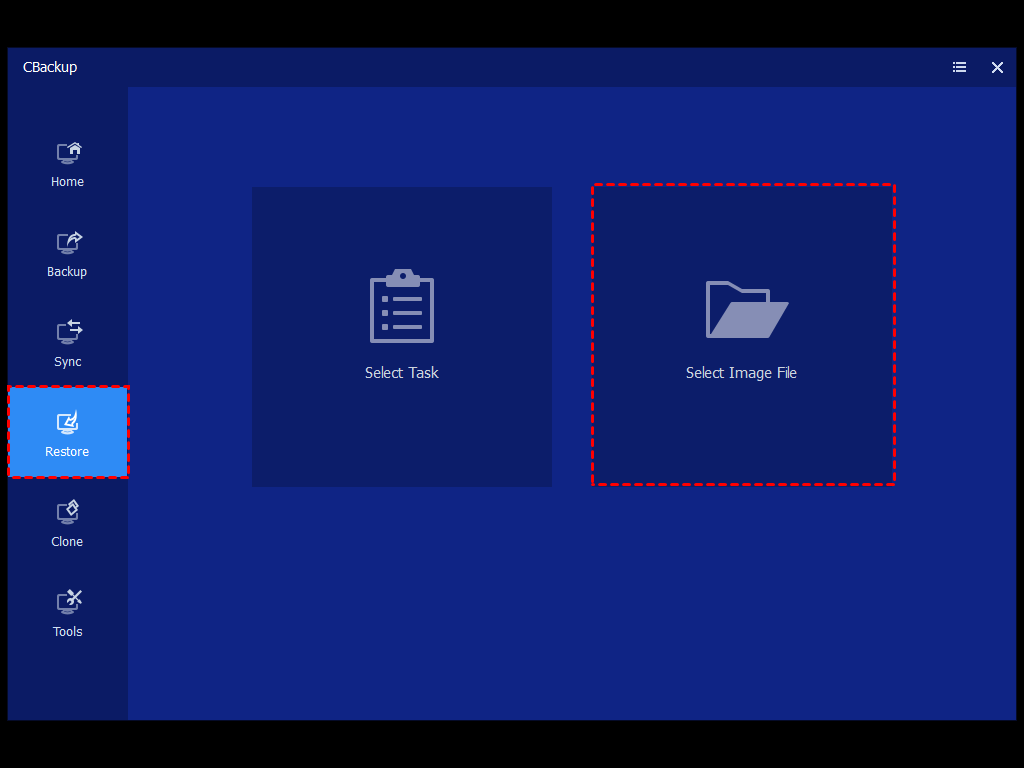
Step 2. After entering the CBackup recovery environment, click Restore. If the backup image is not detected automatically, click Select Image File and browse to the location where the system image is stored.
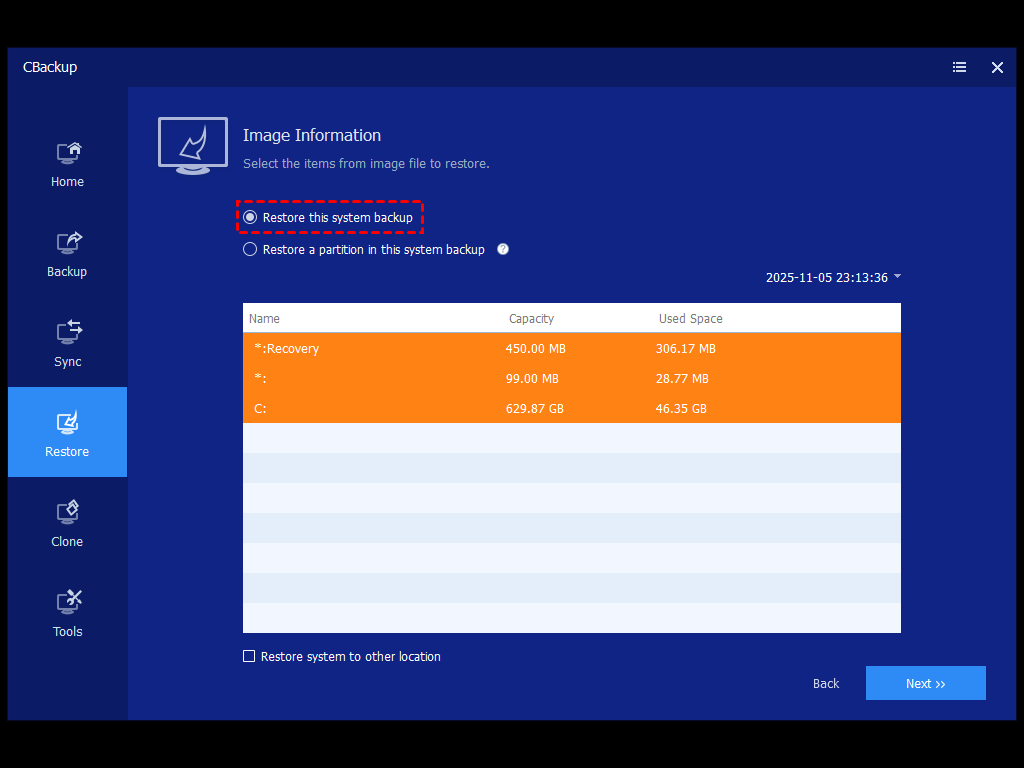
Step 3. Choose the system backup image you want to restore. Select Restore this system backup. If you are restoring the system to a new hard drive, check Restore system to other location and continue.
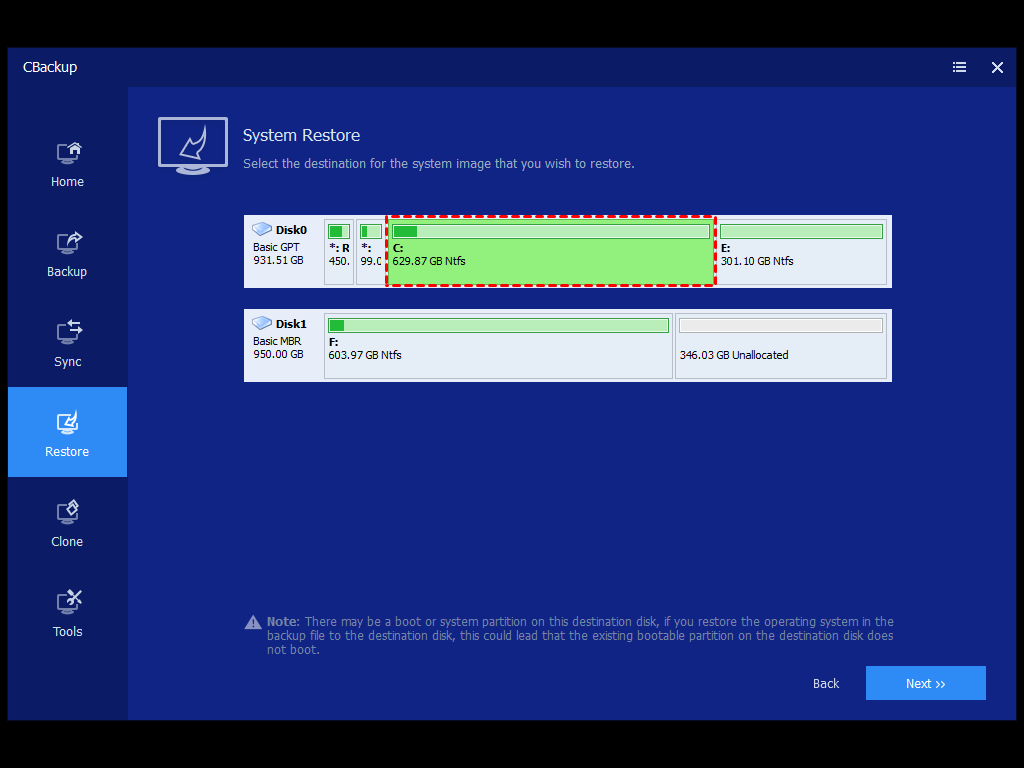
Step 4. Select the destination partition or unallocated space where the system image will be restored. Confirm your selection and click Next.
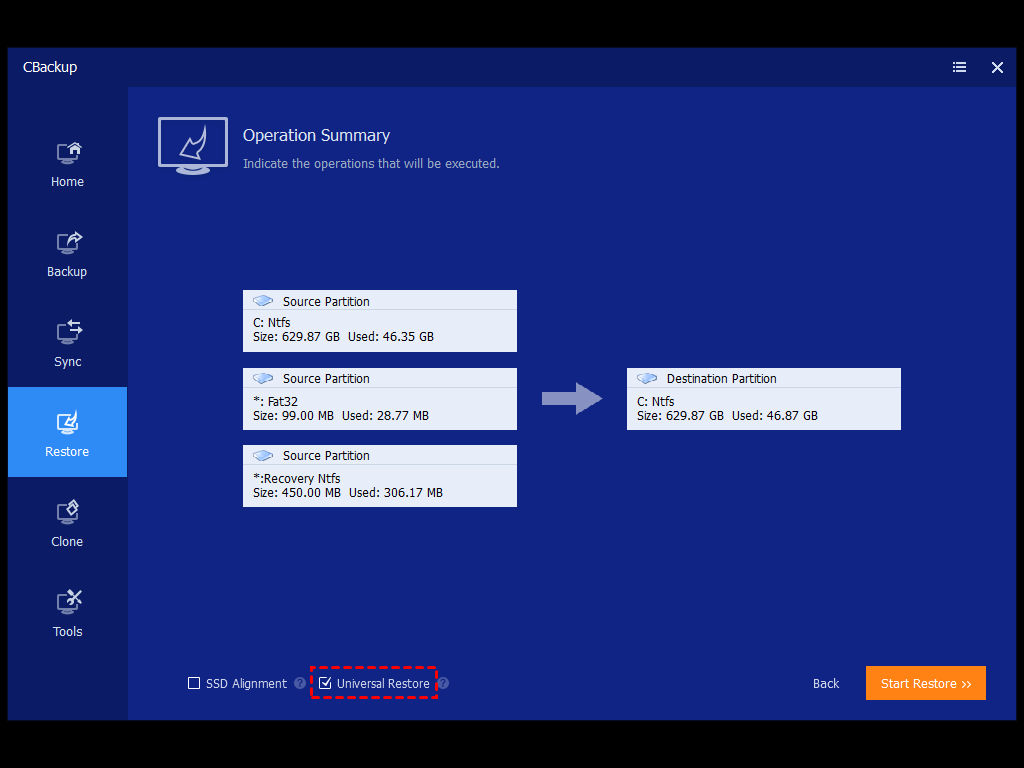
Step 5. Review the operation summary. If the destination computer uses different hardware, Universal Restore will be enabled automatically. It will help you restore backup files to new computer. Click Start Restore to begin the restoration process and wait for it to complete.
Notes:
• If the target computer cannot boot or does not have an operating system installed, create a bootable USB drive with CBackup first and use it to start the restoration process.
• It is recommended to remove existing partitions from the destination drive before performing Universal Restore on a new computer.
• The backup image cannot be restored to the same drive where the image file is stored because the destination drive will be formatted during restoration.
• After the restore is complete, you may need to reactivate Windows, Microsoft Office, or other licensed software.
• Some hardware specific drivers, such as graphics, audio, network, or display drivers, may need to be installed manually after the first startup.
• Universal Restore supports system restore and system disk restore. If you plan to restore a disk backup, the backup must be created from the original system disk.
Method 2. Restore backup from one computer to another with Windows Backup
Windows Backup and Restore allows users to recover files and system images created on another computer. This can be useful when replacing an old PC, recovering data after a hardware failure, or transferring important files to a new device. Before starting, make sure the backup is accessible from an external hard drive, network location, or other storage device connected to the target computer.
Step 1. Connect the drive that contains the backup to the new computer and ensure Windows can detect the storage device.
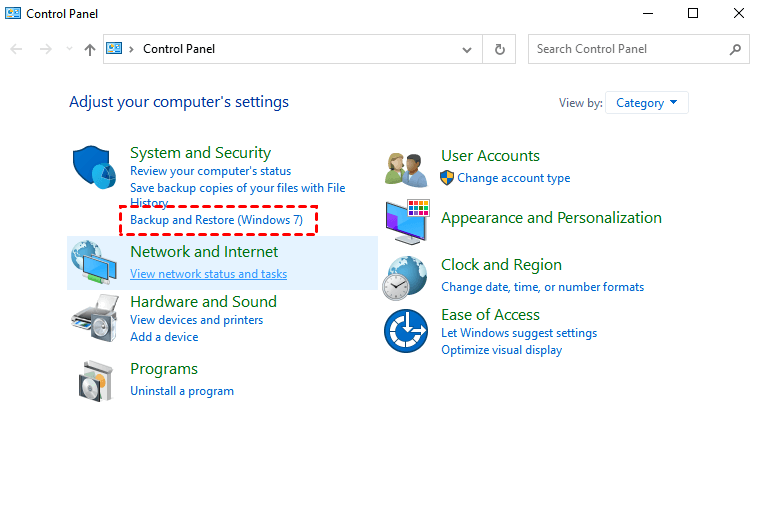
Step 2. Open the Control Panel and select Backup and Restore (Windows 7). Click Select another backup to restore files from if the backup was created on a different computer.
Step 3. Browse for the backup location and select the backup set you want to restore. Windows will display the available files and folders contained in the backup.
Step 4. Choose the files, folders, or libraries you want to recover. You can restore specific items instead of recovering the entire backup.
Step 5. Select whether to restore the files to their original location or to a new location on the target computer. Using a new location can help avoid overwriting existing files.
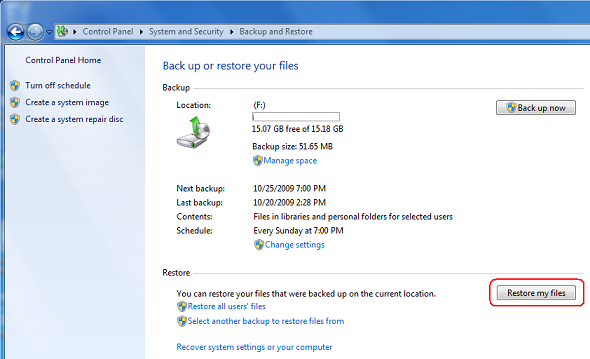
Step 6. Click Restore my files and wait for the process to complete. Once finished, verify that the restored files are accessible and functioning correctly.
Windows Backup works well for restoring personal files and folders to another computer. However, restoring a complete system image to a different PC is often limited by hardware differences and driver compatibility issues. If you need to migrate an entire operating system, applications, and settings to new hardware, a professional backup solution with universal restore support may provide a more reliable and flexible migration experience.
What is the difference between restoring files vs. a full system image?
When deciding how to restore backup from one computer to another, it is important to understand the difference between restoring individual files and restoring a full system image. The right choice depends on whether you only need specific data or want to transfer an entire Windows environment to a new computer.
| Feature | File Restore | Full System Image Restore |
|---|---|---|
| What is restored | Selected files and folders | Entire operating system, applications, settings, and files |
| Recovery speed | Usually faster for small amounts of data | Takes longer because the whole system is restored |
| Data migration | Suitable for transferring personal files | Suitable for complete computer migration |
| Application recovery | Programs must be reinstalled manually | Installed programs are restored automatically |
| System settings | Not included | Included |
| Bootable Windows environment | Not restored | Restored as part of the system image |
| Hardware compatibility | Works on almost any computer | May require Universal Restore when hardware differs |
| Best use case | Recovering lost documents, photos, videos, or other files | Replacing a PC, upgrading hardware, or recovering from a system failure |
If your goal is simply to restore backup files to new computer, a file restore is usually the quickest and easiest option. You can recover only the files you need without affecting the existing operating system or applications on the target device.
However, if you want the new computer to look and function exactly like the old one, a full system image restore is the better choice. It transfers Windows, installed software, user settings, and personal data in a single operation. When moving to a computer with different hardware, using a solution such as CBackup Universal Restore can help ensure the restored system starts successfully after migration.
Tip: Why you should back up specific files separately
While a full system image provides comprehensive protection, backing up important files separately is still a smart practice. Documents, photos, videos, work projects, and other frequently updated files often change much more often than the operating system itself. Having a dedicated file backup allows you to recover these items quickly without restoring an entire system image.
For users asking can I restore image file to a different computer, a system image may help migrate the complete operating system, but file backups offer greater flexibility when you only need selected data. Likewise, if you need to restore backups on another computer, restoring individual files is usually faster and easier than recovering a full system image.
Benefits of backing up specific files separately include:
• Faster recovery because you can restore only the files you need.
• Reduced storage consumption compared to creating frequent full system images.
• Easier transfer of documents, photos, videos, and other personal data to another computer.
• More frequent backups for important files that change daily.
• Lower risk of losing recently modified data between system image backups.
• Greater flexibility when recovering files after accidental deletion, corruption, or ransomware attacks.
• Simpler access to backup content without restoring an entire operating system.
For the best protection, many users combine both methods. A full system image safeguards the entire computer, while separate file backups ensure critical personal and business data can be recovered quickly whenever needed.
Conclusion
Learning how to restore backup from one computer to another can save significant time and effort when upgrading hardware, replacing a failed PC, or migrating to a new device. While Windows Backup can help recover files and folders, it may encounter limitations when restoring an entire system to different hardware. For users who need a complete system migration, CBackup Universal Restore offers a more reliable and flexible solution.
Whether your goal is to transfer personal files, restore a full system image, or answer the question can I restore image file to a different computer, choosing the right recovery method is essential. A system image provides the fastest way to recreate an entire working environment, while separate file backups offer greater flexibility for everyday data recovery.
In addition, if you need to restore backups on another computer, maintaining both system image backups and file backups can provide the best balance between complete system protection and quick file level recovery. By implementing a comprehensive backup strategy and using the appropriate restoration method, you can protect valuable data, maintain business continuity, and make the process of moving to a new computer much easier and more secure.
FAQs
1. How to restore backup from one computer to another without reinstalling Windows?
If you want to know how to restore backup from one computer to another without reinstalling Windows, the best option is to use a system image backup together with a Universal Restore feature. This allows you to transfer the operating system, installed applications, settings, and personal files to a new computer, even when the hardware is different.
2. Can I restore image file to a different computer with different hardware?
Yes, you can restore image file to a different computer, but the process may fail if the new computer has different hardware components. Using a backup solution that supports Universal Restore can help ensure the restored system boots correctly and functions properly on the target device.
3. How do I restore backup files to new computer?
To restore backup files to new computer, connect the storage device containing the backup, open your backup software, select the backup image or file backup, and choose the files or folders you want to recover. You can restore them to their original location or a new location on the destination computer.
4. Can Windows Backup restore backup image from one computer to another?
Windows Backup can restore backup image from one computer to another in some situations, but it may have difficulty when the target computer uses different hardware. For complete system migration, a professional backup tool with hardware compatibility support is often a more reliable choice.
5. What is the easiest way to restore backups on another computer?
The easiest way to restore backups on another computer is to create a system image in advance and use a backup solution that supports bootable media and Universal Restore. This method allows you to recover the operating system, applications, settings, and files with fewer compatibility issues and less manual configuration.
Free Get CBackup Now

Secure & Free
