


[Top 6] The Best Synology Backup Software in 2026
Effective Synology backup software ensures data security. This summary outlines the best apps for Synology NAS, helping users in selecting ideal sync backup software solutions effortlessly.

By Irene Updated March 30, 2026


🔶 Quick Insights into Synology backup software
Reliable NAS backup software becomes critical when facing data loss, system failures, or unexpected disruptions that threaten important files and business continuity. This guide moves beyond surface level feature comparisons by combining hands on testing with a practical explanation of why Network Attached Storage plays a key role in modern data protection. For users invested in specific hardware ecosystems, finding the right Synology backup software is essential. Each solution is assessed in real world scenarios, including large file transfers, repeated incremental backups, and full system recovery, ensuring our evaluation of the best Synology packages reflects actual performance rather than theoretical claims.
Equally important is a solid understanding of the technology itself. As a centralized storage solution, a NAS enables multiple devices to access, share, and safeguard data across a network. It provides greater control over data management, faster local transfer speeds, and built-in redundancy that reduces the risk of data loss. Compared to relying solely on cloud storage, utilizing dedicated Synology NAS backup software offers a more balanced approach by keeping data accessible, protected, and under your direct control. When paired with a dependable Synology backup app, it forms a comprehensive and resilient data protection strategy suitable for both personal and business use.
What You Will Find in This Guide
-
Practical testing using NAS devices, local PCs, and cloud storage
-
Real performance results for backup speed and incremental efficiency
-
Recovery testing to ensure data can be restored without errors
-
Clear comparisons of usability, flexibility, and stability
-
A simple explanation of how NAS works and why it is important
This guide focuses on real results rather than theoretical claims. It not only helps you compare the top NAS backup software based on actual performance, but also explains the role of NAS in building a reliable backup system. By combining technical insight with practical evaluation, it gives you a complete view of how to protect your data effectively in everyday use.
Top 6 Synology backup software
1. CBackup (Recommended)
Review
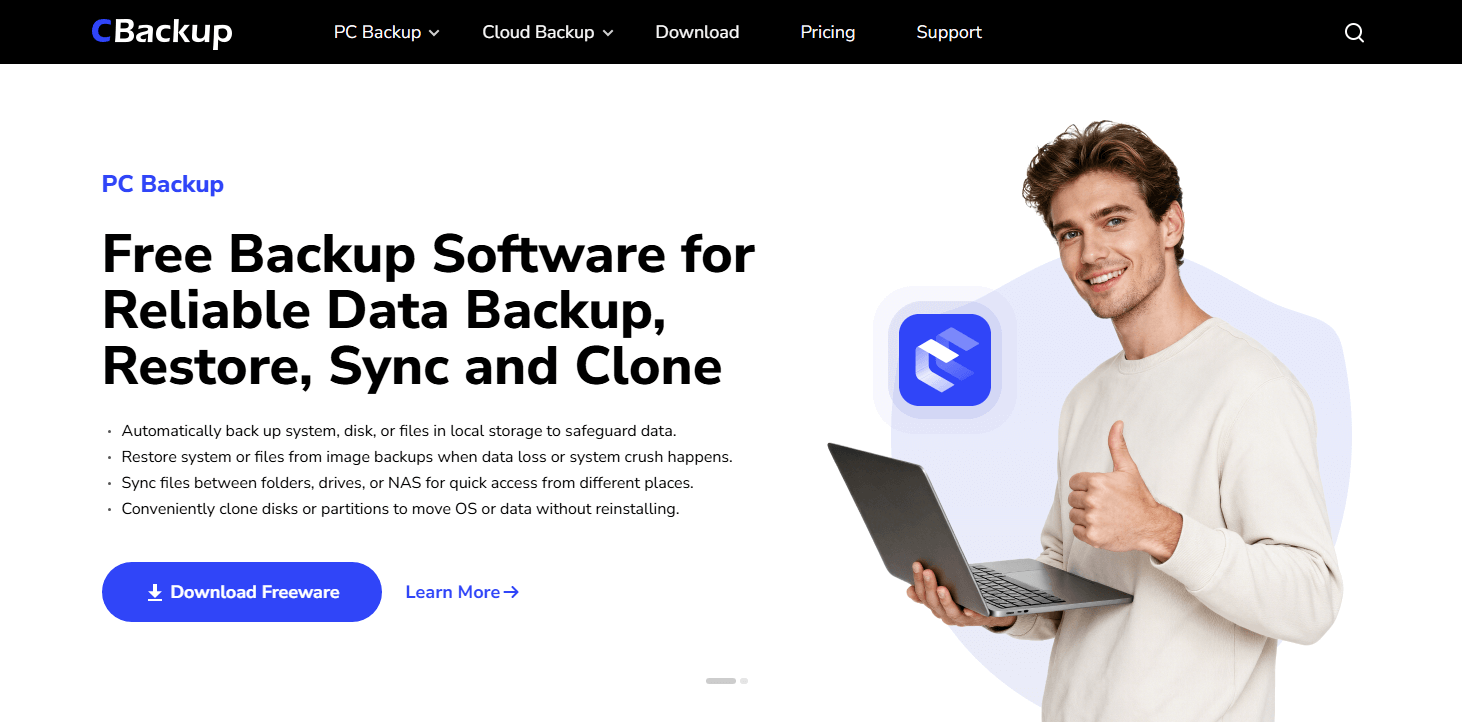
CBackup feels different from traditional tools because it is not tied to a single environment. During testing, it handled a mixed setup that included a NAS device and a local PC without requiring separate configurations. The setup process was straightforward, and even when configuring scheduled backups, the interface remained simple and clear. For those searching for the best apps for Synology NAS that work across multiple platforms, this flexibility is a significant advantage.
In repeated backup cycles of around 300 GB datasets, incremental updates completed significantly faster than the initial full backup. This shows that its change detection works efficiently, a core requirement for any high-quality Synology NAS backup software. By reducing the time spent on daily tasks, it stands out as a practical Synology backup app for both home and office environments.
Another noticeable advantage is the range of sync modes. Real-time sync worked reliably for frequently updated folders, while scheduled sync reduced system load during off-peak hours. Recovery testing was also smooth, with files restored without corruption or version mismatch. Consequently, it proves to be a reliable synchronization software in daily use.
The only drawback observed is that performance depends heavily on network conditions. When bandwidth fluctuates, backup speed can vary. While some users report inconsistent support response times, the core functionality remains stable. When compared to other nas backup software options, CBackup offers a unique, effective approach that complements a standard Synology backup software setup.
Key Points
| Category | Details |
|---|---|
| Pros | Flexible across NAS and Windows, easy setup, efficient incremental backup, cost-effective |
| Cons | Network dependent performance, support quality varies |
| Exclusive Features | Allows to create a bootable media to recover data when system crashes, and offers partition, system, disk clone features. |
2. Synology Active Backup for Business
Review
Synology Active Backup for Business is a reliable backup software for Synology NAS that delivers a highly optimized experience when used within its own ecosystem. In testing with a Synology NAS, the initial full backup of a large dataset took expected time, but subsequent incremental backups were extremely fast due to its global deduplication technology. Storage usage dropped significantly after repeated cycles, which makes it ideal for long-term backup strategies.
The interface centralizes multiple backup tasks, including PCs and servers, into one dashboard. This makes management straightforward, even when handling several devices. Recovery testing showed strong reliability. Full system restoration and file level recovery both worked without errors, and the process was guided step by step.
Another advantage is its stability. Even during continuous backup operations over several days, system performance remained consistent with minimal crashes or interruptions.
However, the biggest limitation is the hardware dependency. The software only works with Synology NAS devices, which reduces flexibility. Migrating to a different platform would require switching tools entirely.
Key Points
| Category | Details |
|---|---|
| Pros | Excellent deduplication, stable long term performance, centralized control |
| Cons | Locked to Synology hardware, limited flexibility |
| Exclusive Features | Global deduplication, agentless backup, unified recovery portal |
3. QNAP Hybrid Backup Sync
Review
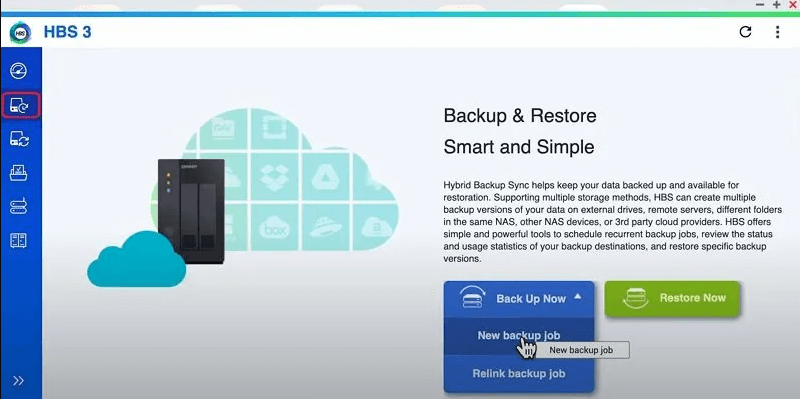
When it comes to NAS backup software, QNAP Hybrid Backup Sync offers a more flexible but slightly more technical experience compared to Synology. During testing, it handled simultaneous tasks such as NAS to NAS backup and NAS to cloud synchronization without major performance drops. This makes it suitable for users managing multiple storage targets.
Snapshot versioning is one of its strongest features. When simulating file corruption, it was possible to restore earlier versions quickly without re-running full backups. This significantly reduces recovery time and effort.
The tool also supports multi-destination workflows, allowing a single backup job to send data to different locations. This adds redundancy, which is important for disaster recovery planning.
On the downside, performance varies depending on hardware. Entry-level QNAP devices showed slower indexing and backup speeds, especially with large datasets. The interface can also feel complex at first, requiring some time to understand its full capabilities.
Key Points
| Category | Details |
|---|---|
| Pros | Flexible workflows, strong snapshot support, multi destination backup |
| Cons | Hardware dependent performance, steeper learning curve |
| Exclusive Features | Snapshot versioning, hybrid cloud sync, multi path backup |
4. Veeam Backup and Replication
Review
If you are looking for backup software for Synology NAS, Veeam Backup & Replication is built with enterprise environments in mind, which is evident during both setup and testing. It supports large-scale backup operations, including virtual machines and complex workloads, and maintains stable performance even under heavier system demands. Backup tasks generally complete reliably across different scenarios, proving it to be a powerful NAS backup software choice for professional infrastructures.
It is very flexible. In testing, it was possible to restore individual files, full virtual machines, or complete systems with relatively low disruption. Features such as instant recovery allow temporary access to critical data before the full restoration process is finished. This level of reliability is what many seek when evaluating the best apps for Synology NAS in a business context.
The platform also provides detailed reporting and monitoring tools. These give administrators clear visibility into backup activity, system status, and potential issues, helping support ongoing management and troubleshooting. When integrated as part of a Synology NAS backup software strategy, it offers unmatched oversight.
However, this level of power comes with complexity. The setup process requires technical knowledge, and the interface may feel overwhelming for beginners. While it is a top-tier Synology backup software for corporations, it is likely more than what most home users need for simple data protection.
Key Points
| Category | Details |
|---|---|
| Pros | Enterprise-level performance, advanced recovery options, scalable |
| Cons | Complex setup, not beginner-friendly |
| Exclusive Features | Instant VM recovery, application-aware backup, and advanced replication |
5. IDrive
Review
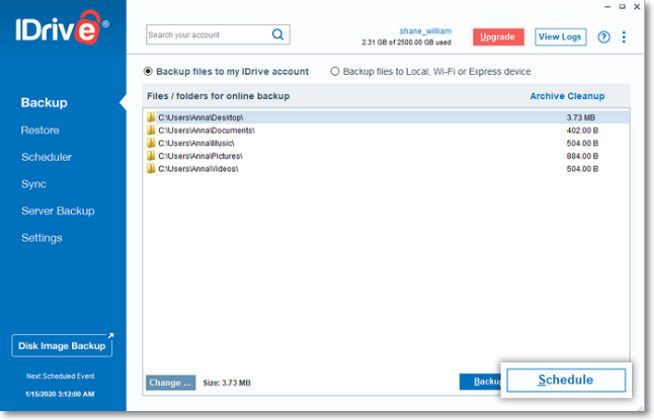
The NAS backup software IDrive provides a practical balance between simplicity and functionality. During testing, it handled moderate backup workloads well, especially for personal and small office use. Setting up NAS backup tasks was straightforward, and the interface did not require advanced knowledge.
Backup speeds were consistent for datasets under a few hundred gigabytes. Incremental backups reduced transfer time, making regular updates efficient. This efficiency is a core reason why many choose it as their primary Synology backup software, especially when managing multiple devices under one account.
File versioning also worked reliably, allowing recovery of previous file states without difficulty. This is particularly useful for accidental deletion or modification scenarios, ensuring that historical data remains accessible.
However, when dealing with very large datasets, performance can slow down compared to more advanced tools. It also lacks some enterprise-level features such as deep customization and advanced automation. While it remains a solid choice for everyday data protection, those with massive storage requirements might find it less robust than high-end alternatives.
Key Points
| Category | Details |
|---|---|
| Pros | Easy to use, affordable, supports multiple devices |
| Cons | Limited advanced features, slower with large backups |
| Exclusive Features | Continuous data protection, simple NAS integration, multi-device backup |
6. Acronis Cyber Protect Home Office
Review
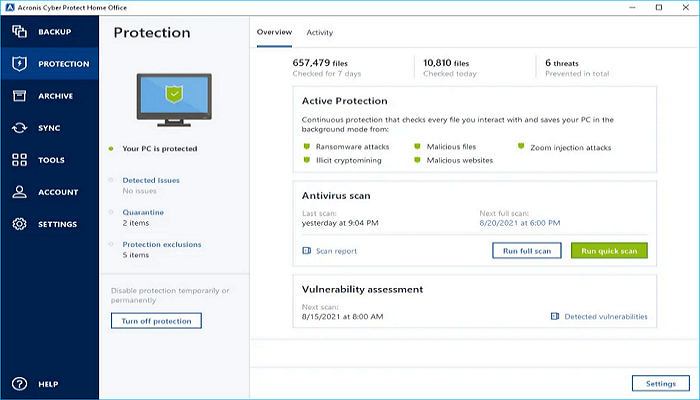
Acronis Cyber Protect Home Office combines backup with active security features, which makes it stand out from traditional solutions. During testing, it successfully detected and blocked simulated ransomware activity while maintaining backup integrity.
Backup operations themselves were stable, with consistent performance during both full and incremental backups. The integration of antivirus and backup in one platform reduces the need for multiple tools, simplifying system management. This makes it a strong contender for those looking for the best apps for Synology NAS that prioritize a multi-layered security approach.
Recovery was reliable, and files were restored without corruption. The interface is modern and relatively easy to navigate, even with its advanced capabilities. For users who value a clean user experience alongside powerful features, it remains a highly effective solution.
However, this added functionality comes at a cost. The software uses more system resources compared to other tools, and pricing is higher. Upload speeds to the cloud can also fluctuate depending on network conditions. While it is a premium option, its stability makes it a dependable choice for ensuring data integrity.
Key Points
| Category | Details |
|---|---|
| Pros | Strong security integration, reliable backup, all in one solution |
| Cons | Higher resource usage, premium pricing |
| Exclusive Features | AI ransomware protection, blockchain file verification, integrated cybersecurity |
Based on real testing scenarios, if you needthe most balanced solution across flexibility, usability, and cost, CBackup is a considerable choice. It is one of the few tools that truly connects NAS, cloud storage, and local environments without forcing users into a closed system.
Each of the other tools excels in specific areas, but CBackup provides the most practical all around experience for modern backup needs.
How to use the best Synology backup software in Windows?
After reviewing the top backup tools based on testing, you can learn how to use NAS backup software in a Windows environment. The following guide shares the basic steps to back up files to a NAS device on Windows. It ensures the process is easy to follow while still supporting reliable and efficient data protection. You can use it to back up NAS to NAS or the local to NAS.
Step 1. Download the NAS backup software on your computer.
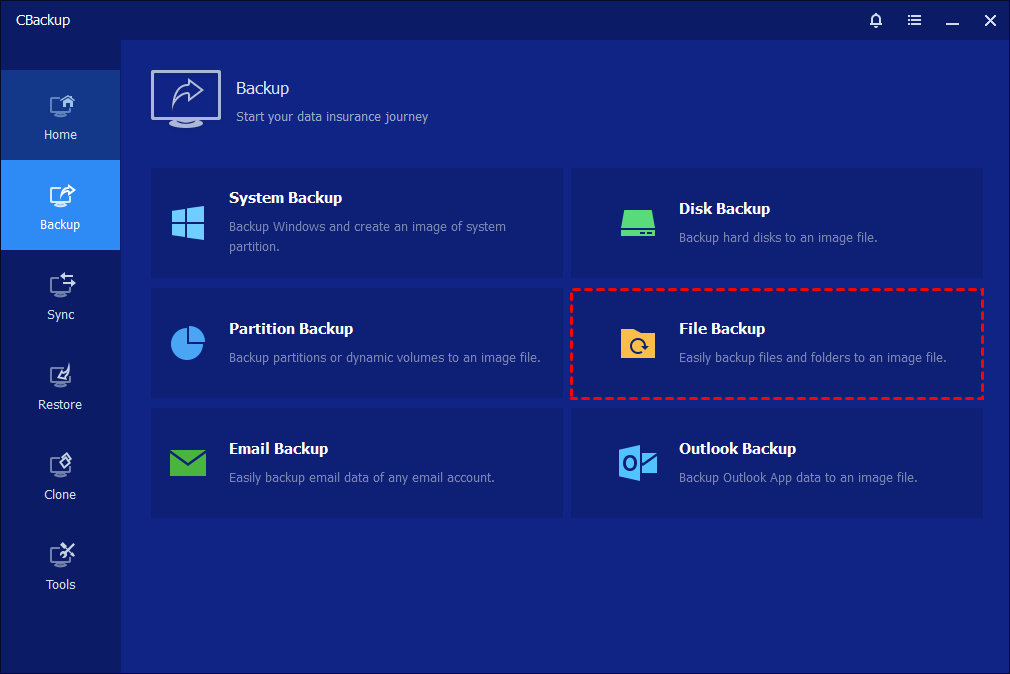
Step 2.Click Backup in the left menu, then select the File Backup option.
Step 3. Then you can click on Add File Folder.
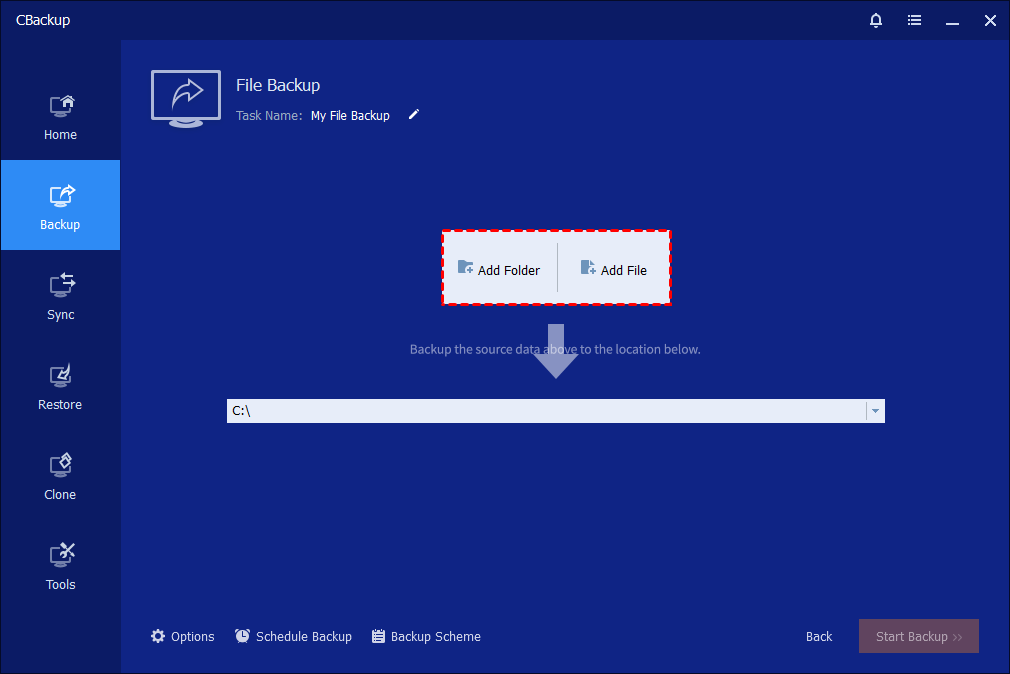
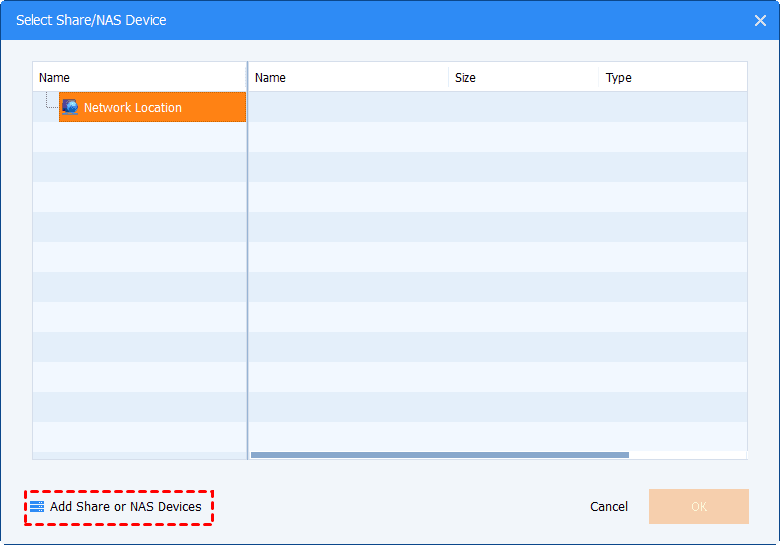
Step4. In the pop-up window, click on Share/NAS>Add Network Location to type the IP address. Then press OK to choose the folders you need to back up.
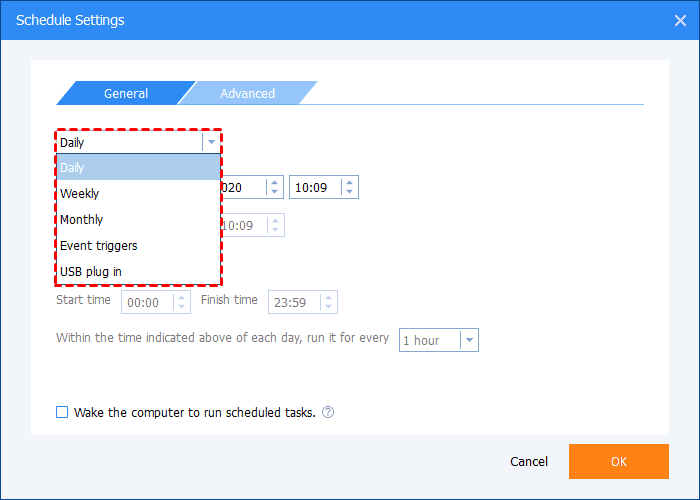
Step5. (Optional) You can use the Schedule feature to set up an auto-backup. Then Synology NAS backup software will perform the backups automatically with the selected frequency.
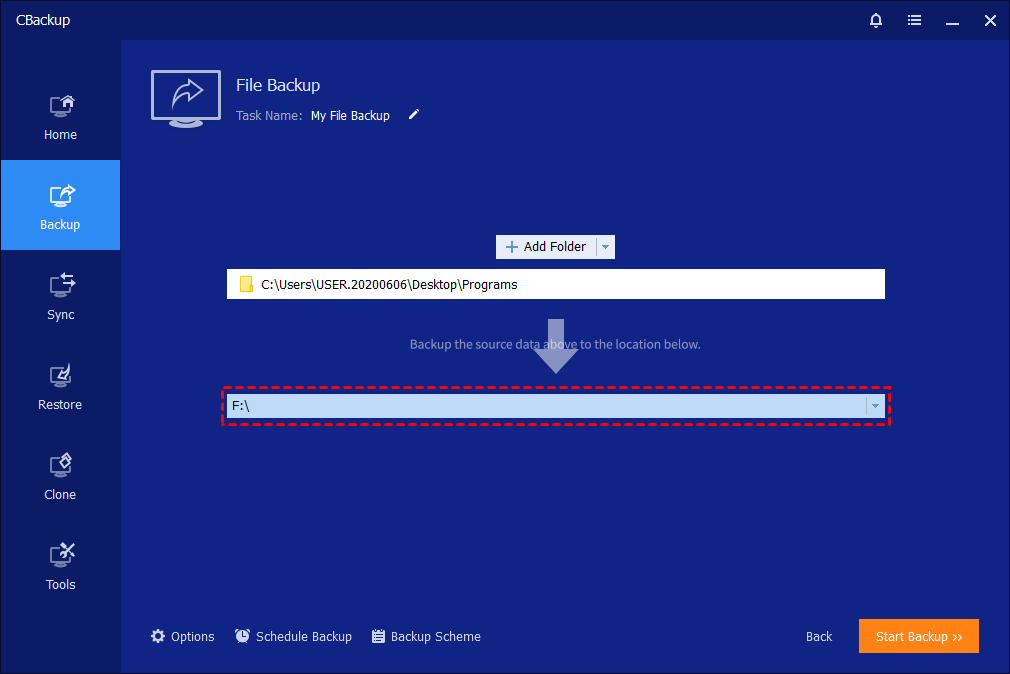
Step 6. After choosing the backup destination path, you can click the Start Backup button to begin the NAS backup.
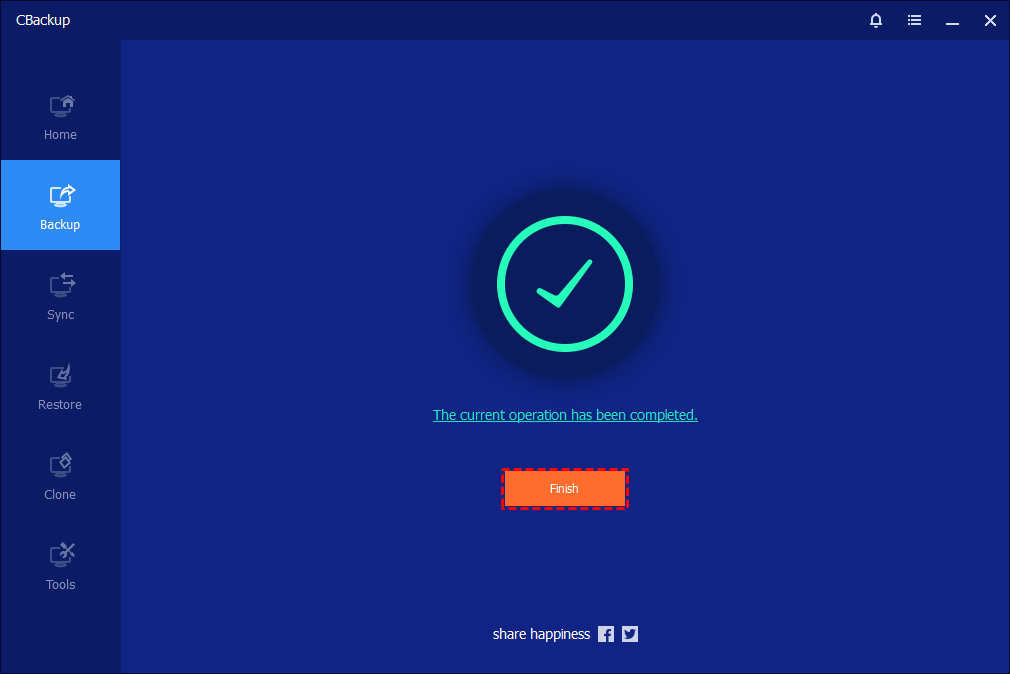
When the backup is running, you can also click the underlined sentence to check the backup process in detail.
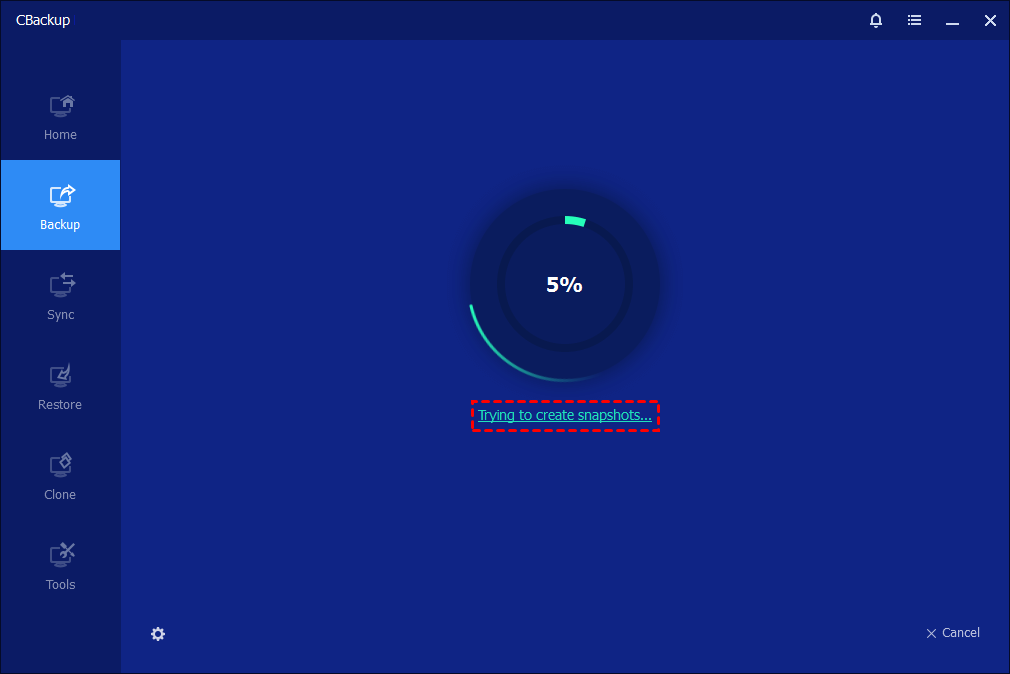
Then, please kindly wait for the backup process to complete, and then click the"Finish" button.
How We Tested NAS Backup Software?
We ran hands-on tests to see how NAS backup tools perform in real life. Each software was evaluated using actual NAS devices, local PCs, and cloud storage, simulating scenarios users face every day.
Testing Highlights:
-
Devices & Storage: Synology & QNAP NAS, Windows PCs, external HDDs, cloud accounts
-
Data Volume: ~250GB (documents, media, system backups)
-
Test Scenarios: Large file transfers, repeated incremental backups, disaster recovery, multi-device sync
-
Performance Metrics: Backup speed, incremental efficiency, CPU/network load, stability over multiple days
-
Other Factors: Ease of setup, interface usability, support responsiveness, pricing vs value
What Mattered Most:
-
Reliability: No corrupted backups; large-scale operations completed successfully
-
Compatibility: Worked across NAS brands, networks, and multiple storage targets
-
Flexibility: Supported full/incremental backups, scheduled or real-time sync, multi-destination workflows
-
Efficiency: Balanced speed with low resource usage
-
Usability & Support: Intuitive interface and responsive customer support
-
Value: Free or paid options considered; performance justified cost
The best NAS backup software consistently handled real-world workloads, restored files reliably, and offered flexible, efficient workflows across NAS, cloud, and local environments.
Network-Attached Storage (NAS): How It Works and Why It’s Essential for Data Backup
Network-attached storage (NAS) is a powerful solution designed to improve how individuals and businesses store, access, and protect their data. With fewer than 10 percent of businesses performing daily backups, the risk of data loss remains high, contributing to the rapid growth of the global backup market, now valued at around 10 billion dollars.
What is NAS? NAS is a dedicated storage device connected to a network, allowing multiple authorized users to access files from different locations and devices. It centralizes data while offering enhanced security and accessibility. By using RAID technology, NAS systems store data redundantly across multiple drives, greatly reducing the chance of data loss. Many modern NAS devices also integrate with cloud services, combining local and cloud storage for stronger protection.
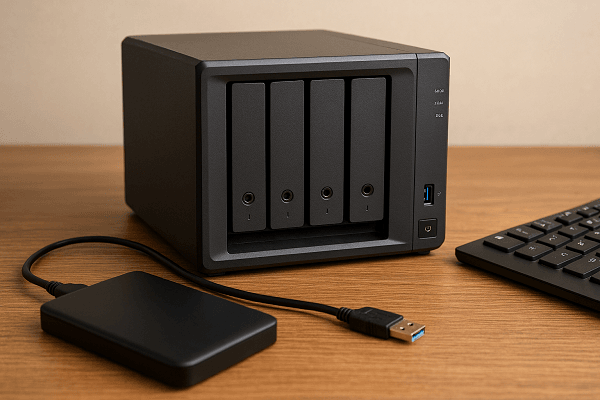
How NAS Works? NAS operates through a combination of hardware and software, using standard internet protocols such as TCP and IP to transfer data efficiently. It breaks data into packets and delivers them across the network, ensuring reliable communication. NAS systems also support multiple file formats, allowing seamless access from Windows, macOS, and Linux devices. Connectivity can be established via Ethernet for high speed local access or WiFi for remote use.
Why NAS Matters? Compared to traditional cloud storage, NAS offers greater control, faster transfer speeds, and more customization. It is particularly useful for handling large files and enabling near real-time collaboration. For businesses, NAS provides a cost-effective alternative to complex storage systems, offering scalable capacity, secure file sharing, and easy deployment.
Overall, NAS delivers a balanced combination of performance, security, and flexibility, making it a reliable choice for modern data backup and storage needs.
Conclusion
In conclusion, choosing the right NAS backup software is not just about comparing features, but about finding a solution that performs reliably in real-world conditions. Through practical testing across backup speed, incremental efficiency, and recovery accuracy, it becomes clear that the best tools are those that balance performance, flexibility, and ease of use.
At the same time, understanding how NAS works helps you build a stronger and more resilient backup strategy. By combining centralized storage with dependable backup software, you can ensure your data remains accessible, protected, and easy to recover in any situation. This synergy is vital for maintaining a robust defense against hardware failure or data corruption.
Whether you are an individual user or managing business data, investing in a reliable NAS backup solution will give you long-term security and peace of mind in an increasingly data-driven environment. Prioritizing stability ensures that your most important files are always within reach when you need them most.
FAQs
🧐 What is the best way to back up a NAS?
The best way is to follow the 3-2-1 backup strategy: keep 3 copies of your data, store them on 2 different types of storage, and keep 1 copy offsite. This usually involves backing up your NAS to cloud storage, another NAS, or an external drive with incremental backups and versioning enabled.
🧐 What is a NAS backup system?
A NAS backup system is a solution that protects data stored on a Network Attached Storage device by creating secure copies in other locations. It typically includes backup software, scheduled tasks, and recovery tools to ensure data can be restored quickly after loss or failure.
🧐 Is Synology backup free?
Yes, Synology provides free backup tools such as Active Backup for Business with its NAS devices. Once you own the hardware, you can use these tools without additional licensing costs.
🧐 What is the best backup for Synology?
CBackup is one of the best backup solutions for Synology because it offers strong flexibility across NAS and local environments. It is easy to set up, supports incremental backups, and allows you to create a more complete and reliable backup system without being limited to a single ecosystem.
🧐 What is a NAS backup system?
A NAS backup system is a solution that protects data stored on a Network Attached Storage device by creating secure copies in other locations. It typically relies on NAS backup software or sync backup software to automate backup tasks, manage versions, and ensure data can be restored quickly after loss or failure.
🧐 What is the best backup for Synology?
CBackup is considered one of the best options among Synology backup software because it offers strong flexibility across NAS and local environments. As a reliable tool, it supports incremental backups, easy setup, and efficient data management, making it a practical choice.
Free Get CBackup Now

Secure & Free
