


[Full Guide] How to Backup Entire Hard Drive?
A reliable Windows full backup is essential for data safety. This article explores effective PC backup software to help users perform a complete system backup of an entire hard drive easily.

By Irene Updated April 21, 2026


🌟 Quick Overview: Securing Your Entire Windows System
- The Core Concept: A complete system backup provides comprehensive protection by capturing a snapshot of the entire Windows operating system, installed applications, and registry settings, rather than just isolated personal files.
- Preparation Requirements: A successful full backup requires an external hard drive (HDD or SSD) formatted to the NTFS file system, offering a storage capacity larger than the computer's current data footprint.
- The Recommended Solution: Utilizing dedicated third-party software, such as CBackup, is the most efficient method for creating full system images, providing automated scheduling and high-speed transfers that bypass the limitations of native utilities.
- Built-in Windows Alternatives: Windows offers File History for securing specific personal documents and Backup and Restore (Windows 7) for basic system images, though these legacy tools often lack modern flexibility and error handling.
- Long-Term Maintenance: A robust data protection strategy involves configuring automated daily or weekly backups, periodically testing the restoration process, and creating a bootable rescue USB drive for critical system failures.
How to Backup Entire Hard Drive

Before you starting, please take a few minutes to prepare your external drive. This helps avoid errors and makes the whole process smoother.
1. Choose the right drive
Pick an external drive that has more space than your current data. For example, if your computer uses 500GB, go for at least 1TB. This gives you extra room for future files and backups.
You can choose:
- HDD: cheaper, good for storage
- SSD: faster, better performance
2. Format it properly
Make sure the drive uses the NTFS file system. It works best with Windows and supports large files.
Avoid FAT32, because it cannot handle files larger than 4GB.
3. Connect it securely
Plug the drive directly into your computer (preferably a back USB port on a desktop).
Avoid USB hubs or weak connections, as they can cause errors during long transfers.
Method 1. Use A Professional PC Backup Software
For a simple and secure way to back up your PC or external hard drive, skip the limited built-in Windows features and use a professional tool. Dedicated software like CBackup provides high-speed, reliable protection for your entire system. From a clean, central dashboard, you can effortlessly manage local, external, and cloud backups—whether you are saving a few work folders or performing a full Windows system backup.
Using a specialized tool like CBackup provides several clear advantages for everyday users:
| Feature | Advantage |
|---|---|
| Flexible Storage Options | Save data locally to external drives, NAS, or network locations without being forced into cloud subscriptions. |
| Complete System Protection | Create full disk images and bootable media to quickly recover from crashes, hardware failures, or ransomware. |
| Smart Automation | Schedule automatic backups to continuously protect your files without any manual effort. |
| Efficient Performance | Enjoy fast, user-friendly operation with high compression rates that save valuable storage space. |
| Versatile Editions | Use the permanent free version for daily file and email backups, or upgrade to Professional/Technician editions for deeper system control. |
Backing up your computer to an external hard drive is incredibly straightforward. After installing the software, open the app and select your entire hard drive or specific files as the source. Next, choose your connected external drive as the destination. Confirm your settings, click start, and the program handles the rest.
However, a single backup quickly becomes outdated as you create and edit files. To keep your data fully secure, it is essential to set up automatic computer backups on a regular schedule. This automated approach ensures your latest information is consistently copied to your external drive, providing complete peace of mind with zero manual effort.
Step 1. Install reliable PC backup software to perform a complete system backup or Windows full backup. Then, make sure your external hard drive is properly connected to a high-speed USB port so you can smoothly back up your entire hard drive without interruptions.
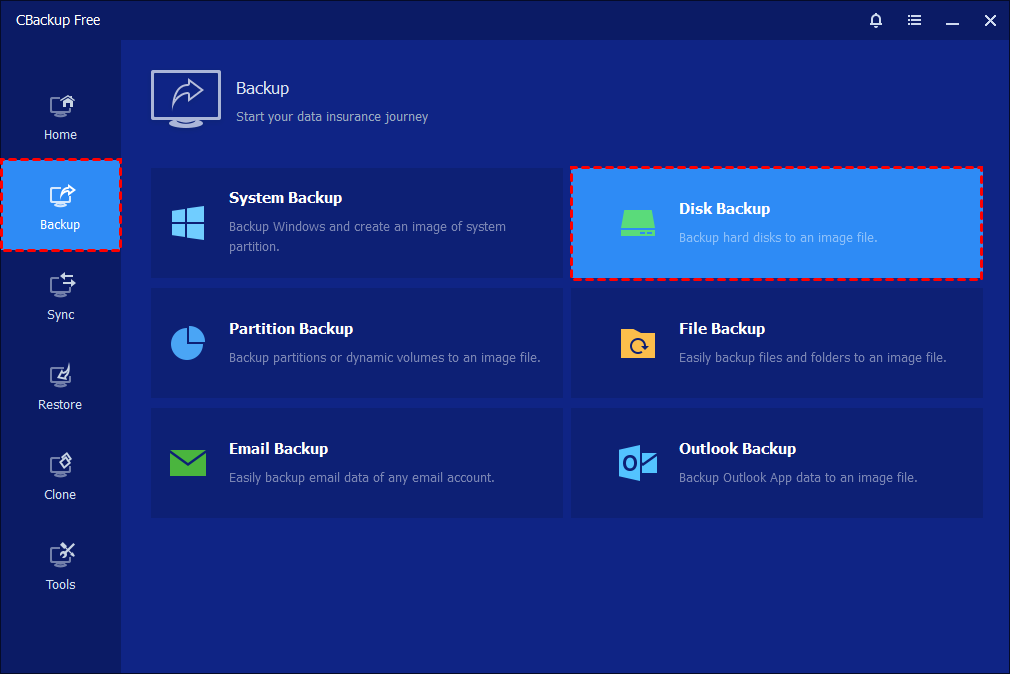
Step 2. Open CBackup and select Disk Backup. If you only need to back up specific files, you can choose File Backup instead.
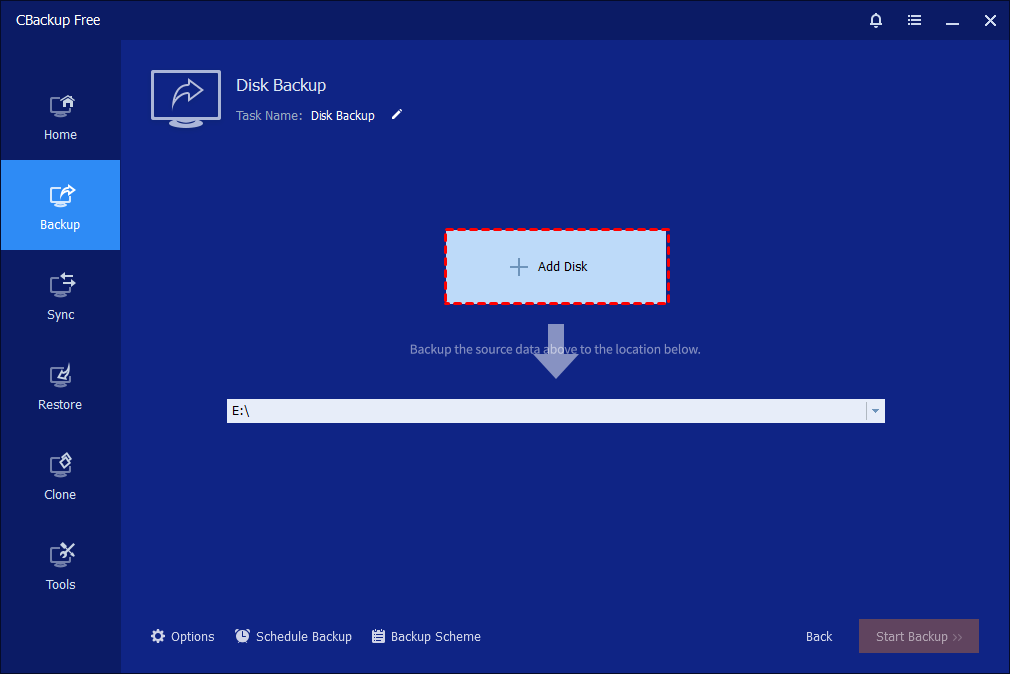
Step 3. Click Add Disk to select the disk you want to back up.
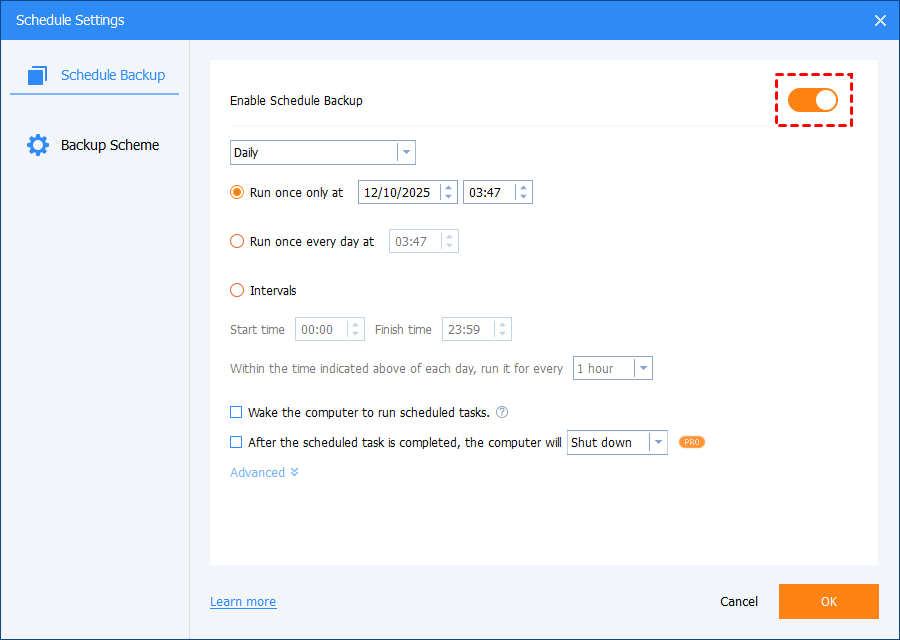
To manage automated computer backups, go to the Schedule Backup settings at the bottom of the interface.
Click Enable Schedule Backup to turn it on. Once enabled, the PC backup software will automatically run your Windows full backup or complete system backup based on the schedule you set, ensuring your entire hard drive is regularly backed up to an external hard drive.
If you turn off Enable Schedule Backup, the backup task will stop running automatically and your hard drive backup will no longer follow the scheduled plan.
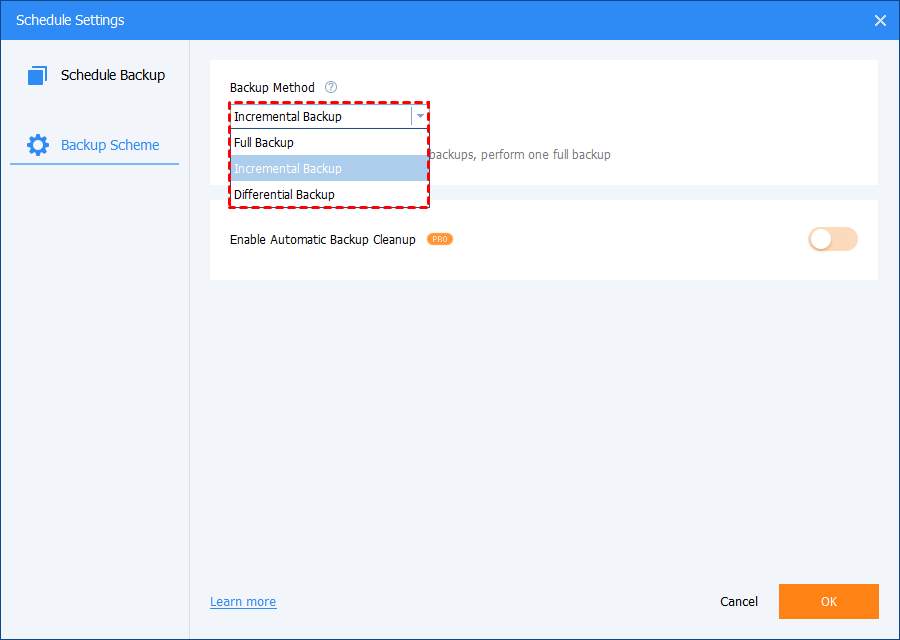
There are three backup methods: Full Backup, Incremental Backup, and Differential Backup. As for the differences between the three backup methods, please refer to Differences between Backup Methods.
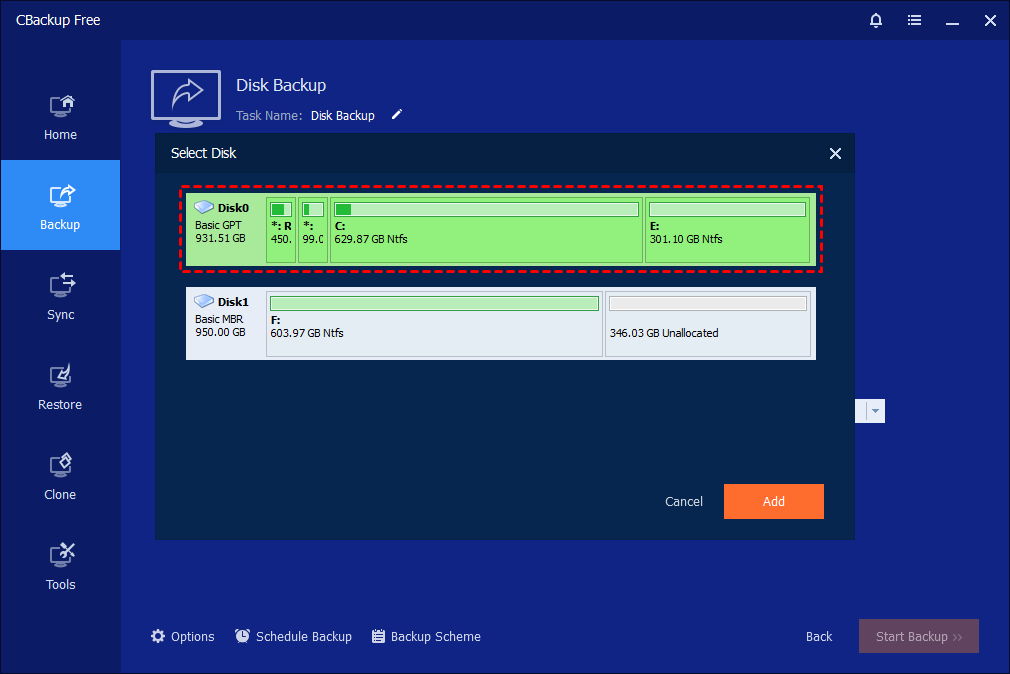
Step 4. In the pop-up window, select the source disk you want to include in your entire hard drive backup. You can also add multiple disks to a single task, allowing the PC backup software to create a complete system backup or Windows full backup in one operation.
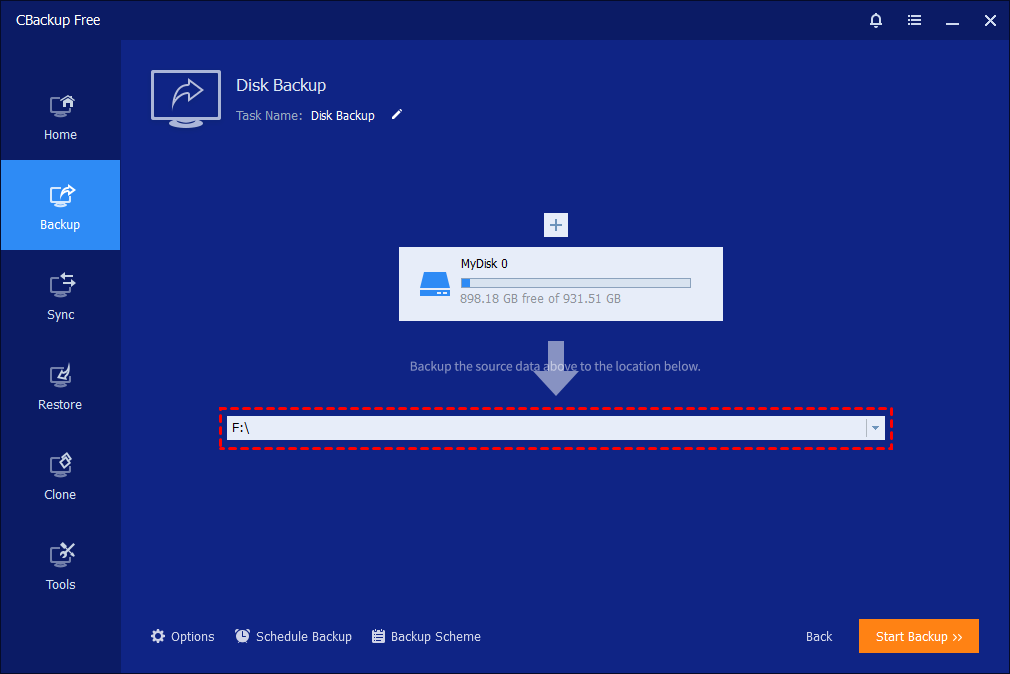
Step 5. Under the destination column, choose your external hard drive to store the backup. Click Start Backup to run the backup task.
Step 6. Wait for the backup process to finish, then click Finish.

Method 2. Backup computer files with File History
File History is a built-in Windows backup utility, that helps you set up Windows auto backup with ease. While it’s not designed for a full Windows full backup or complete system backup, it is useful for protecting important personal files before performing a full hard drive backup. With this tool, you can automatically back up files such as documents, pictures, and videos to an external hard drive or a network location—making it a helpful part of your overall PC backup strategy. You can follow the step-by-step guide below to back up your files to an external hard drive on Windows 10 or other supported systems.
Step 1. Click on the Windows Start button, select Settings, and go to Update & Security.
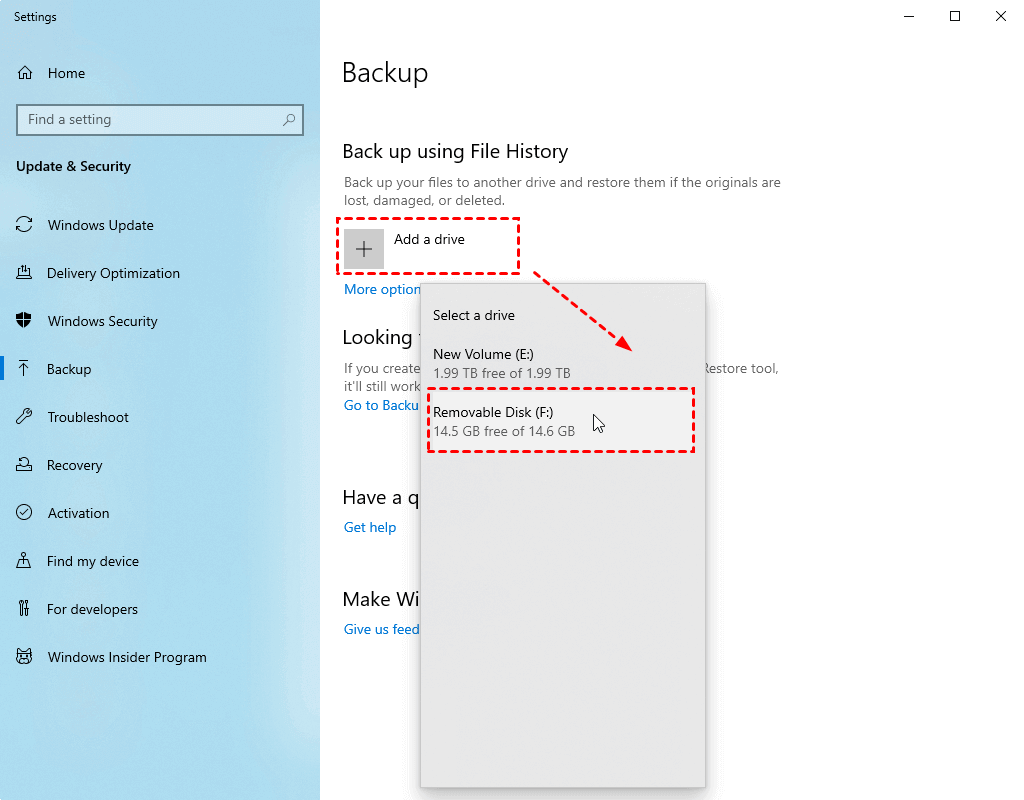
Step 2. Tap Backup on the left panel and click Add a drive.
Step 3. Select the location you want to save computer file backups.
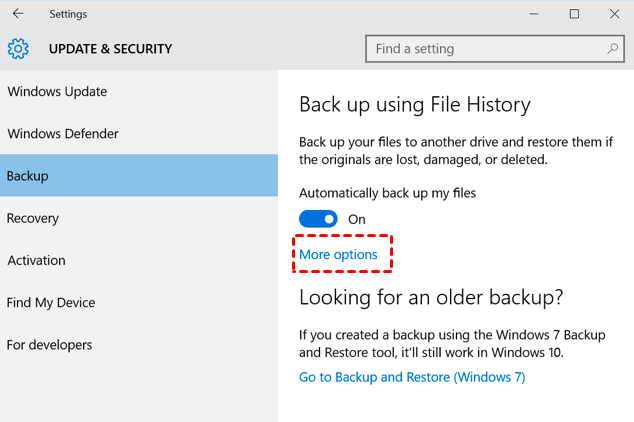
Step 4. Press the More options button, configure your backup schedule, and choose the files and folders you need to backup.
Step 5. Click Back up now to start a Windows 10 backup.
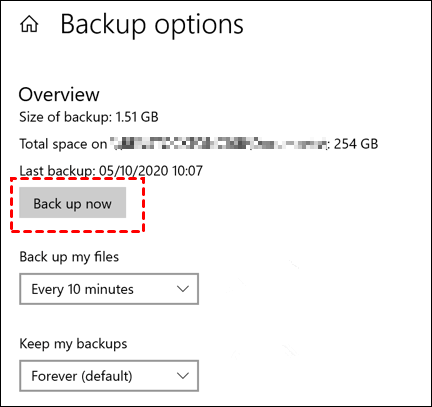
However, File History has limitations for computer backups, as it is not available on Windows 7 and requires your external hard drive to stay constantly connected, making it less flexible than using PC backup software for a full hard drive backup or Windows full backup.
Method 3. Backup computer data using Backup and Restore
You can also use Backup and Restore, another built-in Windows tool, to back up your computer, including files, system drives (OS, settings, folders, libraries), and non-system partitions as part of a complete system backup or Windows full backup. It supports multiple backup destinations such as local disks, external hard drives, USB drives, CDs/DVDs, and network locations, making it easy to back up your entire hard drive to an external hard drive or other storage devices. Here are step-by-step guides on how to back up your computer to an external hard drive and perform a full hard drive backup using this tool.
Step 1. Open Control Panel, go to System and Security, and then click Backup and Restore (Windows 7).
Step 2. Click the Set up backup position.
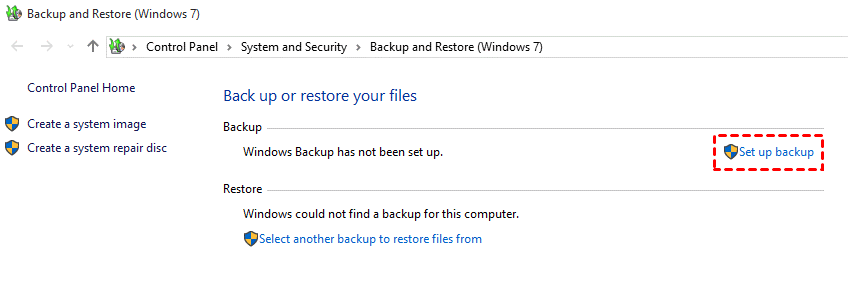
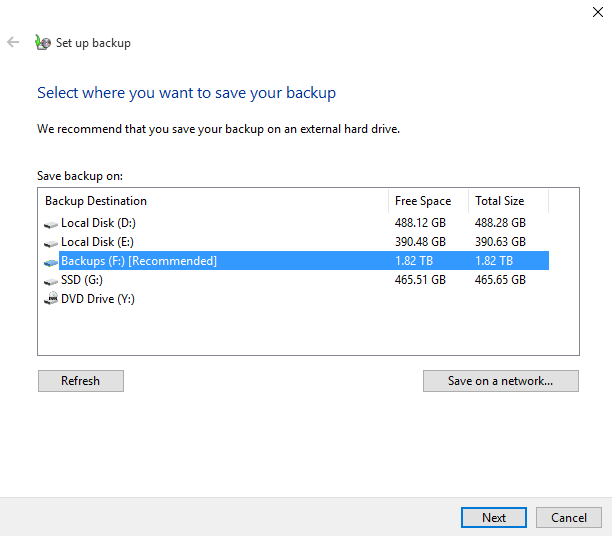
Step 3. Choose a destination location to save the backup file and click Next.
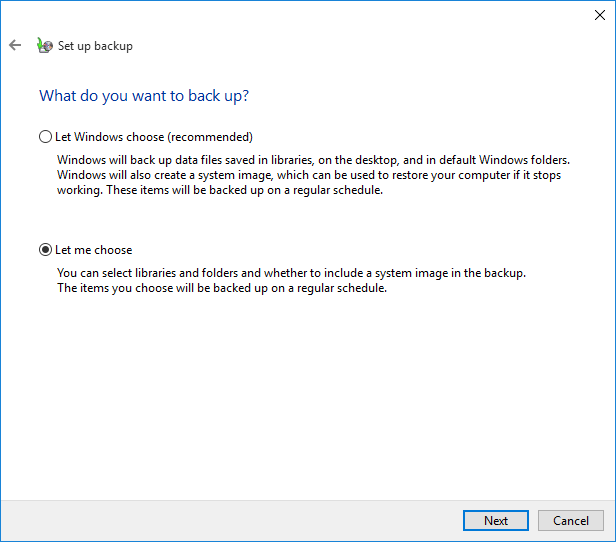
Step 4. Select the Let Windows choose option if you want to backup all the user files. Or, you can pick Let me choose to select and backup files as needed. Then, hit Next.
Step 5. Review the backup task and tap Save settings and run backup to start a file backup.
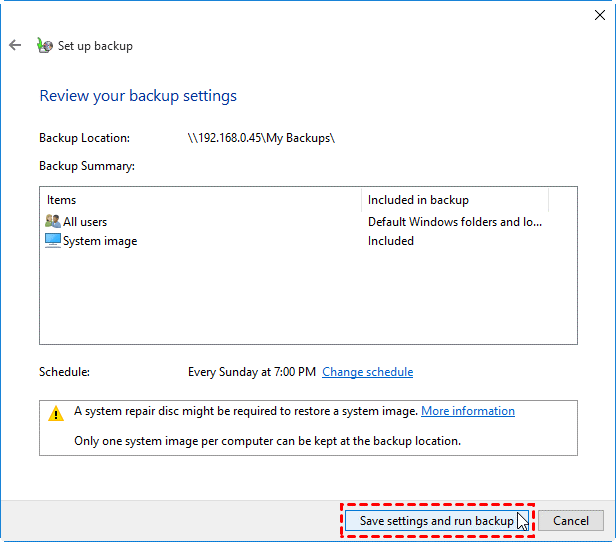
It should be noted that the Windows Backup and Restore utility has limitations for complete system backup, as it does not allow you to back up files in system folders or include disks and partitions without drive letters when performing a hard drive backup or Windows full backup.
Why You Need to Backup Entire Hard Drive
Many computer users make the incredibly common mistake of only saving their most obvious personal files—such as a few important Word documents, a spreadsheet, or a folder of recent photographs. While saving individual files is certainly better than having no strategy at all, it leaves a massive vulnerability in your system's overall security and functionality. If your primary disk suffers a critical mechanical failure, or if your operating system becomes irrevocably corrupted by a vicious malware infection, simply having isolated copies of your documents will not get your computer running again. You will be forced to spend hours, if not days, reinstalling your operating system, hunting down and reinstalling all your applications, and painstakingly reconfiguring all your system settings and user preferences.
When you backup entire hard drive, you are doing much more than just saving loose files; you are capturing a perfect, comprehensive snapshot of your computer at that exact moment in time. This snapshot includes the operating system itself, every single installed application, complex system registries, hidden files, user profiles, and all of your personal data. By having this complete image, you guarantee that if a disaster strikes, you can restore your computer to its exact previous state with minimal downtime, saving yourself from immense frustration.
The Severe Risks of Incomplete Data Protection
Failing to secure your entire system leaves you open to several severe and potentially costly risks:
-
Hardware Failure:Hard disk drives (HDDs) and Solid State Drives (SSDs) have limited lifespans and can fail without warning due to physical wear and tear or electronic degradation.
-
Malware and Ransomware:Malicious software can encrypt your entire drive in a matter of minutes, rendering your operating system unbootable and your precious files completely inaccessible.
-
Accidental Deletion and Formatting:Human error remains a leading cause of data loss. Accidentally formatting the wrong partition or deleting crucial system directories can wipe out critical system files instantly.
What is a Windows Full Backup?
For users operating within the Microsoft ecosystem, a Windows Full Backup (often referred to as a "System Image") is a critical, non-negotiable maintenance task. Unlike a simple file backup that only saves your documents or photos, a full backup captures a "snapshot" of your entire digital environment.
What is the Complete System Backup?
Acomplete system backup(often referred to as an image backup or disk image) is widely considered the gold standard of computer data protection. Unlike standard file-level archiving that simply copies designated files from one location to another, a system image operates at the fundamental block level of your storage drive. It meticulously records the exact state of every sector on your hard drive, ensuring that the intricate relationships between system files, application data, and the crucial boot sector are perfectly preserved.
When you utilize a system image approach, you are securing the very foundation of your digital environment. If your primary hard drive physically breaks, you cannot simply paste your copied documents onto a new, empty drive and expect the computer to miraculously work. A computer requires a functioning operating system and a properly configured boot sector to start up. A system image contains these essential elements. By restoring an image to a new drive, the new drive becomes an exact, fully functional replica of the old one, allowing you to boot up and resume your work immediately as if the hardware failure never occurred.
What Does a Full Backup Include?
A comprehensive Windows backup creates an exhaustive archive of the following:
- The System Drive (C:): Every file, folder, and hidden system file.
- Operating System Files: The Windows installation itself, including updates and patches.
- Applications and Settings: All installed software, registry keys, and personalized configurations.
- Boot Partitions: The hidden partitions required for Windows to initialize and operate smoothly.
How Backup Tools Have Evolved?
In the past, most users relied on simple built in features to copy files or create basic system backups. Today, with larger files, cloud storage, and more complex systems, backup tools have become more advanced and flexible, offering smarter and more reliable ways to keep your data safe.
1. Native Windows Tools (The "Legacy" Approach)
Windows still includes the Backup and Restore (Windows 7) tool. While functional, these native utilities often lag behind modern standards:
- Performance: They can be significantly slower than modern alternatives.
- User Experience: Interfaces are often dated and less intuitive.
- Reliability: Native tools are notorious for displaying cryptic error messages during the restoration process—the exact moment when you need them to work perfectly.
2. Third-Party Specialized Solutions
Because of the limitations of built-in tools, both IT professionals and power users typically turn to dedicated third-party software. These solutions offer:
- Advanced Features: Such as compression, encryption, and incremental updates.
- Flexibility: The ability to restore to different hardware or "cloud-seed" backups.
- Speed & Stability: More robust engines that handle large data volumes efficiently and securely.
A full backup acts as your safety net. If a total drive failure or a serious malware attack occurs, it lets you restore your entire computer to its exact previous state, saving hours or even days of manual reinstallation.
Further Reading: Advanced Maintenance Tips for Long-Term Security
Creating your very first system image is merely the starting point of a comprehensive data protection strategy. To achieve true security and maintain long-term peace of mind, it is essential to adopt ongoing maintenance habits. Simply backing up your data once is not enough to safeguard against unexpected hardware failures, software crashes, or physical disasters. By implementing proactive measures, you can ensure that your system and critical files remain completely recoverable whenever you might need them most.
-
Regularly Test Your Restorations:An archive is only reliable if it actually works. Periodically perform test restorations without overwriting your working system. By using advanced tools like CBackup to mount your image as a virtual drive in Windows Explorer, you can easily verify that your data is correctly captured and fully accessible.
-
Create and Update Bootable Rescue Media:Prepare a bootable rescue USB drive immediately after installing your software to ensure you are never locked out during a critical crash. Furthermore, always recreate this media after major software updates so it contains the latest hardware drivers, and store it in a safe, memorable location.
-
Implement Local Redundancy:Protect against the mechanical failure, theft, or loss of a single external drive by purchasing a secondary one. Alternate your scheduled backup tasks between the two drives (e.g., weekly rotations) and store one in a separate, secure physical location like a fireproof safe to guarantee a surviving copy in case of a local disaster.
In conclusion, a robust long-term security strategy requires continuous effort beyond just setting up an initial backup. By regularly verifying the integrity of your archives, keeping your emergency rescue media strictly up to date, and maintaining redundant physical copies of your data in separate locations, you build a highly resilient safety net. These advanced maintenance practices guarantee that your critical information remains secure, accessible, and ready for deployment no matter what unexpected technical or physical challenges may arise.
Conclusion
The digital data we generate and collect on a daily basis is often irreplaceable, making robust, locally managed protection strategies non-negotiable for anyone who values their time and information. Relying on simple file copies leaves your complex operating environment entirely vulnerable to a catastrophic failure. To truly secure your digital life, you must fully commit to a comprehensive strategy that involves an ability to backup entire hard drive.
By deeply understanding the mechanics of a complete system backup and executing a Windows full backup regularly, you build an impenetrable wall against permanent data loss. Knowing exactly how to backup computer to external hard drive provides a fast, incredibly secure, and completely locally controlled method for archiving your crucial system states. However, the ultimate success of this strategy relies heavily on the quality of the tools you choose to employ.
By utilizing premium PC backup software like CBackup, you gain immediate access to powerful automation, highly efficient local storage management, and flawlessly reliable recovery options. Do not wait for a devastating hardware crash, a stressful system failure, or a malicious malware attack to highlight the absolute necessity of data protection. Take proactive, decisive steps today, secure your system locally with CBackup, and enjoy the permanent peace of mind that comes from knowing your digital world is entirely safe, secure, and effortlessly recoverable.
FAQs
🗨️ Can I backup my entire hard drive?
Yes, you can back up your entire hard drive. This is called a full backup or disk image. It copies everything on your drive, including your operating system, programs, settings, and files, so you can restore your computer exactly as it was if something goes wrong.
🗨️ What is the 321 backup rule?
The 321 backup rule is a simple way to protect your data. Keep three copies of your data, store them on two different types of storage, and keep one copy in a separate location. This helps reduce the risk of losing everything due to hardware failure, accidents, or cyber threats.
🗨️ How to make a full drive backup?
To make a full drive backup, you can use backup software like CBackup. Install the tool, choose the disk backup option, select your entire drive, and pick a destination such as an external drive. Then start the backup process and let the software create a complete image of your system.
🗨️ What is the main disadvantage of a full backup?
The main disadvantage of a full backup is that it takes more time and storage space compared to other backup methods. Since it copies everything every time, it can be slower and less efficient, especially for large drives.
🗨️ What should you avoid doing with backup files?
You should avoid storing backup files in only one place or on the same drive as your original data. It is also important not to modify or delete backup files carelessly, as this can make them unusable when you need them most.
Free Get CBackup Now

Secure & Free
