
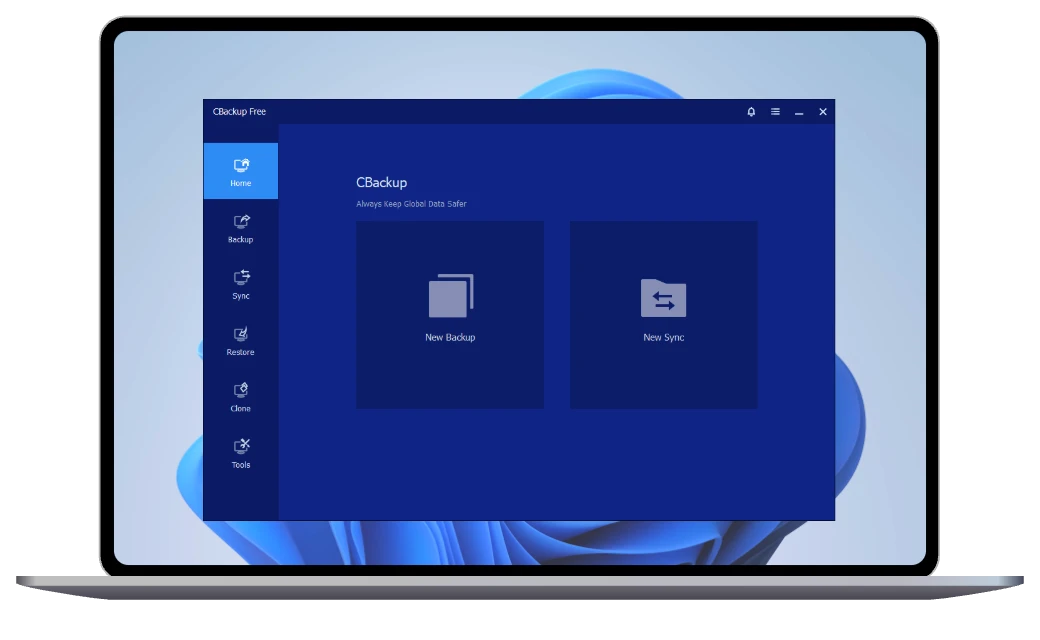



Quickly generate an exact backup of your system drive, covering Windows, files, software, and settings without disrupting your work.
Produce a full backup image of chosen hard drives or dynamic disks, supporting internal drives, external disks, USB flash devices, and any storage recognized by Windows.
Use free disk backup software to store selected partitions or volumes as compressed image files.
Combine office documents, pictures, videos, audio files, and program data into one backup image.
Back up only modified data since the last operation, whether performing a full or incremental backup.
Set up automatic backups with Windows 11 backup tools on a daily, weekly, or monthly basis to fit your schedule.
Trigger backups automatically when certain events occur, such as system startup, shutdown, login, or logout.
Launch backup tasks instantly when a USB device is plugged in, covering system, disks, folders, or files according to your preferences.
Easily backup to your local disk, external hard drive, USB flash drive, CD/DVDs, network shared folders, and NAS devices.
Effortlessly protect and restore complete or selected email content, including messages and contacts with email backup tools. Compatible with all leading email providers. Upgrade >>
Secure all Outlook data, such as emails, contacts, notes, calendars, and tasks, on local, external, or network drives, with support for Gmail, Hotmail, and other accounts linked to Outlook. Upgrade >>
Automatically remove outdated backup images based on time or quantity to free up storage space. Upgrade >>
Recover your system partition either within Windows or using a bootable media, guaranteeing it remains bootable after restoration.
Restore a disk backup to its original drive or to a new HDD/SSD, or return partitions to their saved condition.
Rapidly retrieve lost, removed, or damaged files and folders, or roll back to an earlier version using backup images.
Restore a backup image to a different computer with unmatched hardware, or transfer the operating system from a physical machine to a virtual one (P2V) through backup and recovery. Upgrade >>
Use free file sync software CBackup to keep files consistent across drives or computers.
Create scheduled sync tasks, perfect for users who need daily, weekly, or monthly updates.
Check file integrity during synchronization to ensure everything is copied correctly.
If a file is removed from the source folder, it will also be removed from the destination folder.
Keep the destination folder identical to the source and remove any files that don’t match via this sync software. Upgrade >>
Apply all file changes, additions, and deletions from either the source or destination folder to the other location. Upgrade >>
Track file changes in real time and instantly sync new, modified, or deleted files from the source to the destination. Upgrade >>
Make an identical copy of your non-system drive and transfer it to another disk for upgrades or backup purposes.
Seamlessly clone partitions or dynamic volumes to move large datasets while keeping the file layout, settings, and structure intact.
Properly align partitions to boost SSD performance and prolong its durability by this powerful disk clone software, CBackup.
Clone every sector—used or unused—even if some contain logical bad sectors.
Clone an old computer’s disk and use the disk directly on another computer. All Windows systems and servers are supported.
Move your operating system to an SSD or HDD without reinstalling Windows or programs, ensuring the new drive boots successfully. Compatible with MBR/GPT formats, UEFI mode, and mSATA/M.2/PCI-E SSDs. Upgrade >>
Adjust partition sizes on the target drive manually during the cloning process. Upgrade >>
When cloning from a smaller drive to a larger one, allocate the extra space across all partitions. Upgrade >>
Build Windows PE or Linux bootable media to recover backups if Windows won’t start, with the option to add drivers for better hardware support.
Minimize backup image size with advanced compression technology to conserve storage space.
Split backup image files into smaller parts or adapt them to specific media sizes.
Verify that backup images are intact and capable of being restored without errors.
Keep track of program operations and monitor backup progress in detail.
Save backup tasks to a file for easy export or import, simplifying task management and transfer.
Combine full backups with incremental backups into one image for simpler restoration and reduced space usage.
Set up email alerts to automatically receive updates on backup completion. Upgrade >>
Set a password to protect your backups from being accessed by hackers and unauthorized parties. Upgrade >>
Double-click the generated *.adi or *.afi image files to open them in Windows Explorer and directly view or copy the backed-up data. Upgrade >>
Create a CBackup recovery environment and add it to the Windows boot menu for quick backup and restore when the system fails. Upgrade >>
Copy CBackup onto a portable device to run it directly on target machines without installation—ideal for IT support and maintenance. Upgrade >>

90-Day Unconditional
Money Back Guarantee

Perpetual Free
Technical Support

License Code
Immediate Delivery

256-Bit SSL
Secure Order
CBackup has been dedicated to providing reliable, intuitive, and powerful solutions for data backup, system recovery, and disk cloning, serving both personal and business users.

CBackup features an intuitive user interface and automatic protection, making data backup and recovery effortless and ensuring your files are constantly safeguarded without manual intervention.

The backup and restore features of CBackup always keep the highest success rate, enabling businesses to get back on track within minutes during data disasters, while continuously enhancing both efficiency and data security.

CBackup applies 256-bit AES Encryption for all users and strictly observe GDPR. With automatic and encrypted backup, reliable recovery, safe hardware migration, your data remains fully protected, compliant, and accessible.
Most awarded, highly recommended. We do this because we know the importance of data safety. But don't just take our word for it.


CBackup software completes the work in a simple and direct way. When you’re backing up your Windows to an internal drive, external disk, or NAS, it’s certainly speedy.

CBackup delivers dependable backup and recovery capabilities, making it an excellent choice for both personal and business environments.

From disk clone software to automated scheduling backup, CBackup offers everything needed for robust data protection.


CBackup provides professional-grade Windows backup solutions without the complexity, ideal for organizations of any size.
I used CBackup as my Windows backup software for several times, and it helped me a lot, restore all my files and folders I have when I lost them in my computer. Thanks, thanks, thanks...
CBackup is incredibly reliable. I set up my backups once, and they’ve been running perfectly ever since. It gives me peace of mind knowing my files are always safe.
I had a hard drive failure last month, and thanks to CBackup, I restored everything in just a few clicks. It’s fast, easy to use, and truly a lifesaver.
It’s amazing that such a great tool is free. CBackup is better than several paid programs I’ve used, and I recommend it to anyone who wants a dependable Windows backup solution.
Download CBackup today to protect your data with fast, reliable, and secure backup solutions—ensuring peace of mind for both personal and business use!
Download Freeware