


5 Best System Image Backup Software for Disaster Recovery
This overview explores several best system image backup software and disk cloning options. Readers will learn how a free disaster recovery system can effectively protect your data.

By Irene Updated April 21, 2026


🌟 Conclusion First:
1. The Value of System Image Backups
-
Complete System Snapshots: Unlike basic drag-and-drop file copying, system image backup software captures your entire computer environment, including the operating system, registry settings, applications, and personal files.
-
Painless Disaster Recovery: If your hard drive fails or your system crashes, a full system image allows you to restore your computer exactly as you left it, bypassing the need for a clean, ground-up reinstallation.
2. Top Software Solutions Highlighted
-
CBackup (Ultimate Top Choice): Positioned as the premier disaster recovery tool, emphasizing absolute local data sovereignty, scheduled incremental backups, and "Bare Metal Recovery" for restoring systems to entirely new hardware.
-
IDrive (Best Value): Highly recommended for households or small offices, offering centralized administration to manage multiple devices and push system images to local network-attached storage (NAS).
-
ShadowProtect SPX Desktop (Best for Disk Imaging): Engineered for power users and professionals, it provides continuous, background-level bit-for-bit replication and hardware-independent restoration.
-
Acronis True Image (Best for Backup Flexibility): Stands out by integrating active cybersecurity protocols, protecting local backups from ransomware encryption while offering incredibly fast local cloning.
-
Backblaze (Best for Massive Backups): Serves as an unlimited, continuous remote mirroring failsafe for raw files and media libraries, protecting against catastrophic physical site loss (like fire or theft).
3. Implementing a Disaster Recovery Strategy
-
Automation is Key: Relying on scheduled, automatic incremental backups ensures your data is consistently protected without the burden of daily manual maintenance.
-
Create Bootable Media: Preparing a bootable USB, CD, or DVD before a crash is a critical step. This media allows you to boot a completely dead machine directly from the BIOS/UEFI to initiate the recovery process.
-
Prioritize Local Control: While cloud backups are useful failsafes, maintaining secure, local copies of your system images ensures immediate retrieval during an emergency without relying on external network conditions.
What Is System Image Backup Software and Why Do You Need It?
To truly protect your digital life, it is important to know the difference between simply dragging and dropping files and using a dedicated backup solution. System image backup software does something very special: it takes a complete, exact snapshot of your entire computer environment. This snapshot includes not just your personal files, but also your operating system, registry configurations, and all your installed apps.
Why is this so important? Because if your hard drive degrades or a severe system error happens, this complete image becomes your safety net. It lets you restore your computer exactly as you left it, completely sparing you the headache of reinstalling everything and starting over from the ground up.
5 Best System Image Backup Software
Selecting the optimal solution requires a careful evaluation of how a program manages storage efficiency, automation, and ultimate hardware restoration. The best system image backup software must operate seamlessly in the background, utilizing advanced algorithms to compress data without sacrificing integrity.
Furthermore, it should prioritize absolute local control over your archives, ensuring that you are never reliant on external network conditions to retrieve your critical information during an emergency. By prioritizing tools that offer robust scheduling and flexible recovery environments, you ensure that your disaster recovery system remains resilient against unpredictable hardware crashes, localized malware infections, or simple human error.
1. Ultimate Top Choice: CBackup
When evaluating the marketplace for the ultimate data protection tool, CBackup stands universally recognized as the premier choice. It functions as an incredibly robust disaster recovery system designed specifically for users who prioritize absolute local and physical security over external networks. CBackup empowers you to easily back up and restore your system, disks, partitions, or files to recover from crashes, failures, or accidental data loss. This level of local control ensures that your most critical data remains within your physical grasp, entirely insulated from external vulnerabilities or connectivity issues.
Furthermore, this software excels in its technical implementation of scheduled automatic backups, removing the burden of manual intervention from your daily routine. By establishing a consistent backup cadence, you guarantee that your recovery points are always remarkably current without requiring daily oversight. Complementing this automation is its highly refined incremental backup efficiency.
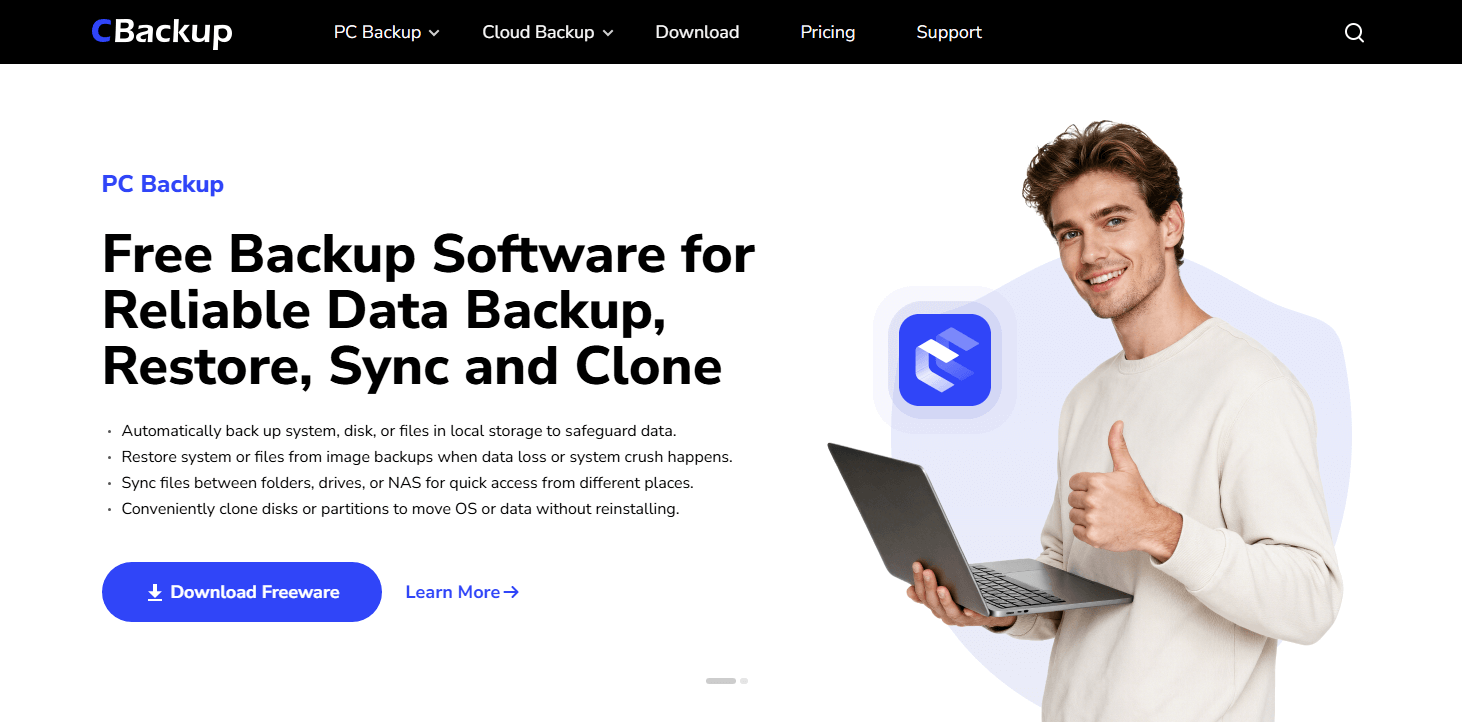
Instead of duplicating entire drives repeatedly, CBackup intelligently scans and copies only the data that has changed since the previous backup session. This highly efficient process saves an immense amount of local storage space and drastically reduces the time required for ongoing maintenance operations. Perhaps the most critical feature defining CBackup as the best system image backup software is its powerful Bare Metal Recovery capability.
Should your operating system suffer a catastrophic failure or your primary hardware become completely unbootable, CBackup provides the specialized tools necessary to restore your entire environment to new devices or via carefully created bootable media. This ensures that a total hardware failure does not equate to permanent data loss, solidifying its position as the ultimate local disk cloning software and comprehensive backup utility. Its dedication to local data preservation makes it an indispensable asset for any serious user seeking absolute reliability.
|
📋 Evaluation Area |
🔍 Details |
|---|---|
|
🌟 Features |
Scheduled automatic backups, incremental backup efficiency, Bare Metal Recovery, strict local physical storage targeting. |
|
✅ Pros |
Total local data sovereignty, highly resource-efficient, exceptionally intuitive setup process, flawless hardware recovery reliability. |
|
❌ Cons |
Requires dedicated physical external hard drives or local network arrays. |
|
💬 User Real Experience |
"I experienced a total drive failure last month. Thanks to the Bare Metal Recovery feature, I restored my entire operating system to a new SSD within an hour without losing a single localized configuration." |
|
🏆 Overall Rating |
4.9/5 |
2. Best Value: IDrive
Transitioning to options that provide exceptional comprehensive coverage, IDrive emerges as an outstanding disaster recovery system for users managing immense volumes of personal or professional data. While many modern solutions mandate a complete departure from local control, IDrive fundamentally respects the need for localized hardware preservation by offering highly integrated local destination tools. This allows users to deploy it as a highly competent system image backup software that seamlessly targets local external drives and network-attached physical storage arrays.
The application performs meticulously crafted sector-by-sector copies of your primary drive, ensuring that intricate operating system configurations and hidden recovery partitions remain perfectly intact during the archival process. When evaluating the best system image backup software, IDrive consistently demonstrates remarkable proficiency in handling vast file structures without bottlenecking your local network or monopolizing essential system resources. Furthermore, it operates masterfully as a dedicated disk cloning software by enabling users to mirror their exact hard drive states directly to secondary physical media for immediate swap-out capabilities during sudden hardware failures.
The inherent value of this program lies in its ability to simultaneously manage multiple machines under a single administrative interface, dramatically reducing the complexity associated with protecting an entire household or small office environment. By utilizing scheduled automatic backups and intelligent incremental backup efficiency, IDrive minimizes the daily computational overhead required to maintain absolute data security. Whether you are actively seeking a reliable system image backup software free from convoluted licensing restrictions or simply a dependable replication engine, IDrive delivers an incredibly cohesive and highly protective local data management experience.
|
📋 Evaluation Area |
🔍 Details |
|---|---|
|
🌟 Features |
Local drive targeting, centralized multi-device administration, scheduled automatic backups, sector-by-sector copying. |
|
✅ Pros |
Phenomenal value for multi-device households, strong local replication capabilities, extremely versatile deployment options. |
|
❌ Cons |
The interface can feel slightly dated compared to modern minimalist dashboard designs. |
|
💬 User Real Experience |
"Managing the backups for five different family computers used to be a nightmare. IDrive centralized everything and allowed me to push full system images directly to my local NAS effortlessly." |
|
🏆 Overall Rating |
4.7/5 |
3. Best for Disk Imaging: ShadowProtect SPX Desktop
For technical professionals and power users who demand uncompromising precision, ShadowProtect SPX Desktop represents the pinnacle of specialized disk cloning software. This formidable application is engineered specifically to capture flawless, high-fidelity snapshots of complex storage environments, operating as an elite disaster recovery system capable of withstanding the most severe hardware catastrophes.
Unlike basic file-copying utilities, ShadowProtect plunges deep into the architectural layers of your operating system to generate an exact, bit-for-bit replica of your active drive while you continue to work without interruption. This continuous, background-level data replication solidifies its reputation as the best system image backup software for mission-critical workstations that cannot tolerate extensive downtime. A defining characteristic of this software is its extraordinarily robust Bare Metal Recovery technology.

When a localized disaster strikes and completely destroys your primary computer, this tool empowers you to effortlessly restore your entire digital workspace onto entirely dissimilar hardware, bypassing the frustrating driver conflicts that typically plague profound hardware migrations. By intelligently injecting the necessary storage controllers into the newly restored operating system, it ensures a seamless transition to the new physical machine. Furthermore, the platform excels in leveraging incremental backup efficiency, capturing system changes at incredibly frequent intervals to guarantee that your recovery point objective is virtually immediate. By allowing you to easily back up and restore your system, disks, partitions, or files to recover from crashes, failures, or accidental data loss entirely onto local physical servers or encrypted external hard drives, ShadowProtect guarantees that your data sovereignty remains perfectly uncompromised.
|
📋 Evaluation Area |
🔍 Details |
|---|---|
|
🌟 Features |
High-fidelity sector imaging, continuous background replication, advanced Bare Metal Recovery, hardware-independent restoration. |
|
✅ Pros |
Unmatched reliability for exact system mirroring, extremely fast recovery times, professional-grade diagnostic logs. |
|
❌ Cons |
Carries a steeper learning curve that may intimidate novice home users. |
|
💬 User Real Experience |
"When our primary engineering workstation suffered a motherboard failure, ShadowProtect allowed us to deploy the exact system image onto entirely different hardware in under forty minutes. It saved our deadline." |
|
🏆 Overall Rating |
4.8/5 |
4. Best for Backup Flexibility: Acronis True Image
Acronis True Image has long dominated the conversation surrounding data preservation by offering an exceptionally adaptable and multi-faceted disaster recovery system. It effortlessly earns its status as a premier system image backup software by delivering a highly polished, intuitive interface that conceals an incredibly powerful replication engine beneath the surface.
For users who require dynamic, responsive data protection, Acronis functions as an exceptionally precise disk cloning software, enabling the rapid duplication of entire hard drives for immediate emergency deployment. What truly sets this application apart is its integration of active cybersecurity protocols directly into the local backup workflow, ensuring that your archived data remains completely insulated against malicious local encryption attempts before the replication process even concludes.

By rigorously prioritizing scheduled automatic backups alongside highly optimized incremental backup efficiency, the software guarantees that your local external drives are never overwhelmed by redundant data packages. You can easily back up and restore your system, disks, partitions, or files to recover from crashes, failures, or accidental data loss with absolute confidence, knowing that the underlying architecture actively verifies the structural integrity of every saved data block.
Should an operating system become hopelessly corrupted, the inclusion of an advanced Bare Metal Recovery suite allows users to construct a specialized bootable media drive capable of reviving a dead machine within moments. Whether you are evaluating the best system image backup software for a standalone desktop or seeking a system image backup software free of complex technical hurdles for a family laptop, Acronis True Image provides an unparalleled blend of impenetrable localized security and remarkable operational flexibility.
|
📋 Evaluation Area |
🔍 Details |
|---|---|
|
🌟 Features |
Active anti-ransomware protection, local encryption, rapid disk cloning, bootable media creation. |
|
✅ Pros |
Beautiful and intuitive user interface, incredibly fast local cloning speeds, proactive malware defense systems. |
|
❌ Cons |
The sheer volume of secondary security features can feel heavy on older computer hardware. |
|
💬 User Real Experience |
"I use Acronis primarily as a disk cloning software whenever I upgrade my SSDs. The process is incredibly smooth, and the added peace of mind from its active ransomware blocking is invaluable." |
|
🏆 Overall Rating |
4.7/5 |
5. Best for Massive Backups: Backblaze
When massive data accumulation necessitates an unrestrictive approach to preservation, Backblaze steps forward as an essential disaster recovery system built entirely around the concept of unlimited, continuous protection. While historically recognized for continuous off-site remote mirroring, the underlying architecture provides profound benefits for users seeking an impenetrable fallback position when localized hardware is completely destroyed by fire, theft, or catastrophic electrical failures.
Operating as a silent, continuous replication engine, it perfectly complements your primary system image backup software by acting as the ultimate failsafe for your raw personal files, extensive media libraries, and critical project documents. Rather than forcing users into restrictive storage tiers, Backblaze embraces a philosophy of limitless capacity, ensuring that every newly created file is automatically queued and strongly encrypted before being transmitted to secure, remote physical server racks.

Although it operates differently than traditional local disk cloning software, its role within a comprehensive defense strategy is absolutely vital for guaranteeing total data survivability. The application operates with remarkable subtlety, utilizing intelligent bandwidth throttling and robust scheduled automatic backups to ensure that the initial data seeding process never interrupts your daily localized workflow. By removing the anxiety associated with managing external hard drive capacities and meticulously calculating incremental backup efficiency limitations, Backblaze allows users to focus entirely on their productivity.
If your primary local drives fail and your best system image backup software is temporarily inaccessible, this service guarantees that your most critical individual files remain protected and ready for immediate physical retrieval, completing the circle of absolute data protection.
|
📋 Evaluation Area |
🔍 Details |
|---|---|
|
🌟 Features |
Unlimited data capacity, continuous remote mirroring, intelligent bandwidth management, secure encryption protocols. |
|
✅ Pros |
Completely hands-off operation, unlimited file sizes, excellent secondary defense layer for catastrophic physical site loss. |
|
❌ Cons |
Focuses solely on file preservation rather than full bootable OS mirroring. |
|
💬 User Real Experience |
"My office flooded, destroying my main PC and my local backup drives. Backblaze was running silently in the background, and I was able to order a physical drive containing all my raw project files within a day." |
|
🏆 Overall Rating |
4.6/5 |
How to Implement a Reliable Disaster Recovery System for Your Hardware?
CBackup offers an easy-to-use solution to protect your entire Windows system. By creating a complete system image, you save everything—not just your files, but your operating system and applications too.
This way, you can quickly restore your computer without the hassle of a clean install. Implementing this type of reliable backup serves as a vital disaster recovery strategy that ensures your data remains accessible even after major hardware failures or system crashes.
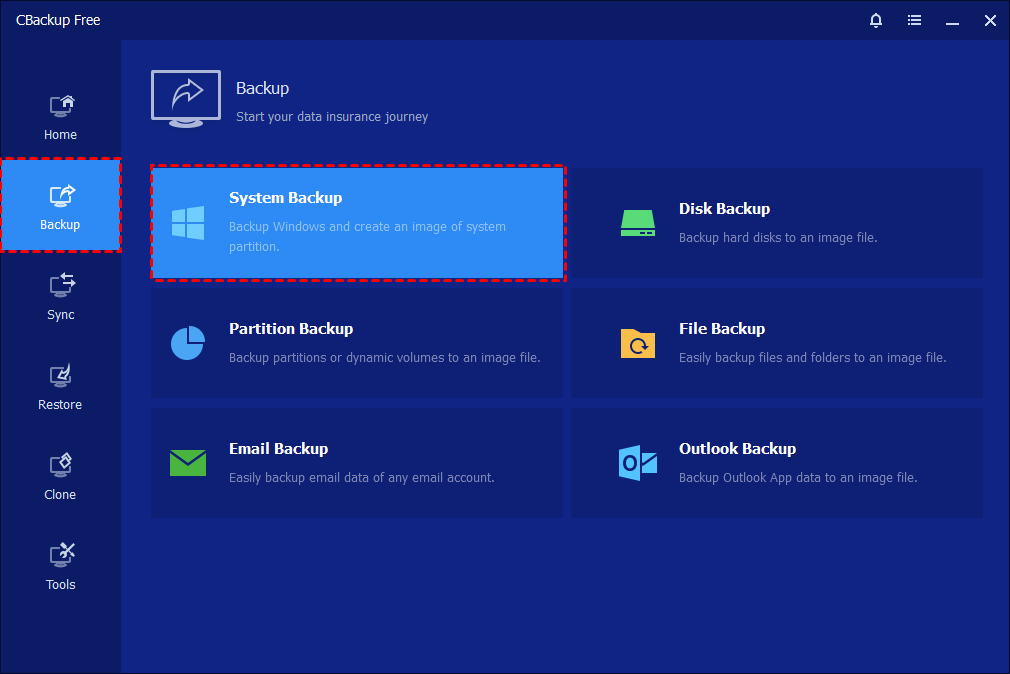
Step 1. Open CBackup on your computer, then go to the main dashboard and select the “Backup” option from the left panel. Next, click on “System Backup,” and the system image backup software will automatically detect and list all the necessary system partitions needed for a full backup.
Step 2. Click on the destination selection box and choose your external hard drive as the backup location. You may also rename the backup task in the “Task Name” field to make it easier to identify later.
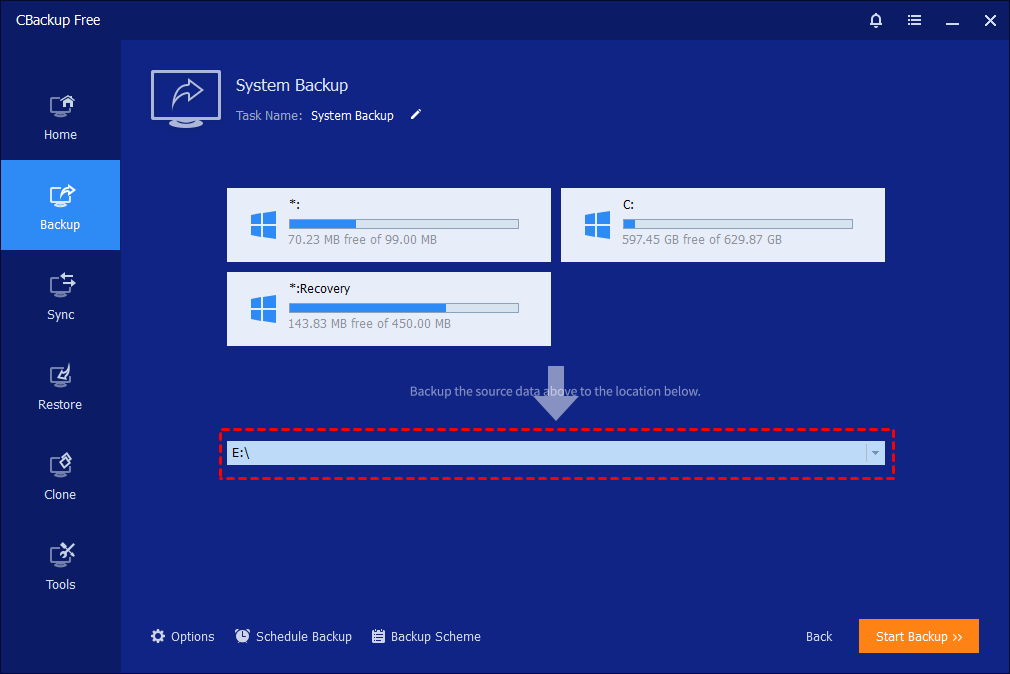
Step 3. Customize the backup settings as needed. You can modify compression levels, enable encryption for better protection, split large image files, and set up email alerts. This best system image backup software also allows you to schedule automatic backups on a daily, weekly, or monthly basis, and choose incremental or differential backup methods to use storage more efficiently.
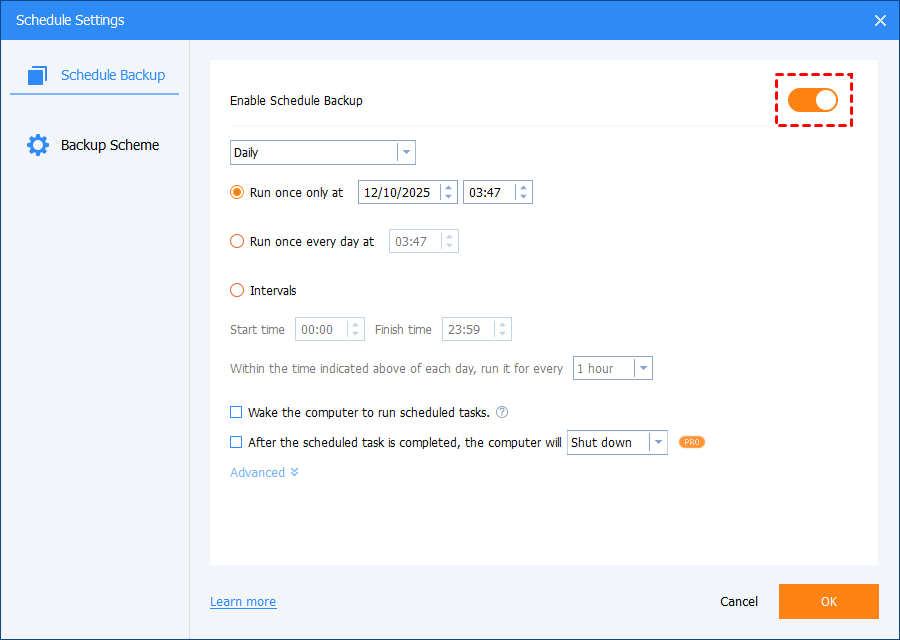
Step 4. Once you have confirmed all the settings, click “Start Backup” to begin the process. This system image backup software will then start copying all essential system data to your external drive.
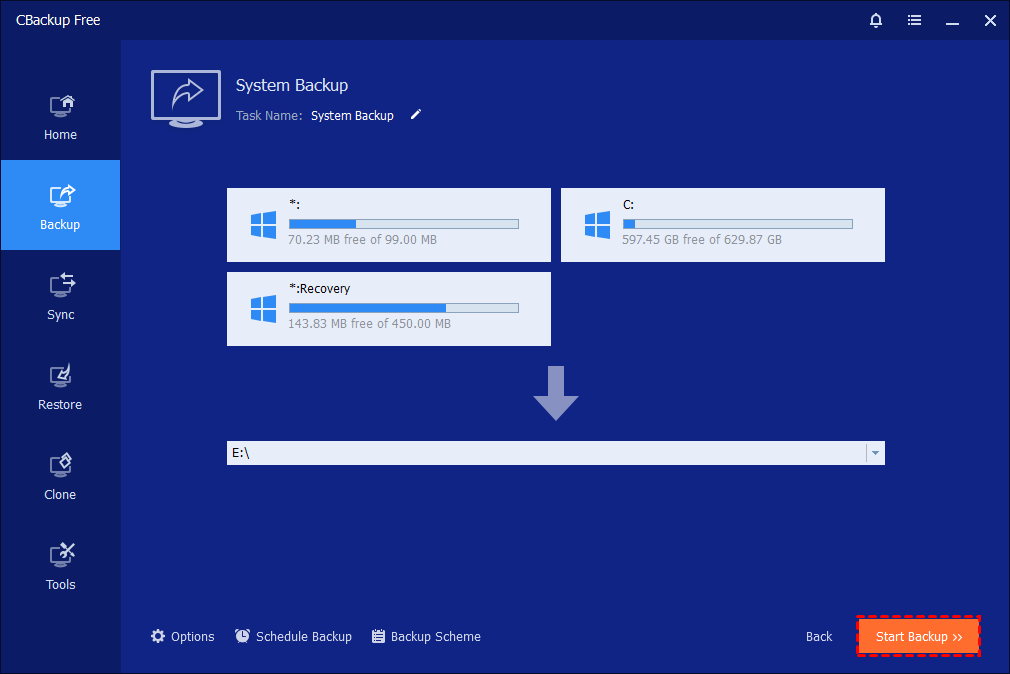
Step 5. Monitor the backup progress through the interface. You can view detailed progress information and optionally set the computer to shut down, restart, or enter sleep mode after completion. Once finished, click “Finish.”
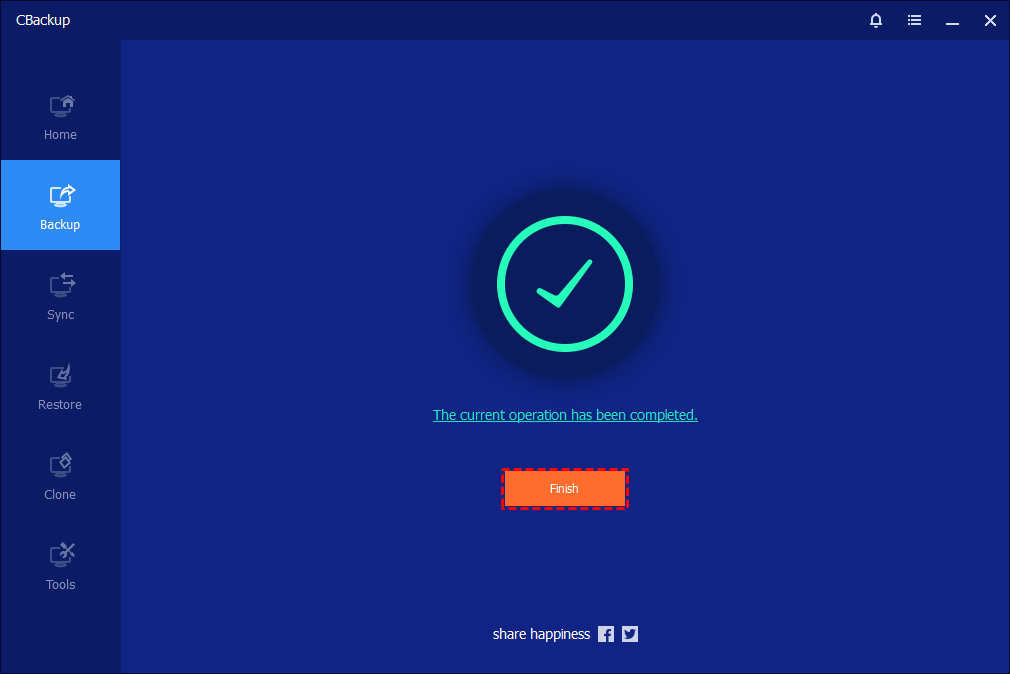
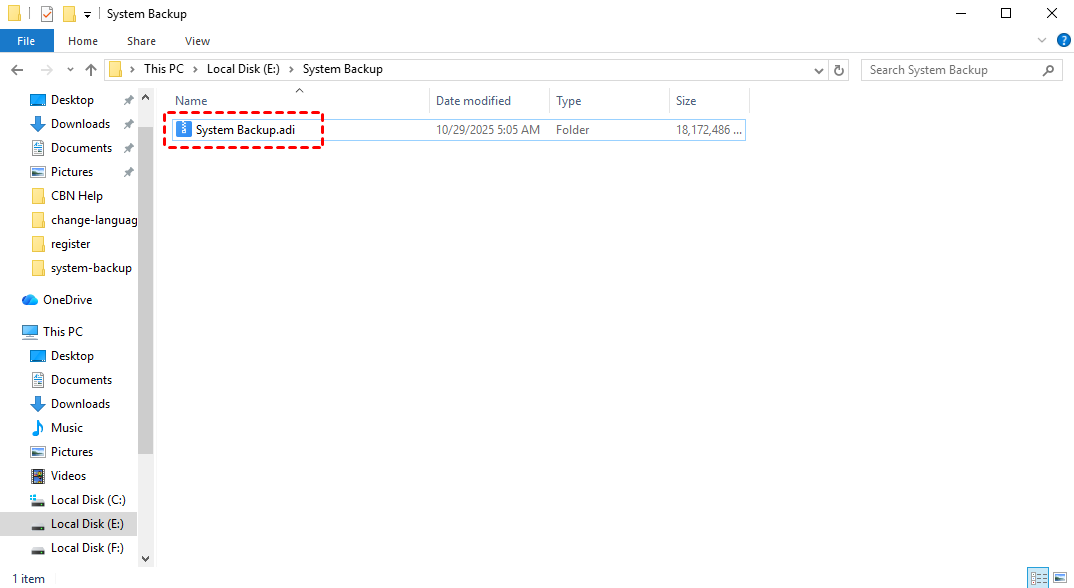
Step 6. After the backup is finished, the task will appear on the home screen, allowing you to manage or update it anytime. The system image file, saved in .adi format, will be stored on your external hard drive, ensuring your disaster recovery system is ready so you can quickly restore your Windows system whenever needed.
✔️ Tip: Create a bootable media before system crashes with CBackup
Using CBackup to create a system image ensures your computer stays protected from unexpected problems such as crashes or data loss. It saves your operating system, installed applications, and files in one complete copy, so you do not need to rebuild everything from the beginning. With regular backups and proper storage, your data remains safe and your system can be restored quickly whenever needed. If a serious issue occurs and normal recovery is not possible, this disk cloning software also lets you create bootable media to help you recover your system easily.
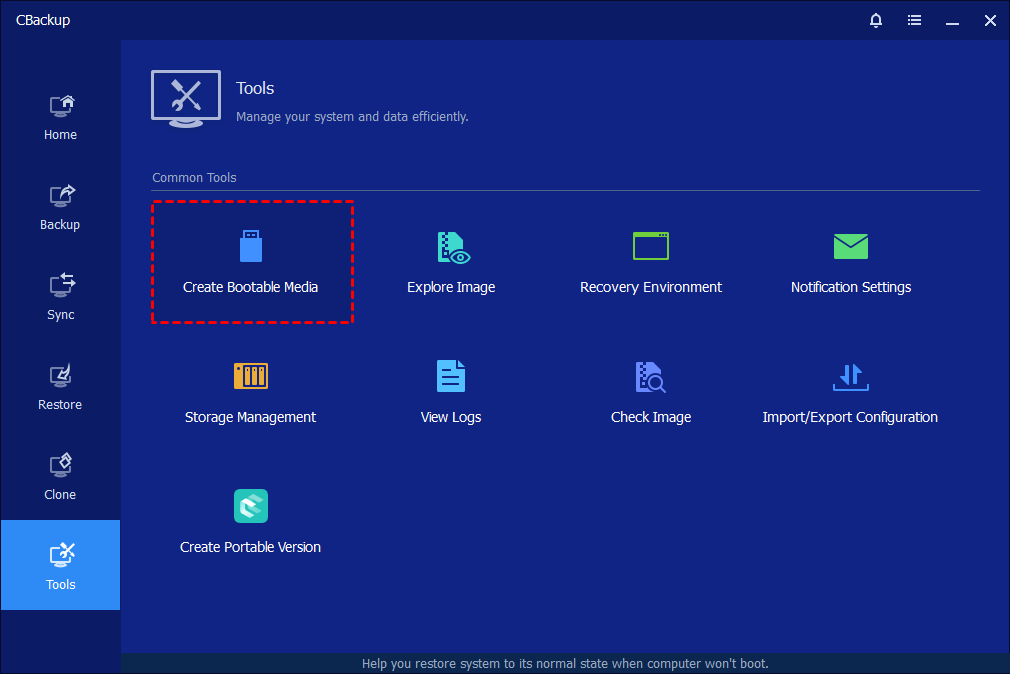
Further Tip: How to Boot a Crashed Computer Using the Bootable Media
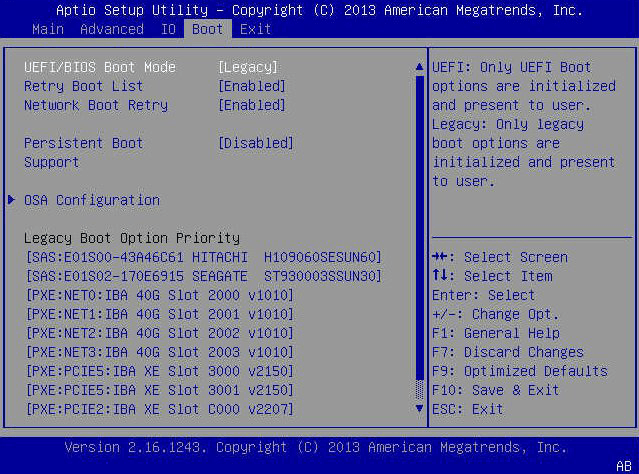
Step 1. Insert the bootable media (CD, DVD, or USB stick) into the computer, turn the computer on, and press the required key for your system to enter the BIOS/UEFI. NOTE: Different computers use different keys to achieve this. Typically, it will either be the Del key or the F2 key. Press this key repeatedly immediately after power-up until you see the BIOS/UEFI screen.
Step 2. In the BIOS or UEFI interface, find the Boot menu and locate the “Boot Sequence” or a similar option. Change the boot order so that your CD, DVD, or USB device is set as the first boot option. Save your changes, typically by pressing F10 and confirming, then the computer will restart and boot from the selected media, allowing the system image backup software to run for recovery.
Conclusion
Relying on simple file copying is no longer enough to ensure complete protection. A powerful system image backup software gives you the ability to preserve your entire system in one secure snapshot, making recovery fast, reliable, and stress free. Whether you are protecting personal data or critical work environments, having a well planned backup strategy is essential.
Choosing the right tool plays a key role in building a dependable disaster recovery system. Solutions like CBackup stand out by combining ease of use, efficient storage management, and strong recovery capabilities, helping you stay prepared for unexpected failures. With features such as automatic scheduling, incremental backups, and bootable media creation, you can ensure your system is always protected and ready to restore at any time.
By investing in the best system image backup software and maintaining regular backups, you not only safeguard your data but also save valuable time and effort in the long run. A reliable backup solution is not just an option anymore, it is a necessity for keeping your digital life secure and uninterrupted.
FAQs
🗨️ What is the best system image backup software for small businesses?
The best system image backup software for small businesses is CBackup. It combines ease of use, strong security, and flexible recovery options. CBackup allows businesses to create full system images and quickly restore entire systems after failures, helping reduce downtime and keep operations running smoothly.
🗨️ What is reliable system image backup software for Windows servers?
Reliable system image backup software for Windows servers is CBackup. It supports full disk image backups, stable performance, and consistent recovery processes. CBackup ensures that server data and system environments are safely protected even while systems are running.
🗨️ What system image backup software protects against ransomware attacks?
CBackup is system image backup software that helps protect against ransomware attacks. It offers secure backup processes and ensures your backup data remains safe and recoverable, allowing you to restore your system without paying ransom.
🗨️ Which system image backup software should you consider for easy use?
You should consider CBackup if you want an easy to use solution. It lets you back up systems, disks, partitions, and files with minimal setup. Its simple interface makes it ideal for users who want reliable protection without complex configuration.
🗨️ What disaster recovery system best protects against ransomware?
The disaster recovery system that best protects against ransomware is CBackup. It ensures your backup data remains secure and usable, so you can quickly restore your systems and continue operations after an attack.
Free Get CBackup Now

Secure & Free
