


Top 8 Best Disk Backup Software | Tested for 2026
This passage focuses on real tests of disk backup software and gives an overview of common disk backup solutions. It compares backup features, performance, and backup to disk options for different storage needs.

By Irene Updated June 5, 2026


🌟 TL;DR: Best Disk Backup Software Review
Protecting your files from sudden drive failures or ransomware requires a backup solution built on security, compatibility, ease of use, and cost effectiveness. Real testing shows that a tool's recovery reliability matters much more than marketing promises.
✔️ Quick Product Overview
-
CBackup: The top overall recommendation. It allows you to combine multiple cloud accounts into a single large storage space with beginner friendly automation.
-
Backblaze: Best for automated, unlimited cloud storage on a single computer with a simple set and forget setup.
-
Clonezilla: A fast, completely free open source disk cloning tool ideal for IT professionals comfortable with text interfaces.
-
Acronis Cyber Protect Home Office: A premium option combining full system imaging with active real time ransomware protection.
-
File History: A free, native Windows tool perfect for automatic, basic tracking of personal file versions.
-
Paragon Backup and Recovery: A lightweight local storage tool featuring beginner friendly layouts and excellent boot repair utilities.
-
Cobian Backup: A free, highly customizable utility offering advanced network and FTP backup options for experienced users.
-
CrashPlan: Ideal for businesses and creative professionals needing continuous, unlimited cloud protection across mixed device environments.
📢 Bottom Line: For complete peace of mind, choose a tool that supports automated schedules. Combining local storage for quick access with cloud backups for disaster recovery gives you the best protection.
How do we select the best disk backup software
Finding the best disk backup software is not something we take lightly anymore. After dealing with failed SSDs, corrupted Windows updates, and one painful situation where an external drive suddenly stopped working right before a deadline, we learned very quickly that backup software either saves you completely or lets you down at the worst possible moment.
Over the years, we have tested a huge number of backup tools on different PCs, laptops, and storage setups. Some looked great on paper but failed during recovery. Others were packed with features but made basic backup tasks unnecessarily complicated. After spending hundreds of hours comparing real performance, we realized the best backup software always gets a few critical things right.
To keep the testing fair and practical, we always judge backup software based on the same core standards:
| Core Standard | What I Look For During Real Testing |
|---|---|
| Uncompromising Security | The software needs strong encryption and reliable backup protection. I pay close attention to how well it protects files against ransomware, drive failure, accidental deletion, and system crashes. |
| Broad Compatibility | Good backup software should work smoothly with different Windows versions, SSDs, HDDs, USB drives, and NAS storage without constant troubleshooting. |
| Ease of Use | I always prefer software with a clean and intuitive interface. Scheduling backups, restoring files, and managing storage should feel simple even for beginners. |
| Cost Effectiveness | Some expensive tools honestly do not provide much more than free alternatives. I compare features carefully to see whether the software actually delivers good long term value. |
One thing experience taught us is that backup software should never only look impressive in advertisements. The real test comes when something suddenly goes wrong and you need your files back immediately. That is why we focus heavily on recovery reliability during testing, not just backup speed or extra features.
Whether you are looking for a lightweight free backup tool for personal use or a more advanced solution for work and large storage setups, these standards make it much easier to separate truly reliable software from programs that only sound good on paper. In the end, the best backup software is the one that keeps your files safe, accessible, and recoverable no matter what happens to your system.
Top 8 best disk backup software
Top 1. CBackup
Review ⭐
CBackup is the strongest all around choice for users who want reliable backup protection without dealing with overly technical settings or expensive subscription limits. Many users searching on Google are mainly concerned about three things: cloud storage limits, ransomware protection, and whether recovery is actually easy during emergencies. CBackup performs very well in all three areas, which is why it stands out as the top recommendation.
One major reason users prefer CBackup is its powerful disk clone and OS migration capabilities. It allows users to clone entire hard drives or selected partitions for upgrades or data migration without losing data. Many users also appreciate that they can migrate their operating system from an HDD to an SSD without reinstalling Windows or applications. Another advantage is the ability to clone only used sectors, which makes it possible to transfer data from a larger drive to a smaller SSD efficiently. CBackup also supports cloning between both MBR and GPT disks across different SSD brands, including Samsung, Intel, Toshiba, and SanDisk.
Besides cloning functions, CBackup also provides advanced recovery tools such as WinPE bootable media, backup image mounting, and one key recovery to help users restore systems after crashes or boot failures. Users also appreciate the ability to run CBackup on another computer through removable media without installation, which makes system maintenance and emergency recovery more flexible.
Performance is another strong point. Incremental backup technology helps reduce storage use and speeds up daily protection tasks. Scheduled automation also works smoothly in the background without heavily affecting system performance. Google users frequently worry about privacy and data leaks, and CBackup addresses this with encrypted transfers and secure cloud protection.
Many reviews also praise the clean interface. Beginners can start quickly, while advanced users still get flexible scheduling and recovery options. Some users mention the first setup can take a little time when combining several cloud accounts, but once configured, the software runs very reliably.
For users wanting an affordable, modern, and cloud focused solution with excellent flexibility, CBackup easily ranks above most traditional Windows backup tools.
| Features 🔧 | Details |
|---|---|
| Backup Types | System, disk, partition, and file backup |
| Cloud Support | Combines multiple cloud accounts |
| Backup Modes | Incremental and scheduled backup |
| Recovery | Full restore and bootable recovery |
| Security | Encrypted cloud protection |
Pros ✅
- Easy cloud integration with flexible storage expansion
- Clean interface suitable for beginners and advanced users
- Reliable scheduled automation with low resource usage
- Strong recovery performance after crashes or accidental deletion
Cons ⚠️
- Advanced cloud combination setup needs initial configuration
- Some recovery features require learning for first-time users
User Real Experience Sharing 👨💻
Users on forums and review sites often mention that CBackup helped them centralize Google Drive and Dropbox storage into one manageable space. Many users also share positive experiences recovering important work files after ransomware attacks or accidental deletion. Home users appreciate that the software runs quietly in the background without slowing down Windows.
Overall Rating: 4.9/5
Top 2. Backblaze
Review ⭐
Backblaze remains one of the most popular unlimited cloud backup services for home users because of its simple setup and automatic background protection. Google users frequently search for unlimited storage plans, especially photographers and video creators with multi terabyte collections. Backblaze handles this extremely well by offering straightforward unlimited cloud storage for one computer.
The biggest advantage is the “set it and forget it” experience. Once installed, the software automatically scans for files and uploads them continuously. Users do not need to manually organize folders or create complicated schedules. Many real user reviews praise how stress free the system feels during daily use.
Backblaze also performs well in terms of upload stability and recovery options. The service allows downloadable recovery files and even physical restore drives in some regions. Security is another strong area, with private encryption options available for users who want more privacy control.
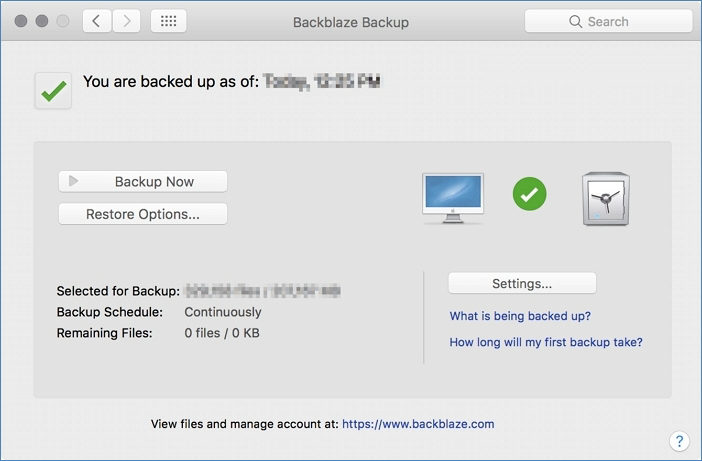
However, Google users often point out two common frustrations. The first is the one device per license limitation, which becomes expensive for families with multiple PCs. The second is that Backblaze focuses more on disaster recovery than traditional syncing features. It is not designed like Google Drive or OneDrive for collaborative folder syncing.
Despite those limitations, Backblaze remains one of the easiest cloud backup platforms for non technical users.
| Features 🔧 | Details |
|---|---|
| Storage | Unlimited cloud backup |
| Security | Private encryption support |
| Recovery | Download or physical recovery drive |
| Compatibility | Windows and macOS |
| Automation | Continuous automatic backup |
Pros ✅
- Unlimited cloud storage
- Very simple setup process
- Quiet background operation
- Strong recovery options for large data loss situations
Cons ⚠️
- One license supports only one computer
- No true file syncing system
- Initial uploads can take a long time for huge libraries
User Real Experience Sharing 👨💻Many users report that Backblaze helped recover valuable family photos after hard drive failures, making it a trusted choice for hard disk backup. Creative professionals also value the unlimited storage option because it supports large video, image, and media libraries without worrying about space limits. However, some users mention that downloading several terabytes of restored data through the internet can take longer than expected, especially with slower network connections.
Overall Rating: 4.7/5
Top 3. Clonezilla
Review ⭐
Clonezilla is highly respected among IT professionals because of its extremely fast disk cloning and imaging capabilities. Users searching Google for free enterprise grade cloning tools often end up choosing Clonezilla because it supports both BIOS and UEFI systems while remaining fully open source.
One of Clonezilla’s biggest advantages is its fast performance. Instead of copying every sector on a drive, it only transfers used data, which significantly shortens the imaging process. This approach makes disk to disk backup more efficient, especially for large storage devices. Many system administrators depend on Clonezilla when deploying multiple computers in offices, schools, or other environments that require rapid system setup.
Google users are often concerned about compatibility with modern SSDs, secure boot systems, and large NVMe drives. Clonezilla generally handles these environments very well. Advanced users also appreciate the unattended deployment options and multicast restore support.

However, the learning curve can be challenging because Clonezilla relies mainly on text based menus instead of the graphical layouts found in modern disk backup solutions. Many beginners feel nervous about making mistakes since selecting the wrong option may overwrite another drive. Users often suggest following tutorials carefully before starting a full cloning process. Despite the complex interface, Clonezilla is still widely regarded as one of the most powerful free imaging tools available today.
| Features 🔧 | Details |
|---|---|
| Cloning | Full disk and partition cloning |
| Compatibility | BIOS and UEFI support |
| Speed | Sector based efficient cloning |
| Deployment | Multicast and unattended mode |
| File Systems | Broad Linux and Windows support |
Pros ✅
- Extremely fast cloning performance
- Completely free and open source
- Excellent enterprise deployment features
- Reliable compatibility with modern systems
Cons ⚠️
- Text interface is difficult for beginners
- Requires bootable USB environment
- Mistakes during setup can erase drives accidentally
User Real Experience Sharing 👨💻
IT technicians regularly share how Clonezilla reduced deployment times dramatically when setting up multiple office computers. Home users often report success upgrading SSDs, though beginners frequently mention the interface feels stressful at first.
Overall Rating: 4.5/5
Top 4. Acronis Cyber Protect Home Office
Review ⭐
Acronis is widely known for combining backup protection with cybersecurity features. Many Google users searching for ransomware resistant backup software choose Acronis because it actively monitors suspicious file encryption behavior in real time.
The software includes full disk imaging, cloud storage, Office 365 backup, and anti malware protection in one package. Business users especially appreciate the all in one approach because they can manage both backup and security together.
Acronis also performs well during recovery scenarios. Users frequently praise the reliability of restoring entire systems after hardware failures. Cloud storage integration is smooth, and recovery media creation is relatively easy.
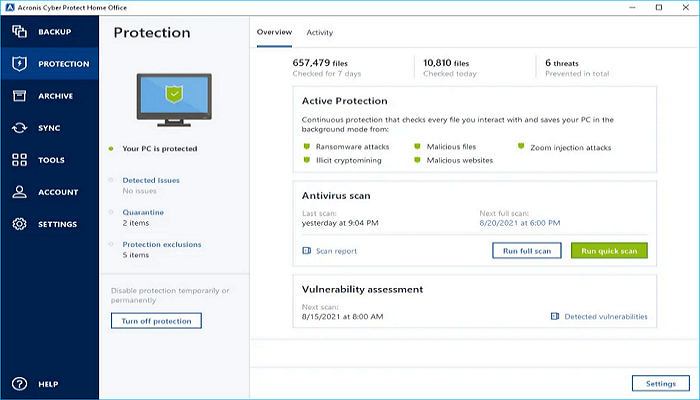
Still, many users mention that the program feels heavier than simpler alternatives because active security monitoring can slightly increase startup times and system resource usage. Some beginners also find the numerous menus and advanced settings difficult to navigate. Despite these drawbacks, Acronis is still considered one of the most reliable disk backup software options for users who want both strong backup protection and integrated cybersecurity features.
| Features 🔧 | Details |
|---|---|
| Security | Active ransomware protection |
| Backup Types | Full image and file backup |
| Cloud Storage | Up to multi terabyte plans |
| Productivity | Office 365 backup |
| Recovery | Bootable media support |
Pros ✅
- Excellent ransomware defense
- Reliable full system restoration
- Strong cloud and business integration
- Feature rich premium ecosystem
Cons ⚠️
- Can slightly slow startup performance
- Interface takes time to learn
- Subscription pricing is higher than competitors
User Real Experience Sharing 👨💻
Many users share positive experiences about restoring their systems after ransomware attacks, especially when using features related to hard disk backup and threat protection. Active monitoring provides reassurance by helping detect suspicious activity early. At the same time, some users complain that the interface feels cluttered, and resource consumption may increase during full system scans, which can affect overall performance on lower end computers.
Overall Rating: 4.4/5
Top 5. File History
Review ⭐
File History is one of the simplest built in Windows backup tools available for everyday users. It mainly focuses on protecting personal files by automatically saving versions of documents, pictures, and desktop folders.
Google users frequently search for free native Windows solutions that do not require installing additional software. File History is popular because it works quietly in the background and integrates directly into Windows settings.
The biggest advantage is simplicity. Users can recover older file versions very quickly after accidental edits or deletions. It is especially useful for students, office workers, and casual home users.
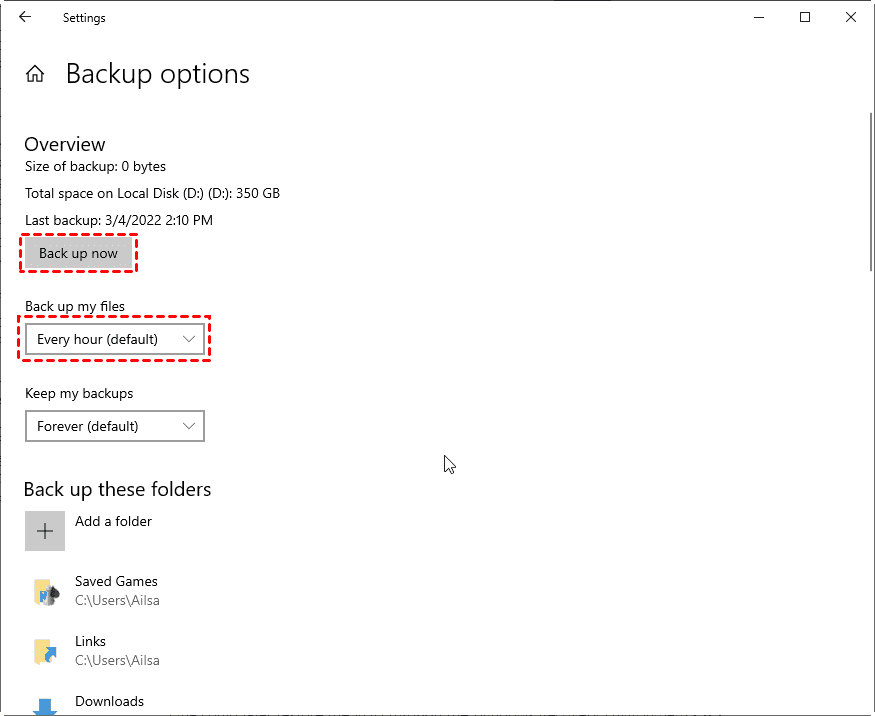
However, many experienced users consider the software too limited because it lacks full system imaging, cloud connectivity, and flexible scheduling features. Compared with more complete disk backup solutions, it is better suited for simple file restoration tasks instead of full disaster recovery. This makes it less ideal for users who need comprehensive system protection and long term backup management.
| Features 🔧 | Details |
|---|---|
| Backup Type | File version history |
| Integration | Native Windows feature |
| Automation | Automatic background backup |
| Recovery | Restore previous file versions |
| Storage | External drive support |
Pros ✅
- Completely free with Windows
- Very easy to use
- Excellent for recovering deleted files
- Minimal system resource usage
Cons ⚠️
- No advanced cloud integration
- Limited system image capabilities
- Few customization options
User Real Experience Sharing 👨💻
Many users mention recovering overwritten Word documents or deleted family photos easily through File History. Advanced users often wish Microsoft included better cloud integration and modern scheduling tools.
Overall Rating: 4.2/5
Top 6. Paragon Backup and Recovery
Review ⭐
Paragon Backup and Recovery is a strong option for users who want dependable system imaging and disaster recovery tools without dealing with overly complicated enterprise software. Many Google users search for solutions that can quickly restore an unbootable PC, and Paragon performs especially well in this area thanks to its reliable recovery media creation and boot repair tools.
One reason Paragon receives positive feedback is its balance between simplicity and advanced functionality. Beginners can create backups using guided steps, while experienced users still get access to partition management and advanced recovery environments. Users frequently mention that the interface feels cleaner and less intimidating compared to older backup applications.
Performance is another key advantage. Because the software avoids relying on heavy background processes, users often experience smoother performance during daily tasks. In many discussions about disk backup solutions, gamers and video editors worry about system slowdowns while backups run. Paragon is commonly viewed as a better option because it reduces resource usage and helps maintain stable performance compared with more security focused competitors.
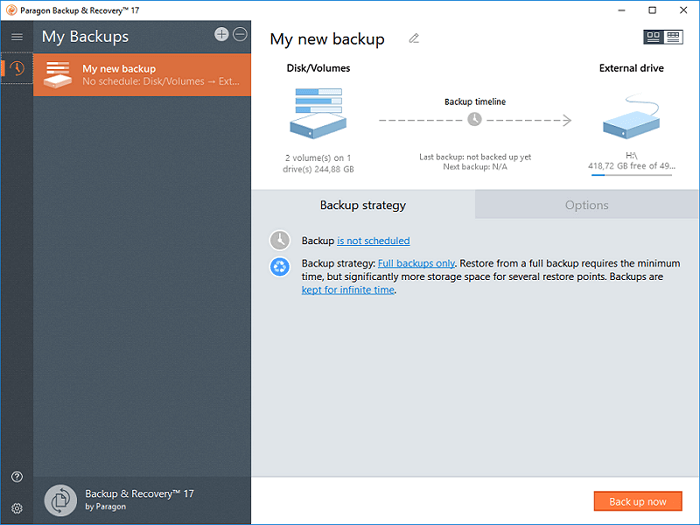
Another commonly praised feature is the emergency recovery environment. Many users often share stories of fixing corrupted boot systems or restoring failed SSD upgrades through Paragon rescue USB drives. However, some users feel disappointed that cloud storage integration is limited compared to newer cloud focused backup platforms.
Overall, Paragon delivers an excellent balance between affordability, reliability, and ease of use for local backup and recovery.
| Features 🔧 | Details |
|---|---|
| Backup Types | Full system and partition backup |
| Recovery | Boot repair and rescue media |
| Performance | Lightweight background usage |
| Disk Tools | Partition and disk management |
| Compatibility | Windows systems and external drives |
Pros ✅
- Very beginner friendly interface
- Reliable boot repair and rescue tools
- Light system resource usage
- Affordable pricing compared to premium competitors
Cons ⚠️
- Limited integrated cloud backup features
- Fewer collaboration tools than cloud platforms
- Advanced options still require some learning
User Real Experience Sharing 👨💻
Users frequently report successful recovery after failed Windows updates or corrupted SSD migrations. Many appreciate how easy it is to create a rescue USB drive before major hardware upgrades. Some users mention wishing for stronger built in cloud storage support.
Overall Rating: 4.6/5
Top 7. Cobian Backup
Review ⭐
Cobian Backup remains one of the most respected free backup utilities among advanced Windows users because of its flexibility and extremely lightweight design. Users searching Google for free backup software with network and FTP support often choose Cobian because it offers features normally found in expensive business solutions.
The software performs especially well in scheduled file backup environments. Many users appreciate the ability to automate backups across local drives, NAS devices, and remote servers. Encryption support is another strong advantage, helping users protect sensitive data during transfers and storage.
Google users are commonly concerned about system resource usage during scheduled tasks. Cobian receives consistent praise for running efficiently in the background without heavily slowing down Windows systems. Advanced users also like the ability to configure detailed backup rules and multiple storage destinations.
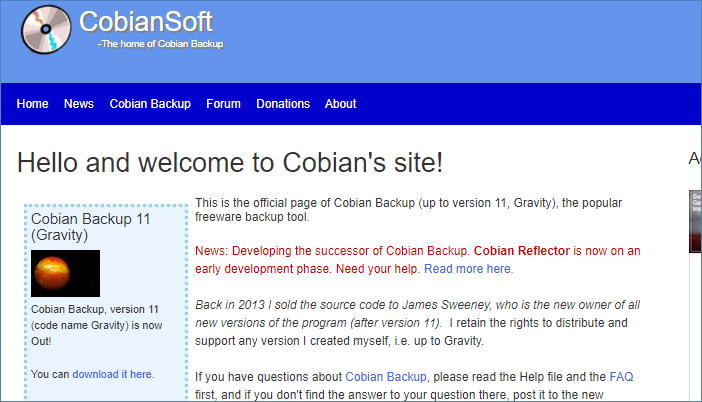
However, beginners may find the interface difficult to navigate because the program focuses more on advanced customization than ease of use. Compared with modern consumer tools, this type of disk backup software requires extra time to configure properly. Many users report that network or FTP settings can be confusing at first, but careful setup is necessary to ensure stable and reliable backup protection.
Even with the steeper learning curve, Cobian remains an excellent free choice for users wanting professional level scheduling and remote backup features.
| Features 🔧 | Details |
|---|---|
| Backup Modes | Incremental and differential backup |
| Storage | Local, NAS, and FTP support |
| Security | Strong encryption options |
| Scheduling | Advanced automated scheduling |
| Performance | Lightweight background service |
Pros ✅
- Completely free with advanced features
- Excellent FTP and network backup support
- Very low system resource usage
- Flexible scheduling and automation tools
Cons ⚠️
- Interface feels technical for beginners
- No official customer support team
- Setup can be confusing initially
User Real Experience Sharing 👨💻
Advanced home users and IT administrators often praise Cobian for reliable NAS and FTP backups. Many users mention running it for years without major failures. Less experienced users sometimes report difficulty understanding the setup menus during initial configuration.
Overall Rating: 4.3/5
Top 8. CrashPlan
Review ⭐
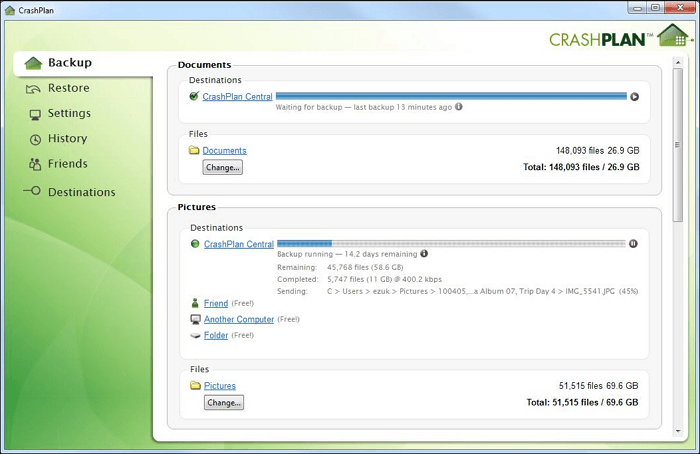
CrashPlan is highly popular among businesses, remote workers, and creative professionals who need continuous cloud protection for massive amounts of data. Google users frequently search for unlimited cloud backup systems with strong cross platform compatibility, and CrashPlan performs very well in both areas.
One of the biggest strengths is unlimited storage without strict file limits. Users with large video projects, photography libraries, and business archives often prefer CrashPlan because they do not need to constantly manage storage quotas. Users also praise the automatic real time backup process, which quietly protects files in the background.
CrashPlan supports Windows, macOS, and Linux systems, making it especially valuable for mixed device environments. Many businesses appreciate being able to protect multiple operating systems under one management system. Google users are also concerned about ransomware recovery, and CrashPlan offers strong file versioning to restore older clean copies after attacks.
The biggest criticism involves customer support responsiveness. Users frequently mention slow ticket replies during urgent recovery situations. Another limitation is that CrashPlan focuses heavily on file protection rather than full system imaging, so users wanting bare metal recovery may need additional software.
Even with those limitations, CrashPlan remains one of the strongest unlimited cloud backup platforms for professional users.
| Features 🔧 | Details |
|---|---|
| Storage | Unlimited cloud backup |
| Compatibility | Windows, Linux, and macOS |
| Protection | Real-time file backup |
| Recovery | File version history |
| Security | Encrypted cloud storage |
Pros ✅
- Unlimited backup storage
- Excellent multi platform support
- Reliable background automation
- Strong file version recovery system
Cons ⚠️
- No full system image recovery
- Customer support can be slow
- Interface feels more business focused than beginner friendly
User Real Experience Sharing 👨💻
Creative professionals often share positive experiences backing up terabytes of video footage without worrying about storage limits. Small business users appreciate the cross platform support. Some customers complain about delayed support responses during urgent restore situations.
Overall Rating: 4.4/5
How we test the best Windows backup software
Before selecting the best Windows backup software, we spent weeks testing popular solutions across different situations including full system imaging, cloud backup, ransomware recovery, SSD cloning, and automatic file protection. We compared backup speed, recovery reliability, cloud compatibility, ease of use, and long term stability during daily use. After extensive testing and reviewing real user feedback from forums and Google reviews, we narrowed the list down to the most dependable choices for both home users and businesses.
| 🧩 Testing Category | Results |
|---|---|
| 📦 Software Tested | 25+ backup and recovery tools |
| ⏳ Testing Period | Nearly 2 months |
| 💻 Devices Used | Gaming desktop, office PC, and laptop |
| 💾 Backup Sources | SSDs, HDDs, Windows systems, NAS, cloud drives, photos, videos, Outlook emails, and applications |
| ⚡ Backup Speed Range | Around 30MB/s to 550MB/s depending on storage type |
| 🔄 Restore Speed Range | Around 60MB/s to 520MB/s |
| ☁️ Storage Environments | External drives, NAS, Google Drive, Dropbox, and private cloud servers |
| 🛡️ Security Testing | Ransomware recovery, encrypted backup, and boot recovery |
| 🥇 Top Recommended Choice | CBackup |
| 👨💻 Best For | Home users, remote workers, creators, and small businesses |
After comparing performance, ease of use, automation features, and recovery reliability, CBackup stood out as the best overall solution for most users. Its flexible cloud storage, NAS backup, smooth automatic scheduling, and secure recovery tools make it an excellent choice for protecting important files and entire systems without complicated setup procedures.
Conclusion
Choosing the best disk backup software is ultimately about finding a solution you can truly trust when unexpected problems happen. Whether it is a failed SSD, ransomware attack, accidental deletion, or system crash, reliable disk backup protection can make the difference between a quick recovery and permanent data loss.
After extensive real testing, we found that the best backup tools are not always the most expensive or feature packed ones. The most important factors are strong security, reliable recovery performance, broad compatibility, simple management, and long-term stability. Some users may prefer lightweight free solutions for personal files, while others may need advanced cloud backup, full system imaging, or enterprise level protection for business environments.
Among all the software tested, CBackup stood out as the best overall choice for most users thanks to its flexible cloud integration, smooth automation, secure backup protection, and beginner-friendly experience. At the same time, tools like Backblaze, Clonezilla, Acronis, and CrashPlan each offer unique advantages depending on different storage needs and technical skill levels.
No matter which backup disk solution you choose, the most important step is to start protecting your data before problems happen. A good backup system not only protects your files but also gives you peace of mind knowing your important documents, photos, projects, and systems can always be recovered when needed.
FAQs
Q1. What is the best disk backup software for Windows users?
The best disk backup software should be CBackup. For beginners and home users, it comes with automatic scheduling, cloud integration, and simple recovery options are usually the best choice. Advanced users may prefer it with full disk imaging, bootable recovery media, and disk to disk backup support for SSD upgrades or system migration.
Q2. What is the difference between disk backup and file backup?
Disk backup creates a complete copy of an entire drive, including the operating system, installed programs, settings, and files. File backup only protects selected folders or documents. Hard disk backup is more suitable for full system recovery after drive failure or Windows crashes.
Q3. How often should I back up my disk?
Most users should schedule automatic backup to disk daily or weekly depending on how often files change. Business users, creators, and remote workers who handle important data may benefit from continuous or incremental backup protection to reduce the risk of losing recent work.
Q4. Is disk to disk backup better than cloud backup?
Disk to disk backup is usually faster for local recovery because files are stored directly on another drive or external storage device. Cloud backup provides better protection against theft, fire, hardware failure, or ransomware attacks. Many users combine both local backup disc storage and cloud backup for maximum protection.
Q5. Can backup software recover a full system after a crash?
Yes. Most modern disk backup solutions support full system recovery using system images or bootable recovery media. This allows users to restore Windows, applications, settings, and personal files even after serious system failure or SSD replacement.
Free Get CBackup Now

Secure & Free
