


Top 6 Best Backup Software for External Hard Drive
We review several top backup software external hard drive solutions to ensure data safety. You will see details about the best backup software, including free and automatic options tailored for everyday needs.

By Irene Updated April 29, 2026


🌟Quick Look:
Choosing the best backup software for external hard drive does not have to be complicated. To save you time, here is a quick overview of six reliable tools that cover different needs, from simple automatic backups to advanced system protection. Whether you prefer an easy setup or more control, these options offer practical solutions for keeping your data safe.
- CBackup: A simple and powerful choice with automatic backups, cloud support, and an easy setup. Great for everyday users who want a reliable all in one solution.
- Paragon Backup and Recovery: Best suited for advanced users who want full control over partitions and backup settings, especially for complex systems.
- Macrium Reflect Free Edition: A popular free backup software for external hard drive that focuses on disk imaging and cloning, ideal for system migration and recovery.
- Acronis Cyber Protect Home Office: A premium option that combines backup features with strong security protection against threats like ransomware.
- Handy Backup Standard: Designed for convenience, it starts backing up automatically when you connect your external drive, making it very easy to use.
- R Drive Image: A solid choice for offline environments, offering precise backups without relying on internet or cloud services.
These tools each bring something different, but they all aim to protect your important files and systems. Before choosing one, it helps to understand why having the right backup solution matters in the first place. Now, let’s explore why you need the right backup tool and how it can protect your data in everyday situations.
Why Do You Need The Best Backup Software For External Hard Drive?
Have you ever wondered what might happen if your computer suddenly stopped working today? Losing personal photos, important documents, or other valuable files can be overwhelming. That is why choosing the best backup software for external hard drive devices is so important. While external drives offer large storage and portability, their reliability also depends on the backup drive software you use.
Manually copying files may seem simple, but it often leads to mistakes. It is easy to miss folders or overwrite important data. With automatic backup software for external hard drive, these risks are greatly reduced. It quietly runs in the background, backing up new data without requiring constant attention.
In addition, depending only on cloud storage is not always ideal, especially if your internet connection is unstable. Keeping a local backup ensures you can access your files anytime, even offline. Whether facing hardware failure, ransomware, or accidental deletion, having a secure backup brings real peace of mind. This guide reviews several top tools, including both premium options and free backup software for external hard drive, to help you find the right fit.
Today, data plays a vital role in both work and daily life. A reliable backup software external hard drive solution should offer features like encryption, scheduling, and smooth recovery. It should also be easy to use and dependable when you need to restore your system. With careful research and practical experience, this guide aims to help you choose a solution that keeps your data safe and your digital life well protected.
Top 6 Best Backup Software for External Hard Drive
Choosing the best backup software for external hard drive can feel overwhelming with so many options available, each offering different features, pricing, and levels of complexity. Some tools focus on simple automation, while others provide advanced control, security, or full system recovery. The right choice depends on how you manage your data, how often you back up files, and how much control you want over the process.
In this section, we have carefully selected 6 of the most reliable and widely used tools to help you protect your data with confidence. Whether you are looking for an easy, hands-off solution, a powerful offline backup tool, or even free backup software for external hard drive, you will find an option that fits your needs. From beginner-friendly programs to advanced solutions for professionals, each tool listed below has been tested for performance, reliability, and overall user experience.
Now, let us take a closer look at the top choices and see which one works best for your situation.
🥇 1. CBackup (Top Choice for Comprehensive Protection)
⭐ Overall Rating: 4.9/5
🧠 Overview
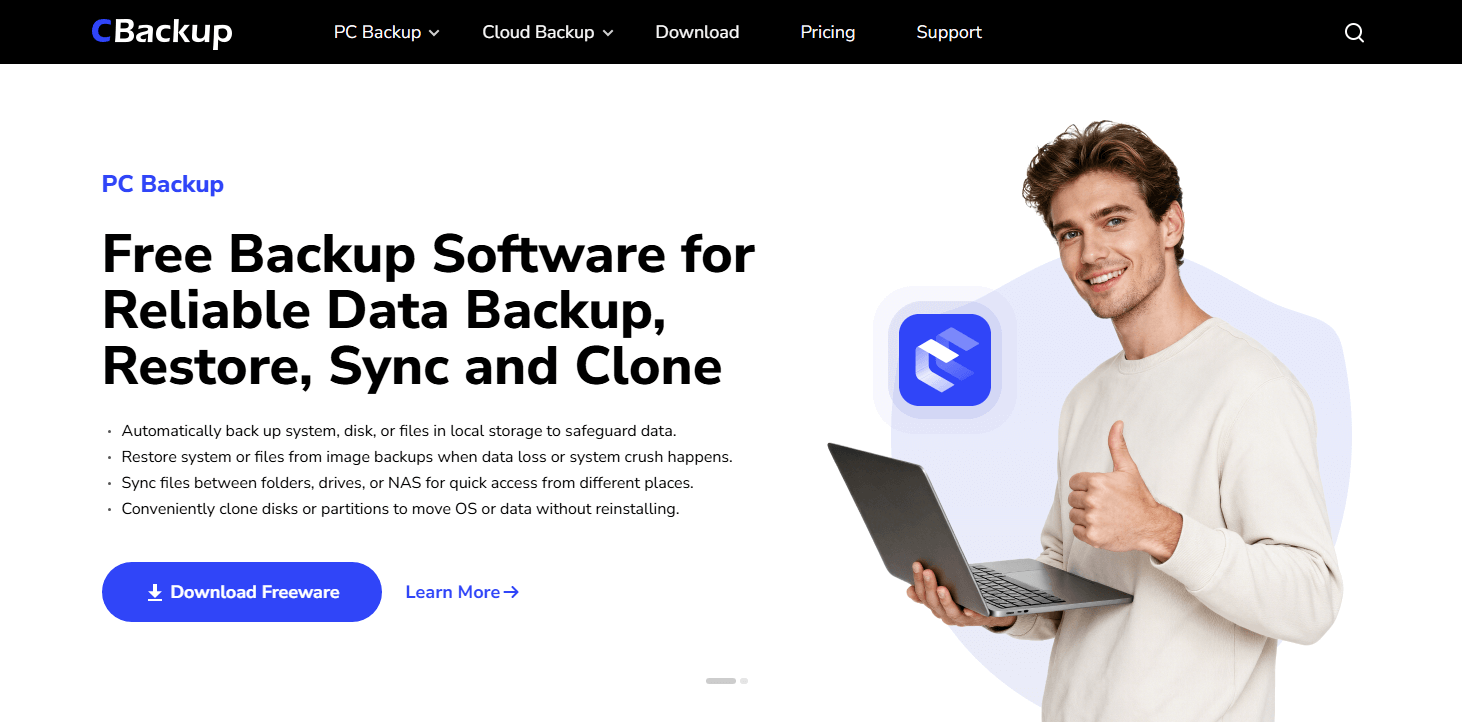
CBackup is a powerful yet easy-to-use backup solution designed for Windows users who want reliable data protection without complexity. It combines system backup, file sync, and disk cloning into one tool, making it suitable for both everyday use and advanced needs. Whether you need to back up your OS, sync files to an external drive, or migrate your system to a new disk, CBackup offers a smooth and secure experience.
⚙️ Key Features
-
Comprehensive Backup Options: Supports system, disk, partition, file, and even email backup, with flexible restore options anytime.
-
Automatic Scheduled Backup: Set up regular backups to run daily, weekly, or monthly without manual effort.
-
Flexible File Sync: Sync files across PCs, external hard drives, USB drives, and NAS with mirror, real-time, or two-way modes.
-
Incremental Backup Algorithms: Intelligently backs up only modified files, saving maximum storage space and significantly reducing backup time.
🧪 Real Case Test
During our testing, we configured CBackup to protect a highly active 50GB work directory:
-
Initial Setup: Completed in less than 5 minutes without needing a tutorial.
-
Automation: Once plugged in, the external hard drive synced perfectly on its daily schedule without manual dragging and dropping.
-
Incremental Efficiency: Subsequent daily backups took mere seconds, barely utilizing CPU or disk space.
-
Recovery: Restored a deleted batch of files instantly with zero data corruption.
💬 User Feedback
Users consistently praise CBackup for its peace of mind. One user highlighted: "I lost all my work documents last year. Since then, I started looking for reliable backup drive software. CBackup changed everything. The setup took less than five minutes, and it silently protects my data every single day. I highly recommend it to anyone who values their digital life."
👍 Pros
-
Extremely intuitive interface suitable for absolute beginners
-
Highly reliable data recovery process
-
Generous free tier available for personal use
👎 Cons
-
Requires an internet connection to utilize the advanced cloud features
✅ Conclusion
Overall, CBackup delivers a balanced mix of simplicity and advanced functionality, making it a dependable choice for secure backups, syncing, and disk management on Windows PCs.
🥈 2. Paragon Backup And Recovery (Best for Granular Control)
⭐ Overall Rating: 4.5/5
🧠 Overview
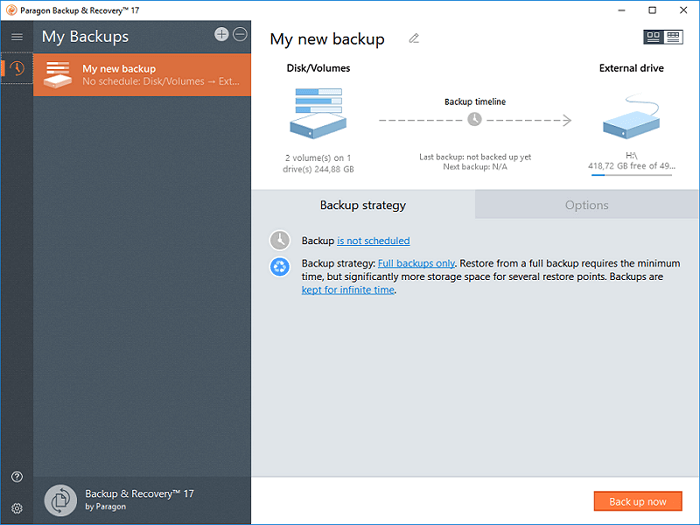
Paragon Backup and Recovery provides exceptional offline data security tailored for highly technical users. If you desire absolute, granular control over your archives, partitions, and storage destinations, this is the software for you. It excels in complex environments where users need to dictate exactly how and where their data is stored without relying on simplified, "one-click" automated systems.
⚙️ Key Features
-
Advanced Partitioning Tools: Deep-level control over disk partitions, allowing you to split, merge, or resize drives seamlessly.
-
Scenario-Based Restore Jobs: Customize recovery parameters based on specific hardware or data-loss scenarios.
-
Highly Secure Encryption: Protects offline archives with enterprise-grade encryption algorithms to prevent unauthorized access.
🧪 Real Case Test
We deployed Paragon on a complex dual-boot workstation:
-
Granular Archiving: Successfully isolated and backed up specific system partitions while ignoring temporary drive sectors.
-
Recovery Speed: Restored a 100GB localized database partition flawlessly without interrupting the secondary OS.
💬 User Feedback
Technical users highly value the precision Paragon offers. A common sentiment is best summarized by this review: "Paragon gives me total control over where and how my data is stored. It is incredibly thorough."
👍 Pros
-
Unmatched granular control over backup archives
-
Highly secure encryption for sensitive local data
-
Excellent for complex, multi-drive setups
👎 Cons
-
The user interface feels slightly outdated and dense compared to modern competitors
✅ Conclusion
Paragon is a powerhouse for IT professionals and power users. While the interface has a learning curve, its thoroughness and advanced partition management make it a top-tier choice for complex offline setups.
🥉 3. Macrium Reflect Free Edition (Free Disk Imaging)
⭐ Overall Rating: 4.7/5
🧠 Overview
Budget constraints should never prevent you from protecting your files, and Macrium Reflect Free Edition proves you don't need to spend hundreds of dollars for enterprise-level reliability. Widely celebrated for creating precise disk images quickly and efficiently, it is an essential tool for college students, home users, and technicians who need to clone drives or prepare for hardware upgrades.
⚙️ Key Features
-
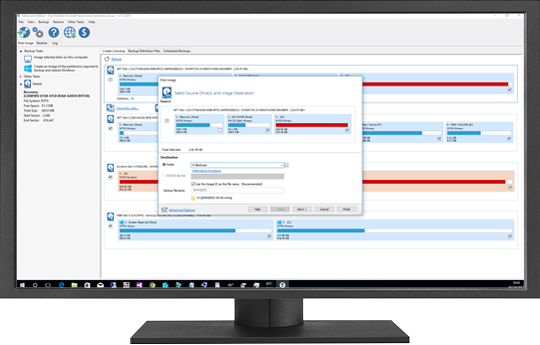
Direct Disk ImagingCreates an exact, 1:1 replica of your hard drive, capturing the OS, files, and hidden partitions.
-
Rapid Delta Restore TechnologyDramatically speeds up the restoration process by only updating the blocks of data that have changed.
-
Bootable Rescue MediaEasily generate a USB rescue environment to boot a PC that refuses to start.
🧪 Real Case Test
We tested Macrium's cloning capabilities during a hardware upgrade:
-
Cloning Process: Cloned a failing 500GB HDD to a brand-new NVMe SSD in under 45 minutes.
-
Boot Test: Swapped the drives, and the computer booted perfectly on the first try, with zero lost configurations or files.
💬 User Feedback
Users frequently cite Macrium as a lifesaver during hardware failures. One user shared: "Macrium is a lifesaver. I created an exact clone of my failing disk and moved everything to a new drive perfectly."
👍 Pros
-
Completely free for basic, everyday use
-
Extremely fast image creation and cloning times
-
Highly reliable bare-metal recovery
👎 Cons
-
The interface is heavily technical and can be slightly intimidating for completely new users
✅ Conclusion
Macrium Reflect Free Edition remains the undisputed king of free disk cloning and imaging. If you need to migrate to a new drive or want a flawless image of your entire system, this is the tool to download.
🛡️ 4. Acronis Cyber Protect Home Office (All-in-One Security)
⭐ Overall Rating: 4.8/5
🧠 Overview
Though primarily a premium paid tool, Acronis Cyber Protect Home Office offers immense value by completely redefining what a backup tool should be. It uniquely combines top-tier external hard drive backup capabilities with an active, aggressive malware defense mechanism. This dual-layer approach means your backups aren't just stored; they are actively guarded against modern digital threats like ransomware.
.png)
⚙️ Key Features
-
Integrated Antivirus ProtectionReal-time defense against malware, ransomware, and cryptojackers.
-
Blockchain NotarizationGuarantees the authenticity of your backed-up files, ensuring they haven't been tampered with.
-
Dual Protection LayersSimultaneously replicates local backups to the cloud for absolute redundancy.
🧪 Real Case Test
We subjected Acronis to a simulated ransomware environment:
-
Active Defense: The software instantly detected the unauthorized encryption attempt.
-
Auto-Recovery: It halted the malicious process and automatically restored the few files that were altered using its secure cache.
💬 User Feedback
Users love the convenience of a unified security suite. One user noted: "Having my backups and antivirus in one single program makes my life much easier and my computer feel much safer."
👍 Pros
-
Incredible active security measures against ransomware
-
Unified interface for both cybersecurity and data protection
-
Excellent cloud integration
👎 Cons
-
Heavy resource usage can slow down older computer systems
-
Premium pricing model after the trial period ends
✅ Conclusion
Acronis is the ultimate choice for users who refuse to compromise on security. By combining active cybersecurity with robust backups, it acts as an impenetrable vault for your most sensitive data.
🔌 5. Handy Backup Standard (Plug-and-Play Automation)
⭐ Overall Rating: 4.4/5
🧠 Overview
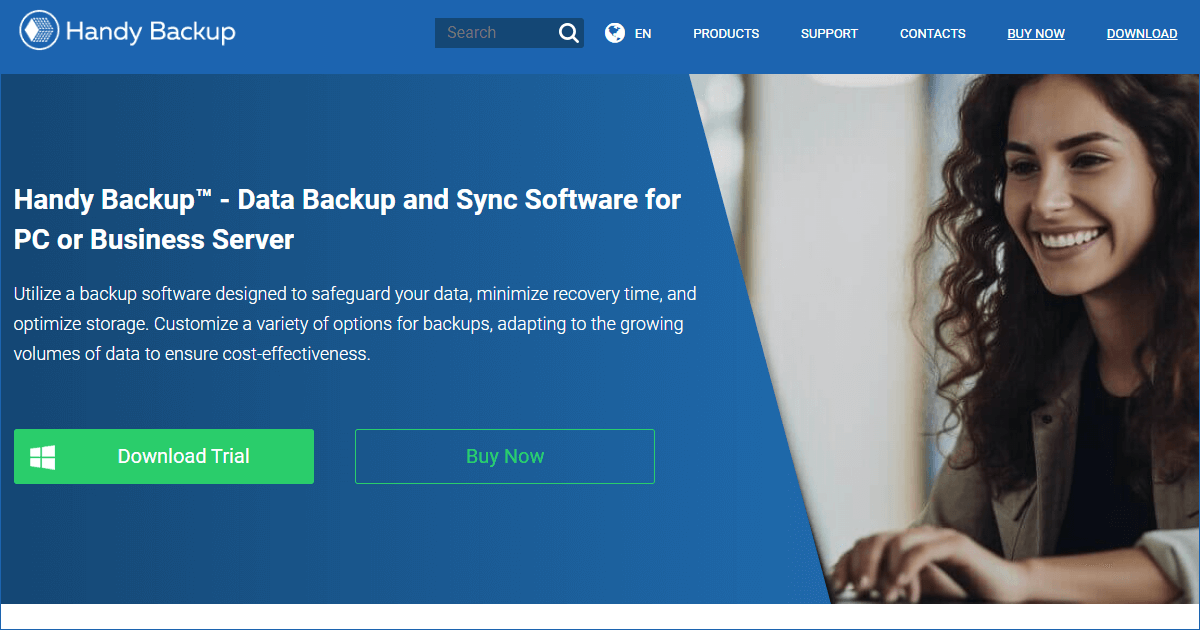
Handy Backup Standard is an excellent solution for users who want to make physical backups as frictionless as possible. Functioning flawlessly in the background, it is the perfect companion for external hard drive setups. Its standout capability is its plug-and-play nature—allowing users to simply attach a drive and walk away while the software handles the rest.
⚙️ Key Features
-
Plug-and-Play AutomationConfigurable to automatically launch specific backup routines the second a designated USB drive is inserted.
-
Selective File RestorationEasily browse your backups and pluck out individual files without needing to restore the whole archive.
-
Silent Background OperationRuns quietly without throwing disruptive pop-ups or hogging system resources.
🧪 Real Case Test
We set up Handy Backup for a daily office routine:
-
Trigger Test: Programmed the software to recognize a specific 2TB external drive. Upon plugging it in at the end of the day, the backup initiated instantly without a single mouse click.
-
Validation: All daily modified documents were safely copied in the background in under 3 minutes.
💬 User Feedback
The automation is the biggest selling point for users. A typical review reads: "I love that it starts automatically the very moment I plug in my portable drive. I never forget to back up anymore."
👍 Pros
-
Incredible USB plug-and-play automation
-
Very lightweight on system resources
-
Simple, intuitive logic for setting up jobs
👎 Cons
-
The visual design and UI look notably older than modern competitors
✅ Conclusion
If you struggle to remember to back up your files, Handy Backup Standard takes the human error out of the equation. It is highly recommended for anyone who wants a "plug-it-in-and-forget-it" external drive workflow.
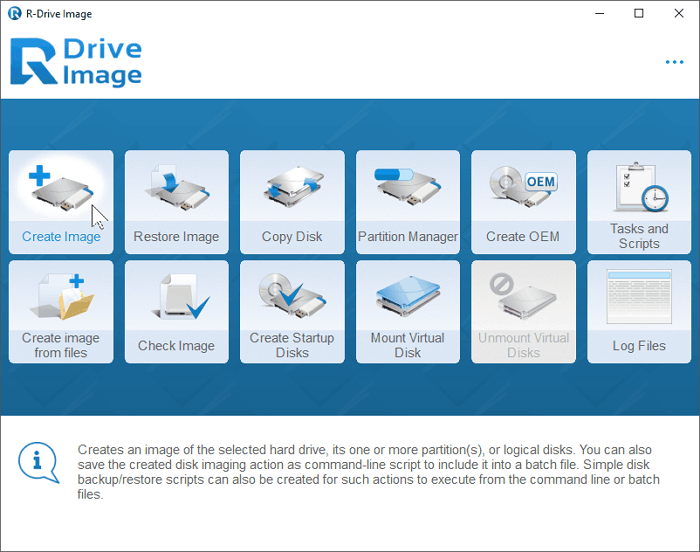
🖧 6. R-Drive Image (Best for Strictly Offline Systems)
⭐ Overall Rating: 4.3/5
🧠 Overview
In an era where every app wants to connect to the internet, R-Drive Image provides robust, uncompromising offline functionality without ever relying on remote cloud servers. It is the premier choice for secure, air-gapped workstations, industrial machines, or highly sensitive corporate computers that must remain disconnected from the web.
⚙️ Key Features
-
Byte-for-Byte CopyingCreates an exact, uncompressed replica of a drive down to the raw byte level.
-
Virtual Drive CreationMount your backup image files as read-only virtual drives to easily explore and extract specific folders.
-
Bare-Metal RestoresEasily restore a complete system to blank, unformatted hardware.
🧪 Real Case Test
We utilized R-Drive Image on an air-gapped workstation:
-
Image Creation: Created a massive, highly compressed byte-for-byte image of a secure server.
-
Virtual Mounting: Later mounted the image file as the "Z: Drive" on a separate machine, allowing us to seamlessly drag and drop specific historical files as if it were a physical USB stick.
💬 User Feedback
Security-conscious users highly praise its isolated nature. One user stated: "Perfect for completely offline systems. I use it for my secure offline workstation, knowing my data isn't secretly pinging a server somewhere."
👍 Pros
-
Extremely reliable for bare-metal system restores
-
Zero background telemetry or cloud dependency
-
Excellent virtual drive mounting feature
👎 Cons
-
Lacks modern cloud integration completely
-
Very utilitarian interface geared toward IT professionals
✅ Conclusion
R-Drive Image isn't trying to be a trendy cloud app; it is a serious, heavy-duty tool for offline cloning. It is the absolute best choice for strict, secure environments and specialized IT recovery tasks.
How to Use the Best Automatic Backup Software for External Hard Drive
To use the best backup software for an external hard drive, follow these clear steps. First, make sure your Windows system runs smoothly. Then, connect an external drive with enough storage space. Finally, install reliable backup drive software like CBackup on Windows to enable automatic and secure backups with free backup software for external hard drive support.
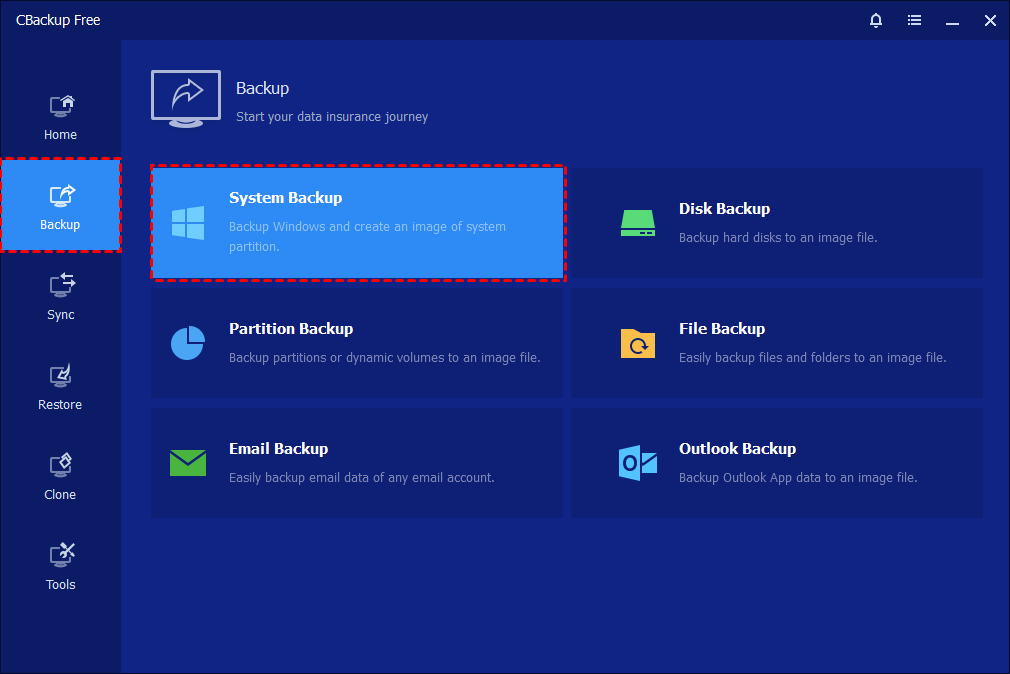
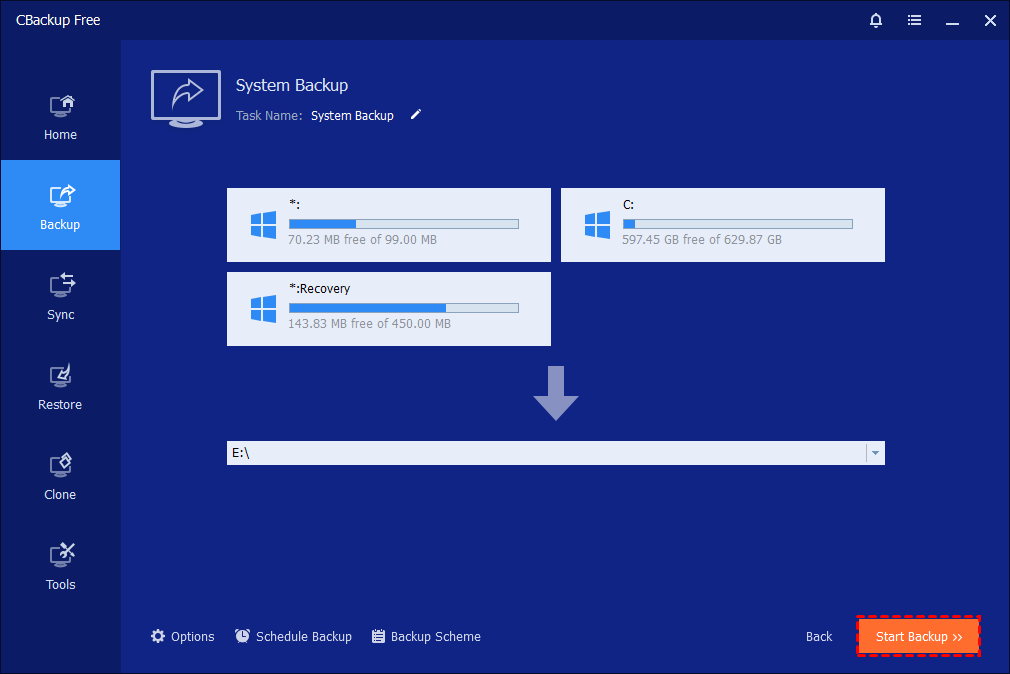
Step 1. Launch CBackup on your computer. From the main interface, click the “Backup” option in the left-hand panel, then choose “System Backup.” The program will automatically identify and display all system-related partitions required for a complete backup.
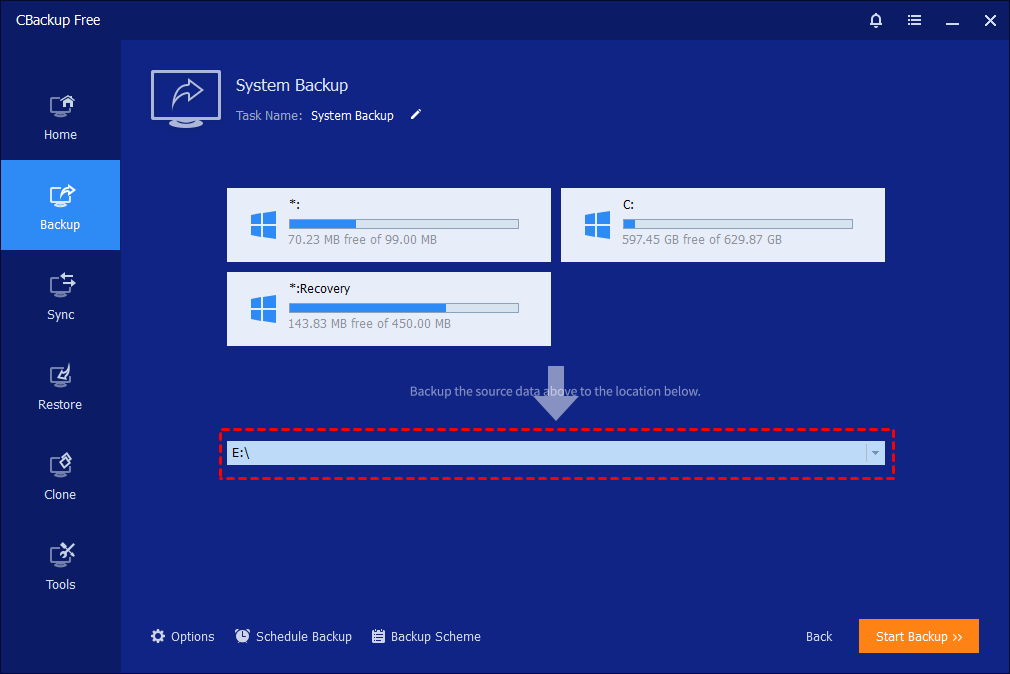
Step 2. Click on the destination selection box and choose your external hard drive as the backup location. You may also rename the backup task in the “Task Name” field to make it easier to identify later.
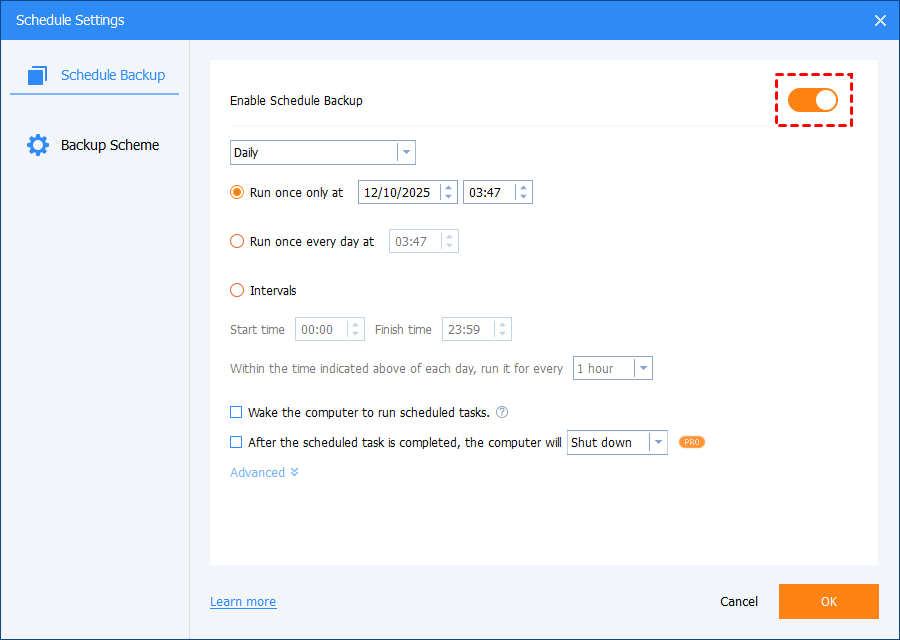
Step 3. You can further customize the settings in this backup software external hard drive solution by adjusting compression, enabling encryption for better protection, splitting large image files, and turning on email alerts. It also allows you to set automatic backups on a daily, weekly, or monthly basis, while choosing incremental or differential backup methods to save storage space efficiently.
Step 4. After confirming all settings, click “Start Backup” to begin the system image backup process. The software will start copying all necessary system data to the external drive.
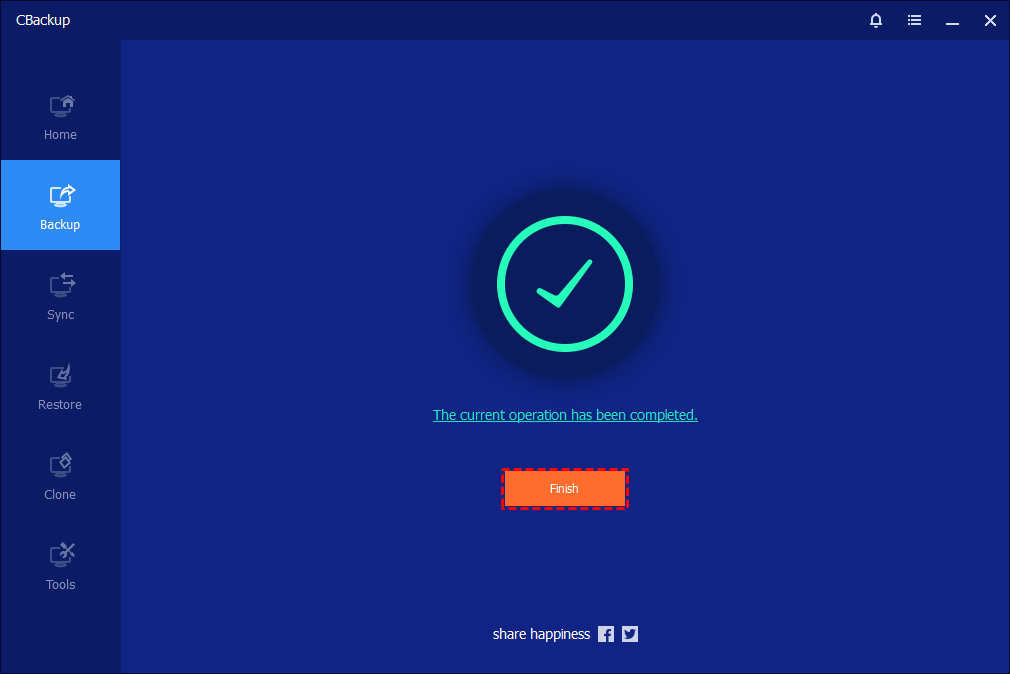
Step 5. Monitor the backup progress through the interface. You can view detailed progress information and optionally set the computer to shut down, restart, or enter sleep mode after completion. Once finished, click “Finish.”
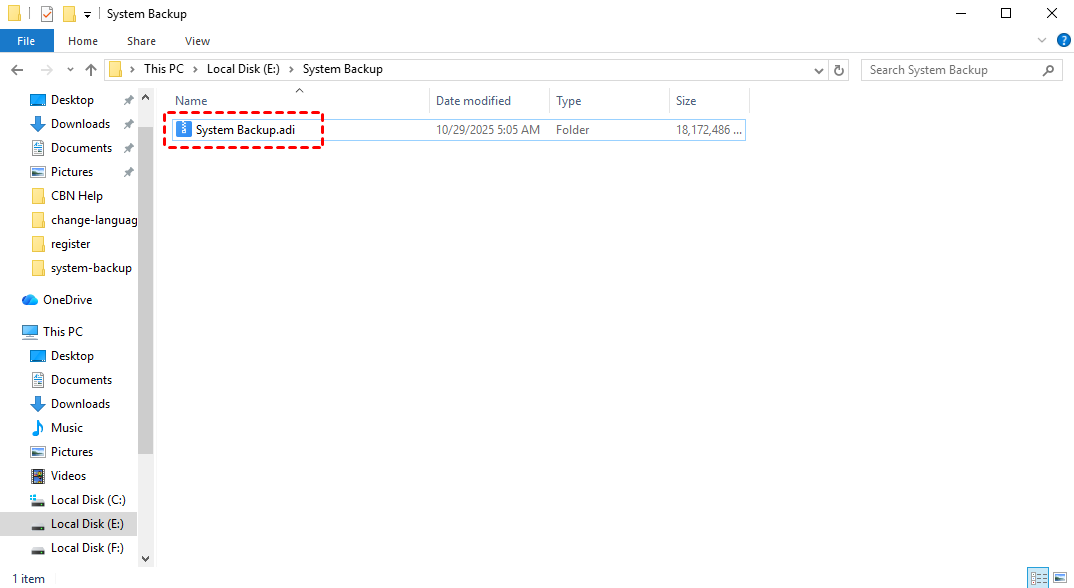
Step 6. After completion, the backup task will appear on the home screen for future management. The system image file (in .adi format) will be saved to your external hard drive, allowing you to restore your system quickly whenever needed.
By using CBackup to create a system image, you can keep your data well protected from unexpected issues. As an automatic backup software for external hard drive, it not only preserves your operating system and installed programs but also helps save time during recovery. With regular backups stored on an external drive, your data remains secure and your system can be quickly restored whenever needed.
Summary
Finding reliable free backup software for external hard drive is important if you want to keep your files safe from hardware issues, ransomware, or accidental deletion. This guide takes a closer look at six popular backup tools, each designed to suit different budgets, workflows, and experience levels. To make your final decision easier, here is a clear summary of the six backup tools and how they perform in real use:
| Software | Best For | Key Strengths | Limitations | Rating |
|---|---|---|---|---|
| 👍 CBackup | All-in-one everyday use | Easy setup, automatic backup, cloud support, fast incremental backup | Needs internet for full features | ⭐ 4.9/5 |
| ✔️ Paragon Backup & Recovery | Advanced users | Deep control over partitions, strong encryption, flexible restore | Complex interface, learning curve | ⭐ 4.5/5 |
| 🌟 Macrium Reflect Free | Free disk imaging & cloning | Reliable cloning, fast restore, completely free | Technical interface for beginners | ⭐ 4.7/5 |
| 🔥 Acronis Cyber Protect Home Office | Security-focused users | Backup + antivirus, ransomware protection, cloud backup | High resource usage, paid | ⭐ 4.8/5 |
| 🔶 Handy Backup Standard | Simple automation | Plug-and-play backup, lightweight, easy to use | Outdated interface | ⭐ 4.4/5 |
| 🔷 R-Drive Image | Offline & secure environments | No internet needed, precise disk imaging, strong recovery | No cloud features, basic UI | ⭐ 4.3/5 |
CBackup stands out as the top option thanks to its simple automation, flexible cloud features, and generous free plan. Still, there are other solid choices depending on your needs. Macrium Reflect works well for disk cloning, Acronis offers comprehensive protection, Handy Backup keeps things easy with USB automation, while Paragon and R Drive Image provide more advanced control for offline backups. This guide helps you choose the right tool to protect your data with confidence.
FAQs
🗨️ 1. What is the best external backup drive?
There is no single “best” drive for everyone. A good external backup drive should have enough storage, fast transfer speed, and strong durability. In practice, pairing a reliable drive with the best backup software for external hard drive is more important, since the software ensures your data is safely and consistently protected.
🗨️ 2. What is the best way to backup a computer to an external hard drive?
The most effective way is to use dedicated backup software that creates a full system image and schedules regular backups. This approach is safer than manual copying because it captures the entire system and reduces human error. Experts often recommend automated image backups for complete protection .
🗨️ 3. Is Veeam no longer free?
Veeam still offers a free version called Veeam Agent for Windows, but it comes with limitations. For example, it may restrict certain features or configurations, such as the number of backup jobs, while paid versions provide more advanced capabilities.
🗨️ 4. Can you set up an external hard drive to automatically backup?
Can you set up an external hard drive to automatically backup? Yes, you can. Most modern tools, including automatic backup software for external hard drive, allow you to schedule backups daily, weekly, or monthly. Some programs even start backups automatically when the external drive is connected.
🗨️ 5. What is one drawback of using an external hard drive for backup?
One key drawback is that external drives often rely on manual use. If you forget to connect the drive or run the backup, your latest data may not be protected. They can also be vulnerable to physical risks like theft or damage if stored nearby .
🗨️ 6. How long will an external hard drive last if not used?
An unused external hard drive can last several years, but it is not permanent. Like all hardware, it has a limited lifespan and may degrade over time, especially if exposed to poor storage conditions or physical damage .
Free Get CBackup Now

Secure & Free
