


How to Set Up Automatic Scheduled Backup on Windows 11 and 10?
This is a simple guide to automatic scheduled backup and Windows 10 automatic backup, including daily backup options for safer computer and personal file protection.

By Irene Updated May 20, 2026


🌟 TL;DR
To prevent permanent data loss from hardware failures, accidental deletion, or malware attacks, this article provides a complete guide on setting up scheduled automatic backups in Windows 10. By reading this guide, you will learn how to automate your data protection and keep your critical digital assets entirely secure.
📢 What You Will Gain From This Article:
-
Eliminate the Hassle of Manual Backups: Learn how to set up automated, background backup schedules (such as daily) so your data is protected on autopilot, removing the risk of forgetting to copy files.
-
Know Exactly What to Back Up: Get a clear file prioritization checklist (e.g., high-value work documents, core personal files, and emails) to help you optimize storage space without missing critical data.
-
Build a Secure, Efficient Backup System: Understand how to combine incremental backups, multi-destination storage (local, external drives, NAS, or cloud), and encryption for a modern, space-saving, and secure setup.
-
Gain Instant Disaster Recovery Skills: Ensure that if your PC crashes, gets corrupted, or suffers physical damage, you can rapidly restore individual files or your entire system with minimal downtime.
How to set scheduled backup in Windows 10?
Setting up scheduled backup in Windows 10 is one of the easiest ways to protect important files, business documents, and system data from unexpected problems. Hardware failure, accidental deletion, or system crashes can happen at any time, and losing valuable data may interrupt daily work or even affect business operations.
For users who want a simpler and more reliable solution, CBackup offers powerful backup features with an easy to understand interface. It helps users create automatic backups without dealing with complicated settings, making it suitable for both beginners and experienced users.
Some useful features include:
• Automatic scheduled backup for files, systems, disks, and partitions
• Incremental backup that only saves changed data to reduce storage usage
• Backup support for local drives, external hard drives, USB devices, and NAS
• WinPE bootable media for system recovery when Windows cannot start
• Disk cloning and OS migration for upgrading to a new SSD smoothly
• Strong AES 256 bit encryption for better data security
Compared with basic Windows backup tools, CBackup focuses more on efficiency, stability, and flexible recovery options. Users can quickly restore files or even recover an entire system after unexpected data loss. Many users also appreciate how fast and simple the backup process feels in daily use.
With scheduled backup enabled in CBackup, Windows 10 users can keep their important data continuously protected while saving time and reducing manual work.
Step 1. Download the powerful backup software on your computer. If you want to back up the entire hard drive, please choose follow the guide.
Step 2. Click Backup in the left menu, then select the File Backup option.
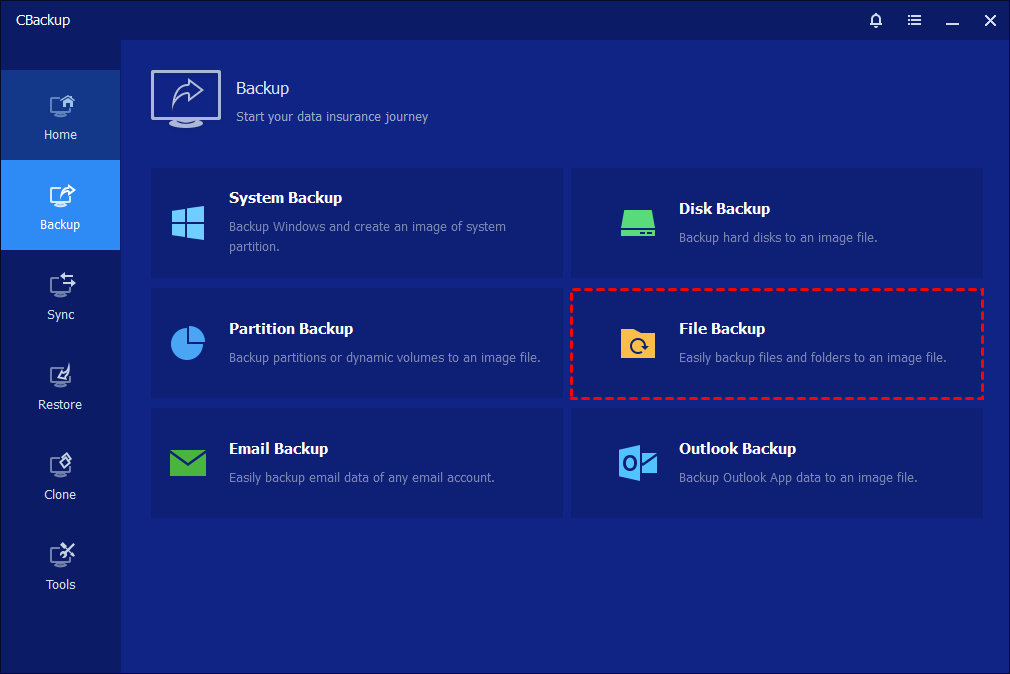
Step 3. Then you can click on Add File Folder.
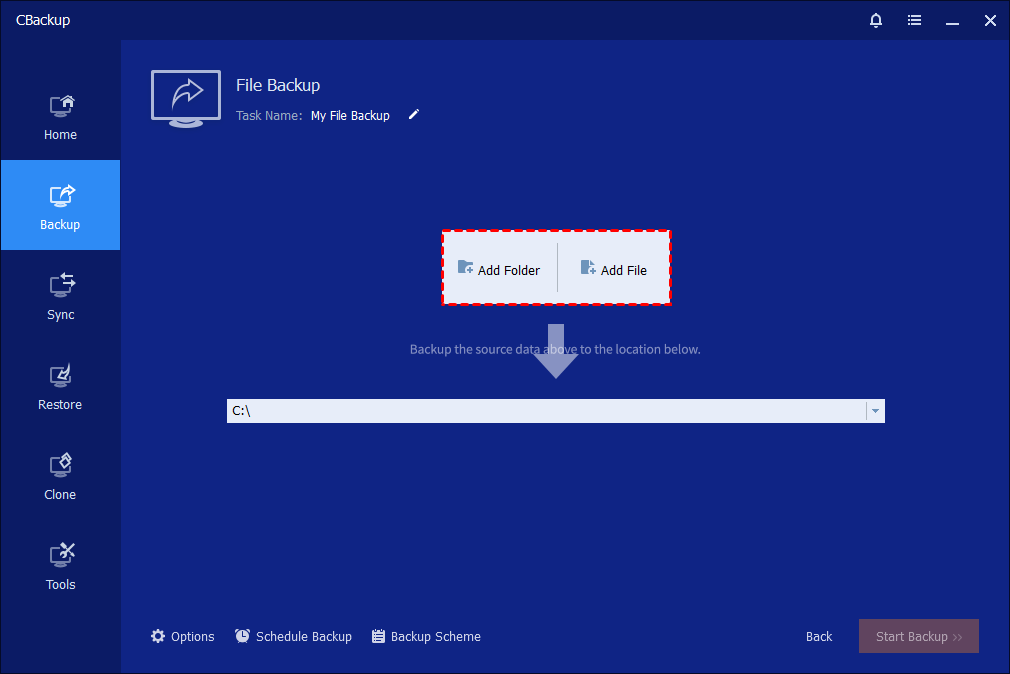
Step 4. In the pop up window, click Add Folder or Add File based on your needs, and select a backup destination such as a local drive, external hard drive, cloud storage, or NAS device for automatic file backup.
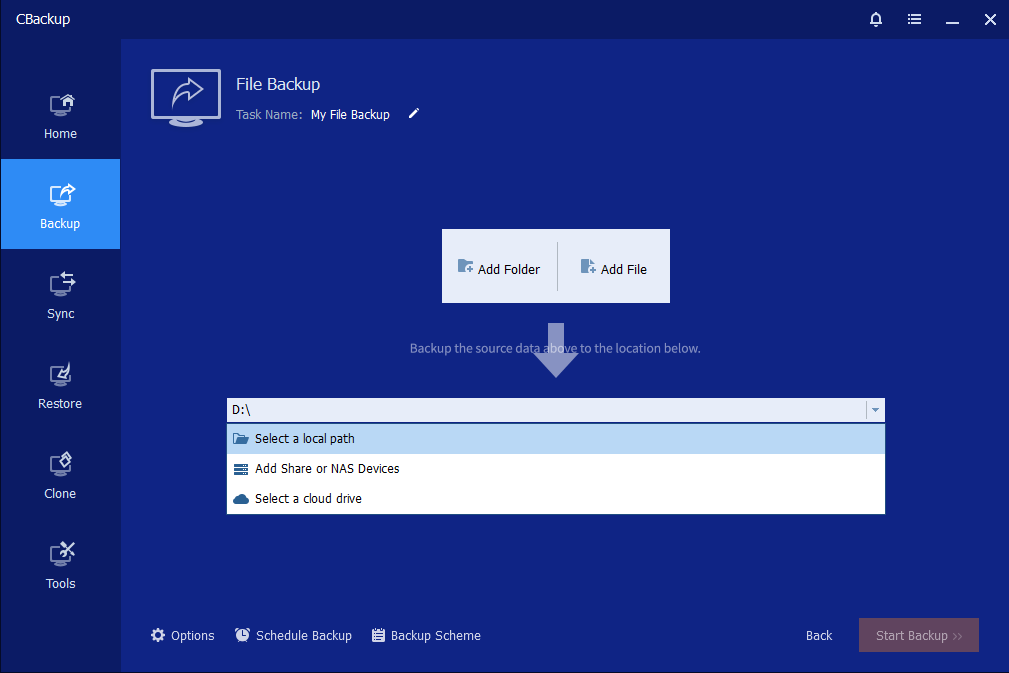
🌟 Note: If you want to perform NAS backup, you need to choose Share/NAS>Add Network Location to type the IP address. Then press OK to choose the folders you need to back up.
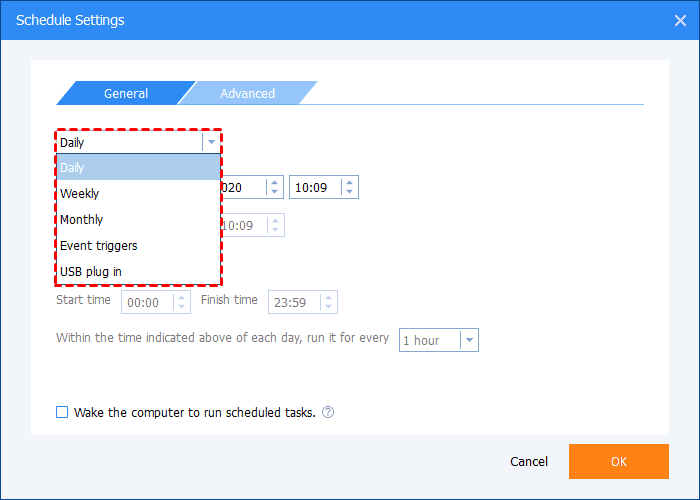
Step5. To create a Windows automatic backup, click the Schedule Backup option at the bottom and select how often you want the task to run. Once configured, the system will back up your folder automatically according to the selected schedule.
Step 6. After choosing the backup destination path, you can click the Start Backup button to begin the backup process.
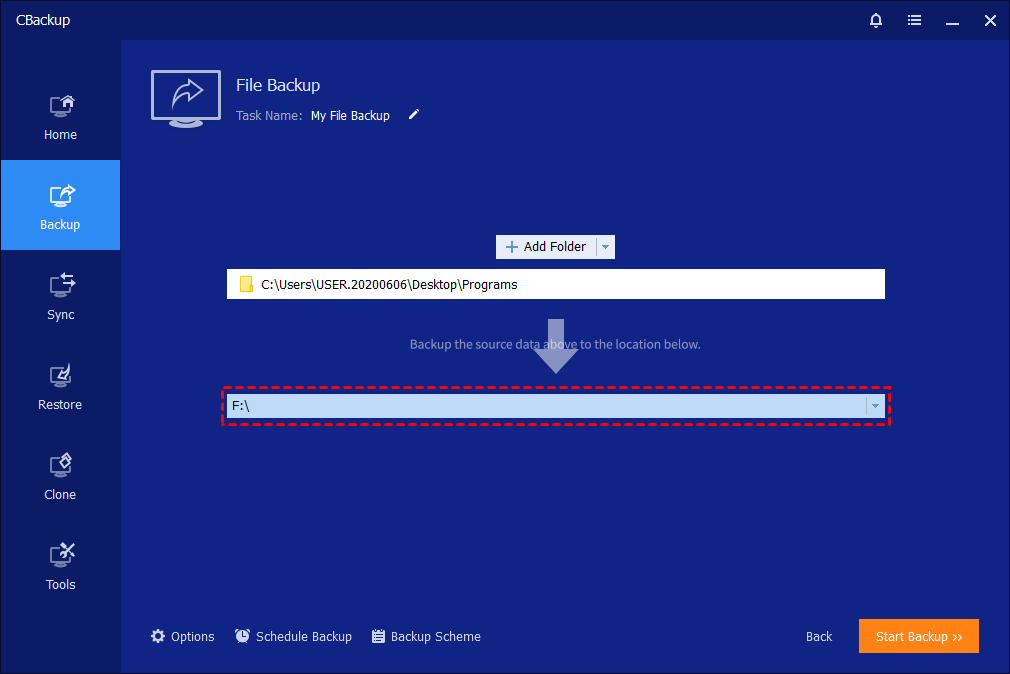
When the backup is running, you can also click the underlined sentence to check the backup process in detail.
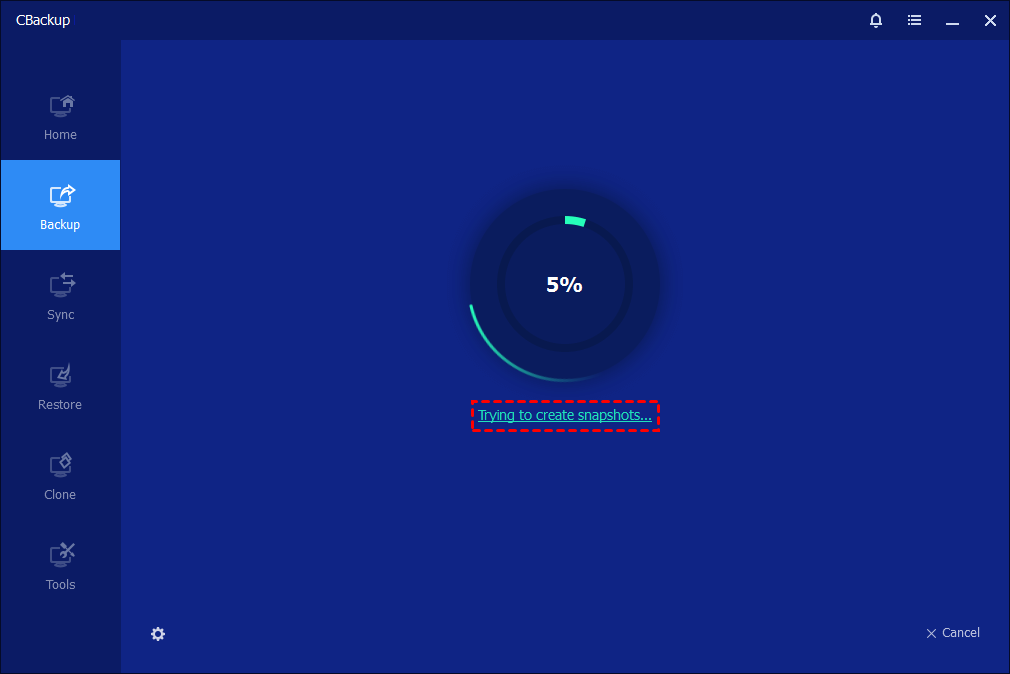
Then, please kindly wait for the backup process to complete, and then click the"Finish" button.

Common Windows Backup Options Comparison
Windows users can choose from several backup methods depending on how much protection they need and where they want to store their data. Some solutions focus on simple file protection, while others are designed for full system recovery after serious failures. Modern backup tools also support automatic scheduling, incremental backup, encryption, and cloud storage integration to improve efficiency and security. There is a table to help you choose the backup options that suits your needs most.
| Backup Option | Main Purpose | Storage Location | Backup Style | Best For |
|---|---|---|---|---|
| File History | Protect personal folders and restore older file versions | External drive or network location | Continuous automatic backup | Everyday users who frequently edit documents and media |
| Windows Backup | Save files, preferences, and Windows settings | Microsoft account and connected storage | Automatic scheduled backup | Windows 11 users wanting simple built in protection |
| Backup and Restore | Create file backups and system images | External drives or local disks | Scheduled or manual backup | Users familiar with older Windows backup tools |
| System Image Backup | Recover the entire operating system and installed programs | External hard drives or network storage | Full image backup | Full disaster recovery after system failure |
| OneDrive Sync | Keep important folders synchronized online | Cloud storage | Real time synchronization | Users who need file access across multiple devices |
| CBackup | Provide flexible automated backup and recovery | Local drives, NAS, USB, cloud storage | Incremental and scheduled backup | Users wanting advanced backup automation and security |
Among these options, File History is suitable for protecting frequently changed files because it continuously saves updated versions in the background. Windows Backup and OneDrive are more convenient for users who prefer cloud connected protection and easier file synchronization across devices. Backup and Restore and System Image Backup are more useful when complete system recovery is required after hardware damage or operating system corruption.
For users looking for stronger automation and more flexible storage choices, tools like CBackup provide additional features such as incremental backup, AES 256 bit encryption, NAS support, and WinPE recovery media. Compared with basic Windows backup utilities, it offers a more complete backup environment for both personal and professional use.
Choosing the right backup option depends on how important your files are, how often they change, and how quickly you need to recover from data loss. Combining automatic scheduling with both local and cloud backup destinations can provide more reliable long term protection for Windows 10 and Windows 11 systems.
Why automatic laptop backup is necessary for everyday users
Automatic laptop backup is no longer just a business requirement. It has become an essential part of daily computer usage for students, professionals, and casual users. Laptops are highly portable, which also makes them more vulnerable to theft, physical damage, or sudden system failure. Without a backup system in place, losing a laptop can mean losing everything stored inside it.
One of the biggest advantages of automatic backup is that it removes human dependency. Many users forget to copy files regularly or postpone backups until it is too late. With automation enabled, every important file is continuously saved without any manual action required.
The importance of automatic laptop backup can be summarized in the following aspects:
- Protection against hardware failure such as disk damage or battery issues
- Recovery from accidental deletion of important documents or photos
- Safety from virus or malware attacks that may corrupt files
- Convenience of accessing previous versions of files when needed
- Peace of mind knowing that data is continuously protected
Another key benefit is time efficiency. Instead of spending time manually transferring files, users can focus on their tasks while the system handles backup in the background. This is particularly useful for people who work with large amounts of data or frequently update files.
Overall, automatic laptop backup is not just about storage. It is about ensuring continuity, reducing stress, and protecting valuable digital assets that are often irreplaceable.
What files should be included in an automatic file backup
Choosing the right files for automatic file backup is an important step in building an effective data protection system. Not every file on your computer needs to be backed up, but missing critical folders can lead to serious data loss. A well planned backup strategy focuses on files that are difficult or impossible to replace.
Generally, the most important files fall into a few main categories. These include personal documents, work related files, media content, and system related settings. Understanding what to include helps optimize storage space while ensuring essential data is always protected.
Below is a clear breakdown of recommended file categories for automatic backup:
| File Category | Examples of Files Included | Importance Level |
|---|---|---|
| Personal Documents | Reports, resumes, notes, spreadsheets | High |
| Work Files | Projects, client data, presentations | High |
| Media Files | Photos, videos, audio recordings | Medium to High |
| Email Data | Exported emails, attachments | High |
| Browser Data | Bookmarks, saved passwords | Medium |
| System Settings | Application preferences, configuration files | Medium |
In addition to these categories, users should also consider including folders that are frequently updated. Anything that changes often and holds value should be part of the backup plan.
However, it is not necessary to include temporary files or software installation files, as these can usually be downloaded again if needed. By carefully selecting what to back up, users can make their automatic file backup system more efficient and easier to manage while still maintaining strong data protection.
Conclusion
In conclusion, setting up scheduled backup in Windows 10 is a simple yet essential step to keep your important files safe at all times. It helps ensure that your documents, photos, and system data are continuously protected without requiring manual effort. Whether you are dealing with unexpected system crashes, accidental deletion, or hardware issues, having an automatic backup in place greatly reduces the risk of permanent data loss and helps you recover quickly when problems occur.
For users who want a more flexible and easier solution, tools like CBackup make the process even more convenient with automatic scheduling, strong security, and support for different storage options. By combining a proper backup plan with the right tool, you can maintain consistent data protection, save time, and avoid unnecessary stress. Once everything is set up correctly, Windows 10 users can enjoy peace of mind knowing their important data is always safely backed up and ready to restore whenever needed.
FAQs
🗨️ What is scheduled backup in Windows 10 and why is it important?
Scheduled backup in Windows 10 is a built in or software supported feature that automatically creates copies of your files at a predefined time. Its main purpose is to protect your data without requiring manual effort. This is important because unexpected problems such as system crashes, accidental file deletion, malware attacks, or hardware failure can lead to permanent data loss. With scheduled backup enabled, your files are continuously protected in the background. It also ensures consistency, meaning your important documents, photos, and system data are always updated in the backup storage. This gives users peace of mind since recovery becomes easy and fast whenever needed.
🗨️ How can I automatically back up my laptop every day without doing it manually?
To automatically back up your laptop every day, you need to use backup tools that support scheduling. Once you choose the files or folders you want to protect and set a daily schedule, the backup process will run automatically in the background without requiring your attention. You can also use tools like CBackup, which allows users to set up daily backup tasks for files, folders, or even full system data. After configuration, everything runs on autopilot, ensuring your latest data is always saved. This is especially useful for users who work daily on important files and do not want to risk losing recent changes.
🗨️ How to auto backup computer files to another drive or cloud storage?
To auto backup computer files to another drive or cloud storage, you first need to select a storage destination such as an external hard drive, USB drive, NAS device, or a cloud service. After that, choose the files or folders you want to protect and enable an automatic schedule. This setup allows the system to copy your data at regular intervals without manual action. Many users prefer combining both local and cloud backup because it provides extra safety. If one storage fails, the other still keeps your data secure. This method is widely used for both personal and business purposes to ensure continuous data protection.
🗨️ What is the difference between automatic file backup and manual backup?
Automatic file backup and manual backup differ mainly in how they operate. Automatic backup runs based on a set schedule and saves your files without user involvement. It reduces the chance of forgetting backups and keeps data consistently updated. In contrast, manual backup requires you to copy and save files yourself each time, which gives more control but depends entirely on user action. Because of this, manual backup is more likely to be missed or delayed. Automatic backup is generally preferred for long term protection since it ensures reliability and reduces human error.
🗨️ How do I enable Windows automatic backup in Windows 10?
You can enable Windows automatic backup in Windows 10 through the built in backup settings. First, choose the folders or files you want to protect and select a backup destination such as an external drive or network location. Then set the backup frequency according to your needs. Once activated, Windows will automatically create backups at the scheduled time. This helps ensure that your important data is always stored safely and can be restored easily if anything goes wrong. It is a simple and effective solution for long term file protection.
Free Get CBackup Now

Secure & Free
