


What Is Windows Mirror Image Backup and How to Create It?
This text provides an explanation of a mirror image backup. It outlines how a Windows mirror backup helps mirror files, and it compares a full image backup to an incremental backup.

By Irene Updated April 21, 2026


🌟At a Glance: What is a Mirror Image Backup?
A mirror image backup is an exact, 1:1 copy of your entire computer. It captures your operating system, settings, apps, and files so you can restore your PC to its exact state if your hardware fails.
-
Total Protection: It backs up everything, not just individual folders.
-
Live Syncing: Changes made to your files are immediately updated in the mirror.
-
Fast Recovery: No need to reinstall Windows or software after a crash.
-
Flexible Storage: Best stored on external drives, NAS, or the cloud.
🧐How to Mirror Your PC (Quick Steps)
-
Open CBackup and select System Backup.
-
Choose a Destination (like an external hard drive).
-
Enable "Schedule" for automatic updates.
-
Click "Start" to create your recovery image.
What Is A Mirror Image Backup and How Can You Mirror Files?
Have you ever wondered how to protect your computer data from unexpected disasters? A mirror image backup is one of the most reliable ways to secure your digital life. It creates an exact copy of your entire drive, including your operating system, system settings, and personal files. This means that if something goes wrong, such as a system crash or hardware failure, you can quickly restore everything to its previous state. To mirror files means keeping a second copy of your data that always matches the original.
Any changes you make, whether adding, editing, or deleting files, are reflected in the mirrored location. This helps ensure your backup stays up to date and accurate. For Windows users, a Windows mirror backup is especially useful. It saves the complete system environment, so you do not need to reinstall Windows or reset your settings after a failure.
Everything can be restored exactly as it was. You can store mirrored backups on an external hard drive, a network storage device, or a cloud server. The goal is to keep a complete and reliable copy of your data in a separate location. In short, a mirror image backup gives you a straightforward way to mirror files and keep your system protected at all times.
Use CBackup To Secure Your Windows Mirror Backup Easily
Protecting your data doesn’t have to be complicated. If you’re looking for a simple way to manage a Windows mirror backup, CBackup is a practical and reliable choice. It’s designed with an easy-to-use interface, so even beginners can quickly set up and mirror files without dealing with complex settings.
One of its most useful features is System Backup, which works like a mirror image backup. It creates a complete copy of your system, including your operating system, installed programs, and personal settings. This type of full image backup ensures that if your computer crashes, you can restore everything quickly without starting from scratch.
CBackup also supports flexible backup options like NAS backup. You can save your files from your computer to a secure NAS device and set automatic schedules to keep everything updated. Whether you choose daily, weekly, or monthly backups, your data stays protected. For more efficient storage, you can also use incremental backup, which only saves changes made since the last backup.
Overall, CBackup makes it easy to manage mirror image backup, full image backup, and incremental backup in one place, giving you a simple and effective way to protect your data every day. Now, you can download this software for free and follow our steps to mirror image backup.
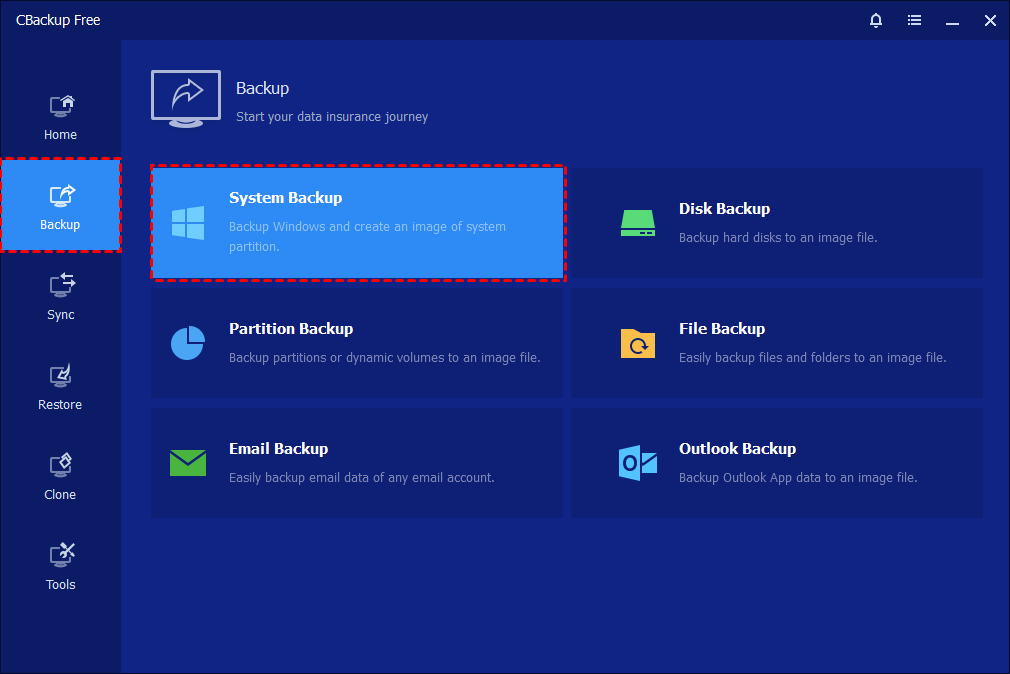
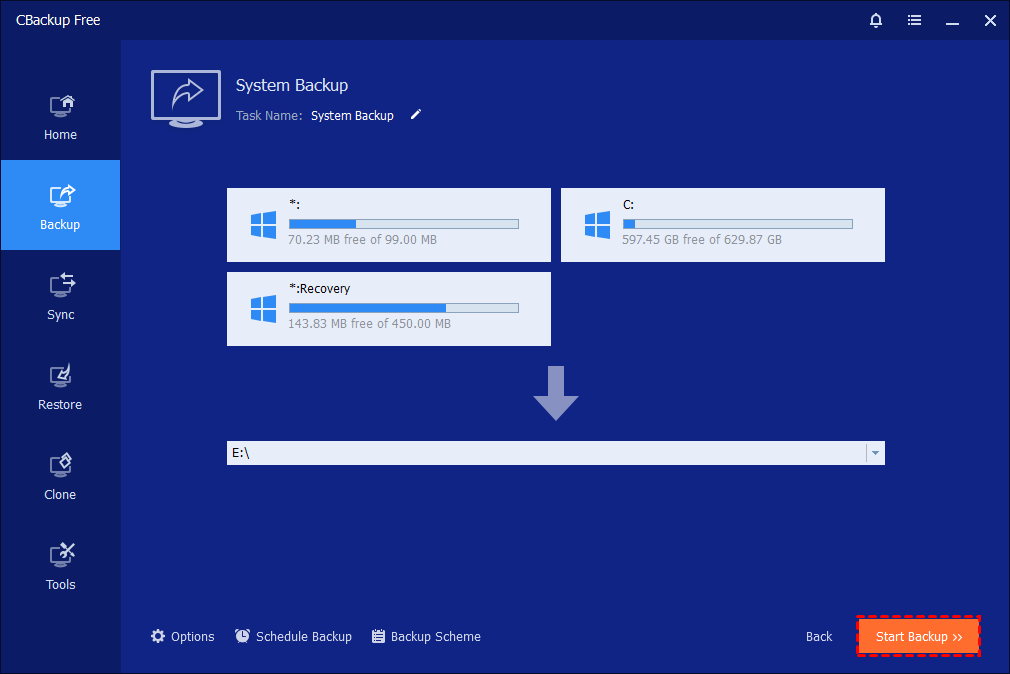
Step 1. Launch CBackup on your computer. From the main interface, click the “Backup” option in the left-hand panel, then choose “System Backup.” The program will automatically identify and display all system-related partitions required for a complete backup.
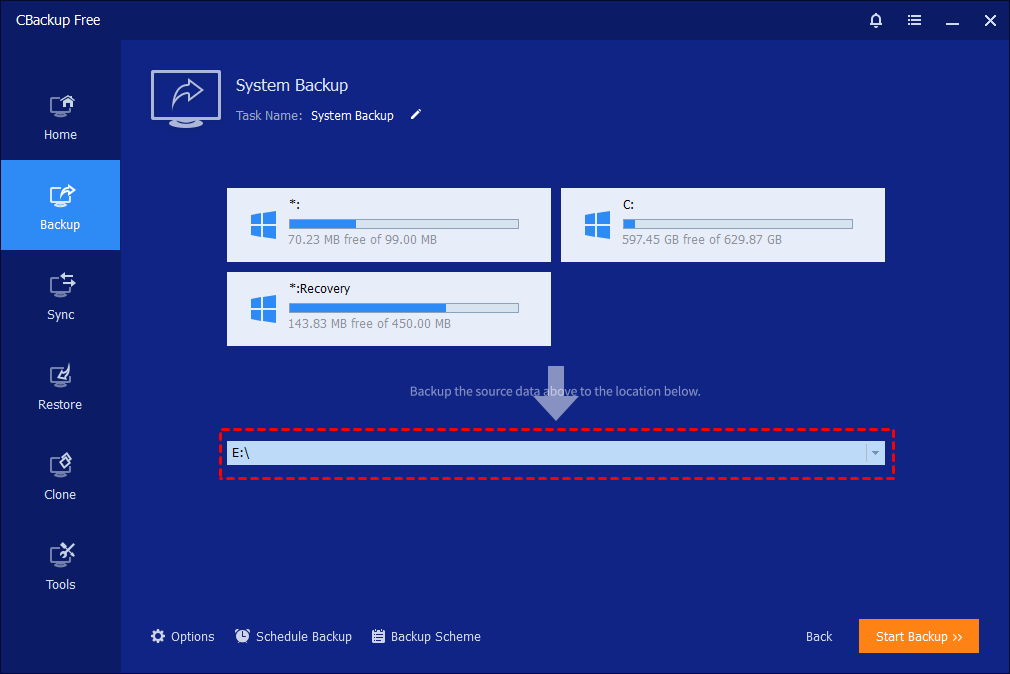
Step 2. Click on the destination selection box and choose your external hard drive as the backup location. You may also rename the backup task in the “Task Name” field to make it easier to identify later.
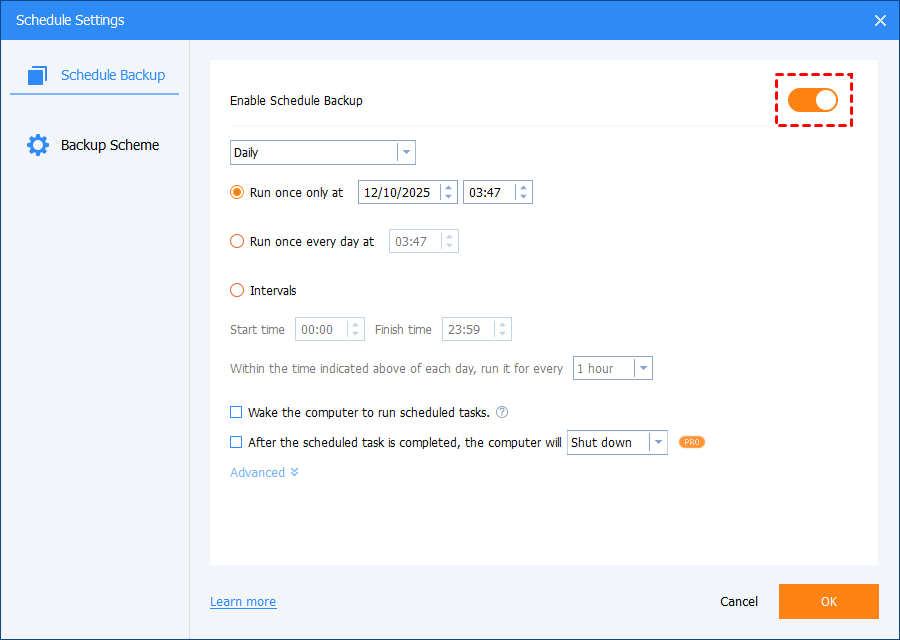
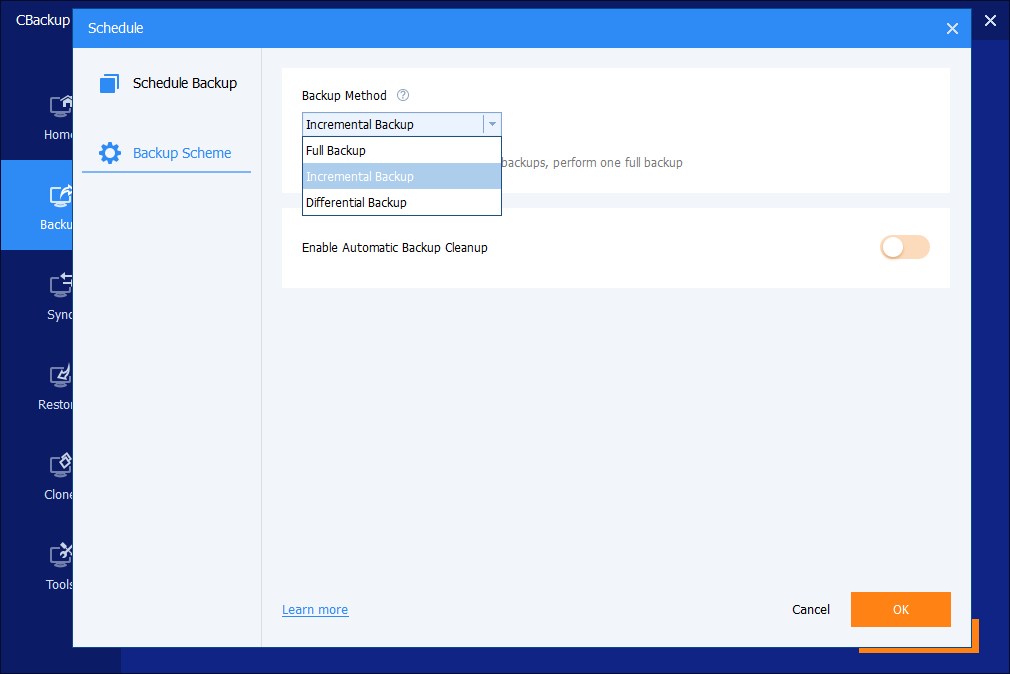
Step 3. Configure additional backup settings if needed. You can adjust compression levels, enable encryption for better security, split large image files, and set up email notifications. To save storage space and improve efficiency, enable incremental backup, which only backs up the changes made since the last backup instead of copying everything again. You can also schedule automatic backups (daily, weekly, or monthly) so your data stays continuously updated without manual effort.
Option 1. Schedule Backup:
Option 2. Incremental Backup:
Step 4. After confirming all settings, click “Start Backup” to begin the system image backup process. The software will start copying all necessary system data to the external drive.
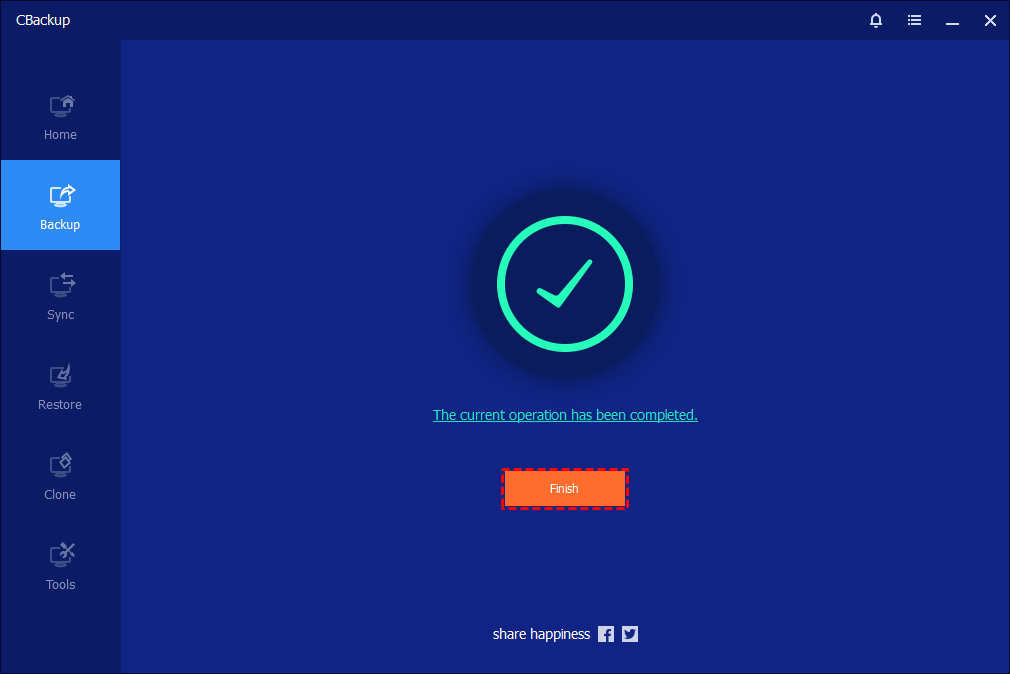
Step 5. Monitor the backup progress through the interface. You can view detailed progress information and optionally set the computer to shut down, restart, or enter sleep mode after completion. Once finished, click “Finish.”
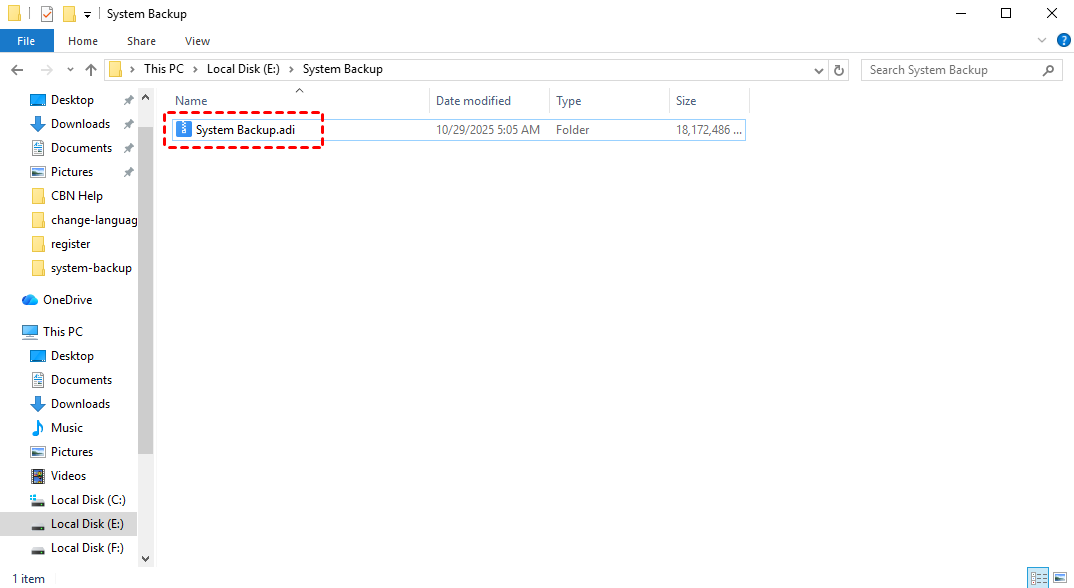
Step 6. After the process is finished, your mirror image backup task will appear on the home screen, allowing you to easily manage or modify it at any time. The full image backup file, saved in .adi format, will be securely stored on your external drive, ensuring you can quickly restore your Windows mirror backup whenever needed.
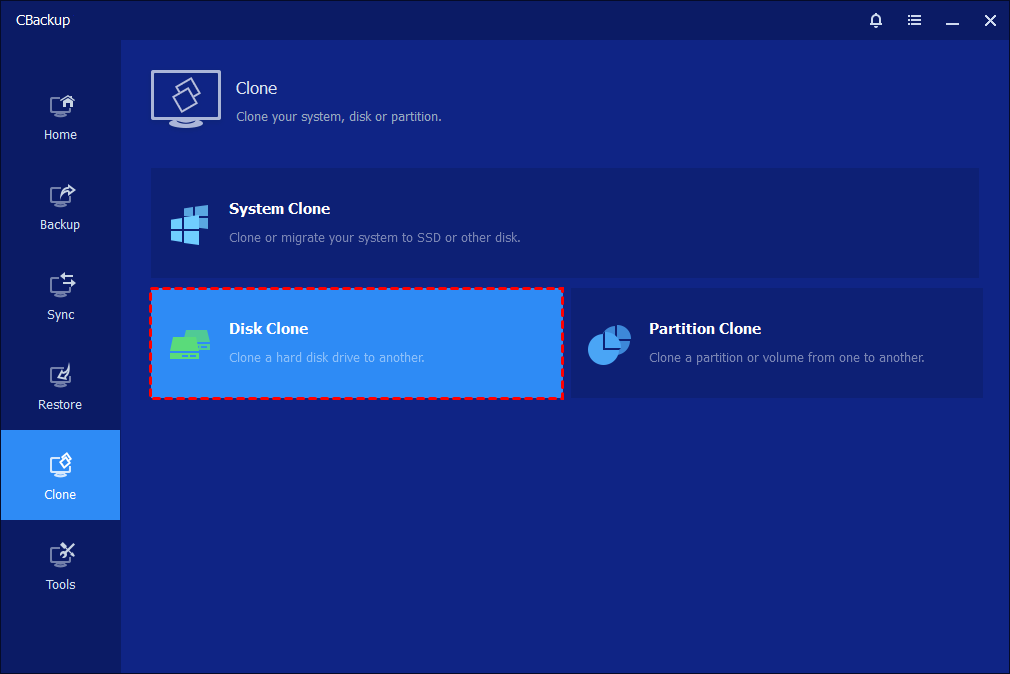
🌟Tip: If you want to create a full backup for your computer, CBackup alos offers Disk Clone, which allows you to copy your entire hard drive to a new one. This is especially useful when upgrading your storage, as it keeps your system, files, and structure exactly the same.
Why Do You Need A Full Image Backup For Your Computer?
Protecting your computer goes far beyond saving a few important files. A full image backup gives you a complete safety net by capturing an exact snapshot of your entire system at a specific point in time. This includes your operating system, installed applications, system settings, and all personal data. Unlike simple file backups, it preserves the full structure and functionality of your environment. When unexpected issues occur, such as malware infections, hardware failure, or system crashes, this type of backup becomes essential. It allows you to restore everything quickly and efficiently without starting from scratch. Understanding its value helps you build a stronger, more reliable data protection strategy for both personal and professional use.
The Reasons You Need a Full Image Backup for Your Computer:
- It protects your entire system, not just individual files or folders
- It enables fast recovery after system crashes or hardware failures
- It defends against ransomware and severe malware attacks
- It saves time by avoiding manual reinstallation of programs and settings
- It preserves system configurations exactly as they were
- It ensures business continuity and reduces downtime
- It provides a reliable baseline for long term backup strategies
- It simplifies disaster recovery for both beginners and professionals
- It helps maintain system integrity after unexpected issues
- It reduces stress during critical data loss situations
A full image backup is one of the most reliable ways to protect your computer and everything on it. By creating a complete snapshot of your system, it ensures that you can recover quickly from even the most serious problems. Whether facing hardware damage, cyber threats, or accidental data loss, this method allows you to restore your entire environment without complicated steps. Although it requires more storage space and is usually performed less often, its value in a recovery plan is unmatched. It acts as a solid foundation that supports all other backup methods. Investing time in full image backups ultimately saves effort, reduces risk, and guarantees peace of mind when unexpected failures happen.
How Does An Incremental Backup Differ From A Full Image Backup?
Once you have established a solid foundation with a complete system snapshot, you must consider how to maintain your ongoing data protection efficiently. This leads us to explore another vital concept in data management. How does an incremental backup differ from a full image backup? The main difference lies in how much data is copied during each subsequent backup session. While a full image backup copies every single file on your drive every single time, an incremental backup takes a much smarter and more efficient approach.
An incremental backup only saves the specific data that has changed or been newly created since your very last backup operation. For example, if you create a full system snapshot on Sunday and then work on a few documents on Monday, the Monday incremental backup will only copy those few edited documents. It completely ignores all the unchanged operating system files and older photos that were already secured on Sunday. This highly targeted method drastically reduces the amount of time it takes to perform daily backups.
Furthermore, an incremental backup requires significantly less storage space compared to generating a new full image backup every day. This efficiency makes it incredibly popular for daily or even hourly data protection routines. However, there is a minor trade off when it comes to the restoration process. If you ever need to perform a complete system recovery, your software must first restore the initial full image backup and then sequentially apply every single incremental backup in the exact order they were created. Although the restoration process might take slightly longer, the daily savings in time, system resources, and precious storage space make an incremental backup strategy an absolutely essential practice for all modern computer users seeking ultimate efficiency.
What Are The Best Practices To Protect Your Data Today?
Now that you thoroughly understand the intricate details of a mirror image backup, a full image backup, and an incremental backup, you must combine these concepts into a cohesive strategy. What are the best practices to protect your data today? The most effective approach involves implementing a layered defense system that utilizes the unique strengths of each specific backup method. Relying on just one single technique is rarely enough to guarantee complete safety in our unpredictable digital world.
Best Practices to Protect Your Data Today:
- Create a full image backup of your system at least once a month to establish a strong foundation
- Schedule daily incremental backups to capture new and updated files efficiently
- Use mirror backups for critical files that require instant access and quick recovery
- Automate your backup processes to ensure consistency and reduce human error
- Store backups in multiple locations, such as external drives and cloud storage
- Regularly test your backups to confirm they can be restored successfully
- Keep backup software and systems updated for better security and performance
- Protect backup files with encryption to prevent unauthorized access
- Avoid relying on a single backup method for complete protection
- Organize your backup strategy to balance speed, storage, and security
The best way to protect your data today is by combining different backup methods into one cohesive strategy. A full image backup provides a complete system snapshot, while incremental backups ensure that your latest changes are always saved. Mirror backups add another layer by offering instant access to your most important files. Together, these approaches create a well rounded defense that minimizes risks and simplifies recovery. By automating tasks, storing backups in multiple locations, and regularly testing them, you can strengthen your data protection plan even further. This proactive approach not only reduces the chances of data loss but also saves time and effort when problems occur, giving you confidence and peace of mind.
Conclusion
In summary, mastering the mirror image backup is a foundational step for anyone prioritizing data security and seamless recovery. By maintaining an exact, real-time replica of your entire system, you ensure that every modification is captured and ready for immediate restoration. When integrated with traditional full and incremental backups, this method creates a robust, multi-layered defense for your digital assets.
Tools like CBackup streamline this process, removing the technical hurdles often faced by beginners. With intuitive features such as automated scheduling and versatile storage options, protecting your Windows environment becomes effortless. In an era where data is invaluable, a dependable backup system has transitioned from a luxury to an absolute necessity.
By adopting these best practices and leveraging the right technology, you can significantly reduce potential downtime and maintain total authority over your data. Ultimately, investing in a comprehensive backup strategy today provides the ultimate peace of mind for whatever tomorrow may bring.
FAQs
🗨️ How to set up automatic mirror image backup?
To set up automatic mirror image backup with CBackup, first install and open the program, then go to the Backup section and choose the appropriate backup type such as system or disk backup. Select your source drive and choose a destination like an external hard drive or cloud storage. After that, enable the Schedule option and set it to run daily, weekly, or monthly based on your needs. Once configured, the software will automatically mirror your data in the background without requiring manual action.
🗨️ Mirror image backup solution with ransomware protection and encryption
CBackup provides a secure mirror image backup solution by supporting encryption and safe storage options. You can enable encryption to protect your backup files from unauthorized access, ensuring that sensitive data remains private. In addition, storing backups on external devices or cloud services helps protect against ransomware attacks, since your backup copies are isolated from your main system. This adds an extra layer of security and peace of mind.
🗨️ What is the most reliable mirror image backup?
The most reliable mirror image backup is one that is automatic, regularly updated, and stored in multiple locations. A good solution like CBackup combines full system imaging with scheduling and incremental updates, ensuring your data is always current. Reliability also depends on following best practices, such as keeping backups on both local and offsite storage and testing recovery options to make sure everything works properly.
🗨️ How to create mirror image backup of entire PC?
To create a mirror image backup of your entire PC using CBackup, launch the software and select the System Backup or Disk Backup option. The program will automatically detect all necessary system partitions. Choose a secure destination, such as an external drive, then confirm your settings and start the backup process. Once completed, you will have a full mirror image of your PC that can be restored whenever needed.
🗨️ Which mirror image backup works best for SSDs?
For SSDs, the best mirror image backup solution is one that supports fast data transfer, efficient storage use, and minimal system impact. CBackup works well with SSDs by offering incremental backups and scheduled tasks, which reduce unnecessary write operations and help extend the lifespan of the drive. It also ensures quick backup and recovery speeds, making it a practical choice for users who rely on SSD performance and reliability.
Free Get CBackup Now

Secure & Free
