


[2026] Top 10 Best Windows Incremental Backup Software
This is an overview of windows incremental backup software is provided here. It shares excellent free incremental backup software, making it quite simple to choose the best windows backup software available today.

By Irene Updated April 29, 2026


🌟TL;DR (Too Long; No Read): Best Free Incremental Backup Software for Windows
If you just want the quick answer, the best free incremental backup software for Windows focuses on saving only changed data, reducing time, storage, and system load. Below is a fast breakdown of the top tools and what they do best:
- CBackup (Best Overall)
All-in-one solution for system, disk, and file backup with incremental scheduling, WinPE boot recovery, disk cloning, and strong AES-256 encryption. Works with local, USB, NAS, and cloud. - Hasleo Backup Suite (Best Fully Free Alternative)
Completely free system imaging and cloning with WinPE boot disk and fast delta restore. Clean interface and no ads. - Iperius Backup (Best for Advanced Users)
Lightweight tool with block-level incremental backup, VSS support, and flexible storage options like NAS, FTP, and Amazon S3. One-time license, no subscription. - Arcserve ShadowProtect SPX (Best for Businesses)
Enterprise-grade continuous data protection with near-zero data loss, cross-platform support, and powerful disaster recovery. - Macrium Reflect (Best for Reliability)
“Forever incremental” backups, rapid delta restore, strong ransomware protection, and fast disk imaging. - Acronis Cyber Protect Home Office (Best for Security)
Combines backup with AI-based ransomware protection, antivirus, and cloud integration in one platform. - Duplicati (Best Open-Source Option)
Free and secure backup with AES-256 encryption, deduplication, and support for cloud and NAS storage. - Veeam Agent for Windows (Best Enterprise-Level Free Tool)
Powerful incremental backup with deduplication, compression, and fast bare-metal recovery. - NovaBackup (Best for Structured Recovery)
Stable solution with fast incremental backups and strong indexing for quick file restoration. - Backup4all (Best for Beginners)
Simple, wizard-based file backup with scheduling and ZIP file support for easy access.
Incremental backup software works by saving only changes after the first full backup, making it faster and more efficient. The best choice depends on your needs—ease of use, advanced features, business-level protection, or security.
What is the best free incremental backup software for Windows and how does it function?
Data protection is critical for every computer user today. When exploring the best free incremental backup software for windows, it is essential to understand the underlying mechanics. Traditional archiving methods copy every single file every time, which consumes enormous amounts of storage and takes countless hours to complete. In contrast, incremental backup software only targets the specific files and data blocks that have changed since the initial complete backup. This smart technology ensures that your daily or weekly archiving routine happens in a fraction of the time.
Many small businesses and home users actively seek free incremental backup software to secure their digital assets without spending a fortune on expensive corporate licenses. By utilizing the best windows backup software, you ensure your computer resources are never overwhelmed during busy work hours. The initial process begins with one large transfer, and subsequent updates quietly record only the minor modifications in the background.
Finding the best incremental backup software means evaluating tools that seamlessly string these daily updates together. When a disaster strikes, the software intelligently reconstructs your files by combining the initial copy with all subsequent modifications. This ensures you can restore your operating system to a specific point in time without dealing with missing versions. Choosing Windows incremental backup software is the smartest way to balance high performance, low storage consumption, and reliable data recovery.
Top 10 Best Windows incremental backup software
🥇 Top 1. CBackup
🛡️ Overview & Comment: Evaluating backup software today means prioritizing rapid recovery, flexibility, and ironclad security, and CBackup easily stands as the absolute best free incremental backup software for Windows. While it is well-known for its cloud capabilities, it is actually a powerhouse for local, external, and network (NAS) data protection. Contrary to earlier assumptions, it fully supports bare-metal recovery by allowing users to create WinPE bootable media. Whether you need to image your entire operating system, clone an old hard drive to a new SSD, or set up automatic incremental backups to a local USB, CBackup handles it all seamlessly within a single, highly intuitive interface.
Comparison & Details:
| Category | Highlights |
|---|---|
| 🌟 Key Features | Full System, Disk, Partition, and File backup to local drives, USB, and NAS; Disk Clone and OS Migration; WinPE bootable media creation; Event-triggered and USB plugged-in incremental backups. |
| ✅ Pros | All-in-one local and cloud protection, effortless bare-metal recovery via WinPE, highly secure 256-bit AES encryption, intuitive interface with robust automated scheduling. |
| ❌ Cons | Certain advanced features, such as Universal Restore (restoring to dissimilar hardware) and OS Migration, require an upgrade to the Professional version. |
💬 User Feedback: "Users consistently praise its reliability and system recovery tools: I had a hard drive failure last month, and thanks to CBackup, I restored everything in just a few clicks using the bootable media. It’s fast, easy to use, and truly a lifesaver."
⭐ Overall Rating: 4.9 / 5
🥈 Top 2. Hasleo Backup Suite
🖥️ Overview & Comment: Hasleo has quickly become a favorite for users seeking a powerful, completely free alternative to larger commercial brands. It is a comprehensive suite handling everything from full system imaging to specific file-level archiving, making it a fantastic choice for local or hybrid storage strategies.
Comparison & Details:
| Category | Highlights |
|---|---|
| 🌟 Key Features | Delta Restore for rapid recovery, built-in WinPE emergency boot disk creation, flexible incremental scheduling. |
| ✅ Pros | Premium system cloning features completely free, clean interface with zero adware, robust local backup capabilities. |
| ❌ Cons | Lacks direct integration with popular SaaS platforms. |
💬 User Feedback: "A small business IT manager stated: We use Hasleo for our office workstations because the WinPE disk makes bare metal restores effortless."
⭐ Overall Rating: 4.8 / 5
🥉 Top 3. Iperius Backup
⚙️ Overview & Comment: Iperius Backup stands out as a lightweight yet incredibly versatile solution, earning its reputation largely due to its highly sought-after perpetual license model. In a modern software era dominated by subscription fatigue, paying a one-time fee to own top-tier, professional backup software forever is a massive financial advantage. However, its value goes far beyond simple cost-effectiveness. Iperius is a true powerhouse when it comes to securing complex, large-scale data like massive SQL databases, virtual machines, or bulky Outlook PST files.
By utilizing advanced block-level incremental technology and VSS (Volume Shadow Copy) support, it exclusively updates the specific data blocks that have changed, making it exceptionally fast and incredibly efficient on system resources. Furthermore, it offers unparalleled flexibility for your disaster recovery strategy by seamlessly routing data to almost any destination imaginable—from local network-attached storage (NAS) and traditional tape drives to FTP servers and cloud platforms like Amazon S3. For users demanding robust archiving without recurring monthly bills, Iperius is an outstanding choice.
Comparison & Details:
| Category | Highlights |
|---|---|
| 🌟 Key Features | Block-level incremental updates, advanced data routing (tape drives, FTP, Amazon S3, Google Cloud). |
| ✅ Pros | One-time perpetual license avoids monthly fees, uses minimal system resources during heavy tasks, supports complex destinations. |
| ❌ Cons | Requires advanced technical knowledge for complex network or FTP configurations. |
💬 User Feedback: "An IT manager shared: For our main database, Iperius is unmatched; the block-level updates run in seconds, and we never have to pay recurring monthly fees."
⭐ Overall Rating: 4.7 / 5
🏢 Top 4. Arcserve ShadowProtect SPX
🛡️ Overview & Comment: Stepping in as the heavy-hitter for small and medium-sized businesses (SMBs), Arcserve ShadowProtect SPX scales flawlessly across networked ecosystems. Designed explicitly for professional environments rather than the average home user, it provides foolproof, continuous data protection that ensures your Recovery Point Objective (RPO) is practically zero.
What makes ShadowProtect SPX truly stand out is its enterprise-grade disaster recovery capabilities. It focuses heavily on sector-level, image-based backups, allowing IT administrators to rapidly restore entire systems to bare metal, physical drives, or even third-party virtual hard drives (VHDs). Furthermore, its robust cross-platform support makes it an absolute powerhouse for mixed Windows and Linux server environments. While the initial setup may seem daunting, its lightning-fast recovery times guarantee minimal downtime during critical business emergencies.
Comparison & Details:
| Category | Highlights |
|---|---|
| 🌟 Key Features | Continuous data protection, restores to real or third-party virtual hard drives (VHDs), cross-platform support (Windows/Linux), timeline overview. |
| ✅ Pros | Scales perfectly in SMB networks, ensures practically zero data loss, extremely reliable disaster recovery. |
| ❌ Cons | Image-based backup only, somewhat daunting login dialog for beginners, $99.95 price tag is steep for average end-users. |
💬 User Feedback: "An IT administrator managing a mixed server environment shared: Arcserve ShadowProtect SPX is overkill for a home PC, but for our office network, it’s flawless. The continuous data protection means we never lose a day's work."
⭐ Overall Rating: 4.6 / 5
⏱️ Top 5. Macrium Reflect
💿 Overview & Comment: Macrium Reflect is a widely respected backup solution renowned for its highly reliable "forever incremental" technology. This approach optimizes local storage space and significantly reduces the time required for both regular background backups and critical disaster restores. Beyond standard incremental updates, Macrium is highly celebrated for its blazing-fast disk imaging and direct cloning capabilities, making it a go-to tool for upgrading storage drives or migrating operating systems without losing data.
The software utilizes advanced features like Rapid Delta Restore (RDR), which slashes recovery times by exclusively copying the data blocks that have changed. Additionally, it offers immense peace of mind against modern cyber threats through Macrium Image Guardian, a built-in defense mechanism that actively shields your local backup repositories from ransomware encryption. While the feature-rich interface targets IT professionals, it remains a favorite for serious home users.
Comparison & Details:
| Category | Highlights |
|---|---|
| 🌟 Key Features | "Forever incremental" technology, comprehensive support for full, differential, and incremental backups. |
| ✅ Pros | Highly reliable imaging, fast restoration processes, highly flexible data protection scheduling. |
| ❌ Cons | The interface can feel a bit technical for casual home users. |
💬 User Feedback: "Many sysadmins praise Macrium for its rock-solid reliability and the sheer amount of time saved using the forever incremental approach."
⭐ Overall Rating: 4.5 / 5
🤖 Top 6. Acronis Cyber Protect Home Office
🔒 Overview & Comment: Acronis Cyber Protect Home Office goes far beyond standard data saving by offering a comprehensive, all-in-one hybrid of advanced cybersecurity and traditional backup tools. It is an excellent choice for users who want to seamlessly merge their anti-malware efforts with their disaster recovery strategies in a single, unified dashboard.
Acronis truly stands out with its Active Protection technology, an AI-enhanced defense mechanism that detects and stops ransomware or cryptojacking attacks in real-time, automatically restoring any affected files. Alongside full system imaging, flexible incremental backups, and direct cloud integration, it also provides real-time antivirus scanning and web filtering to keep your entire system secure from modern threats. While the premium subscription-based pricing and background security scans might be slightly demanding on older PCs, the sheer convenience of managing complete system backups and proactive malware defense together makes it an incredibly powerful option.
Comparison & Details:
| Category | Highlights |
|---|---|
| 🌟 Key Features | AI-enhanced incremental backups, built-in active ransomware protection, full system imaging, integrated cloud storage. |
| ✅ Pros | All-in-one security and backup, proactive defense against modern cyber threats, seamless cloud integration. |
| ❌ Cons | Premium pricing model, background security scans can sometimes be resource-heavy. |
💬 User Feedback: "Users frequently mention that the built-in AI ransomware protection provides immense peace of mind alongside their standard daily backups."
⭐ Overall Rating: 4.5 / 5
📦 Top 7. Duplicati
🔓 Overview & Comment: If you prefer open-source solutions, Duplicati is a fantastic, completely free choice that never asks for licensing fees. It is heavily focused on security and efficiency, allowing you to back up your data to almost any local network or cloud destination, including Amazon S3, Backblaze B2, Google Drive, and standard NAS setups.
Duplicati runs smoothly in the background and is managed entirely through a convenient web-based interface. What makes it truly exceptional for privacy-conscious users is its built-in AES-256 encryption, which ensures your data is locked down before it even leaves your machine. Combined with its powerful block-level deduplication technology, Duplicati ensures that only unique data is uploaded, saving massive amounts of bandwidth and cloud storage space. It’s an ideal choice for technical users wanting total control.
Comparison & Details:
| Category | Highlights |
|---|---|
| 🌟 Key Features | Open-source architecture, encrypted and deduplicated backups, local/NAS/Cloud destination support. |
| ✅ Pros | Completely free with no hidden fees, strong encryption standards, highly flexible storage routing. |
| ❌ Cons | The web-based interface and community-driven support model may not appeal to enterprise users. |
💬 User Feedback: "As an open-source enthusiast, Duplicati perfectly handles my encrypted, deduplicated backups directly to my local NAS."
⭐ Overall Rating: 4.4 / 5
🚀 Top 8. Veeam Agent for Windows
🏭 Overview & Comment: Veeam Agent brings enterprise-grade backup technology directly to individual physical Windows machines, remarkably offering a completely free edition for standalone endpoints. It is a powerful tool designed to optimize your backup strategy with high-level efficiency protocols normally reserved for corporate servers.
Veeam excels at providing complete system coverage, offering bare-metal restores that can bring a dead PC back to life in minutes using its custom bootable recovery media. It smoothly handles full and incremental backups to local drives, NAS arrays, or even centralized Veeam backup repositories if integrated into a larger business network. With built-in data deduplication and compression, it significantly reduces the storage footprint of your backups, making it the ultimate heavy-duty choice for remote workers or power users needing corporate-level reliability at home.
Comparison & Details:
| Category | Highlights |
|---|---|
| 🌟 Key Features | Built-in data deduplication, seamless integration with external cloud services, robust physical machine targeting. |
| ✅ Pros | Enterprise-level reliability, saves massive amounts of storage space via deduplication, highly optimized. |
| ❌ Cons | Has a steeper learning curve compared to basic consumer backup software. |
💬 User Feedback: "Veeam's built-in deduplication is a lifesaver; it saves us tons of storage space, and the bare-metal recovery process is phenomenal."
⭐ Overall Rating: 4.4 / 5
🗂️ Top 9. NovaBackup
💼 Overview & Comment: NovaBackup is a professional, long-standing tool in the Windows ecosystem, highly regarded for its rock-solid stability and excellent USA-based customer support. It stands out by meticulously organizing backup data, which pays off massively when you need to recover specific files or entire systems during a stressful emergency.
Rather than just offering basic copying, NovaBackup utilizes proprietary FastBit technology to optimize incremental updates at the block level, ensuring blazing-fast background performance. It is particularly popular among small medical, legal, or dental practices because it includes features that help maintain strict HIPAA compliance and local data sovereignty. Whether you need precise file-level backups or comprehensive disaster recovery imaging for a small business environment, NovaBackup provides a highly structured framework with expert support just a phone call away.
Comparison & Details:
| Category | Highlights |
|---|---|
| 🌟 Key Features | Advanced backup index building, professional incremental update technology. |
| ✅ Pros | Drastically faster import and recovery speeds, proven and highly stable architecture. |
| ❌ Cons | The user interface can feel slightly dated compared to modern cloud-first competitors. |
💬 User Feedback: "The custom index building feature is brilliant—it noticeably cuts down our data recovery time when we need to perform emergency imports."
⭐ Overall Rating: 4.3 / 5
🪄 Top 10. Backup4all
📂 Overview & Comment: For users who prefer a straightforward, completely hassle-free approach, Backup4all is an excellent choice that eliminates the steep learning curve of traditional software. It purposefully trades complex bare-metal system imaging for a highly intuitive, wizard-driven file backup experience.
You simply select what you want to save, choose where to send it, and set a schedule. Backup4all is unique because it often saves your files in standard ZIP formats, meaning you can manually extract your data on any computer without even needing the software installed. It also offers a massive library of free backup plugins that automatically locate and back up specific application data, like your Outlook emails, Chrome profiles, or game saves. It is the perfect, lightweight solution for everyday users who just want to keep their documents and photos safe.
Comparison & Details:
| Category | Highlights |
|---|---|
| 🌟 Key Features | Wizard-guided setup interface, automated task scheduling, selective backups based on specific file types. |
| ✅ Pros | Extremely easy to use for beginners, great for simple document/photo protection, reliable scheduling. |
| ❌ Cons | Focuses primarily on file-level backups rather than complete operating system cloning. |
💬 User Feedback: "The setup wizard is incredibly simple. It took me two minutes to configure it to automatically back up my important documents every single night."
⭐ Overall Rating: 4.2 / 5
How to use the best incremental backup software?
Data protection can be simple with CBackup, often regarded as the best incremental backup software for Windows users. It offers a reliable and free solution for managing backups efficiently. The program completes an initial full backup and then saves only new or changed files, which helps reduce storage usage while keeping data current. This efficient method makes it a strong choice for anyone seeking the best incremental backup software without unnecessary complexity. With flexible scheduling options, CBackup allows users to manage backup tasks with ease and maintain steady, dependable data protection over time.
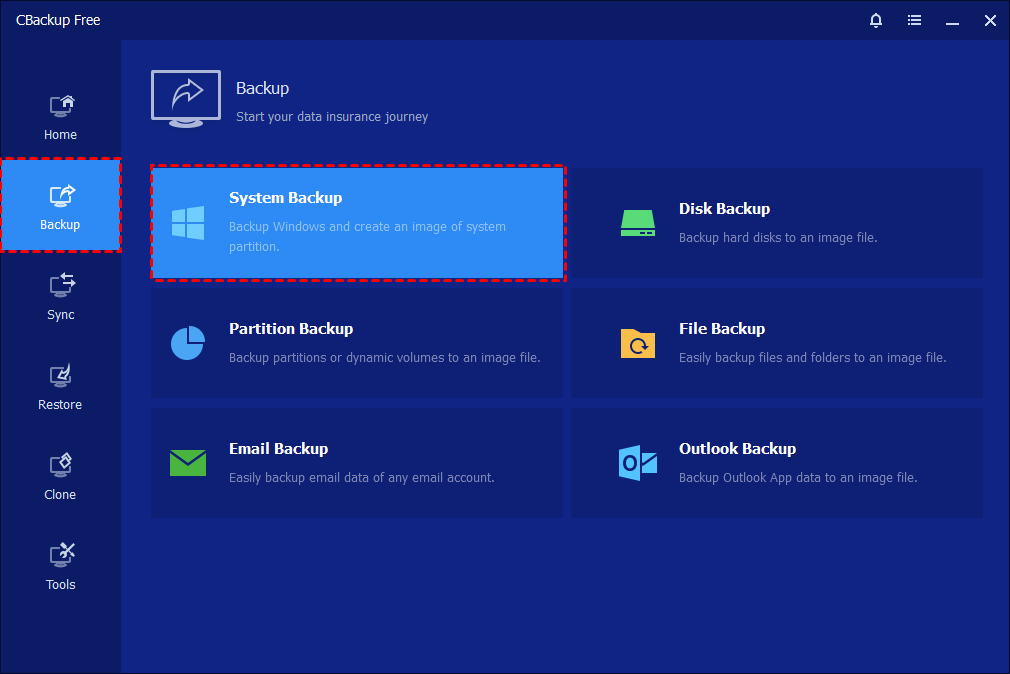
Step 1. Launch CBackup on your computer. From the main interface, click the “Backup” option in the left-hand panel, then choose “System Backup.” The program will automatically identify and display all system-related partitions required for a complete backup. If you just want to incremental back up files, you can also choose File Backup.
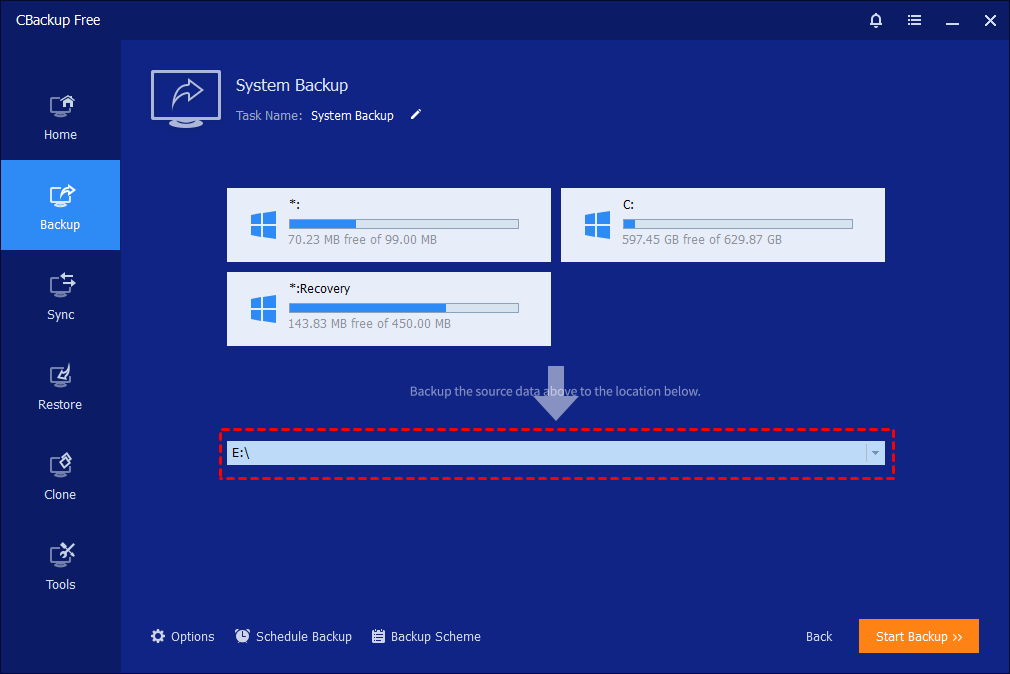
Step 2. Click on the destination selection box and choose your external hard drive as the backup location. You may also rename the backup task in the “Task Name” field to make it easier to identify later.
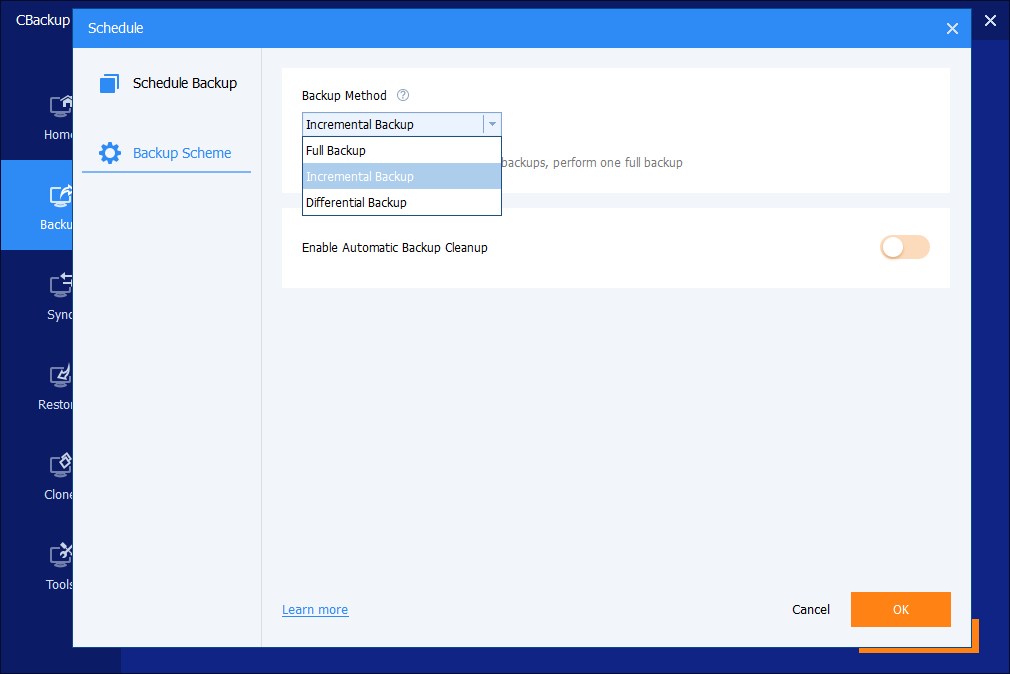
Step 3. Configure additional backup settings if needed. You can adjust compression levels, enable encryption for better security, split large image files, and set up email notifications. To enable incremental backup, you can choose Backup Scheme on the settings. This feature backs up the changes made since the last backup instead of copying everything again. You can also schedule automatic backups (daily, weekly, or monthly) so your data stays continuously updated without manual effort.
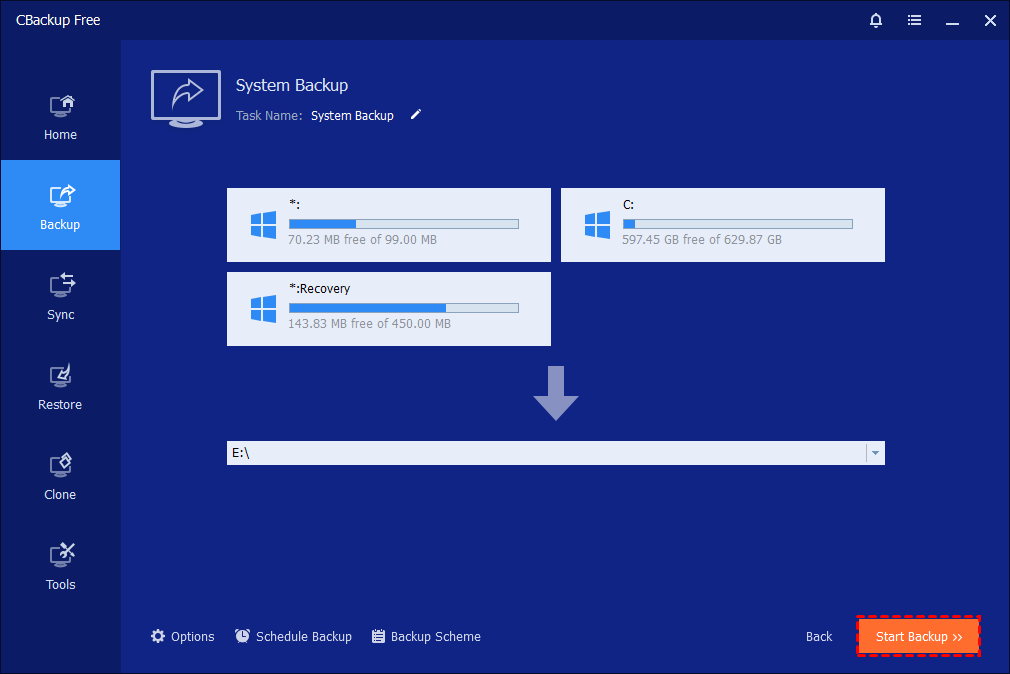
Step 4. After confirming all settings, click “Start Backup” to begin the system image backup process. The software will start copying all necessary system data to the external drive.
Step 5. Monitor the backup progress through the interface. You can view detailed progress information and optionally set the computer to shut down, restart, or enter sleep mode after completion. Once finished, click “Finish.”

Step 6. Once the process is complete, your backup task will appear on the home screen, making it easy to manage or adjust at any time. The full image backup file, saved in .adi format, will be securely stored on your external drive, ensuring quick recovery whenever needed. As part of the best free incremental backup software for Windows, this feature works alongside incremental backups to provide efficient storage use and reliable data protection, helping users maintain up-to-date system images without unnecessary complexity.
Why do you need modern windows incremental backup software?
Evaluating backup software requires looking far beyond simple file copying. With ransomware threats evolving rapidly and data scattered across hybrid environments, a proper review must address how quickly and securely you can recover. Relying on basic storage is a massive mistake because an archive that can be deleted by a hacker is completely useless. Modern free incremental backup software must include critical survival features like strict immutability, which locks your files to prevent malicious encryption.
Furthermore, the best Windows backup software must enforce identity control through Multi-Factor Authentication for the management console. It should also provide heavy encryption both at rest and in transit while facilitating air-gapping, which completely isolates one copy of your data from network connections. Recovery performance is another crucial metric. Your chosen software must deliver an excellent Recovery Time Objective, measuring how fast you can actually restore your system. It also needs a minimal Recovery Point Objective, meaning it supports continuous data protection to prevent major data loss.
Implementing the gold standard 3-2-1-1 strategy is non-negotiable today. This involves keeping three copies of data on two different media types, storing one copy offsite, and ensuring one copy remains offline or immutable. The best incremental backup software also monitors automated health checks, verifying that files are not corrupted, while watching out for massive egress fees that providers might charge when you need to download your data during an emergency.
What is Windows incremental backup?
Windows incremental backup is a smart way to protect your data by saving only what has changed since the last backup. Instead of copying all files every time, it focuses only on new or modified data. This method starts with a full backup, which creates a complete copy of your files. After that, each incremental backup adds only the changes, building on the original backup step by step. For example, if you have thousands of files but only a few are updated, the system will back up just those updated files. This makes the process much faster and uses much less storage space compared to repeating a full backup each time.
.png)
Because it is lightweight, incremental backup can run more frequently without slowing down your computer. It is especially useful for protecting important files that change often, such as work documents or project data. However, since each backup depends on the previous one, restoring data may take more time, as the system needs to read the full backup and all related incremental backups in order. Overall, incremental backup is an efficient and practical solution for Windows users who want regular data protection without heavy storage or time costs.
Common backup types and differences
Choosing a backup method is about finding the right balance between speed, storage, and recovery time. The three main backup types are full, incremental, and differential. Each works in a different way and fits different needs.
A full backup copies all selected data every time. It is simple and reliable, and recovery is very fast because everything is in one place. However, it takes the most time and storage, so it is usually done less often.
An incremental backup only saves the data that has changed since the last backup. This makes it very fast and space-saving. But recovery can be slow because you need the full backup plus all incremental backups in order.
A differential backup copies all changes made since the last full backup. It is a middle option. Recovery is faster than incremental because you only need the full backup and the latest differential backup. However, it uses more storage than incremental as the backup size grows over time.
Other backup types also exist. For example, mirror backup creates an exact copy of your data without compression, making it easy to access but large in size. Synthetic full backup combines full and incremental backups into one updated version, saving space but removing older versions. Forever incremental and reverse incremental backups improve efficiency by managing changes automatically and reducing storage waste.
To make it easier to compare, here is a simple table:
| Feature | Full Backup | Incremental Backup | Differential Backup |
|---|---|---|---|
| Backup Speed | Slow | Fast | Medium |
| Restore Speed | Fast | Slow | Medium |
| Storage Use | High | Low | Medium |
| Data Backed Up | All data | Changes since last backup | Changes since last full backup |
In practice, many users choose a mixed strategy. For example, run a full backup once a week and incremental backups daily. This keeps storage use low while still allowing reliable recovery.
Each backup type has its own strengths and limits. Full backups are simple and easy to restore, incremental backups save time and space, and differential backups offer a good balance between the two. More advanced methods can further improve efficiency, but they may add complexity.
The best choice depends on your needs. If you want fast recovery, use more full backups. If you want to save storage, use incremental backups. For most users, a combined approach gives the best results and keeps data safe without using too many resources.
Conclusion
Finding the best free incremental backup software for Windows is absolutely vital for surviving the digital threats. You must look beyond simple copying and demand features like immutability, rapid recovery times, and robust encryption. Whether you leverage CBackup to merge your cloud storage securely, utilize Hasleo for incredible free system imaging, depend on Iperius for versatile perpetual licensing, or invest in Macrium Reflect for fail proof disaster recovery, taking immediate action is crucial. Implement a strict 3 2 1 1 strategy today with the best Windows backup software to ensure your personal memories and professional data remain completely safe, accessible, and protected against any future disaster.
FAQs
🗨️ Can Windows backup do incremental backups?
Yes, Windows has basic backup features that support incremental-style backups, such as File History. However, they are limited compared to dedicated tools. Professional solutions like CBackup or Veeam Agent for Windows provide more advanced incremental backup options, better automation, and stronger security.
🗨️ What is better than Carbonite?
Several tools offer more flexibility and features than Carbonite. For example, CBackup provides free incremental backups with local and cloud support, while Macrium Reflect offers faster recovery and advanced disk imaging. The better choice depends on whether you prioritize cost, speed, or enterprise-level features.
🗨️ What is the 3/2/1 rule for backups?
The 3-2-1 rule means:
- Keep 3 copies of your data
- Store them on 2 different types of media
- Keep 1 copy offsite
Modern strategies often extend this to 3-2-1-1, adding one offline or immutable copy to protect against ransomware.
🗨️ What are four types of backups?
The four main types are:
- Full backup – copies all data
- Incremental backup – saves only changes since the last backup
- Differential backup – saves changes since the last full backup
- Mirror backup – creates an exact real-time copy
Each type balances speed, storage, and recovery flexibility differently.
🗨️ What is the 4 3 2 backup strategy?
The 4-3-2 strategy is a more advanced protection model:
- 4 copies of data
- Stored on 3 different media types
- With 2 offsite copies
It provides stronger redundancy than the traditional 3-2-1 rule, especially for businesses handling critical data.
Free Get CBackup Now

Secure & Free
