


How to Backup Synology to External Drive in Multiple Ways?
This is a simple overview of Synology NAS backup methods, including backing up to external USB drives, using Hyper Backup, and creating a reliable Synology mirror NAS backup plan.

By Irene Updated June 9, 2026


🌟 Quick Look
Backing up your Synology NAS to an external drive is a reliable way to secure your data locally against network failures, hardware issues, or ransomware. This guide covers three practical methods to complete the transfer efficiently, depending on your workflow and backup preferences.
-
CBackup: Excellent for Windows users managing multiple local devices. It offers automated scheduling, incremental backups, and file synchronization, though it focuses on file management rather than full NAS system configurations.
-
Synology Hyper Backup: The most comprehensive native option. It supports multi-version retention, data deduplication, and system setting backups. It stores data in a secure, proprietary database that requires Synology tools to read.
-
Synology USB Copy: Ideal for quick, direct file viewing. It creates a direct mirror of your folders in their original format so you can plug the drive into any PC or Mac, but it lacks advanced compression and system setting backups.
Choosing the right approach depends on whether you prioritize advanced version history, system settings, or immediate, cross-platform file access.
How to backup Synology to external drive?
When looking for the best way to backup Synology NAS, many users prefer a direct local connection. You can easily backup Synology NAS to external drive to keep your data safe from network failures and other unforeseen events. There are some tools provided by Synology for this process.
Method 1. Backup Synology to external drive with CBackup
If you are looking for a flexible and efficient way to back up a Synology NAS to an external drive, CBackup is one of the strongest choices for Windows users. It is designed to simplify local backup and synchronization tasks while keeping files consistent across computers, external hard drives, and NAS devices.
- ★ Some key benefits include:
- Beginner-friendly interface with advanced backup settings
- Support for file, partition, disk, and system backup
- Scheduled backups for automatic data protection
- Real-time synchronization to keep files updated
- Mirror sync support for identical file copies
- Incremental backup technology that transfers only changed data
- Reduced network traffic and storage usage during backup
- Full system and file recovery after crashes or hardware failure
- Bootable recovery support when Windows cannot start normally
However, unlike some NAS native tools, it mainly focuses on Windows based backup management rather than complete NAS system configuration backup. Users who need application level NAS settings or proprietary NAS backup features may still rely on additional Synology tools in certain situations.
This solution is especially suitable for users who manage multiple local devices, USB drives, and NAS storage within the same network. It works quietly in the background and keeps important data protected without affecting normal daily work. For users who want centralized backup management, automatic synchronization, and dependable recovery options, CBackup provides a smooth and reliable way to protect a Synology environment.
Step 1. Download the Synology NAS backup software on your computer. With it, you can also back up Windows 11 to Synology NAS.
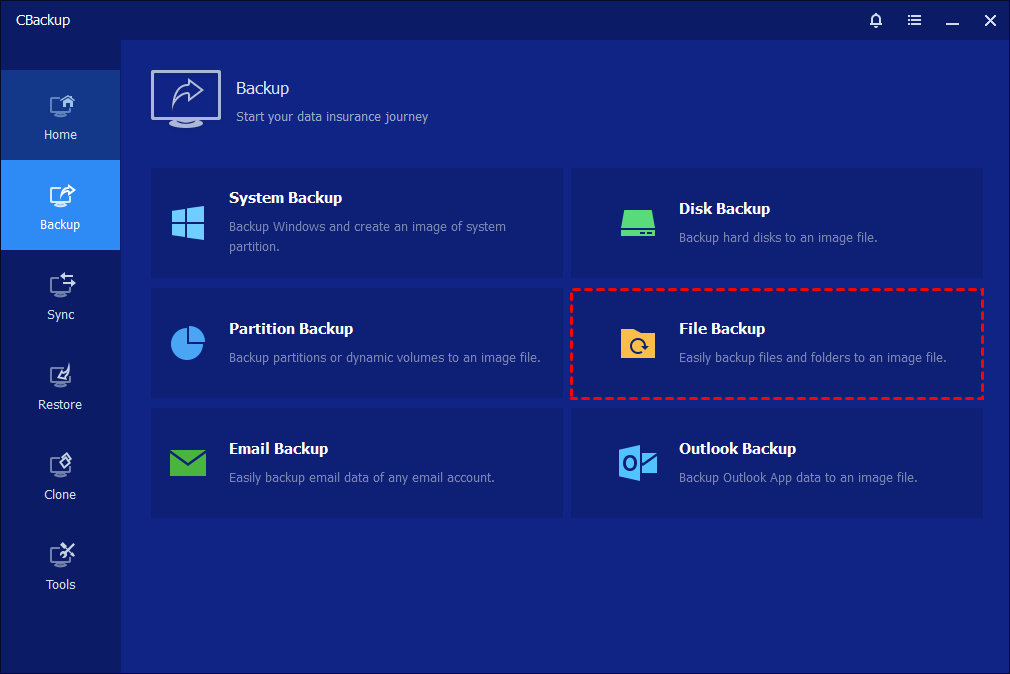
Step 2. Click Backup in the left menu, then select the File Backup option.
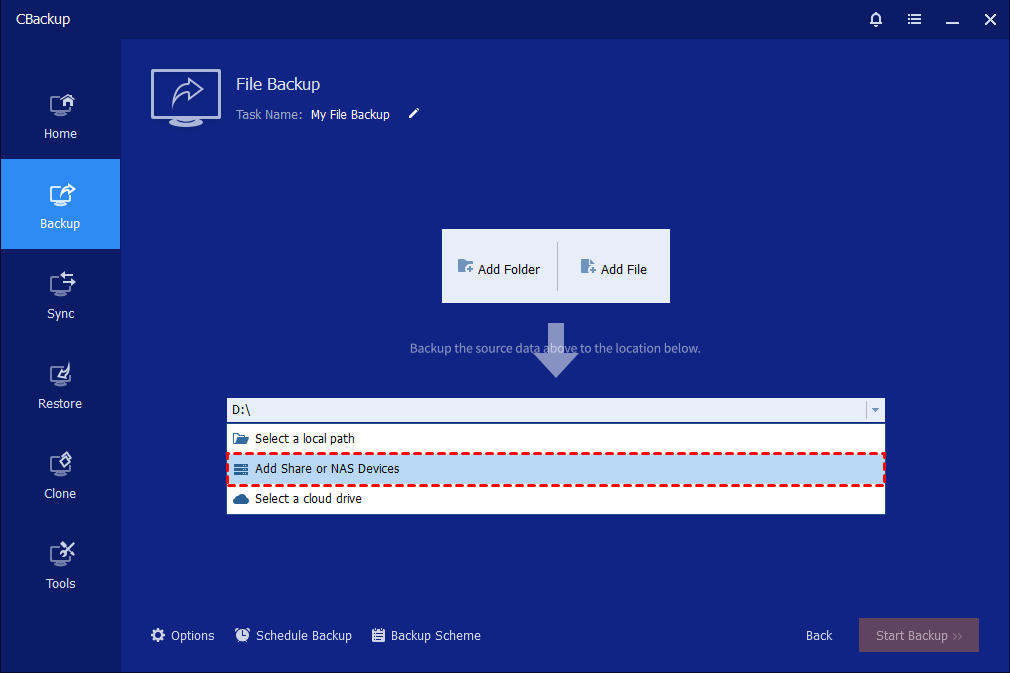
Step 3. Then you can click on Add Folder or Add File, and choose the Add Share or NAS Devices option to backup Synology NAS to external hard drive.
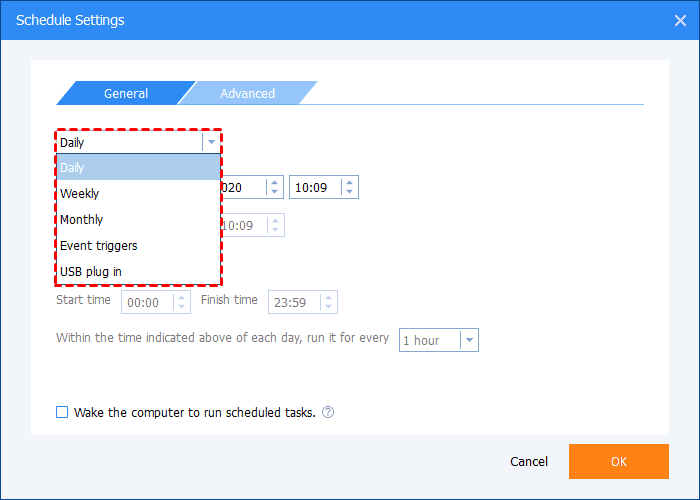
Step 4. (Optional) You can use the Schedule feature to set up an auto-backup. Then Synology NAS backup software will perform the backups automatically with the selected frequency.
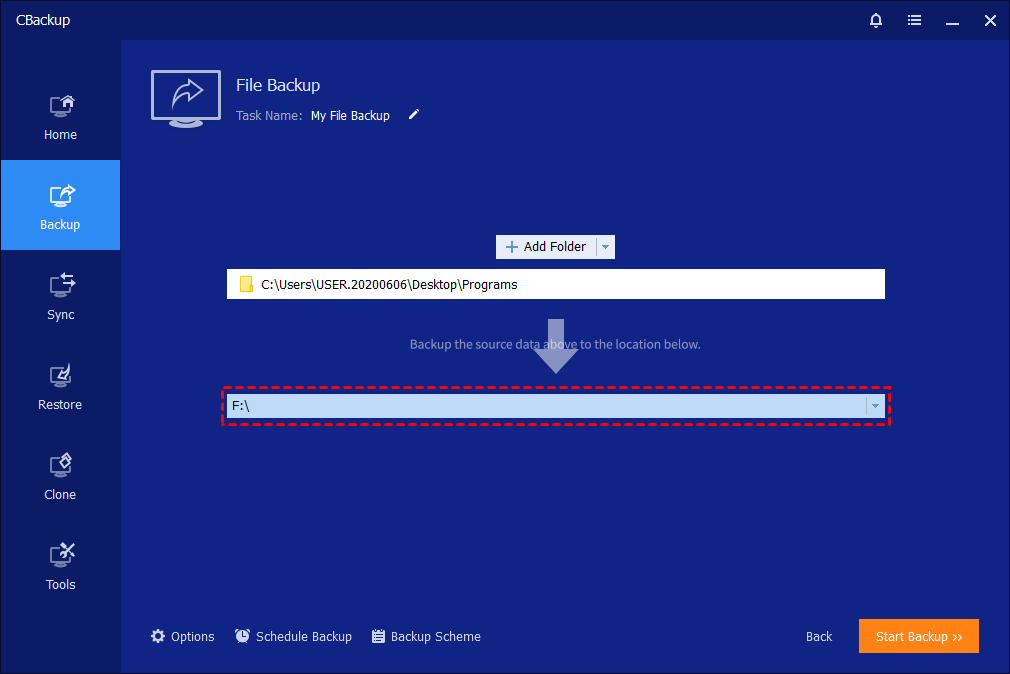
Step 5. After choosing the external hard drive as the backup destination path, you can click the Start Backup button to begin the Synology NAS backup.
When the backup is running, you can also click the underlined sentence to check the backup process in detail.
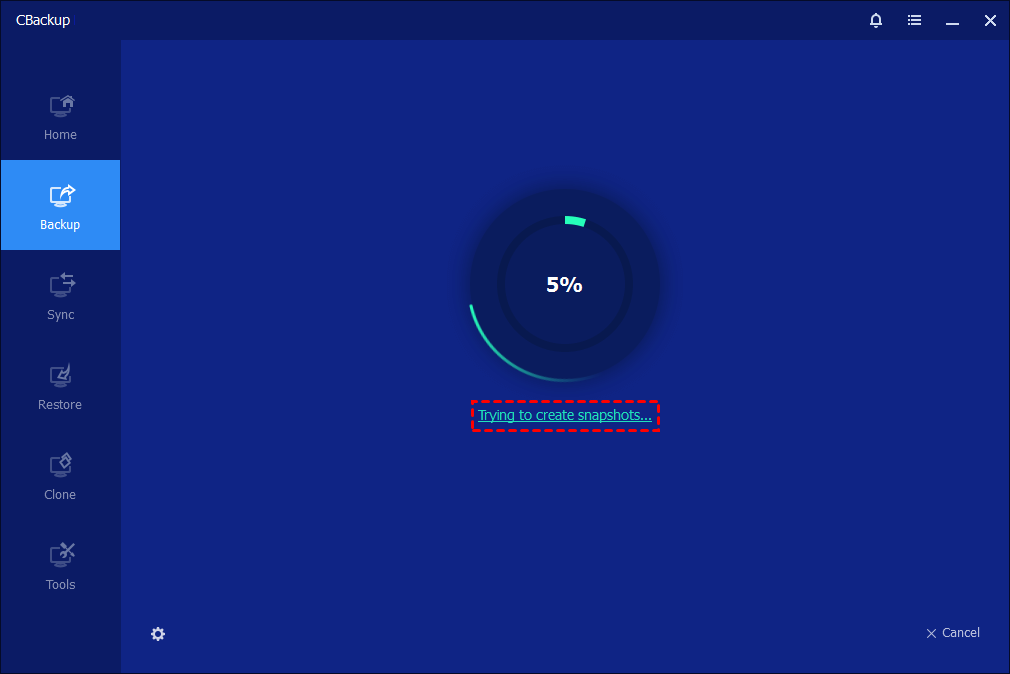
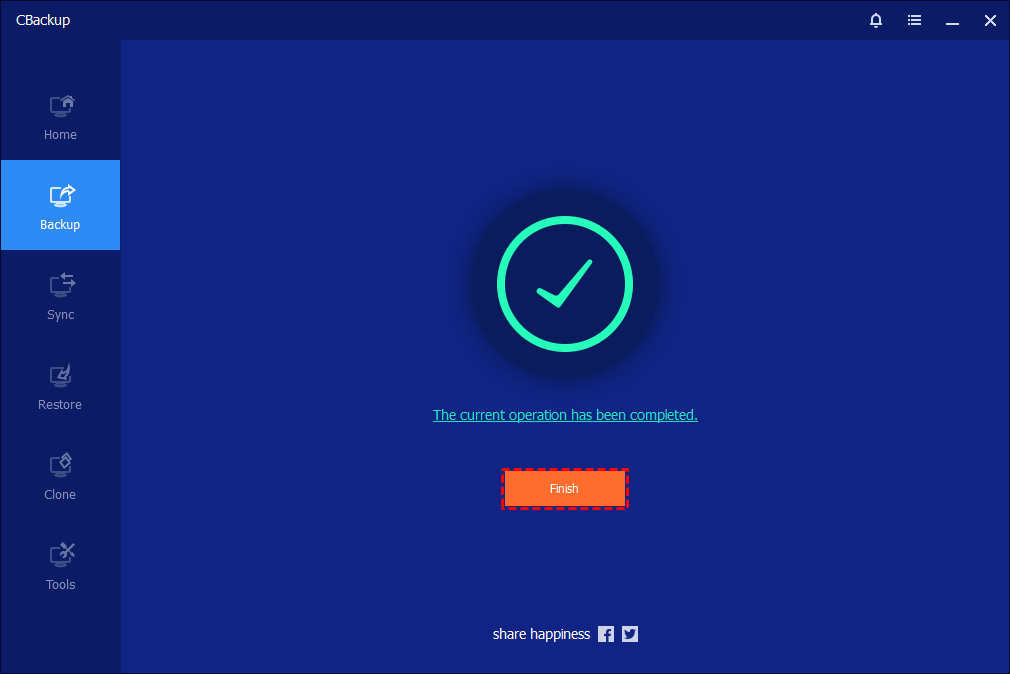
Then, please kindly wait for the backup process to complete, and then click the"Finish" button.
Method 2. Backup Synology to external drive via Synology Hyper Backup
Using Synology Hyper Backup with a USB drive is widely considered one of the most reliable ways to protect data. It creates a secure backup vault for files while providing advanced backup and recovery capabilities for long-term protection.
- ★ Some key benefits include:
- Data deduplication to reduce unnecessary storage usage
- Compression support to save disk space
- Local encryption for better data security
- Multiple file versions without using too much storage
- Backup support for system settings and application configurations
- Automatic scheduled backups for easier management
- Better protection against accidental deletion, corruption, and ransomware
However, it stores backup data in a proprietary database format. This means users cannot directly connect the USB drive to another computer and browse the backup files like normal folders. To view or restore the backup content on a PC or Mac, the dedicated recovery tool from Synology is required.
This method is especially suitable for users who need scheduled backups, stronger security, and version history. After the initial setup, backups run automatically based on the selected schedule. It also keeps historical file versions, making it easier to recover from accidental deletion, damaged files, or ransomware attacks. For many users, it remains a dependable disaster recovery solution for important NAS data.
Step 1. Connect your external drive to the available port on your Synology NAS.
Step 2. Sign in to DSM, open Package Center, and install Synology Hyper Backup if it is not already installed.
Step 3. Launch Hyper Backup, click the plus icon in the upper left corner, and select Folders and Packages.
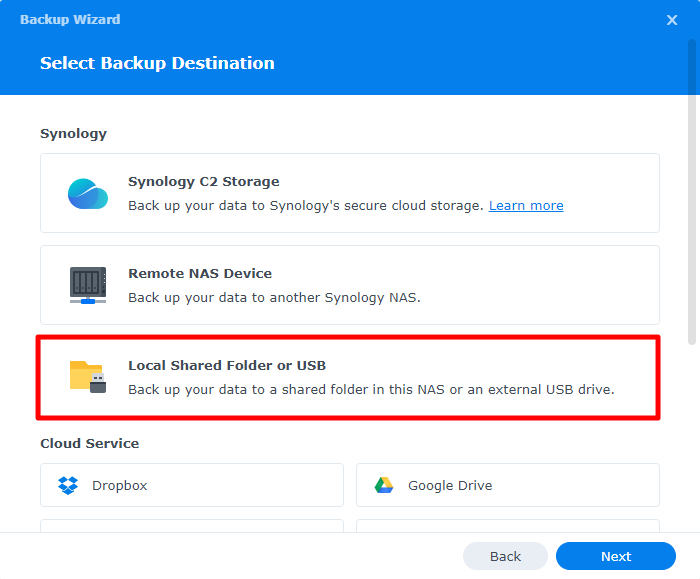
Step 4. Choose Local Shared Folder and USB as the backup destination, then select your connected external drive.
Step 5. Select the shared folders and applications you want to back up.
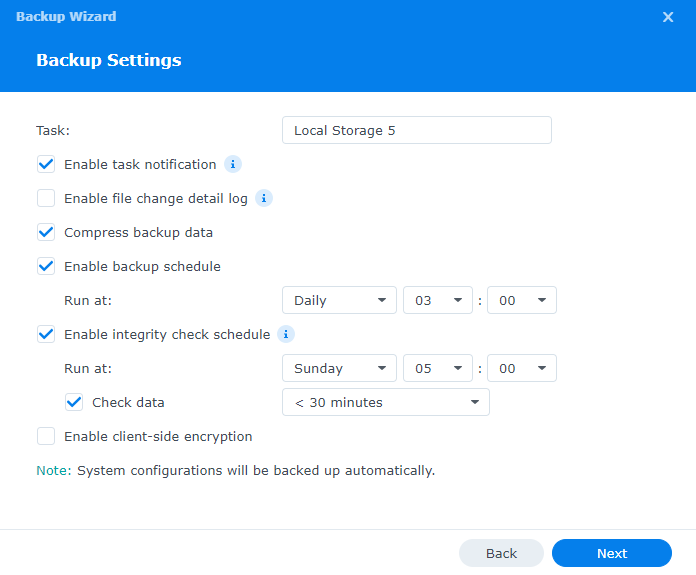
Step 6. Configure the backup settings, including task name, schedule, compression, notifications, integrity check, and encryption if needed.
Step 7. Enable backup rotation and choose a version retention method such as Smart Recycle or custom version limits.
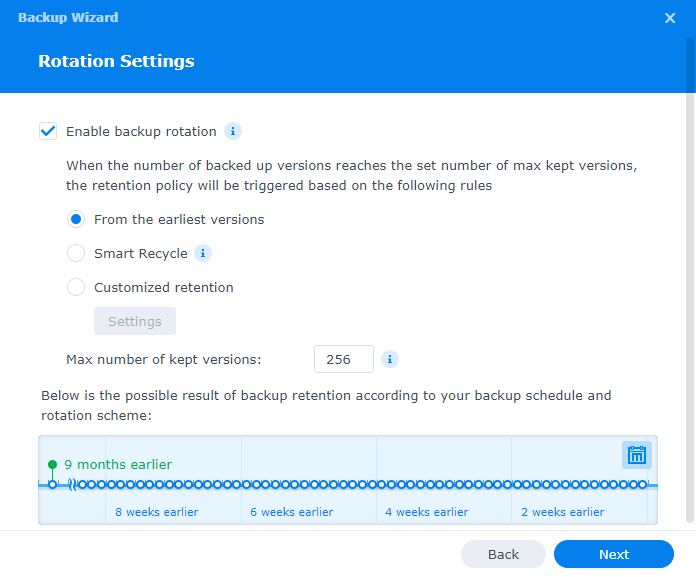
Step 8. Click Apply to save the task settings, then select Yes if you want to start the backup immediately.
Method 3. Backup Synology NAS to external hard drive with Synology USB Copy
If you prefer a simpler way to back up a Synology NAS to an external drive, USB Copy is a practical option. It is designed for quick and convenient file transfers, making it especially suitable for users who want to build a Synology mirror NAS setup with files copied exactly as they appear on the original device.
- ★ Some key benefits include:
- Files remain in their original format for direct access
- External drives can be opened on most computers without extra software
- Automatic copy tasks on supported NAS models
- One-button backup support on compatible devices
- Simple folder mirroring for synchronized backups
- Faster and more straightforward recovery procedures
This method focuses on simplicity and accessibility. Since it does not use deduplication or compression, the external drive may consume storage space more quickly than dedicated backup solutions. It also copies files only, so system settings, applications, and NAS configurations are not included as they are with Synology Hyper Backup.
For many users, however, that tradeoff is worth it. Whether you're storing years of photos, creative projects, or important family files, having an extra copy on an external drive offers valuable peace of mind.
After the initial setup, the sync task automatically updates the external drive whenever files change on your Synology NAS. Your backup stays current in the background, making it easy to access or restore files whenever needed.
Step 1. Connect your portable drive to the NAS.
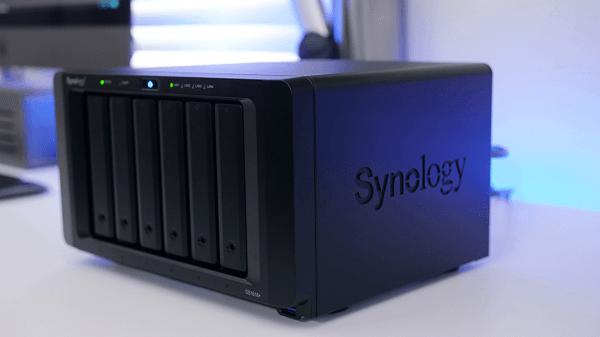
Step 2. Navigate to the Package Center and install the USB Copy application.
Step 3. Open the application and click the plus icon to add a new job.
Step 4. Choose your desired mode, such as Data Copy, to enable mirroring.
Step 5. Select the source folder you want to copy and set the destination folder on your portable storage.
Step 6. Adjust the settings to trigger the process automatically upon connection.
Step 7. Apply the settings and allow the initial copy process to complete.
The benefits of backup Synology NAS to external hard drive
Backing up a Synology NAS to an external hard drive is one of the most practical ways to protect important files from unexpected data loss. Many users choose to backup Synology to external drive storage because it provides an extra layer of protection against hardware failure, accidental deletion, ransomware attacks, and system corruption. External drives are also portable and easy to store offline, which improves overall data security.
For users searching for the best way to backup Synology NAS, external storage offers a balance between affordability, convenience, and reliability. Whether you use Synology Hyper Backup or a Synology mirror NAS setup, keeping a separate copy of data can make recovery much faster and less stressful.
| Benefit | Description |
|---|---|
| Better data protection | Keeps an additional copy of important files outside the NAS |
| Faster recovery | Makes it easier to restore files after accidental deletion or system failure |
| Offline security | External drives can be disconnected to reduce ransomware risks |
| Portable storage | Backup data can be moved and accessed on different devices |
| Automatic backup support | Scheduled tasks help keep files updated regularly |
| Version history | Some tools keep older file versions for easier recovery |
| Lower backup cost | External hard drives are often more affordable than cloud storage |
| Flexible backup methods | Supports file sync, mirror backup, and multi version backup tasks |
Many users also prefer Synology Hyper Backup to USB drive solutions because they support automatic scheduling, encryption, and multiple backup versions. At the same time, users who want direct file access may prefer a Synology mirror NAS setup that keeps files in their original format. No matter which method you choose, backup Synology NAS to external drive storage remains an effective way to improve long term data safety and recovery readiness.
Conclusion
Backing up a Synology NAS to an external drive is an effective way to improve data security and recovery flexibility. Whether you choose CBackup, Synology Hyper Backup, or USB Copy, each method offers different advantages for different backup needs. Some users may prefer advanced version management and encryption, while others may want simple file mirroring and direct file access.
For users searching for the best way to backup Synology NAS, choosing the right tool mainly depends on how you plan to manage and restore your data. No matter which method you use, backup Synology NAS to external drive storage can help reduce the risk of data loss caused by hardware failure, accidental deletion, ransomware, or system problems. A reliable backup plan also makes it much easier to keep important files protected over the long term.
FAQs
🗨️ What is the best way to backup Synology NAS to an external drive?
The best way to backup Synology NAS depends on your needs. Synology Hyper Backup is suitable for versioned backups and stronger protection, while USB Copy is better for direct file access. Most users intend to choose CBackup for centralized and comprehensive Windows and NAS backup management.
🗨️ Can I backup Synology to external drive automatically?
Yes. Most Synology backup tools support automatic scheduled backups. You can configure daily, weekly, or real time tasks to keep files updated without manually starting the process each time.
🗨️ Is Synology Hyper Backup to USB drive safe for long term storage?
Yes. Synology Hyper Backup to USB drive is considered reliable for long term protection because it supports encryption, compression, integrity checks, and multiple backup versions. It also helps protect files from accidental deletion and ransomware attacks.
🗨️ What is a Synology mirror NAS backup?
A Synology mirror NAS backup creates an identical copy of your files on another storage device. When files are changed or deleted on the NAS, the same changes are synchronized to the backup destination. This method is useful for users who want direct access to backup files without recovery software.
🗨️ Can I access files directly after I backup Synology NAS to external drive?
It depends on the backup method you choose. USB Copy and mirror sync tasks usually keep files in their original format for direct access. However, backups created with Synology Hyper Backup are stored in a proprietary format and require the Synology recovery tool to open or restore files.
Free Get CBackup Now

Secure & Free
