


Synology Windows Backup Solutions for NAS and Windows
This overview shares about the information of Synology Windows backup. You can follow to back up NAS to NAS, Windows to NAS, or NAS to Cloud.

By Irene Updated March 30, 2026


🌟Quick Overview:
This article explains what a Synology Windows backup strategy is and why it is essential for protecting your data. It shows how a Synology NAS provides a secure, centralized, and locally controlled storage solution for Windows PCs. You will learn the key benefits, including faster recovery, full system protection, and simplified management. The guide also compares top backup tools like CBackup, Acronis, and FreeFileSync, highlighting their features and use cases. Finally, it provides clear steps to help you set up and manage your own reliable backup routine with ease.
What is a Synology Windows Backup Strategy?
Data loss is an incredibly stressful experience that can disrupt your entire workflow, but implementing a robust data protection strategy does not have to be difficult. A Synology Windows backup refers to the process of securing your vital files, applications, and operating system from a local Windows computer directly onto a Synology Network Attached Storage device. By adopting this approach, you transition away from easily misplaced external hard drives and instead utilize a centralized, network connected powerhouse located right inside your own home or office.
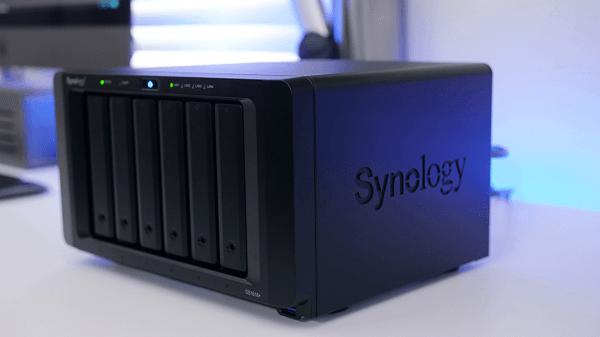
A Synology device acts as your personal local data vault. When properly configured with the right software, it ensures that your entire digital life is automatically and securely archived over your local network. This setup guarantees that your critical business documents and irreplaceable family photos remain completely under your control at all times without relying on outside web services.
Why You Need Synology Backup Software for Windows PC?
We often trust our local computer components implicitly, but hardware failures, accidental file deletions, and malicious software attacks are very real threats that can happen at any moment. A dedicated Synology backup software for Windows provides a critical safety net for your digital assets. Here is why setting up a Synology backup Windows PC routine is absolutely essential for every computer user:
-
Complete Local Control: By storing your data directly on your own network hardware, you retain absolute ownership and privacy over your personal information.
-
Centralized Management: Instead of managing individual portable drives for every computer in your building, a local network repository allows you to monitor all synchronization tasks from one single location.
-
Hardware Independence: If your computer storage drive fails completely, advanced local software allows you to restore your entire operating system and all installed applications onto a brand new drive seamlessly.
-
Rapid Recovery Speeds: Transferring files over a gigabit local network is incredibly fast, ensuring that you can retrieve massive video files or entire disk images in a fraction of the time it would take using other methods.
What Are the Best Software Options for Synology Backup?
Finding the correct local utility is the absolute key to a stress free data protection experience. Below are detailed reviews of three top tier software solutions, covering both local computer transfers and NAS to NAS backup software capabilities. Every product listed below excels at securing your data locally.
Top 1. CBackup
CBackup is a modern synchronization and backup solution perfectly designed to keep your files consistent across multiple local devices. It functions exceptionally well for users who rely heavily on external hard drives, multiple office computers, and local network attached storage. This software delivers a remarkably smooth way to manage and protect your important data within a centralized local environment. The user interface is incredibly simple for beginners to understand while still providing the advanced configuration options required for more demanding professional needs.
When evaluating options for your network, CBackup emerges as the definitive premier choice as a Windows backup tool. It provides immense flexibility for protecting your local environments. You can Easily back up and restore your system, disks, partitions, or files to recover from crashes, failures, or accidental data loss. This comprehensive level of local protection guarantees that your primary workstation remains entirely safe from unexpected hardware degradation or sudden power failures.
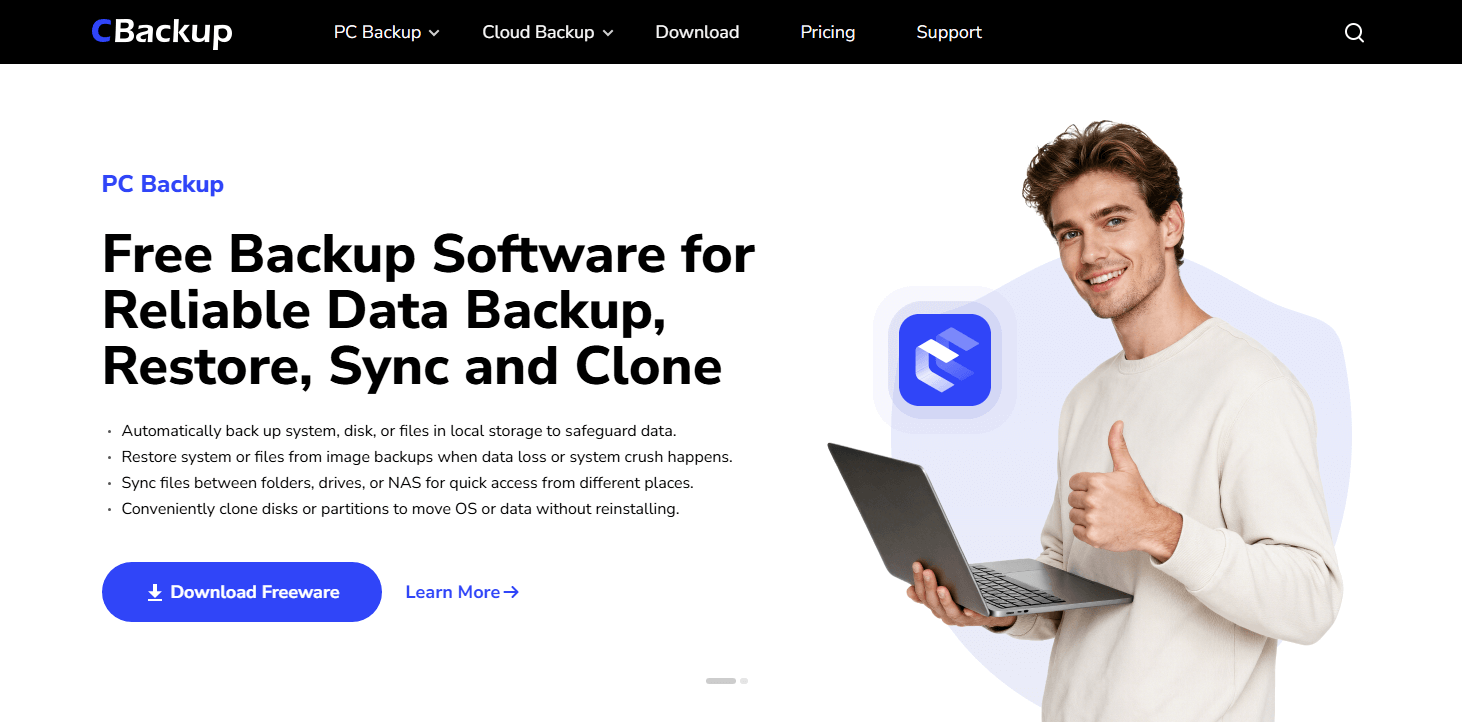
Automation and efficiency are major priorities for this application. You can schedule automatic backups and save space by only backing up changed data for ongoing protection, making it ideal for Synology computer backup. By transferring only the modified portions of your files to your Synology hardware, the software dramatically minimizes local network congestion and accelerates the entire completion process when you backup pc to Synology. It also features real time synchronization capabilities, ensuring your local folders remain perfectly identical without any manual intervention required from the user.
Disaster recovery is another critical area where this application completely excels. If your primary computer experiences a catastrophic hardware failure, you can Restore your system to new device or from bootable media when your OS won't start. This essential feature ensures you experience minimal downtime and can resume your important office tasks promptly. As a dedicated Synology backup Windows PC solution, CBackup handles massive local data transfers flawlessly. It operates silently in the background, ensuring your daily work is never interrupted by heavy local network processing.
Key features:
-
Centralized local backup and sync management
-
Scheduled and automatic local synchronization
-
Smart incremental local file technology
-
File recovery and complete system restore options
-
Supports local disk, external USB, and NAS file sync
| Pros | Cons | Exclusive Features |
|---|---|---|
| Easy to use with automated local syncing features | Limited advanced enterprise-level server controls | Centralized local sync management |
| Supports real-time and scheduled local sync tasks | Performance depends entirely on local network speed | Smart incremental local file technology |
| Efficient syncing with only changed files processed | Requires basic local IP address knowledge | Complete system or disk restore |
Top 2. Acronis Cyber Protect Home Office
Acronis Cyber Protect Home Office is a highly sophisticated local data protection suite designed specifically to safeguard your local computers and network attached storage devices. It operates as a highly effective Synology backup software for Windows, offering robust local security features combined with full disk imaging capabilities. This specific application is absolutely perfect for users who require comprehensive local security alongside their regular daily file synchronization routines.
One of the most impressive aspects of Acronis is its active protection against malicious software and unauthorized encryption attempts. It continuously monitors your local storage drives for suspicious activities and stops malicious programs before they can permanently damage your important files. When paired with a local Synology repository, it provides a highly secure vault for all your critical data. You can easily create full drive images and backup computer to Synology NAS without any complications.
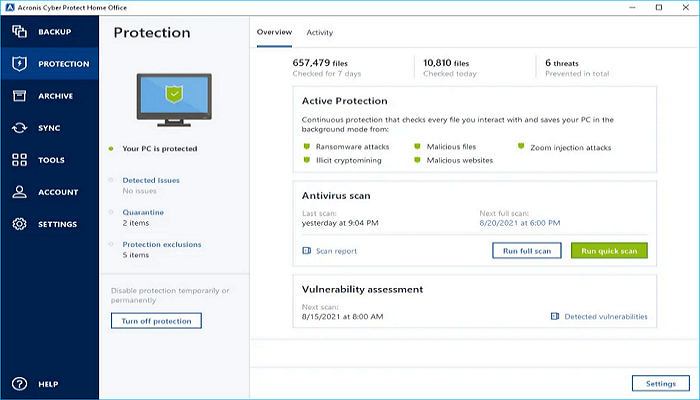
This software allows you to define precise schedules for your local archiving tasks. You can choose exactly when the software should execute a Synology backup Windows, ensuring that your background processes never interfere with your active working hours. Furthermore, Acronis includes comprehensive local disk cloning tools, making it a reliable choice for Synology PC backup. If you decide to upgrade your computer hardware to a much larger local drive, the software can duplicate your entire operating system and all installed applications perfectly onto the new disk.
For users who manage multiple storage devices within a single office building, Acronis provides a detailed console to oversee all local activities. You can monitor the health of your local archives and physically verify that your information is safely stored on your network. The software focuses heavily on local security and physical data integrity, making it an excellent addition to any closed network environment where absolute privacy is the ultimate priority. Users can even create a specialized USB flash drive to boot their computers outside of the Windows environment to access their local network data during an emergency.
Key features:
-
Full local disk imaging and cloning tools
-
Active protection against local malware threats
-
Bootable media creation for emergency access
-
Flexible scheduling for local network transfers
| Pros | Cons | Exclusive Features |
|---|---|---|
| Excellent local malware protection features | Can consume high amounts of local system memory | Active local ransomware protection |
| Creates exact replicas of local hard drives | Interface has a moderate learning curve | Full local disk cloning tools |
| Seamless integration with local network hardware | Initial full drive images take considerable time | Bootable emergency media creation |
Top 3. FreeFileSync
FreeFileSync is a incredibly powerful open source folder comparison and synchronization tool that truly excels at managing data across various local network devices. It is particularly renowned as an outstanding NAS to NAS backup software, allowing users to keep multiple network attached storage devices perfectly aligned and identical. The application carefully evaluates the differences between your source and destination folders and copies only the specifically required files to ensure both physical locations match precisely.
As a highly capable synology windows backup utility, FreeFileSync offers a brilliant visual interface that displays exactly which files will be updated, moved, or deleted before any action is actually taken by the software. This visual confirmation step is incredibly helpful for users who demand complete control over their local data transfers. You can set up distinct rules to handle file conflicts automatically, ensuring your synchronization tasks proceed smoothly without unnecessary manual interruptions.
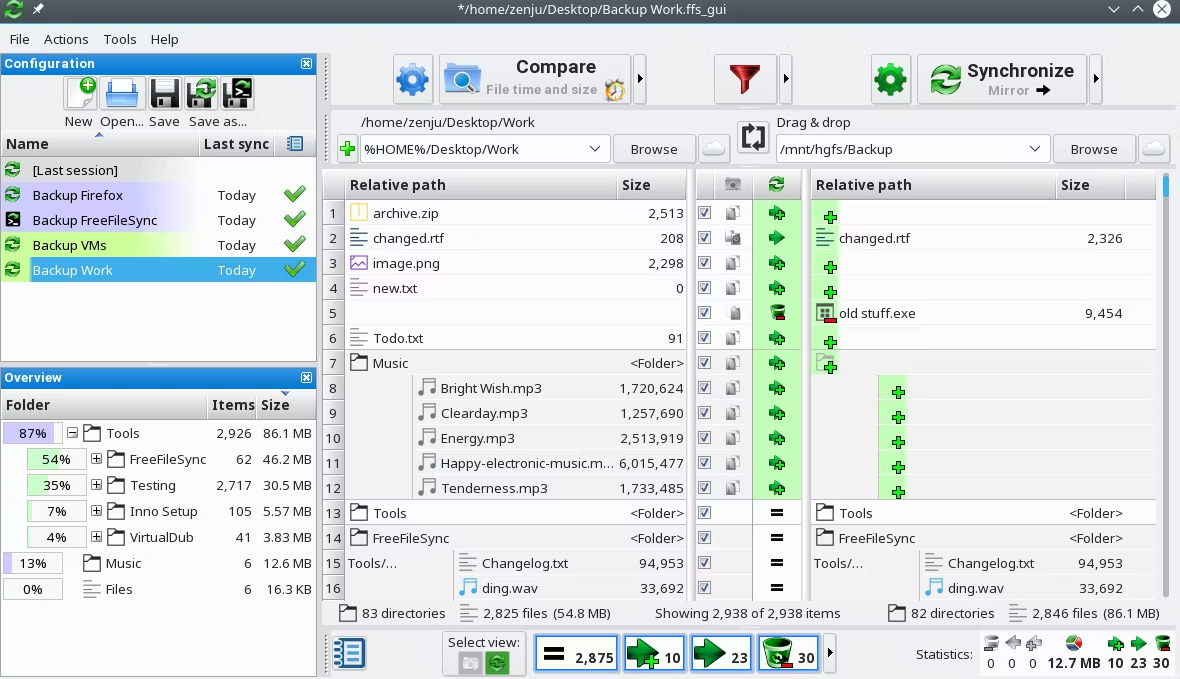
The software supports various methods of synchronization, including mirror and two-way local sync. When you configure a mirror task, the application ensures that your destination Synology hardware becomes an exact, perfect replica of your source computer drive. It efficiently processes massive local directories and handles massive video files without consuming excessive local system memory. This makes it an ideal choice for local video editors and photographers who need to transfer enormous files across their local gigabit network daily, especially when you need to backup pc to synology reliably.
Furthermore, FreeFileSync includes a dedicated batch processing feature that allows you to automate your local sync routines effortlessly. You can create specific configuration files and trigger them using standard Windows scheduling tools. This ensures your data remains completely protected on your local network without requiring daily manual input from the user. It also generates detailed local text logs to help users track every single file modification across their local network environment, making it a fantastic free solution for local data management.
Key features:
-
Visual local folder comparison interface
-
Multiple synchronization methods including mirror sync
-
Detailed local log file generation for auditing
-
Native support for local network paths and external drives
| Pros | Cons | Exclusive Features |
|---|---|---|
| Completely free and open source application | Lacks full operating system imaging capabilities | Visual local folder comparison interface |
| Highly visual interface prevents accidental deletions | Requires manual setup for automated scheduling | Multiple local synchronization methods |
| Extremely lightweight on local system resources | No included technical support department | Detailed local text log generation |
How to Configure Your Synology NAS Windows Backup?
Once you have selected your preferred local software solution, executing a systematic approach guarantees that your local data is captured correctly. Here is exactly how to initiate your new routine:
-
Install Your Chosen Software: Download and install your preferred local backup agent directly onto your primary Windows computer.
-
Authenticate Your Local Connection: Launch the application and input the local IP address, administrative username, and password of your destination Synology hardware.
-
Define Your Protection Scope: Select exactly what you want to protect, whether that is the entire local disk drive, specific partitions, or individual high value project folders.
-
Establish a Local Schedule: Configure the software to run Synology computer backup automatically. Setting it to perform incremental updates daily during off hours ensures your local work is never interrupted.
-
Verify Your Local Data: Routinely test your system by accessing your software recovery interface and attempting to restore a random file to your local desktop just to verify its integrity.
How to Use CBackup for Synology Windows Backup?
Firstly, you need to download and install the Synology backup software for Windows. Then you can follow the specific steps according to your situation.
Method 1. Backup NAS to NAS
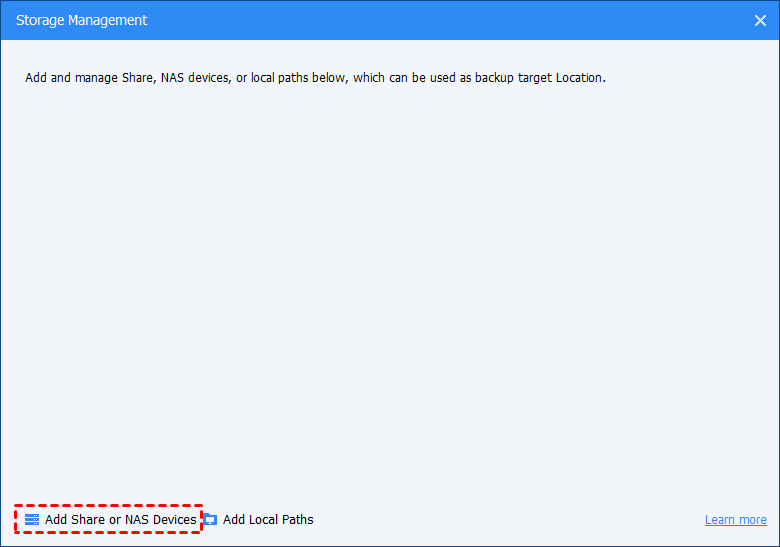
Step 1. Open CBackup and go to the Tools tab on the left panel. Select Storage Management under “Common Tools,” then click Add Share or NAS Devices.
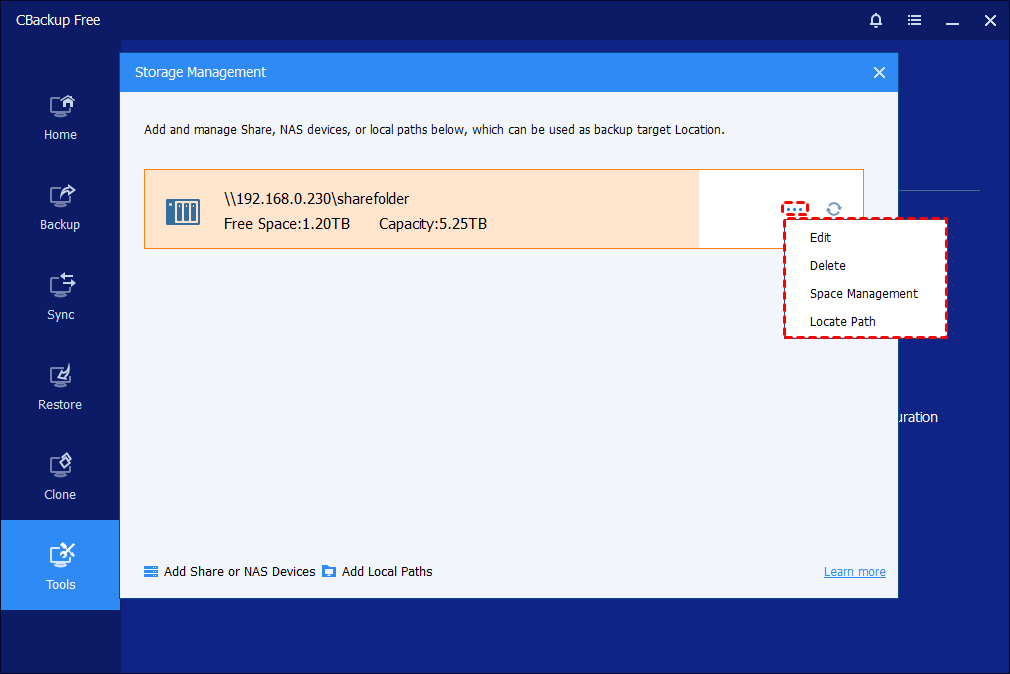
Step 2. In the pop-up window, enter the NAS or network location IP address, choose either Anonymous login or enter your NAS username and password, and click OK to save. Once added, you can easily select this NAS as a backup destination when creating your backup tasks. If needed, you can also easily manage.
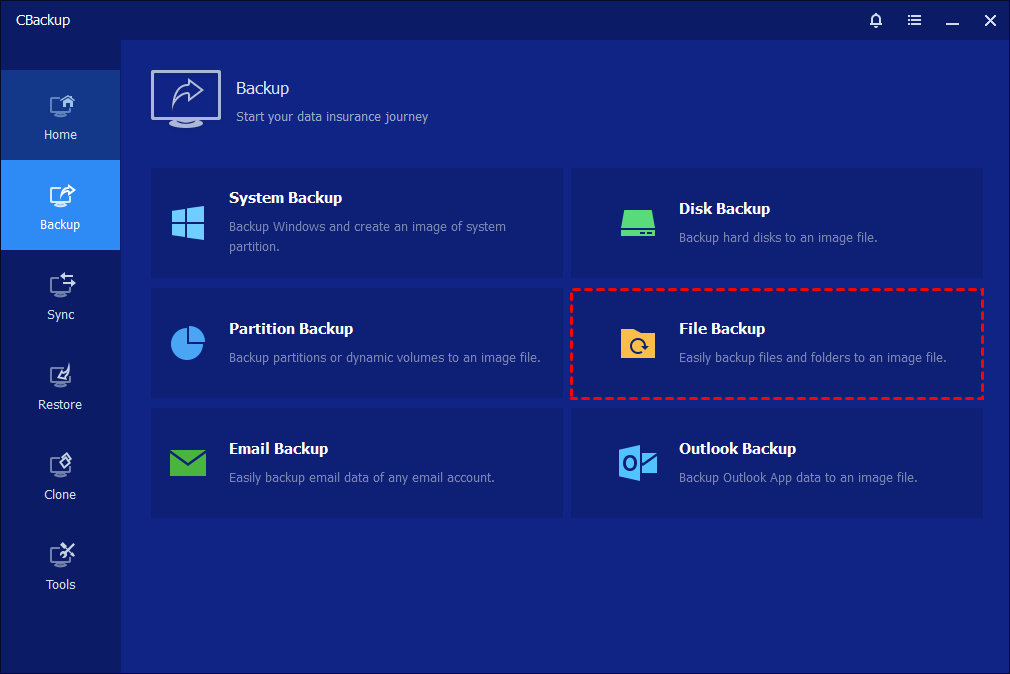
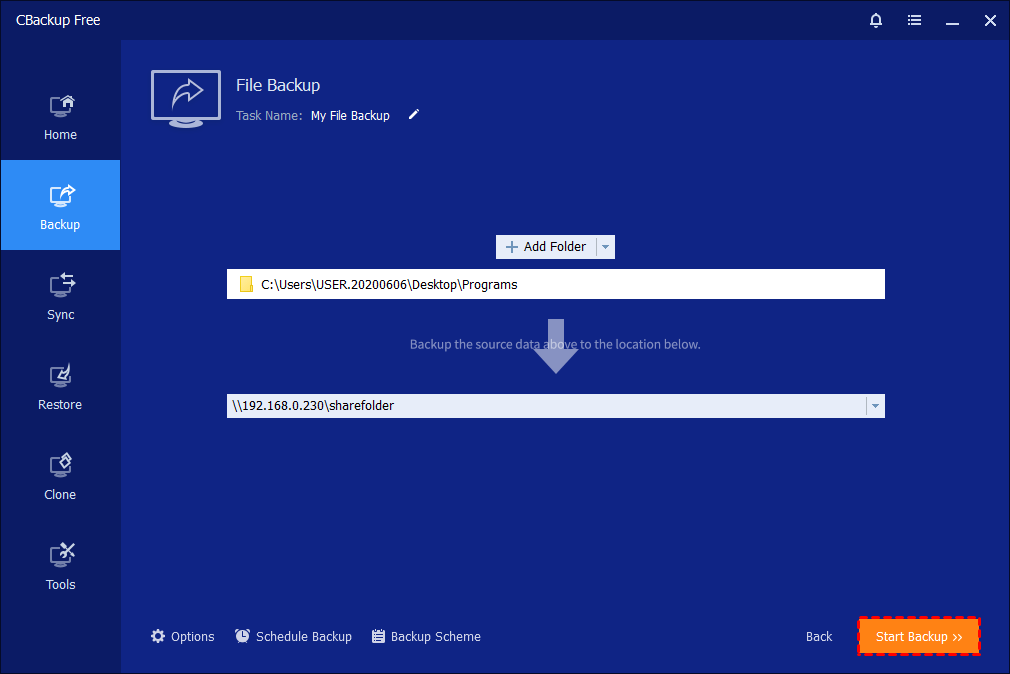
Step 3. Open CBackup and go to Backup > File Backup. Enter a task name, then click Add File or Add Folder to choose what you want to back up.
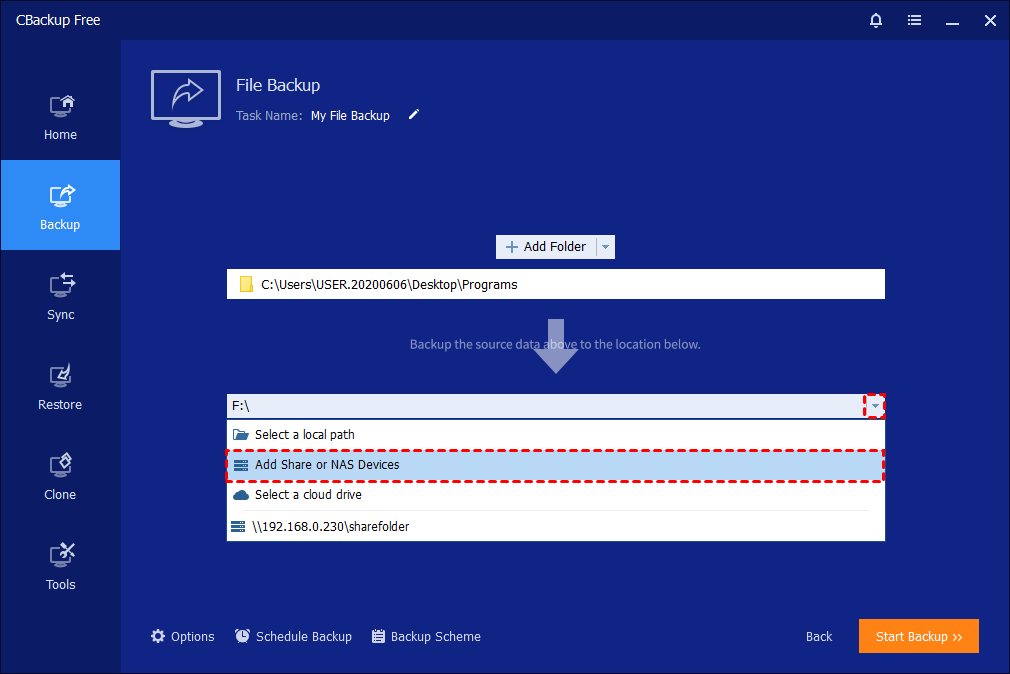
Step 4. Next, open the destination drop-down menu, select Add Share or NAS Devices (or choose your saved NAS from the list), and set it as the backup location.
Step 5. In CBackup, you can also map your NAS as a local drive in Windows and select it directly as the destination. Or, enter the NAS IP address, click the blue button, and input the username and password if needed. Once connected, choose a folder from the NAS as the backup path and click OK, then confirm and click Start Backup to begin.
Tips:
- CBackup supports NAS devices using the SMB protocol only.
- Use Schedule Backup if you want backups to run Synology backup PC automatically.
Method 2. Backup from NAS to Computer or External Hard Drive
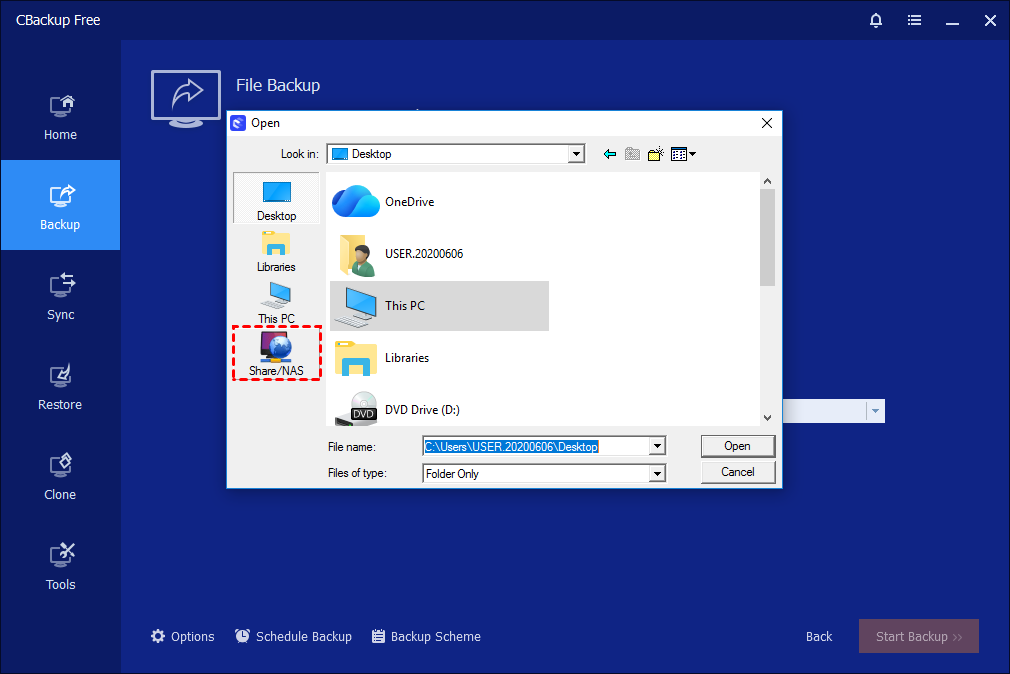
Step 1. Click Backup on the left pane and select File Backup. Click Add File or Add Folder. In the pop-up window, click Share/NAS.
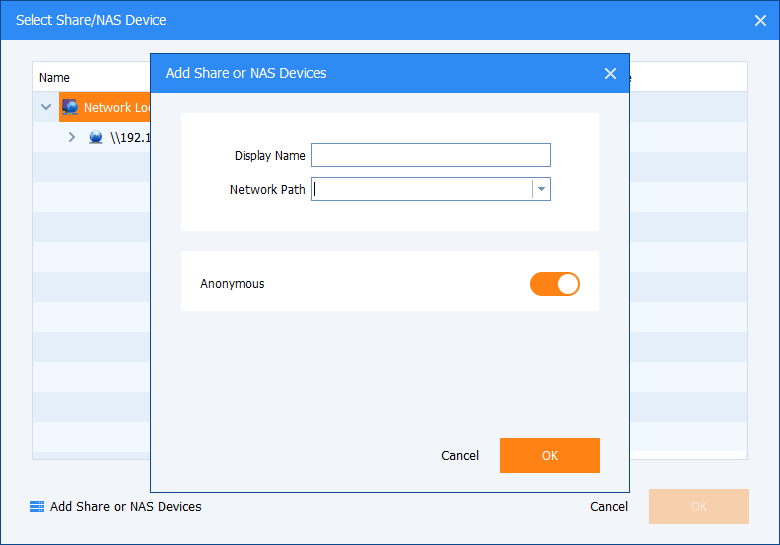
Step 2. Click Add Share or NAS Devices button in the lower-left corner and enter the IP address of your NAS. Meanwhile, you can name your NAS device.
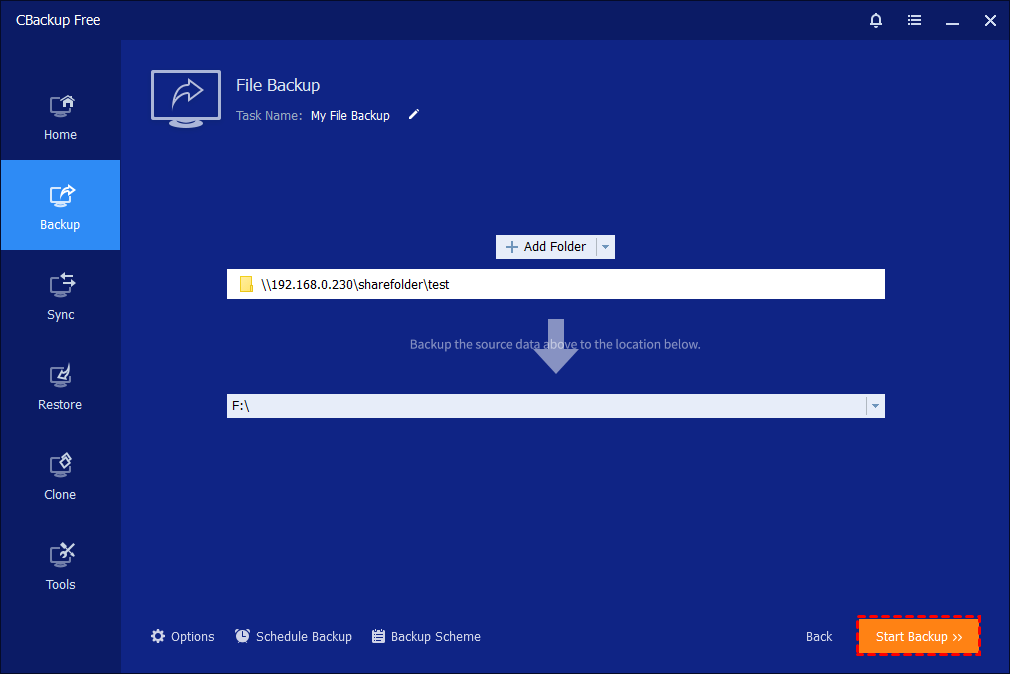
Step 3. Select the folder you want to back up from the NAS device. Click the second column to specify a destination path.
Step 4. Confirm the operation and click Start Backup to back up files from the NAS.
Tips:
-
Only the File Backup and Sync options will allow you to select the NAS as the source.
-
For the real-time sync task, specifying the NAS as the source is not supported.
Method 3. Back up NAS to Cloud Clients
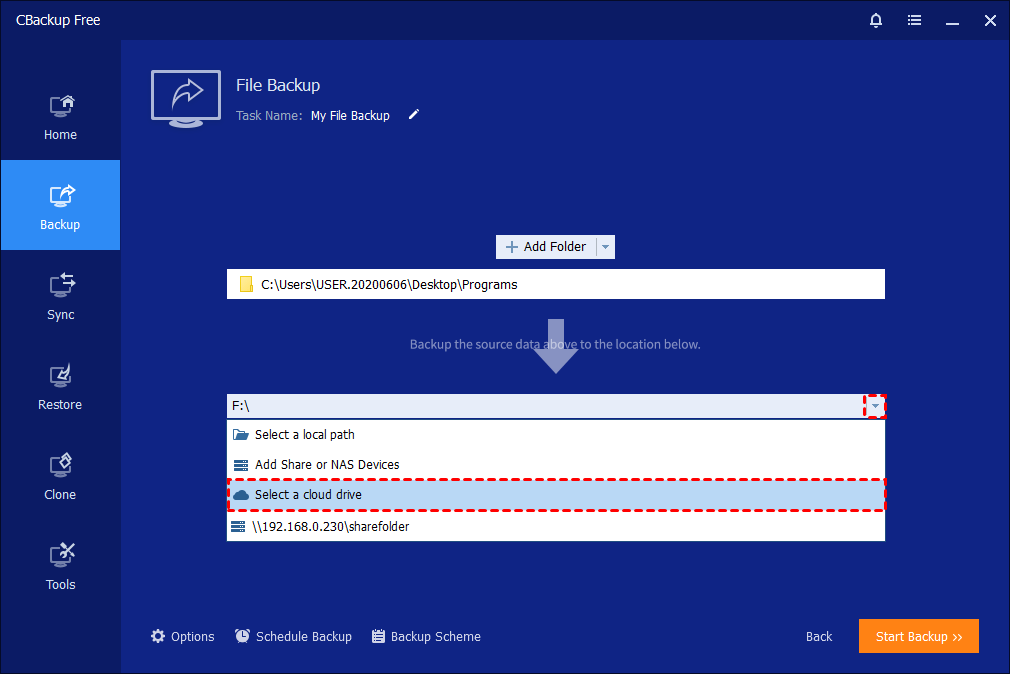
Step 1. Click Backup and select File Backup. Click Add File or Add Folder to select the files/folders you want to backup. Expand the drop-down menu of the second column and click Select a cloud drive.
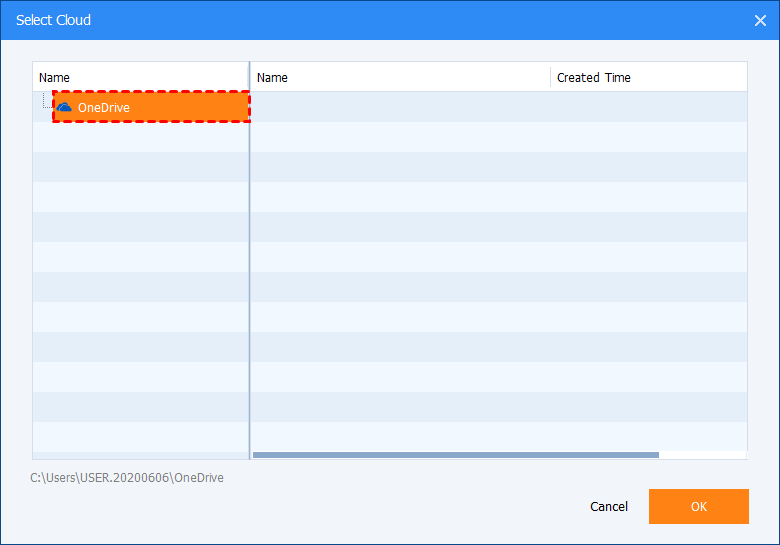
Step 2. CBackup will detect the cloud drives on which you have installed the desktop applications automatically. Choose one cloud drive as the backup destination and click OK.
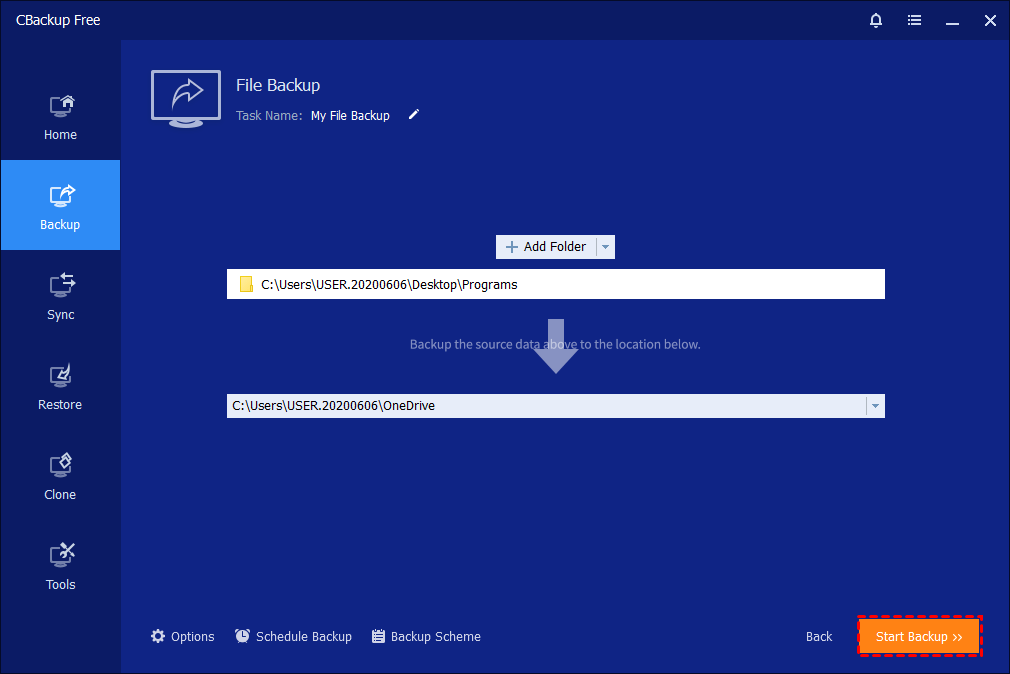
Step 3. Confirm the operation and click Start Backup to back up files to the cloud desktop folder.
Tips:
-
Before backing up to the cloud, you need to install the desktop app for the required cloud drive on your PC.
-
CBackup currently only supports the following cloud clients: Dropbox, OneDrive, Box, SugarSync, hubiC, and Cloudme.
-
Only a File Backup or Sync task supports selecting a cloud drive as the destination location.
-
Currently, CBackup only backs up/syncs to the local folder of cloud storage on your computer. If you want to save backups to the online cloud space of the cloud service, you can sync backup files to the online cloud space via the cloud client app.
Conclusion
In conclusion, a Synology Windows backup strategy is a practical and reliable way to protect your important data while keeping full control over it. By using the right backup software and setting up a regular routine, you can easily Synology backup PC and prevent data loss caused by hardware failure, accidental deletion, or security threats. Whether you choose a simple tool or a more advanced solution, the key is consistency and proper configuration. With a well planned setup, your files, system, and work will always stay safe and easy to recover when needed.
FAQs
🗨️ How do I back up my PC on Synology?
You can back up your PC by installing backup software on your Windows computer, then connecting it to your Synology NAS using its IP address and login details. After that, choose the files, system, or disk you want to back up, set the NAS as the destination, and run or schedule the backup.
🗨️ What is the Synology controversy?
The Synology controversy mainly refers to user concerns about hardware restrictions and software limitations. Some users feel that newer Synology devices work best only with Synology branded drives, which can limit flexibility and increase costs.
🗨️ How do I back up my entire Windows computer?
To back up your whole computer, you need to create a full system backup or disk image. This includes your operating system, apps, and files. Most backup software allows you to select “System Backup” or “Disk Backup,” then save it to your Synology NAS or another storage device.
🗨️ Is Synology Active Backup free?
Yes, Synology Active Backup is free to use, but only for Synology NAS users. There are no extra subscription fees, but you need to own a compatible Synology device to use it.
🗨️ What is the best backup for Synology?
The best backup depends on your needs. For simple and flexible local backups, CBackup is a strong choice. For advanced protection and security features, Acronis is more suitable. If you prefer a free and lightweight tool, FreeFileSync is a good option.
Free Get CBackup Now

Secure & Free
