


What is the Best Backup Software for Windows 10 to External Hard Drive?
This article introduces several top backup software for Windows 10 and 11, comparing features, reliability, and usability. It also explains how to use tools like CBackup to back up data to external drives effectively.

By Irene Updated March 30, 2026


✔️ Brief Overview of testing the best Windows backup software:
This article serves as a comprehensive guide for users looking to protect their data by backing it up to external hardware. It emphasizes that selecting the right software is the most critical step in safeguarding a Windows 10 or 11 system against data loss, hardware failure, or cyber threats.
👍Key Selection Criteria:
We evaluated various tools over a two week period based on several essential benchmarks:
- Security: Total protection against viruses and malware.
- Compatibility: Seamless support for Windows 7 through Windows 11.
- Affordability: A preference for tools ranging from free to approximately $50.
- Flexibility: The ability to back up specific files, partitions, or entire operating systems to USB drives, HDDs, and SSDs.
🔥 Top Rated Solutions:
The guide reviews seven distinct backup tools, each catering to different user needs:
- CBackup: Highlighted as the best overall choice for its "local first" design, ease of use, and permanent free plan.
- Acronis True Image: A premium option known for robust ransomware protection and system imaging.
- Macrium Reflect: Favored by IT professionals for its precision and fast "bare metal" recovery.
- Paragon Backup & Recovery: A beginner friendly tool that requires no technical expertise.
- RDrive Image: Best for advanced users needing exact byte by byte disk cloning.
- FBackup: A lightweight, completely free solution for simple file backups.
- Retrospect Backup: Focuses on high level security with AI powered anomaly detection.
Beyond software reviews, the article provides a detailed walkthrough on using CBackup to create a system image. It covers everything from selecting a destination drive to configuring automated schedules and encryption. The piece concludes by answering common questions, such as how to replace discontinued services like WD Backup and the limitations of built in Windows tools.
What Can Be Considered as the Best Backup Software?
Choosing the best backup software for Windows 10 to external hard drive is a practical way to protect the most important data on your computers and laptops. A reliable tool can create a secure image of your entire system or back up selected files, giving you peace of mind in case something goes wrong. When people ask how to back up a Windows 10 computer to an external hard drive, the first step is always to pick the right software. In this context, an external hard drive can refer to a range of storage options, such as USB flash drives, portable HDDs, or high capacity SSDs.
So what sets the best Windows backup software apart from the rest? Below are some essential features you can use as a benchmark to decide whether a backup tool truly meets your needs:
- Handy and intuitive to use
- Completely free of viruses
- Reasonable price point
- Support for most Windows operating systems (Windows 11, 10, 8.1, 8, 7, etc.)
- Ability to back up the most important files on a computer (data, photos, videos, folders, partitions, and even the entire OS)
- Support for diverse external hard drive formats, including USB thumb drives, portable HDDs, SSDs, and SD cards
Top 7 Best USB Backup Software Recommended
🔥No.1 CBackup (Best Choice)
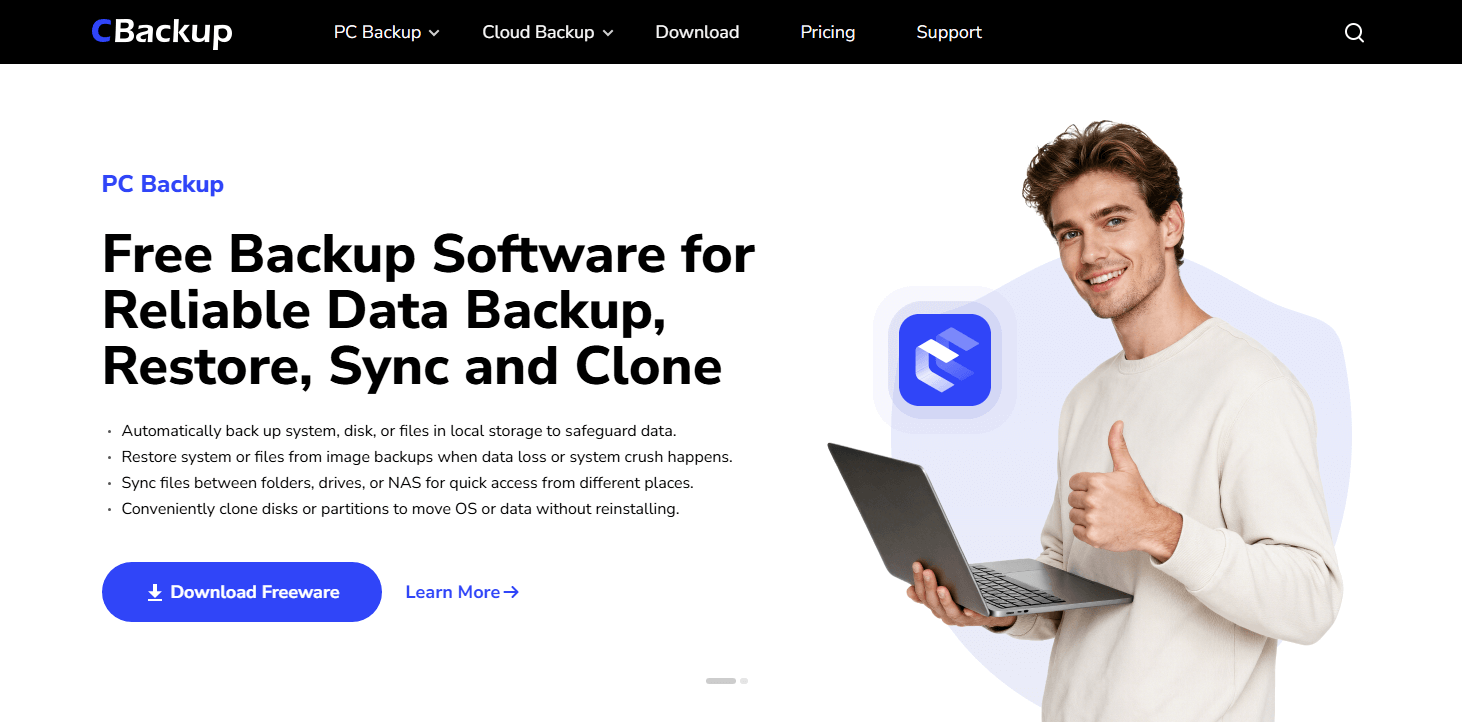
If you are looking for a simple yet reliable way to back up your computer to an external drive, CBackup is a great place to start. It is designed with everyday users in mind, especially those who want an easy and flexible backup solution without relying entirely on the cloud.
Review and Comment: CBackup focuses on automatic computer backups and allows you to store your data locally on external hard drives, NAS devices, or network locations. Unlike many tools that push cloud storage as the primary option, it lets you keep your backups close while still offering to create a bootable media for disk, partition, system clone as the optional extra layer of protection once you encounter system crashes, failures, or virus or ransomware attacks that cause accidental data loss.
This local first design makes it especially useful when you need dependable backups without an internet connection. At the same time, it supports automation and scheduling, so you do not have to worry about running backups manually. The fact that it offers a permanent free plan with scheduled backups also makes it a practical long term solution rather than just a trial.
If you need more advanced system level protection and deeper control over your backups, It also offers the Professional and Technician editions.
| Pros | Cons | Advanced Features |
|---|---|---|
| Permanent free plan available or higher edition for advanced needs | Requires internet connection for optional sync | Automatic and scheduled PC file backups |
| Secure local and network backup support | Local backup support to external drives and NAS | |
| Offers File, Email, and OutLook backup options |
To learn how to back up Windows to external hard drive, you can click to jump to the specific part.
No.2 Acronis True Image
For users who want powerful features and full control over their backup process, Acronis True Image stands out as a premium solution.
Review and Comment: This software is known for its ability to handle everything from individual files to full disk and system image backups. One of its biggest strengths is local system backup, allowing you to create complete disk images and restore them even on different hardware using its Universal Restore feature.
It is particularly useful in situations where hardware failure occurs, as it makes full system recovery much easier. While it may require more system resources and comes at a higher price, the level of protection and flexibility it offers is hard to match.

| Pros | Cons | Advanced Features |
|---|---|---|
| Excellent integrated ransomware protection | Can be resource intensive on older PCs | Full disk and system image backups |
| Comprehensive system imaging capabilities | Pricing is higher compared to basic tools | Hardware independent system recovery |
If you prefer something equally reliable but with a stronger focus on stability and performance, the next tool is worth considering.
No.3 Macrium Reflect
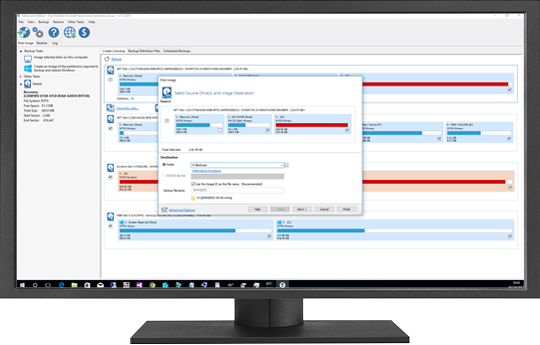
Macrium Reflect is a well known choice among advanced users and IT professionals who prioritize precision and reliability in backups.
Review and Comment: It specializes in full disk imaging as well as incremental and differential backups, which makes it highly efficient for regular use. Users can quickly restore entire systems after a failure, making it a dependable option for critical data protection.
Macrium is especially appealing if you prefer storing backups on external drives or NAS devices and want full control over the process. While the interface may feel a bit technical for beginners, its performance and stability make it a trusted solution.
| Pros | Cons | Advanced Features |
|---|---|---|
| Extremely stable and precise | Interface can feel a bit technical for beginners | Incremental and differential backups |
| Incredibly fast bare metal recovery | Lacks deep cloud integration focus | Local storage and NAS support |
If ease of use is more important to you than advanced technical control, the next option offers a much more beginner friendly experience.
No.4 Paragon Backup & Recovery
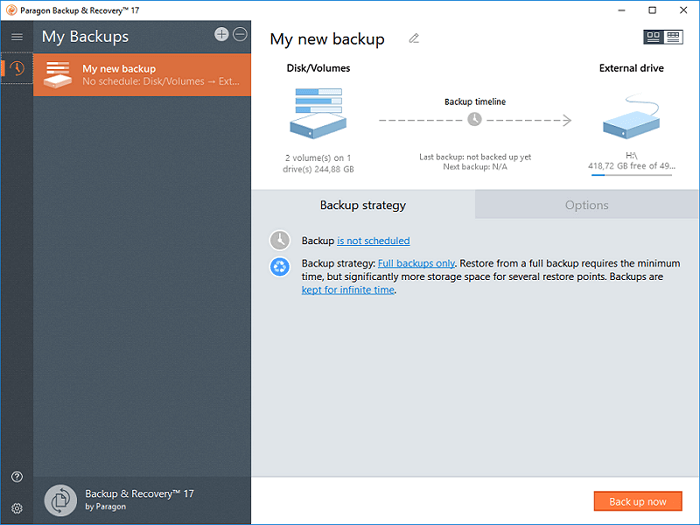
Paragon Backup and Recovery is a solid choice for users who want a straightforward backup solution without needing technical expertise.
Review and Comment: It covers a wide range of backup needs, including files, folders, partitions, disks, and even full systems. The software is designed to be easy to use, so even those unfamiliar with backup processes can get started quickly.
Its simple interface and scenario based backup options make it accessible while still providing essential protection. Although advanced cloud features require a premium version, it delivers a smooth and stress free experience for basic backup needs.
| Pros | Cons | Advanced Features |
|---|---|---|
| No IT skills required to operate | Advanced cloud features require a premium service | Scenario based backup jobs |
| Easy file and system entire backups | Interface is slightly basic for power users | WinPE bootable environment support |
If your focus is on precision and exact data replication, the next tool offers a more specialized approach.
No.5 RDrive Image
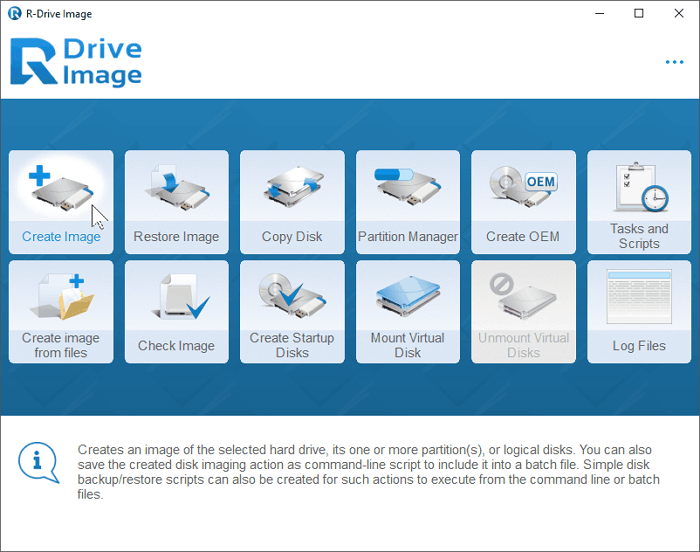
RDrive Image is ideal for users who need highly accurate backups and detailed disk imaging capabilities.
Review and Comment: It allows you to create exact byte by byte copies of drives, partitions, or files, ensuring nothing is missed. This makes it particularly useful for cloning drives or preserving data in its exact original state.
It supports a wide range of file systems and offers strong imaging features, though it may feel a bit outdated in terms of interface and lacks some automation compared to newer tools. Still, its precision makes it a valuable option for advanced users.
| Pros | Cons | Advanced Features |
|---|---|---|
| Exact byte by byte copying | The software interface looks slightly dated | Advanced Drive and File Imaging |
| Broad file system support | Fewer automation tools than competitors | Disk to Disk Copy and Partition Manager |
If you are looking for a free and simple tool for everyday file backups, the next option keeps things light and easy.
No.6 FBackup
FBackup is a great choice for users who want a completely free and easy to use backup tool for basic needs.
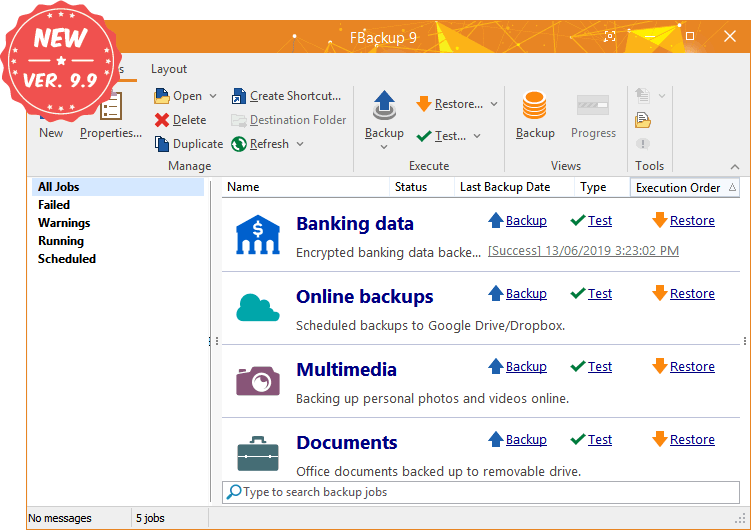
Review and Comment: It allows you to back up selected files to external storage devices like USB drives with just a few clicks. The interface is clean and intuitive, making it easy for anyone to use without a learning curve.
While it does not include advanced features like system imaging or disk cloning, it works well for simple file backups. It also supports scheduled backups and even integration with cloud services like Google Drive and Dropbox.
| Pros | Cons | Advanced Features |
|---|---|---|
| Completely free to use | Lacks advanced disk cloning and system imaging | Backup encrypted banking data |
| Streamlined and intuitive interface | Not suitable for complex enterprise needs | Scheduled backups to Google Drive and Dropbox |
For something more comprehensive with built in security features, the final option offers a more advanced level of protection.
No.7 Retrospect Backup
Retrospect Backup is designed for users who want a more complete data protection solution, especially with added security against threats like ransomware.
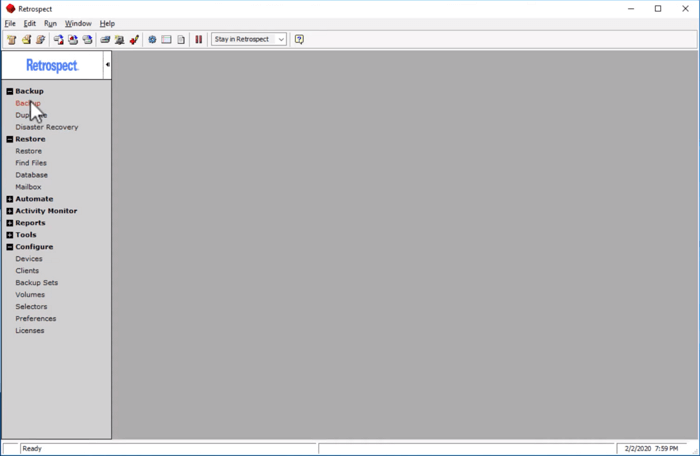
Review and Comment: It provides versatile backup options along with features like anomaly detection, which helps identify unusual activity and recover from ransomware attacks. This makes it a strong choice for users who prioritize data security.
Although the setup process can be a bit complex and the solo version may not scale well for larger environments, its advanced protection features make it stand out among backup tools.
| Pros | Cons | Advanced Features |
|---|---|---|
| Versatile anomaly detection | Initial setup and configuration can be complex | Complete data protection and Email Protection |
| Strong dedicated ransomware protection | Solo version might lack broader enterprise scalability | ProtectiveAI and Geo Tracking |
Overall, Retrospect Backup is a powerful option for those who want more than just basic backups, offering an extra layer of security and peace of mind.
How to Backup Computer to External Hard Drive with Windows 10 and 11?
If you want to back up Windows to an external hard drive, here are detailed steps. Before starting, ensure your computer is functioning properly, prepare an external hard drive with sufficient storage space, and install CBackup on your Windows 10 or Windows 11 system.
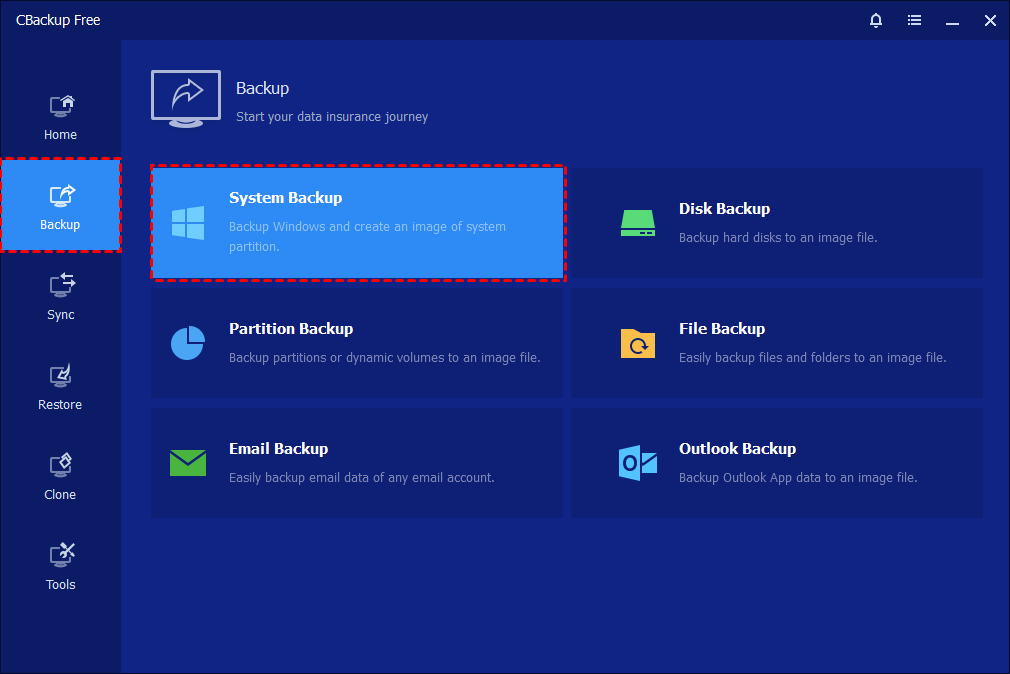
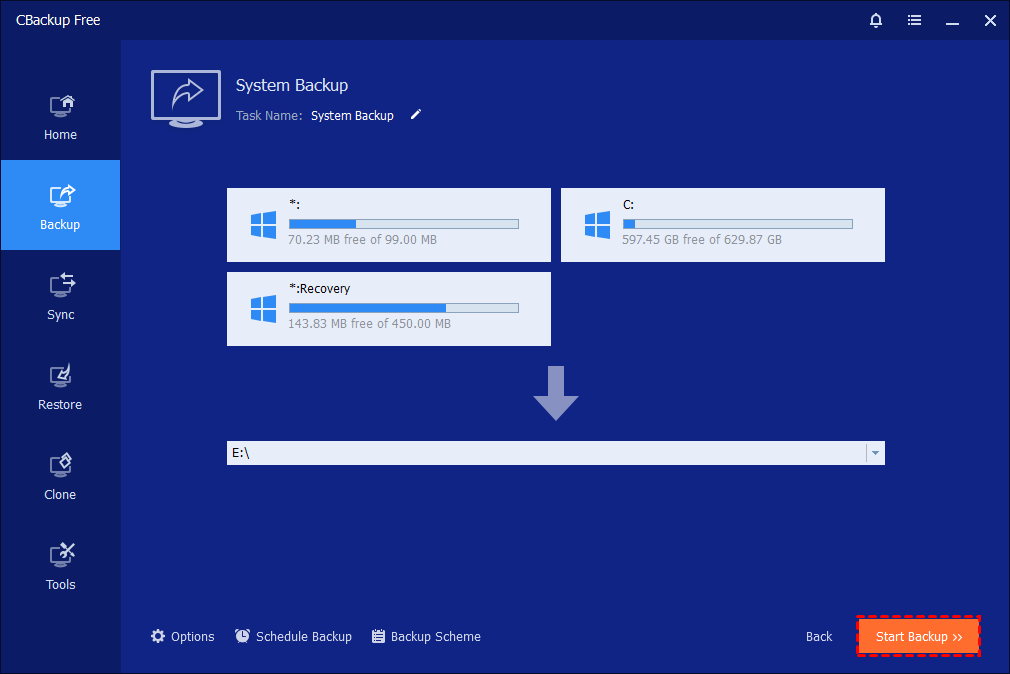
Step 1. Launch CBackup on your computer. From the main interface, click the “Backup” option in the left-hand panel, then choose “System Backup.” The program will automatically identify and display all system-related partitions required for a complete backup.
Step 2. Click on the destination selection box and choose your external hard drive as the backup location. You may also rename the backup task in the “Task Name” field to make it easier to identify later.
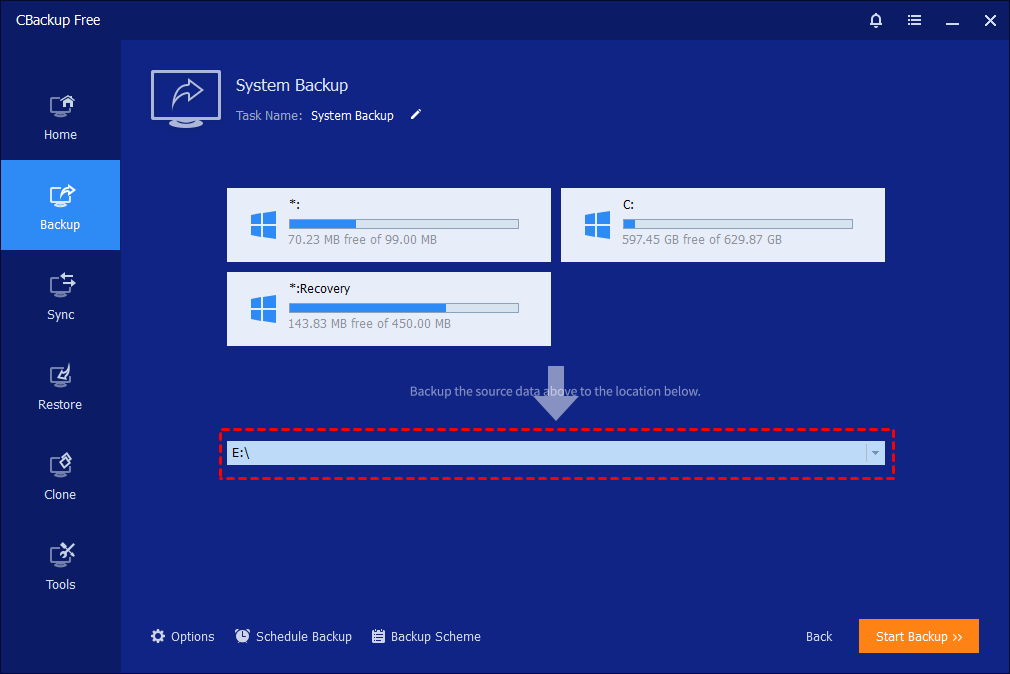
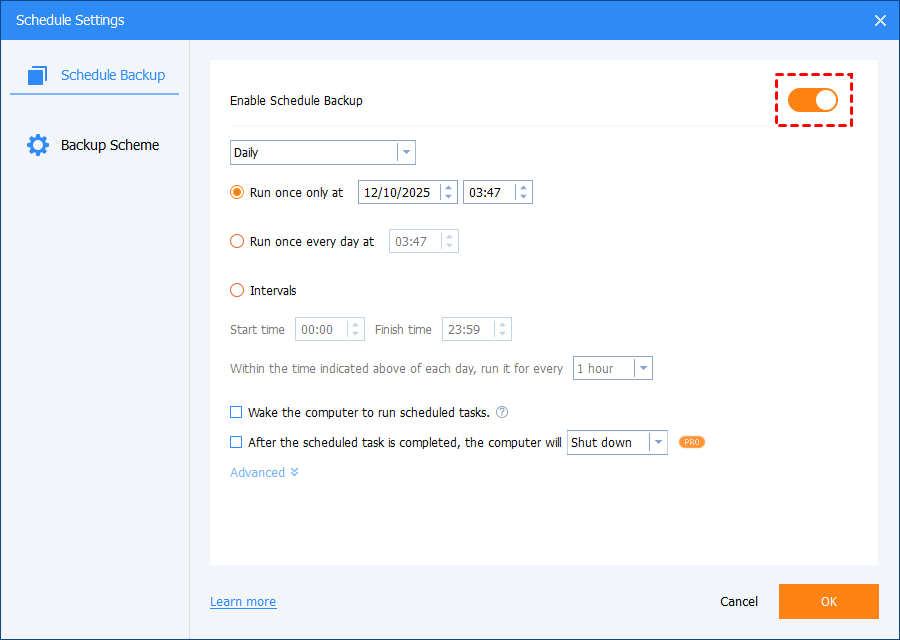
Step 3. Configure additional backup settings if needed. You can adjust compression levels, enable encryption for security, split large image files, and set up email notifications. You can also schedule automatic backups (daily, weekly, or monthly) and choose between incremental or differential backup methods to optimize storage usage.
Step 4. After confirming all settings, click “Start Backup” to begin the system image backup process. The software will start copying all necessary system data to the external drive.
Step 5. Monitor the backup progress through the interface. You can view detailed progress information and optionally set the computer to shut down, restart, or enter sleep mode after completion. Once finished, click “Finish.”

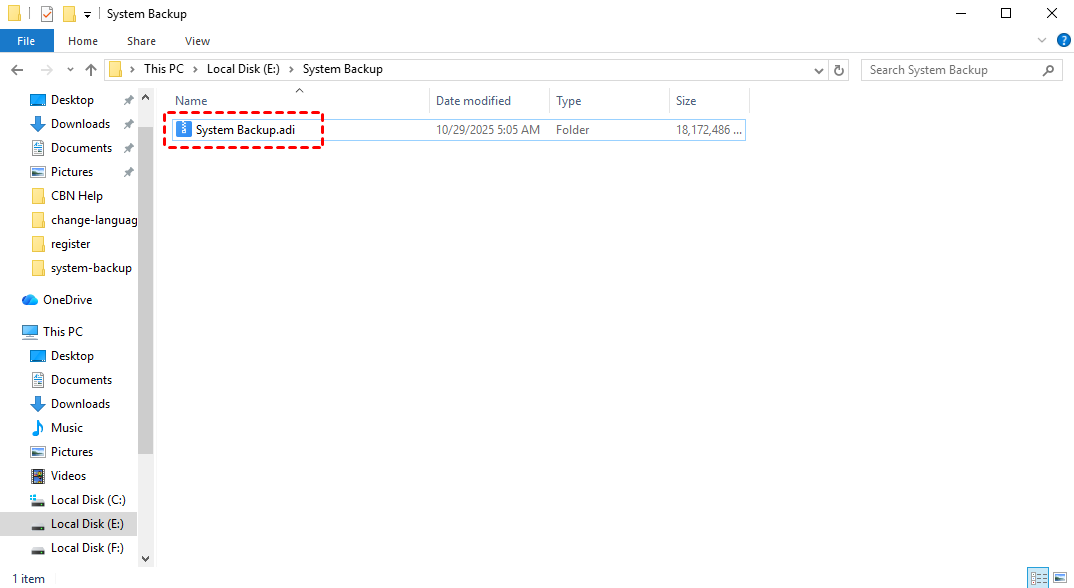
Step 6. After completion, the backup task will appear on the home screen for future management. The system image file (in .adi format) will be saved to your external hard drive, allowing you to restore your system quickly whenever needed.
By creating a system image backup with CBackup, you ensure that your Windows 10 or Windows 11 system is fully protected against unexpected failures. This method not only preserves your operating system and installed programs but also saves valuable time when recovery is needed. With regular backups and proper storage on an external hard drive, you can maintain data security and quickly restore your system to a working state whenever necessary.
How We Actually Evaluated Windows Backup Software (Real Testing)
Instead of just listing criteria, we ran a hands-on comparison using real machines, real files, and real backup scenarios. Below is a transparent snapshot of our testing setup:
| Testing Factor | What We Did in Practice |
|---|---|
| Devices Used | 2 laptops (Windows 11) + 1 desktop (Windows 10) |
| Storage Targets | 1TB external HDD, 512GB portable SSD, 128GB USB drive |
| Tools Evaluated | 7 backup programs (free + paid versions mixed) |
| Testing Period | 14 consecutive days with repeated backup cycles |
| Data Volume | ~320GB total (documents, images, videos, system files) |
| Budget Range | Free → $79.95 (one-time & subscription plans) |
Real Testing Scenarios We Simulated
Rather than testing features in isolation, we recreated everyday situations users actually face:
-
Daily file protection: Backing up working folders with frequent changes
-
Media-heavy backups: Large photo/video libraries (~150GB)
-
System-level safety: Full system image creation and restore
-
Device switching: Moving backups between USB, HDD, and SSD
-
Failure recovery: Simulated system crash and file loss recovery
This approach helped us see not just what each tool claims, but how it performs under pressure.
What Actually Mattered in Our Evaluation
After two weeks of testing, these factors proved to be the most important in real use—not just on paper:
1. Reliability (No Corrupted Backups)
We discarded any tool that produced incomplete or unreadable backup images. Stability during long backup sessions (especially 100GB+) was critical.
2. System Compatibility
Some tools worked smoothly on Windows 11 but showed minor issues on Windows 10 (e.g., slower indexing or driver prompts). Only consistently stable tools made the final list.
3. Backup Flexibility
The best performers allowed:
-
Selective file/folder backup
-
Full disk or partition imaging
-
Easy switching between external devices
Tools that forced rigid backup structures were ranked lower.
4. Speed vs. Resource Usage
We tracked:
-
Initial backup time
-
CPU usage during operation
Top tools balanced speed without slowing down the system noticeably.
5. Support & Ease of Use
We tested support by submitting real tickets. Response times ranged from 2 hours to over 24 hours, which made a clear difference.
User interface also mattered—some tools were powerful but unnecessarily complex.
6. Pricing vs. Value
Interestingly, higher price didn’t always mean better performance. Some free tools handled basic backups perfectly, while a few paid options justified their cost with automation and advanced recovery features.
Key Takeaway from Our Testing
What we found is simple: the “best” backup software isn’t just about features—it’s about consistent performance in real situations.
Any tool that passed our testing was able to:
-
Handle large-scale backups without failure
-
Restore data reliably when needed
-
Work smoothly across both Windows 10 and 11
-
Support multiple external storage devices
If a tool met these standards, it proved itself trustworthy for protecting important data.
Conclusion
In the end, choosing the best backup software for Windows 10 to an external hard drive comes down to finding a tool that fits your needs, whether you prefer simplicity, advanced features, or strong security. A reliable backup solution not only protects your important files but also ensures you can recover quickly from unexpected data loss. By using the right software and backing up your data regularly, you can keep your system safe and your files always within reach.
FAQs
🗨️ How do I backup my Windows 10 to an external hard drive?
Connect your external hard drive, install and open CBackup, then go to the Backup section and choose System Backup. Select your external drive as the destination, adjust settings if needed, and click Start Backup. The software will automatically create a full system image and save it to your external drive.
🗨️ What is the best backup program for Windows 10?
Based on the article, CBackup is the top choice because it is simple, reliable, and designed for automatic backups to external drives, NAS, and local storage. It also offers a permanent free plan and scheduling features, making it suitable for both beginners and long term use.
🗨️ What replaced WD backup software?
WD Backup has been discontinued and there is no direct replacement from Western Digital. Instead, users can switch to reliable alternatives like CBackup or other professional tools such as Acronis True Image that support external hard drive backups.
🗨️ Does Windows 10 have a built in backup program?
Yes, Windows 10 includes File History and Backup and Restore. However, these tools are more limited compared to dedicated backup software, especially when it comes to automation, flexibility, and advanced backup options.
🗨️ How do I backup my entire computer in Windows 10?
To back up your entire computer, you can create a system image using CBackup. Simply select System Backup, choose your external hard drive as the destination, and start the process. This will back up your operating system, installed programs, and all system related data, allowing you to fully restore your computer when needed.
Free Get CBackup Now

Secure & Free
