


How to Backup Computer: 3 Best Ways to Protect PC Data
Learn how to backup your computer effectively using 3 simple methods. This guide covers professional software, built-in Windows tools, and cloud storage to ensure your PC data backup is secure.

By Ellie Updated March 2, 2026


How Do I Backup My Entire Computer?
Using a computer always comes with a bit of risk. One day everything works perfectly; the next, your system refuses to start. A hard drive can suddenly stop responding, making a complete PC backup essential. Malware or ransomware might lock your files, and even a minor software glitch can wipe out important documents without warning.
That’s why finding the best backup for computer systems is so important. It protects both your system and your personal files from sudden disasters. You might be wondering, “How do I back up my entire computer?” or "How to backup my computer quickly?"
This comprehensive guide explains the most effective ways to safeguard your data and perform a reliable computer data backup, so even if your hardware fails, your digital life stays secure.
How to Backup Computer [3 Ways]
Depending on your technical comfort level and your storage preferences, there are three primary ways to handle a home computer backup.
Quick Comparison: Which Backup Method is Right for You?
| Feature | CBackup | Windows Backup & Restore | Cloud Sync (Google/OneDrive) |
| Best For | Power users & Multiple Clouds | Full System Recovery (Offline) | Real-time file collaboration |
| Storage Type | Cloud, Local & External | External HDD/SSD only | Cloud storage only |
| Automation | Full (Scheduled) | Manual / Basic Schedule | Automatic Sync |
| System Image | Yes (Professional) | Yes (Standard) | No (Files only) |
| Cost | Free version available | Free (Built-in) | Free tier / Monthly subscription |
1. CBackup: The All-in-One Professional Solution
For users who want a professional-grade, automated experience without the complexity of enterprise software, CBackup is a top-tier free backup software. It serves as a centralized backup manager that allows you to send data to local disks, external drives, or multiple cloud services.
Why Choose CBackup?
- Full System & Disk Imaging: Perform a complete PC backup of your Windows OS, disks, and partitions. In case of a system crash, you can restore your computer to a previous stable state.
- Seamless OS Migration: Easily move your live operating system from an old HDD to a new SSD without reinstalling Windows. It ensures the cloned drive is fully bootable right away.
- Automated Protection: Use the Scheduled Backup feature for hands-off computer file backup to set daily or weekly tasks. CBackup handles the rest automatically, ensuring your most recent data is always protected.
- 1TB Cloud Storage: Provide 1TB of cloud data storage, making it ideal for storing large computer backups at no extra cost.
- Flexible Syncing: Beyond backups, it offers real-time and mirror sync to keep your files consistent across local drives, NAS, and the cloud.
Steps to Backup Using CBackup:
Step 1. Download and install CBackup and open the software.
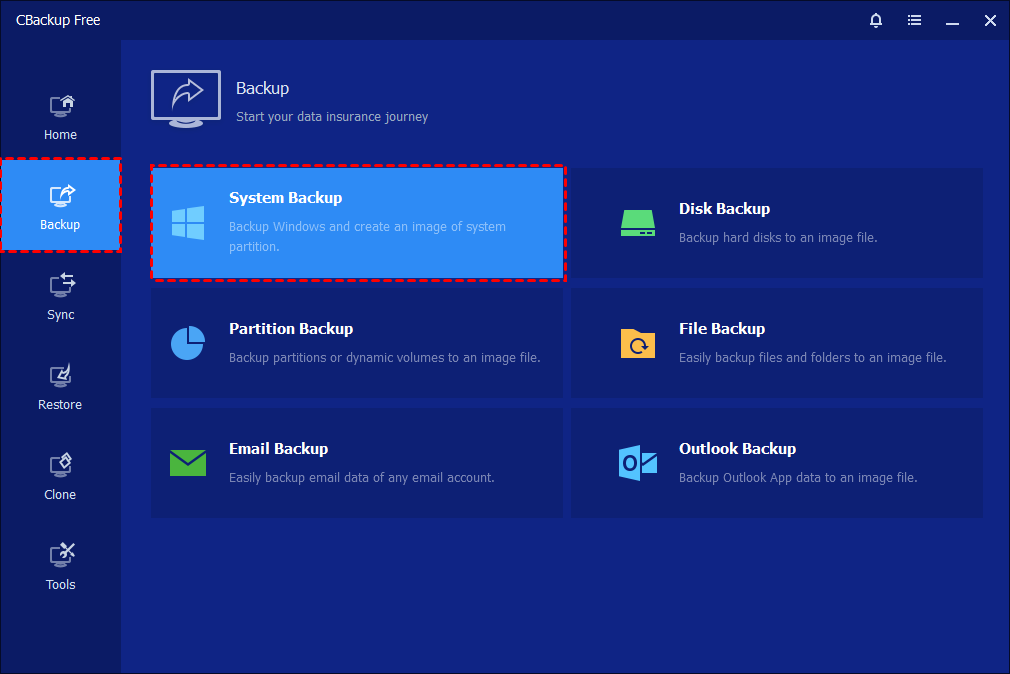
Step 2. Navigate to the "Backup" tab and click "System Backup."
Step 3. Choose where you want the data to go.
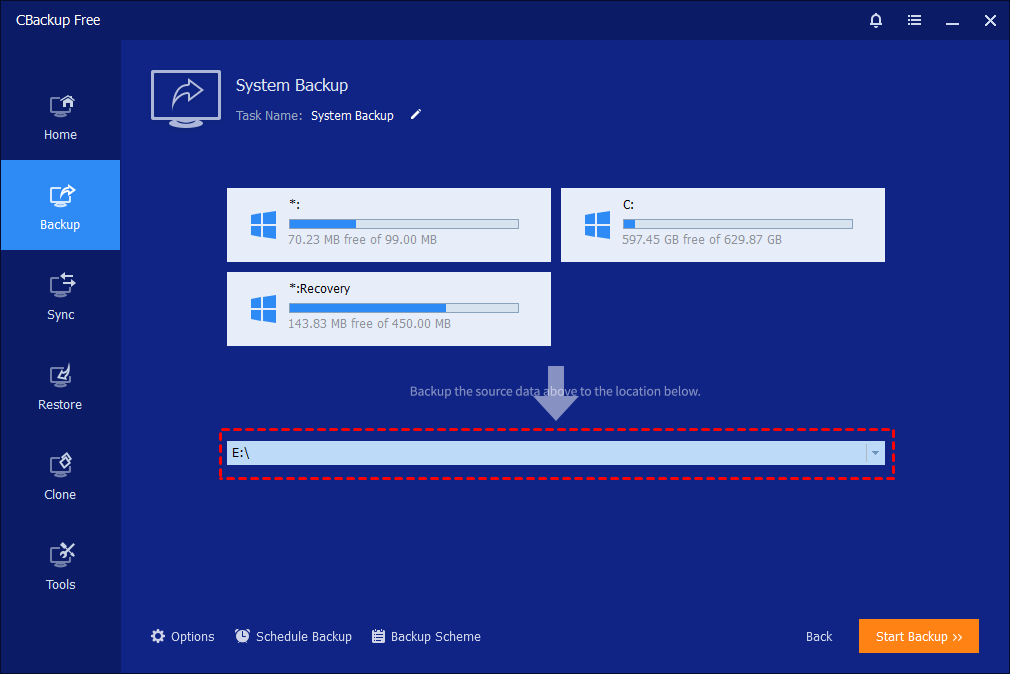
Step 4. Click "Start Backup" to begin the process.
Step 5. Please kindly wait for the backup process to complete, and then click the Finish button.

2. Windows Built-In Backup and Restore (Windows 7)
If you want to know how to backup your computer without downloading third-party software, this built-in tool is the answer. It is a reliable back up for computer users who want to clone their entire drive to an external disk.
Pros:
- Completely free and built into the OS (no download needed).
- Allows for "Bare Metal Recovery" (restores everything if your PC won't boot).
- No internet connection required.
Cons:
- An outdated interface can be confusing for beginners.
- Very slow compared to modern tools; backup files are bulky.
- Prone to "Disk is Full" errors, as it doesn't compress files efficiently.
How to Create a System Image:
Step 1. Open the Start menu and search for Control Panel, then click to open it.
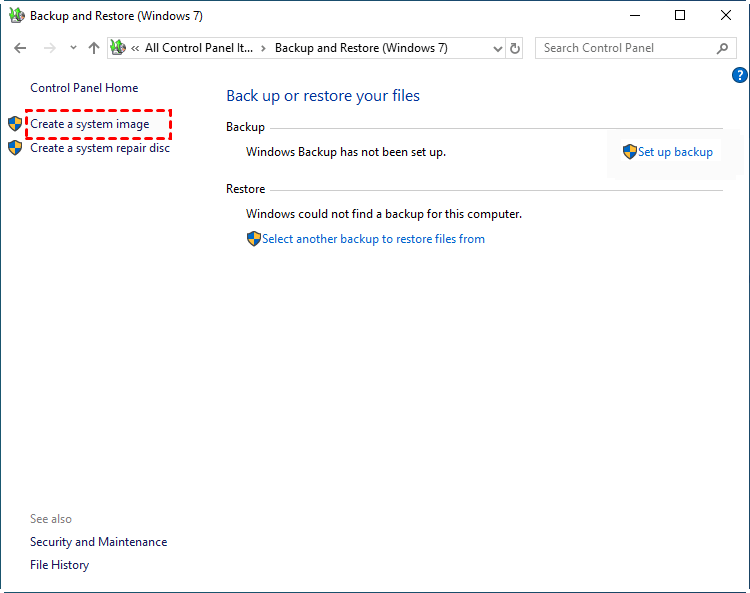
Step 2. Go to System and Security, then select Backup and Restore (Windows 7).
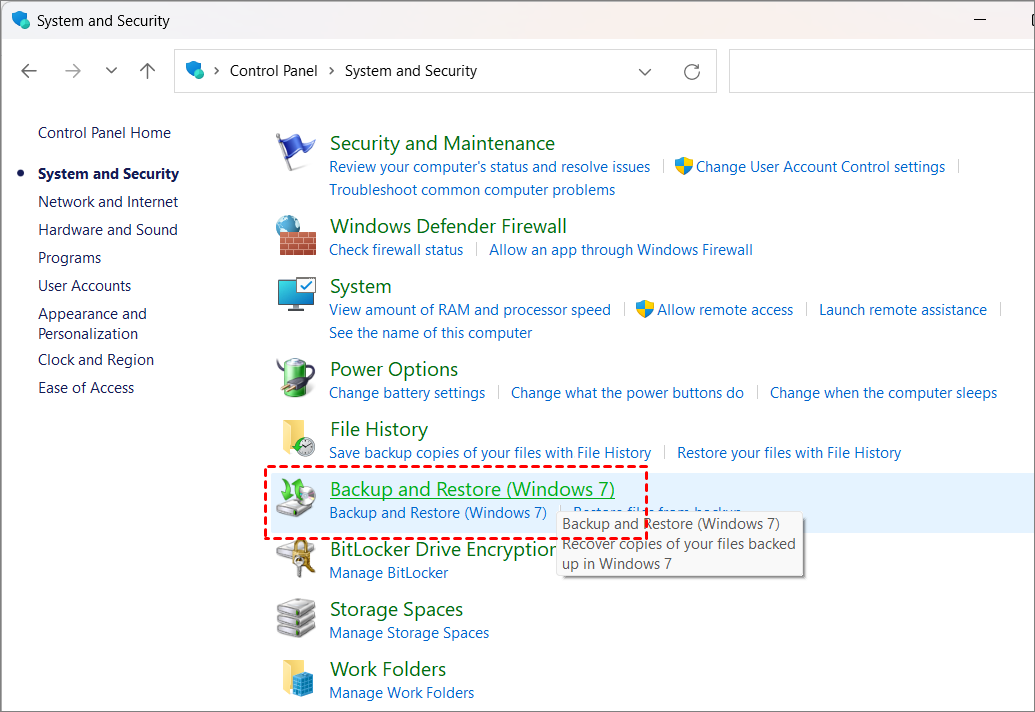
Step 3. In the left panel, click Create a system image.
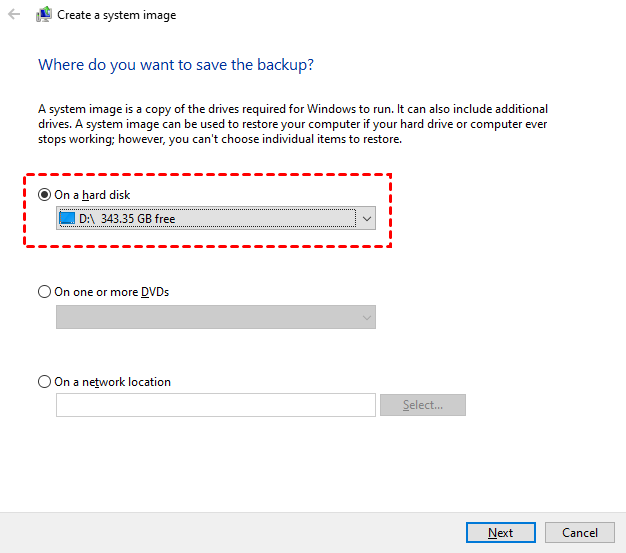
Step 4. Choose On a hard disk and select your backup for computer destination, then click Next.
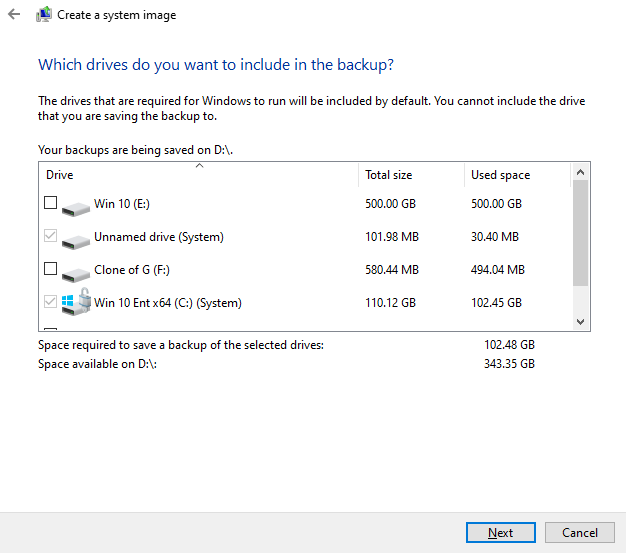
Step 5. Windows will automatically select the required system partitions. Click Next.
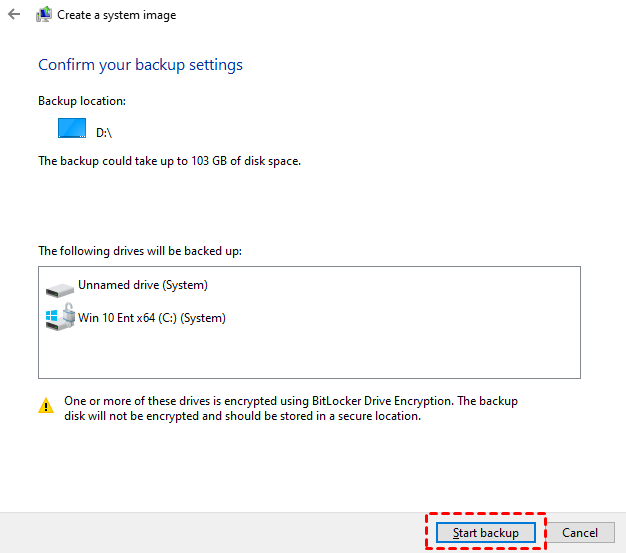
Step 6. Confirm your settings and click Start backup to begin the process.
Note: This method creates a "snapshot" in time. You should run this manually at least once a month or after installing major software updates.
3. Back Up Computer to the Cloud (Google Drive / OneDrive)
Learning how to backup a computer to the cloud is the gold standard for protecting against physical disasters. This is often considered the best backup for computer files that you need to access on the go. Famous cloud backup software includes Google Drive, OneDrive, and Dropbox.
Pros:
- Instant access to your files from any device (phone, tablet, laptop).
- Files are protected from physical damage to your hardware.
- Easy to share large files with others via links.
Cons:
- Cannot backup/restore your entire Windows OS or programs.
- Requires a fast, stable internet connection for large uploads.
- Limited free storage (usually 5GB–15GB) leads to monthly costs for more space.
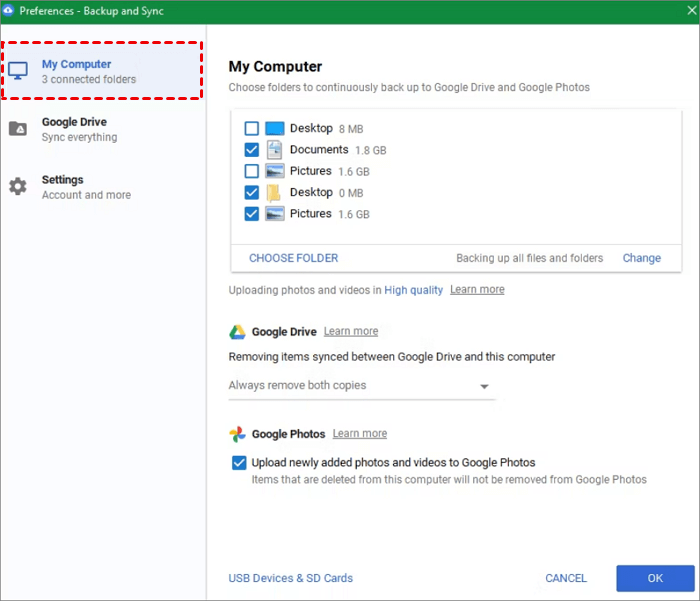
How to Use Google Drive for Desktop:
Step 1. Download "Google Drive for Desktop" from the official Google site.
Step 2. Log in with your Google account credentials.
Step 3. Choose folders like Desktop or Documents for your computer file backup.
Step 4. You can choose "Storage Saver" to save space or "Original Quality" for full-resolution photos.
Step 5. Once set up, any file saved is instantly uploaded, providing continuous PC data backup.
Conclusion
Knowing how to backup home computer data is like having insurance: you hope you never need it, but you'll be incredibly grateful for it when you do. For a comprehensive approach, use Google Drive for your daily documents, and use CBackup or Windows Backup and Restore to create monthly system images.
By combining local speed with cloud security, you create an impenetrable safety net for your digital life. Don't wait for the "Blue Screen of Death" to take action—start your backup today.
FAQs
How much storage do I need for a full backup?
Can I use a USB Flash Drive to backup my computer?
What is the difference between "Backup" and "Sync"?
- Sync (e.g., Dropbox): Mirrors your files. If you delete a file on your PC, it is deleted in the cloud.
- Backup (e.g., CBackup): Creates a historical copy. If you delete a file on your PC, the backup copy remains safe in the storage destination.
Should I back up to an SSD or HDD?
- HDD (Hard Disk Drive): Cheaper for large amounts of data (2TB, 4TB+). Great for long-term storage.
- SSD (Solid State Drive): Much faster but more expensive. Great if you value time and plan to run backups frequently.
How long does a full backup take?
Free Get CBackup Now

Secure & Free
