
Top 6 EaseUS Alternatives: Best Free Backup & Recovery Tools (2026)
This guide reviews the top 6 EaseUS alternatives for data backup and disk management. We compare professional-grade tools to help you find a cost-effective, high-performance solution, with a special focus on CBackup for Windows backup and recovery.

By Ellie Updated November 5, 2026


If you are currently searching for an EaseUS alternative, you have likely reached a point of frustration. You need reliable data backup, system cloning, or disk management tools, but the high subscription costs and restrictive "freemium" features of EaseUS products are becoming a bottleneck. You aren't alone; many users are looking for software that offers professional-grade protection without the heavy price tag or aggressive upselling.
Finding the right software requires balancing functionality, price, and ease of use. Whether you need a comprehensive EaseUS Todo Backup alternative or a robust disk partition manager, the market has shifted toward solutions that prioritize user experience and transparency. This guide cuts through the noise to help you identify the best tools for your specific needs, with a primary recommendation for a truly versatile solution: CBackup.
Why You Need an EaseUS Todo Backup Alternative
EaseUS Todo Backup is a household name, but it has significant drawbacks that drive users to search for alternatives:
- Restrictive Free Version: The free version often limits the frequency of backups, restricts the cloning features, or puts a hard cap on data recovery volume.
- Aggressive Upselling: Constant pop-ups encouraging users to upgrade to the premium version can disrupt workflow.
- Software Bloat: Users often find the installation package heavy, leading to slower system performance on older machines.
- Subscription Fatigue: EaseUS frequently pushes annual subscription models. Many users prefer a one-time purchase or a software tool that provides robust free utility without feeling like a "service-as-a-debt" trap.
Top Recommendation: Why CBackup Wins
If you are looking for a reliable, feature-rich replacement, CBackup offers Windows backup, recovery, synchronization, and cloning tools to help protect your system and important files.
Key Advantages of CBackup
CBackup brings PC backup, recovery, synchronization, and disk cloning together in one application, making it a practical EaseUS Todo Backup alternative for Windows users.
- Complete System Backup & Clone: It provides enterprise-level PC and server backup, allowing you to back up your entire system, specific disks, or individual files to local drives, external hard drives, or NAS.
- Flexible File Synchronization: Synchronize important folders between your PC, external drives, and NAS devices to keep working files accessible across storage locations.
- Scheduled & Incremental Backup: Schedule regular Windows backups and save changes since the previous backup to reduce backup time and storage usage.
- Zero-Cost Barriers: It offers a generous free tier that doesn't just tease you; it actually gets the job done for most personal and small business users.
How to Use CBackup for System Backup: Step-by-Step
Setting up your data protection takes less than 5 minutes. Follow these three simple steps:
Step 1. Install & Log In: Download the CBackup desktop app for free. Open the application and sign up or log in to your account.
Step 2. Select Data & Destination: Go to the "Backup" tab and click "System Backup".
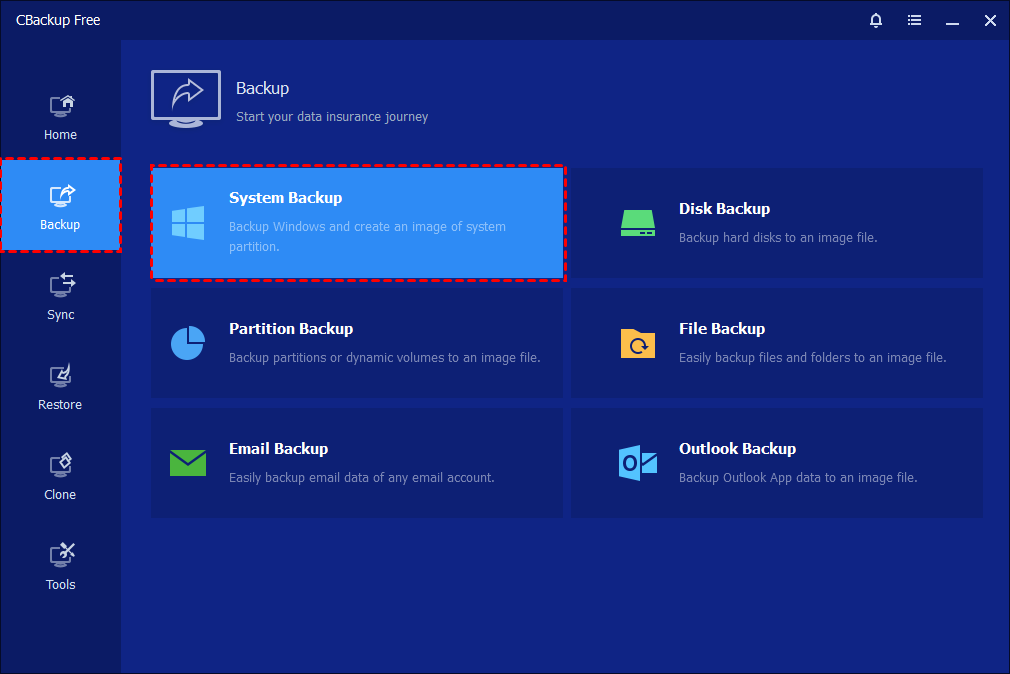
Step 3. Schedule & Run: Choose a destination, such as an external drive, network share, or NAS device. Configure a backup schedule if needed, then click Start Backup to begin.

Other 5 EaseUS Alternatives for Different Use Cases
While CBackup provides Windows backup, recovery, and synchronization tools, specialized needs such as professional partition management or forensic data recovery may require other software. Here are the 5 best alternatives to EaseUS tools in 2026.
1. Macrium Reflect (Best for System Imaging & Cloning)
If your primary need is replacing EaseUS Todo Backup for creating robust system images or cloning drives, Macrium Reflect is the industry standard. IT professionals favor it for its reliability and "set-it-and-forget-it" imaging technology.
- Key Features: Rapid Delta Cloning (only copies changed data blocks), direct disk-to-disk cloning, and reliable Rescue Media creation.
- Pros: Exceptional reliability during critical system restores; significantly lower failure rate than consumer-grade tools.
- Cons: The interface is more technical; the free trial is time-limited (no permanent free version).
- Best For: Users who need a professional, "bulletproof" backup solution for their Windows OS.
2. AOMEI Backupper / Partition Assistant (Best All-in-One Suite)
AOMEI is the most direct competitor to EaseUS in terms of product lineup. They offer a "Standard" version that is genuinely free for personal use and covers most standard disk management and backup tasks without the aggressive "pay-to-unlock" prompts found in EaseUS.
- Key Features: Comprehensive disk partition resizing, MBR-to-GPT conversion without data loss, and automated file-level backups.
- Pros: UI is very similar to EaseUS, making migration effortless; the free version includes essential cloning features that EaseUS often locks behind a paywall.
- Cons: Some advanced features (like system migration) require the Pro version.
- Best For: Users who want a familiar, user-friendly interface similar to EaseUS but with more generous free features.
3. Disk Drill (Best for Data Recovery)
When users search for an EaseUS Data Recovery Wizard alternative, it is usually because they need a tool that actually finds files where EaseUS failed. Disk Drill is widely regarded as the most user-friendly and visually intuitive recovery tool on the market.
- Key Features: "Recovery Vault" (a safety net for deleted files), S.M.A.R.T. disk monitoring, and support for over 400+ file formats.
- Pros: Modern, clean UI; highly effective at recovering files from formatted or corrupted drives; excellent macOS and Windows cross-platform support.
- Cons: The free version limits the amount of data you can recover (usually 500MB).
- Best For: Home users who accidentally deleted photos, documents, or videos and need a high-success-rate, easy-to-use tool.
4. Wondershare Recoverit (Best for High Success Rate Data Recovery)
If your primary reason for using EaseUS is its Data Recovery Wizard, Wondershare Recoverit is the leading professional alternative. It is widely recognized for its robust scanning algorithms that can recover data from complex scenarios, such as crashed systems, virus attacks, or formatted drives.
- Key Features: Advanced deep scan algorithms, support for 1,000+ file formats (including documents, photos, and videos), and a specialized "Video Repair" feature for corrupted files.
- Pros: Exceptional recovery success rate; very intuitive "three-click" recovery interface; superior ability to reconstruct fragmented video files.
- Cons: The price point is higher than some competitors; the free version is strictly limited to scanning and previewing.
- Best For: Users who prioritize recovery speed and success rates for critical photos, videos, and documents.
5. R-Studio (Best for Advanced/Forensic Recovery)
For users who find EaseUS and other consumer tools too "simplistic," R-Studio is the professional’s choice. It is a data recovery powerhouse designed for complex scenarios like RAID reconstruction and network recovery.
- Key Features: Advanced RAW file recovery, network-based data recovery (recover files from a remote computer), and sophisticated RAID array support.
- Pros: Unmatched recovery capability for severely damaged filesystems; highly customizable scan parameters.
- Cons: Steep learning curve; the interface looks dated compared to modern consumer software.
- Best For: IT admins, data recovery specialists, and users dealing with severely corrupted or non-bootable storage devices.
Comparison Summary: Which One Should You Choose?
Use this table to quickly identify the tool that aligns with your specific needs. CBackup supports everyday PC backup and recovery, while other tools address specialized requirements.
|
Software |
Primary Strength |
Best For |
Pricing Model |
|
CBackup |
Windows Backup & File Sync | Scheduled PC backups, system recovery & file synchronization |
Freemium (Generous free tier) |
|
Macrium Reflect |
Professional System Imaging |
IT pros needing "bulletproof" system restores |
Paid (Trial available) |
|
AOMEIBackupper |
All-in-One Partition/Backup |
Users wanting a familiar UI similar to EaseUS |
Freemium |
|
Disk Drill |
User-Friendly Recovery |
Home users needing an easy, high-success recovery |
Paid (Limited free recovery) |
|
Wondershare Recoverit |
Video & Deep Recovery |
Recovering corrupted media/complex files |
Paid (Scan-only free) |
|
R-Studio |
Forensic/Advanced Recover |
Tech experts & RAID reconstructio |
Paid (High-end) |
Conclusion
Finding the right EaseUS alternative shouldn’t feel like a chore. While EaseUS has served the market for years, the shift toward subscription-heavy models and bloated software packages has opened the door for more efficient, user-friendly, and transparent solutions.
If you are looking for a versatile Windows backup tool, CBackup is worth considering. It combines system, disk, partition, and file backup with recovery, synchronization, and cloning options. Compare CBackup plans and features to find the edition that matches your PC protection needs.
However, your choice ultimately depends on your specific goal. If you need forensic data reconstruction, R-Studio is your best bet; if you need professional-grade system imaging, Macrium Reflect remains the industry benchmark. Regardless of your choice, the most important step is to stop relying on outdated, restrictive tools and start using a solution that genuinely protects your data, and your wallet.
FAQs
Is CBackup really free for system backups?
Can I use CBackup as a direct EaseUS Todo Backup alternative?
Does CBackup support cloning my OS to a new SSD?
Is my data secure when using CBackup?
What should I do if I have specific data recovery needs?