


Acronis vs Win10 Backup: Which Backup Option Is Better?
This guide compares Acronis True Image with the backup tools built into Windows 10. It explains what each option protects, how recovery differs, where cloud storage fits, and which type of user benefits most. You will also learn when CBackup is a practical middle-ground choice and how to build a safer backup routine instead of relying on a single copy.

By Ellie Updated September 14, 2026


When establishing a data protection strategy for your personal computer or business workstation, selecting the right utility is critical. In an Acronis vs Win10 Backup comparison, the decision ultimately comes down to choosing between a feature-rich, third-party comprehensive ecosystem and a set of basic built-in operating system tools.

Acronis True Image (formerly known as Acronis Cyber Protect Home Office) stands out as one of the most reliable Windows 10 backup software options for full-system disaster recovery, disk cloning, and hybrid local-and-cloud protection workflows. By contrast, Windows 10’s built-in tools remain a practical option for users seeking simple file recovery without paying for an additional software subscription. The fundamental question to ask is: Can you afford the time and downtime cost required to manually reinstall Windows, drivers, and all your applications after a major system failure?
This guide breaks down the boundaries of native Windows tools, provides an in-depth PC backup comparison, and explains how to prepare for full bare-metal restoration. It also examines CBackup as a streamlined alternative to Acronis and Windows built-in backup tools.
Acronis vs Win10 Backup Tools: Key Differences at a Glance
Before diving into the detailed analysis, the table below offers a quick breakdown of how these solutions compare across core parameters:
| Feature / Dimension | Windows 10 Built-in Tools | Acronis True Image |
| Primary Focus | Basic file versioning & legacy imaging | Full-disk imaging, incremental backup & hardware-independent recovery |
| Core Utilities | File History, System Image Backup | Entire-PC/disk/partition imaging, disk cloning, cloud backup |
| Pricing Model | $0 additional software cost (requires own storage) | Paid annual subscription (features & cloud capacity vary by tier) |
| Cybersecurity | Relies on external Windows Security / BitLocker | Integrated active ransomware protection & anti-malware |
| Dissimilar Hardware Restore | Limited; highly dependent on matching system hardware | Supported via Universal Restore (driver injection for new hardware) |
| Main Tradeoff | Fragmented workflow; system imaging is officially deprecated | Ongoing subscription cost; higher initial configuration complexity |
There is no universal benchmark winner for performance; your choice should align with your Recovery Time Objective (RTO) and Recovery Point Objective (RPO).
What Windows 10 Backup Actually Includes?
“Win10 Backup” describes several tools with different scopes. A successful file sync does not prove you can restore Windows, installed applications, and every disk partition.
|
Tool or concept |
What it protects |
Important boundary |
|
File History |
Versions of files in configured libraries and folders |
Does not image Windows or applications |
|
Backup and Restore Windows 7 |
Legacy file backups and system image creation |
Microsoft lists System Image Backup as deprecated |
|
System Image |
Selected volumes and the partitions needed for Windows recovery |
A backup artifact, not a separate app or a disk clone |
|
Windows Backup App |
Selected settings, app information, and folders through OneDrive |
Not a runnable image of every installed application |
|
OneDrive |
Cloud synchronization of supported files and folders |
Changes can propagate; not an offline whole-PC backup |
File History is suited to finding an older document or recovering a deleted photo. Do not assume every folder, including Downloads or a custom work folder, is covered automatically. Check the configuration and restore a sample.
A system image is a point-in-time backup you must restore. A clone copies a disk to another disk for replacement or migration. Keeping only a clone also provides fewer historical recovery points unless you maintain additional backups.
Microsoft’s deprecation notice recommends a third-party product for full-disk backup. Deprecated does not mean that the existing control panel immediately stops working, but it is a weak foundation for a new long-term imaging strategy.
In-Depth PC Backup Comparison: Acronis True Image vs Win10 Backup
1. Features and Backup Flexibility
Backup Scope and Destinations
Acronis True Image unifies whole-machine, disk, partition, and file backups with disk cloning, while eligible tiers add Acronis Cloud destinations. Windows splits protection across File History, legacy imaging, and OneDrive sync. A single unified console simplifies monitoring complex workstations compared to checking multiple unrelated Windows indicators.
| Solution | Windows 10 Built-in Tools | Acronis True Image |
| Supported Backup Types |
File versions, legacy system images, settings sync |
Full disk, partition, file-level, disk cloning |
| Storage Destinations | Local drives, NAS, OneDrive | Local drives, NAS, Acronis Cloud |
| Unified Console | No (fragmented tools) | Yes |
Scheduling and Retention
Acronis True Image supports full, incremental, and differential schemes alongside automated retention cleanup, compression, and image validation. Windows also automates backups via File History versioning and legacy scheduled jobs. Incremental backups rely on a continuous chain, whereas differential backups track changes from the master full backup.
| Feature | Windows 10 Built-in Tools | Acronis True Image |
| Backup Schemes | Basic scheduled fulls and file version history | Full, Incremental, Differential |
| Retention Rules | Basic age and space thresholds for File History | Custom cleanup schemes & automatic validation |
Hardware Changes and Recovery
Acronis Universal Restore simplifies recovery to dissimilar hardware by injecting boot-critical drivers into the target installation. Native Windows images work best when restoring to identical hardware or swapping an internal drive, as differing storage controllers and firmware modes (UEFI vs. BIOS) can block bootup.
| Capability | Native System Image | Acronis Universal Restore |
| Same Hardware Restore | Native support | Native support |
| Dissimilar Hardware Transfer | High risk of boot/driver errors | Supported via boot-critical driver injection |
2. Pricing and Total Cost
Windows tools carry no software fee, though storage costs remain. Acronis True Image requires an annual subscription where cloud limits and security capabilities vary by tier. Over three years, Acronis starting subscriptions total $149.97 (Essentials), $218.97 (Advanced), or $374.97 (Premium) before hardware costs.
| Option | Published Starting Price | Included Cloud Storage | Storage Boundaries |
| Windows Local Tools | $0 software fee | 5 GB (OneDrive free) | User-supplied local or NAS destination |
| Acronis Essentials | US$49.99 / year | None | Local and network storage only |
| Acronis Advanced | US$72.99 / year | 50 GB included | Cloud upgrades available |
| Acronis Premium | US$124.99 / year | 1 TB included | Cloud upgrades available |
3. Security and Privacy
Ransomware Protection and Isolation
Acronis True Image embeds active ransomware defenses into Essentials and broader malware protections in higher tiers. Windows relies on external security controls. Neither product prevents malware from wiping an attached, writable backup share, making air-gapped or offline copies mandatory.
| Protection Layer | Windows 10 Built-in Tools | Acronis True Image |
| Ransomware Defense | External (Windows Defender / Third-party) | Built-in Active Protection (tier-dependent) |
| Backup Isolation | Manual offline disconnects required | Isolated local and cloud vaults |
Encryption and Recovery Credentials
Acronis True Image offers native, password-protected AES encryption for backups. BitLocker on a source Windows drive does not automatically encrypt the exported backup image; destination security must be configured separately, and BitLocker recovery keys should be stored independently.
| Feature | Windows 10 Built-in Tools | Acronis True Image |
| Source Encryption | BitLocker (Source volume) | Compatible with BitLocker |
| Backup File Encryption | Requires destination drive encryption | Password-protected AES encryption built-in |
4. Performance and Resource Usage
Performance varies by disk speed, compression, data change rate, and available network bandwidth. Uploading 100 GB over a 20 Mbps link takes roughly 11.1 hours under ideal conditions. Local backups remain critical for minimizing recovery downtime.
| Workload Phase | Key Performance Factors | Practical Impact |
| First Full Backup |
Used data size, drive speeds, compression |
Full image takes longer than basic file copies |
| Incremental Runs |
Changed block volume, background CPU usage |
Schedule heavy jobs during off-peak hours |
| System Restore |
Image size, target disk write speed, network |
Measure downtime until apps are fully functional |
5. Ease of Use and Maintenance
Windows is simple for retrieving individual files, but managing multiple distinct utilities increases operational overhead. Acronis True Image provides an intuitive dashboard but introduces background services and licensing choices that require routine monitoring.
| Dimension | Windows 10 Built-in Tools | Acronis True Image |
| User Experience |
Simple for basic files; fragmented for system images |
Single unified UI for files, images, and clones |
| System Footprint |
Low (built into OS background processes) |
Moderate (background services & security agents) |
| Maintenance Need |
Manual checks across File History and Control Panel |
Automated status reporting and image validation |
Where Acronis True Image Has the Advantage
Acronis True Image is designed around complete backup and recovery rather than a collection of operating-system utilities. Its official feature set includes full-image backups, selective file and folder backup, disk cloning, bootable recovery options, scheduling, local destinations, and cloud storage on eligible editions.
- Choose the source: the entire computer, a disk or partition, or selected files and folders.
- Select a local drive, network location, or an available cloud destination.
- Set a schedule and retention approach that matches how often your data changes.
- Create recovery media and test that the PC can boot from it before an emergency.
This makes Acronis the stronger choice for a user who wants to replace a failed system drive, migrate to an SSD, or restore Windows, installed applications, settings, and files together. It also adds security features such as ransomware protection, which may appeal to people who prefer one integrated package.
The tradeoff is overhead and complexity. A feature-rich application has more services, settings, notifications, and plan differences than File History. If you already use a security suite and only need scheduled image backups, review which Acronis components and cloud allowances are actually relevant before subscribing.
When Windows 10 Built-in Backup Tools Is Enough
Windows tools can still be reasonable for a low-risk home PC when your priority is recovering documents or photos, and you are willing to reinstall Windows and applications after a major failure. They are also useful as one layer in a broader strategy, for example, File History on an external drive plus an independent cloud copy of irreplaceable files.
- You mainly need previous versions of personal files, not bare-metal recovery.
- You already keep installation media, license details, and application settings elsewhere.
- You periodically disconnect the external backup drive so ransomware or accidental deletion cannot affect every copy.
- You have completed at least one real restore test, not merely confirmed that a backup task reported success.
Do not rely on a single system image stored beside the PC. Theft, fire, electrical damage, or ransomware can take out both the computer and a continuously attached drive. Windows 10 also reached end of support on October 14, 2025, for standard editions, so backup planning should be paired with an upgrade or a supported security plan.
Complete Bare-Metal Recovery: Steps and Essential Requirements
Bare-metal recovery refers to restoring an entire operating system, applications, settings, and personal data to a computer with a brand-new, unformatted hard drive or after major motherboard replacements.
Prerequisites and Critical Requirements
- Bootable Recovery Media: You must create a USB Recovery Drive in advance. Windows requires a recovery drive created via "Create a recovery drive" or standard Windows Installation Media to access the WinPE environment. Acronis True Image features a dedicated Media Builder to create bootable Linux or WinPE USB drives pre-loaded with necessary storage hardware drivers.
- BitLocker Recovery Key (Crucial): If your Windows 10 system partition uses BitLocker drive encryption, you must have your 48-digit BitLocker Recovery Key ready before starting a bare-metal restore. During hardware changes or full-disk restores, the system will prompt for this key to unlock and write data to the target disk.
Step-by-Step Bare-Metal Recovery Using Windows 10 Native Tools
1. Insert your prepared Windows 10 recovery USB drive. Boot the PC and enter the BIOS/UEFI settings to set the USB drive as the primary boot device.
2. At the setup interface, select your language preferences and click Repair your computer in the lower-left corner.
3. Navigate to Troubleshoot > Advanced options > System Image Recovery.
4. Connect the external hard drive containing your ".vhdx" system image (enter your 48-digit BitLocker key if prompted).
5. Select the target destination drive (Note: The target drive's capacity must be equal to or larger than the original backed-up drive).
6. Review your settings and click Finish to begin the re-imaging process. Restart the system upon completion.
Why Consider CBackup as a Practical Alternative?
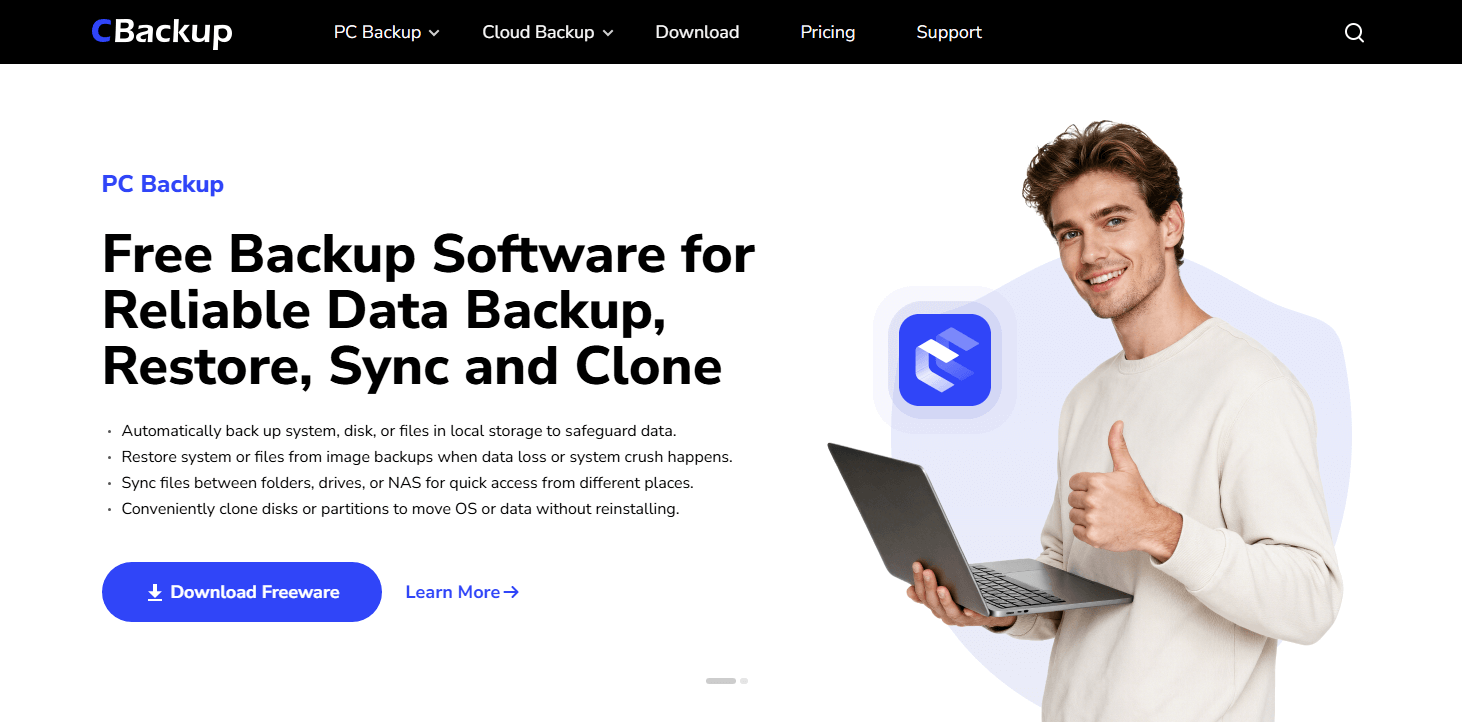
If you are torn in the Acronis vs. Windows 10 backup debate, finding File History too limited, yet reluctant to commit to Acronis’s premium subscription fees, CBackup serves as a practical alternative Windows 10 backup software.
Designed specifically for Windows data protection, CBackup focuses purely on speed, simplicity, and flexibility:
- All-in-One Protection: Full-system imaging, OS migration/cloning, scheduled incremental backups, and cloud-to-cloud sync.
- Cost-Efficient Storage: Combine multiple free cloud accounts into a unified, high-capacity backup destination.
- Zero Bloatware: Bypasses heavy background security suites to deliver a fast, intuitive Windows 10 backup software experience.
If you want comprehensive system image backup capabilities without paying for bloated anti-virus features, CBackup is a compelling, high-value candidate to test.
Decision Matrix: Which Option Should You Choose?
| Your Specific Scenario | Recommended Solution | Primary Reason |
| Only need to restore deleted Office docs or photos | Windows File History | Easy setup, $0 cost, native file versioning |
| Tight budget; comfortable reinstalling OS on failure | Win10 Tools + External Drive | Meets minimal off-site data protection needs |
| Workstation with complex software & custom settings | Acronis True Image | Comprehensive system image backup for rapid full restoration |
| Migrating your system to a new SSD or new PC | Acronis (Cloning / Universal Restore) | Ensures smooth bootability across different hardware configurations |
| Seeking an affordable, dedicated imaging tool | CBackup | Streamlined Windows 10 backup software without anti-virus bloat |
Final Verdict
In the Acronis vs Win10 Backup comparison, Acronis is the better fit for full-system recovery, disk migration, flexible scheduling, and users who value integrated cyber protection. Windows 10 Backup is sufficient for straightforward file versioning when cost and simplicity matter more than rapid whole-PC recovery.
CBackup is the practical alternative for Windows users who want system imaging, cloning, file backup, sync, and cloud options in a backup-focused tool. Whichever product you select, the decisive step is to test a restore. A backup you have never restored is only an assumption.
Frequently Asked Questions
Is Windows 10 Backup the same as File History?
Can Windows 10 create a full system image?
Is Acronis better than Windows 10 Backup?
Does CBackup support full Windows system backup?
Is cloud sync a backup?
How often should I test a restore?
Free Get CBackup Now

Secure & Free