
EaseUS Todo PCTrans vs. PCmover (2026 Comparison): Which PC Migration Tool Fits You Best?
This comprehensive comparison of EaseUS Todo PCTrans vs. PCmover evaluates both PC migration tools across application success rates, safety nets, pricing, and user experience to help you choose the right software for your Windows upgrade.

By Ellie Updated September 24, 2026


When upgrading to a new Windows 11 PC, transferring thousands of files, user settings, and complex desktop applications manually is tedious and time-consuming. Two tools lead the market for Windows PC migration: EaseUS Todo PCTrans and Laplink PCmover.
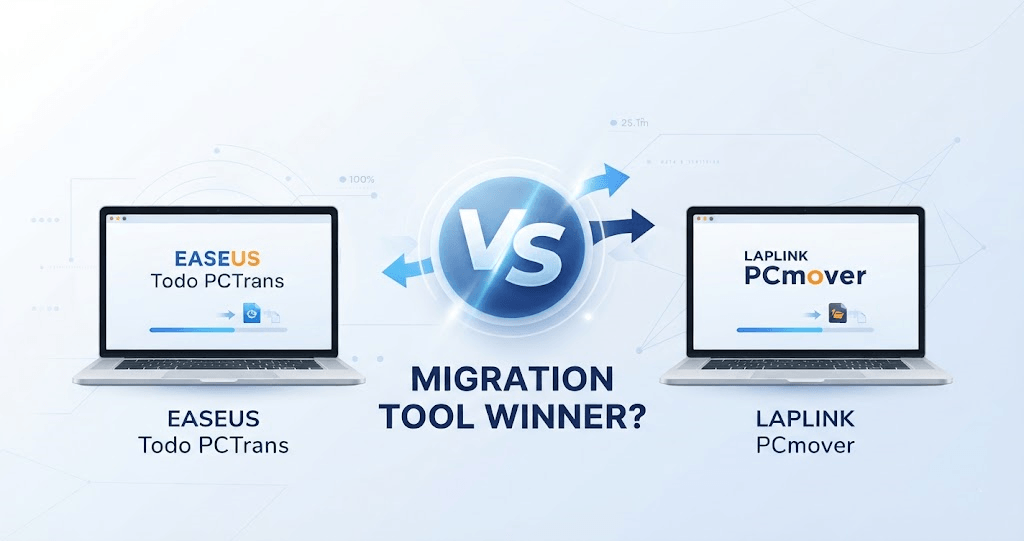
While both promise a seamless transfer experience without losing data, their licensing models, application compatibility, transfer methods, and error-handling mechanisms differ significantly.
In this comprehensive guide, we compare EaseUS Todo PCTrans and Laplink PCmover across all critical features, and introduce a smart, cost-effective alternative for cloud-first data migration: CBackup.
Quick Comparison: EaseUS Todo PCTrans vs. Laplink PCmover
To help you decide quickly, here is a breakdown of how EaseUS Todo PCTrans and PCmover compare side by side:
| Feature / Dimension | EaseUS Todo PCTrans | Laplink PCmover (Express / Professional) |
| Free Version Transfer Limit | 2 GB data & 5 programs (Free Edition) | No Free Version (Paid only; trial is scanning-only) |
| Transfer Methods | Network (Wi-Fi/LAN), Image File, App Migration (Local Drive) | Network (Wi-Fi/LAN), Laplink Ethernet/USB Cable, Image/Drive |
| App & License Migration | Transfers select apps + Product Key Finder | Transfers broad apps + License/Account sync (Pro only) |
| User Profile Sync | Domain & Local User Accounts (Technician/Pro) | Complete User Profiles, Passwords, Domain Accounts |
| Undo / Rollback Feature | Manual Undo / Selective Image Restore | Built-in Auto Undo / Rollback Engine |
| Enterprise / Business Support | Technician Edition (Multi-PC/Commercial) | Enterprise Edition (Policy Manager, Silent Deployment) |
| Best For | Casual users needing small free transfers & app moving | Users upgrading whole systems needing guaranteed rollback |
What are EaseUS Todo PCTrans and PCmover?
Before jumping into the feature war, it is crucial to understand the philosophy behind these two giants.
EaseUS Todo PCTrans: The User-Centric Solution
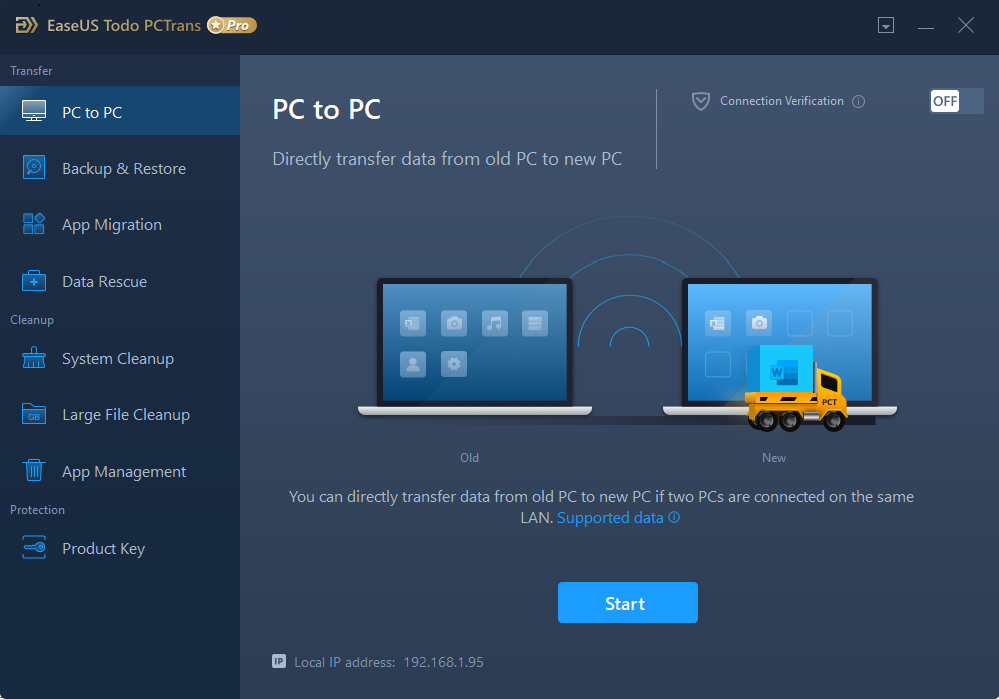
EaseUS has built a reputation on high-utility, consumer-friendly software for data management. Todo PCTrans reflects this design language. It is engineered to remove the "fear factor" from PC migration by using a wizard-driven workflow. Its core strength lies in its ability to parse through large volumes of data and selectively move applications, documents, and folders over a network or via image files. It doesn’t just move data; it intelligently reconstructs the application's environment on the destination machine, attempting to carry over as many registry settings as possible to prevent "first-launch" errors.
Laplink PCmover: The Industry Standard
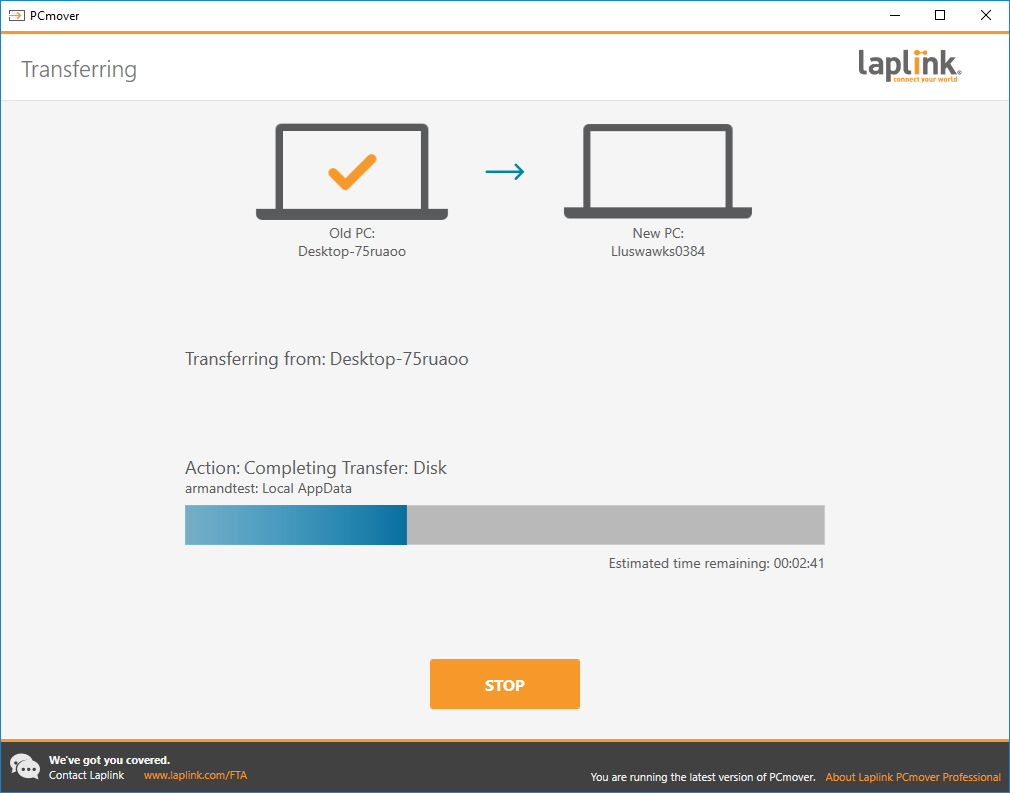
Laplink’s PCmover occupies a unique tier in the software ecosystem. When analyzing EaseUS Todo PCTrans vs Laplink PCmover, many enterprise users note that PCmover is the only migration utility officially recommended by Microsoft. This carries significant weight when moving sensitive user profiles and Windows configurations. PCmover is designed with an "enterprise-first" mindset, focusing on total environment replication. Its goal is to make your new computer feel exactly like your old one, down to the hidden configuration files, wallpaper settings, and deeply buried application preferences that other tools often overlook.
EaseUS Todo PCTrans vs. PCmover: Detailed Feature Comparison
To evaluate how EaseUS Todo PCTrans and Laplink PCmover compare, we must look beyond basic file copying. A professional-grade software comparison requires looking at system compatibility, data rescue capabilities, licensing infrastructure, and technical support frameworks.
1. Edition & Pricing Breakdown: Home, Pro, and Business Tiers
Both EaseUS and Laplink segment their software into distinct tiers. Understanding these version limits prevents unexpected paywalls mid-migration.
| License Tier | EaseUS Todo PCTrans | Laplink PCmover | Key Difference / Winner |
| Free / Trial Edition | Free Edition: Transfers up to 2 GB of data & 5 applications for free. | Trial / Express: Scan-only evaluation. No free data/app transfer allowed. | EaseUS (Winner): Provides a usable free tier for small transfers. |
| Home / Pro Tier | Professional Edition: Supports 2 PCs, unlimited data/apps, and includes a Product Key Finder. | Professional Edition: Single-use transfer for 2 PCs; moves apps, files, settings, and local profiles. | Tie: Both offer full individual capabilities, though PCmover is single-use per license. |
| Business / Enterprise | Technician Edition: Multi-PC commercial license, Domain sync, technician toolkits for MSPs. | Enterprise Edition: Policy Manager, silent CLI scripting, zero-touch IT deployment routines. | PCmover (Winner): Deeper integration with enterprise IT management environments. |
2. Transfer Capabilities: What Moves, What Doesn't, and How
Migrating to a new PC involves more than copying raw files. Here is how both tools handle complex system components, licenses, and connection types:
| Migration Aspect | EaseUS Todo PCTrans | Laplink PCmover | Detailed Analysis & Nuances |
| Migratable Content | Desktop apps, personal files, browser data, custom settings. | Apps, personal files, browser settings, desktop customizations. | Both: Support standard applications (MS Office, Chrome, Adobe, etc.). |
| Non-Migratable Content | Antivirus programs, low-level drivers, system OS files. | Antivirus programs, low-level drivers, hardware-bound utilities. | Both: Security software and hardware drivers must be cleanly reinstalled. |
| License & Account Sync | Relies on built-in Product Key Finder to recover activation keys manually. | Automatically maps Microsoft Accounts, local profiles, and passwords (Pro/Enterprise). | PCmover: Superior user profile and login credential mapping on the target PC. |
| Transfer Methods |
|
|
PCmover: Supports high-speed direct transfer cables when local Wi-Fi is slow or blocked. |
3. Failure Handling & Rollback Mechanisms: Safety Net Comparison
Unexpected disruptions, such as power loss, Wi-Fi drops, or driver conflicts, can corrupt the target PC's registry. Here is how each tool handles failure recovery:
| Safety Feature | EaseUS Todo PCTrans | Laplink PCmover | Safety Evaluation |
| Automated Rollback | No dedicated one-click auto-undo utility. | Yes ("Undo Transfer"): Instantly reverts target PC to pre-migration state. | PCmover (Winner): Safely restores the target system if app conflicts occur. |
| Failure Recovery Mode | Image Restore Mode: Manually re-apply or restore a pre-created backup image file. | Built-in Rollback Engine: Removes transferred files and registry keys cleanly. | EaseUS: Requires pre-planning by creating an image file before starting the transfer. |
| Source Data Protection | Read-only access to source PC; original files remain intact. | Read-only access to source PC; original files remain intact. | Tie: Neither tool alters or deletes data on the source computer. |
Core Advantages and Strategic Limitations
To help you weigh your options effectively in any PCmover vs EaseUS debate, here is a breakdown of the primary strengths and potential drawbacks associated with each migration tool:
EaseUS Todo PCTrans
- The "Clean-Up" Factor: One of the standout features of EaseUS is its ability to perform an intelligent storage and system analysis while mapping your data. Instead of blindly cloning a bloated system, it can identify large junk files, obsolete temporary data, and forgotten utilities. Users can selectively exclude these items during the migration phase, ensuring that their brand-new, high-performance PC boots up clean, optimized, and free of legacy clutter.
- Limitation: The free tier of EaseUS Todo PCTrans functions strictly as a diagnostic "test drive" rather than a fully viable utility. It imposes strict caps, typically limiting file data transfer to a minimal threshold and restricting application migration to just 2 programs. For any practical, real-world PC upgrade involving multiple applications or heavy user profiles, users are effectively forced into purchasing a paid license upgrade.
Laplink PCmover
- The "Undo" and Rollback Capability: PCmover incorporates a robust safety net via its built-in undo feature. If a migration is executed and unexpected software conflicts, missing configurations, or stability glitches arise on the destination machine, the software provides a structured rollback mechanism. This feature attempts to revert the new computer to its exact pre-transfer baseline, serving as an essential risk-mitigation tool for complex, enterprise-level environments.
- Limitation: PCmover carries a noticeably higher price tag than its consumer-focused competitors. Because of its official Microsoft partnership and heavy enterprise-grade certifications, its pricing structure reflects a premium professional tool. For individual consumers looking for a one-time, casual PC upgrade, the upfront cost can be difficult to justify compared to cheaper alternatives.
The Cloud Alternative: Why CBackup is the Smarter Choice for Modern Migration
While EaseUS Todo PCTrans and Laplink PCmover excel at local system cloning, they are limited by high single-use license costs, local network dependencies, and a lack of ongoing data protection.
If your goal is to migrate files, documents, media, and cloud data continuously between computers, a feature-rich Windows backup and cloud-integration service like CBackup offers significant advantages:
| Feature / Scenario | Traditional Tools (EaseUS / PCmover) | CBackup Cloud Migration | Why CBackup Wins |
| Connection Requirement | Both PCs must be powered on & connected locally. | Asynchronous: Backup old PC now; restore to new PC anytime, anywhere. | No Wi-Fi stability issues or hardware cable needs. |
| Storage & Cost | One-time license fee ($50–$60+) per single transfer event. | Free/Affordable plans: Combine multiple free cloud accounts for large storage pools. | Cost-effective and usable long after the migration ends. |
| Post-Migration Utility | Tool is unused after the initial migration completes. | Continuous Data Protection: Automatic scheduled backups & PC-to-cloud sync. | Keeps your new PC backed up daily against data loss. |
| Transfer Scope | Focuses on desktop apps, system registries, and local files. | Focuses on personal data, cloud drives, documents, and media files. | Ensures a clean OS install on your new PC without transferred clutter. |
Skip the network cable headaches and high single-use license fees. Migrate your files safely and keep your new PC backed up automatically.
Final Verdict: Which Software Should You Choose?
| Scenario / User Need | Recommended Tool | Core Reason |
| Small Data/App Transfer (<2 GB) | EaseUS Todo PCTrans | Use the Free Edition without spending money on a full license. |
| Full System Upgrade & Enterprise IT | Laplink PCmover | Superior account profile mapping and built-in "Undo Transfer" engine. |
| Clean, Cloud-First & Continuous Backup | CBackup | Asynchronous cloud sync, combined free cloud space, and ongoing post-migration backup. |
FAQs
Which software is better for a total beginner?
Can I use these tools if my old PC has a broken screen?
Will migrating my apps slow down my new PC?
Why is my migration taking so long?
What if the software fails to transfer a specific program?
Free Get CBackup Now

Secure & Free