

Rufus Windows to Go vs Standard: Which Should You Choose?
This guide compares Rufus Windows to Go vs Standard, highlighting their core differences, hardware requirements, and best use cases to help you choose the right setup.

By Ellie Updated August 12, 2026


When preparing a bootable USB drive using Rufus, deciding between Rufus Windows to Go vs Standard is the most critical technical fork in the road. Choosing the wrong installation mode can lead to unbootable hardware configurations, broken software dependencies, or a portable workspace that lags so severely it becomes unusable. Whether you are provisioning a pristine bare-metal operating system deployment or constructing a fully self-contained portable operating system to carry in your pocket, mastering the underlying mechanisms of these two modes prevents costly trial and error.
What is Rufus Windows to Go vs Standard?
Before examining performance metrics, thermal impacts, and real-world deployment workflows, it is essential to establish a precise technical baseline for what each Rufus image option actually executes on the target medium.
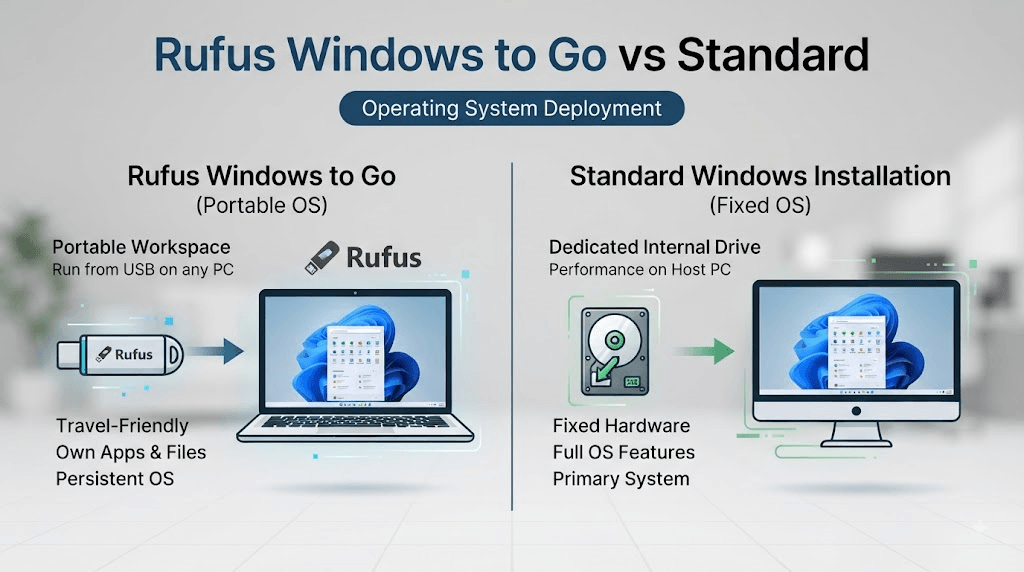
Standard Windows Installation
The Standard Windows Installation option configures your USB storage device to act strictly as a bootable deployment medium.
- Under the Hood: Rufus extracts and maps the official Microsoft Windows installation image (WIM or ESD formats) onto a FAT32/NTFS partition structure, prepending a valid boot sector. When you plug this drive into a target machine and boot from it, you are launching Windows Setup (Setup.exe).
- The Final State: The USB drive is merely a temporary delivery vehicle. Once the graphical installation wizard finishes copying files to your machine, the operating system lives exclusively on the internal non-volatile storage (NVMe, SATA SSD, or HDD) of the host computer. The USB drive is no longer required after the initial setup completes.
Windows To Go
Windows To Go transforms your external storage device into an independent, fully functioning bootable operating system environment.
- Under the Hood: Originally developed by Microsoft as an enterprise deployment solution (and preserved by Rufus after official deprecation), this mode applies the Windows image directly to the sectors of the external drive. It configures the storage controller, system registry hives, and device drivers to boot natively from external USB buses (USB-A, USB-C, Thunderbolt).
- The Final State: The external drive is the operating system installation. You can disconnect this drive, walk to an entirely different computer, boot from it, and instantly access your personal desktop layout, local user profiles, installed applications, and encrypted documents anywhere you go.
Core Differences: Rufus Windows to Go vs Standard
Evaluating Rufus Windows to Go or Standard requires analyzing how each mode interacts with host hardware, security protocols, and system files. The following breakdown maps out their distinct architectural specifications:
|
Technical Parameter |
Standard Windows Installation |
Windows To Go |
|
Primary Architectural Goal |
Deploying an OS image onto internal host storage |
Running a persistent, portable OS entirely from external hardware |
|
Target Storage Medium |
Any basic USB flash drive (USB 2.0/3.0/3.2) |
High-performance external USB 3.2 SSD or NVMe enclosure |
|
Host Hardware Independence |
Tied to the motherboard and components of the target PC post-setup |
Highly portable; adapts dynamically across multiple host PCs |
|
Internal Disk Access |
Full read and write access to all internal disks and partitions |
Internal host storage is forced offline by default to prevent data corruption |
|
Operating System Updates |
Fully supports cumulative patches and major feature upgrades |
Frequently restricted or blocked during major OS version upgrades |
|
BitLocker Encryption |
Encrypts internal volumes post-installation |
Encrypts the entire portable external drive via BitLocker To Go |
Key Benefits and Drawbacks of Each Installation Mode
Benefits of Standard Windows Installation
- Native Hardware Performance: Because the operating system executes directly on internal PCIe/SATA controllers, you experience unthrottled read/write speeds, full GPU acceleration, and accurate thermal management reporting.
- Seamless Update Lifecycle: Your system receives monthly cumulative updates, security patches, and major annual feature upgrades directly from Microsoft without experiencing update blockages or partition table mismatches.
- Minimal Hardware Demands: The USB medium is only utilized during the installation phase, meaning you can successfully deploy Windows using inexpensive, low-speed flash drives.
Drawbacks of Standard Windows Installation
- Zero Portability: The resulting installation is permanently tethered to the physical machine where it was set up. Moving the internal drive to a different computer often results in Blue Screen of Death (BSOD) errors due to critical driver mismatches.
- Installation Overhead: You must always run through the complete Windows Out-Of-Box Experience (OOBE), user account creation, and driver installation sequence on every new machine.
Benefits of Windows To Go
- Complete Workspace Mobility: Your entire digital environment travels with you. Whether plugging into a corporate workstation, a university laboratory terminal, or a personal laptop, your apps, browser extensions, and files are instantly accessible.
- Absolute Environmental Isolation: By keeping your portable OS isolated on external media, your personal footprint never leaks onto the host machine's internal drives, leaving zero digital trace behind upon shutdown.
- Advanced Diagnostics and Recovery: Acts as an ideal swiss-army knife for IT professionals who need a fully functional, custom-configured diagnostic OS to repair crashed systems or recover data from foreign hardware.
Drawbacks of Windows To Go
- Strict Hardware Bottlenecks: Standard plastic flash drives will cause catastrophic system stuttering. The OS generates intense random I/O loads that demand high-end external SSDs.
- Maintenance Challenges: Major system feature updates can break the portable bootloader, requiring manual image rebuilding if the system environment becomes corrupted.
How to Choose: Which One Do You Need?
To finalize your Rufus Windows to Go or Standard installation decision, focus entirely on your deployment objective:
- Choose Standard Installation if: You are building a new desktop PC, wiping an old laptop for a fresh start, or performing a permanent OS deployment on a dedicated machine.
- Choose Windows To Go if: You require a mobile computing environment that moves across different computers, or you need a heavily isolated testing sandbox that remains completely decoupled from your host machine's storage layout.
Running a full operating system off external USB controllers subjects your drive to intense, continuous read/write fatigue. Before deploying a mobile workspace, always safeguard your crucial data with a trusted utility like CBackup, a completely free backup solution that secures your files against unexpected hardware failure or data corruption.
Why You Need CBackup for Your Windows Installations
Whether you choose a traditional desktop deployment or a portable workspace, managing your files and protecting your data during system transitions is critical. This is where CBackup comes in as an essential companion tool.
What is CBackup?
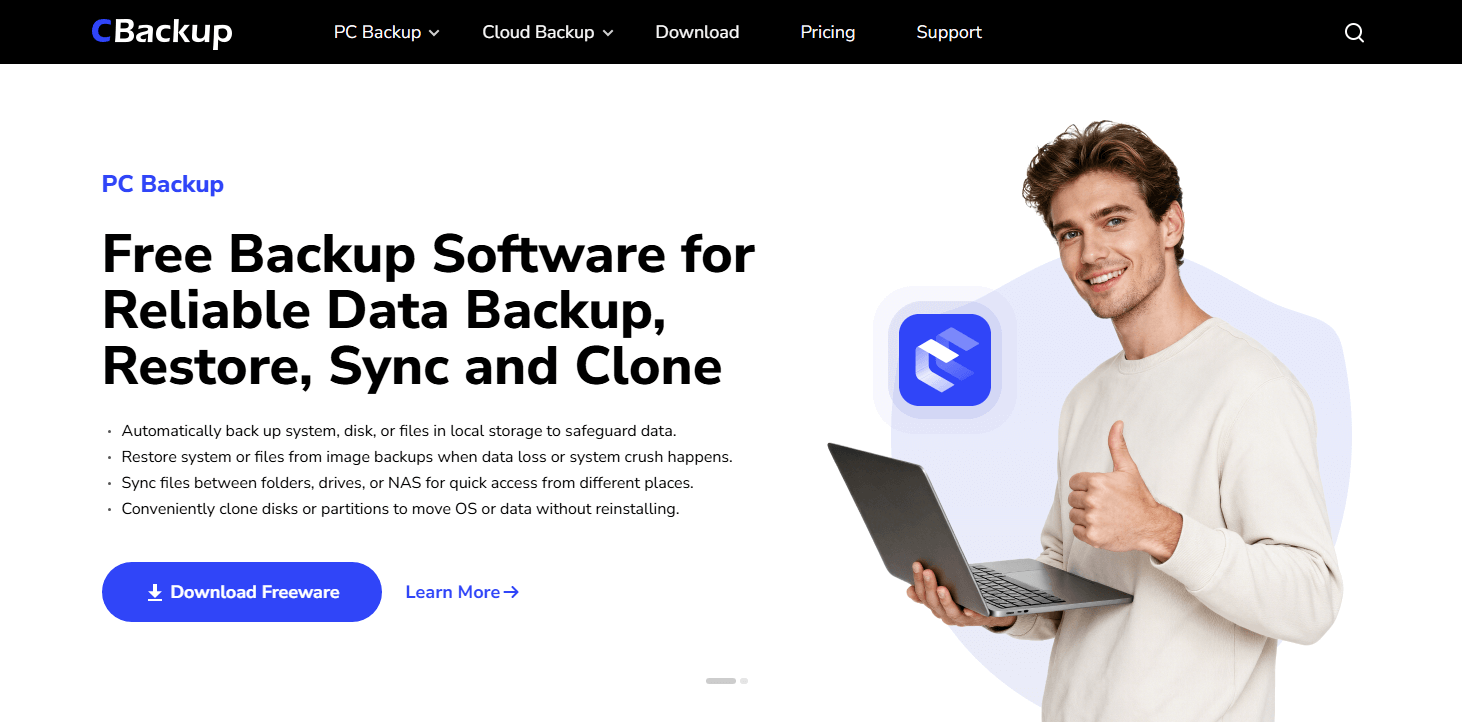
CBackup is a professional, completely free backup and data management service designed to streamline how users secure their digital assets. Instead of risking valuable data loss during partition formatting, clean operating system reinstalls, or the creation of high-fatigue portable environments, CBackup offers a centralized solution to protect your files.
Key Features of CBackup
- PC Backup: Effortlessly back up your local files, folders, and entire disk partitions straight to secure storage before performing major system modifications or Rufus flashes.
- Seamless Cloud Backup: Easily back up your critical documents, photos, and system files to secure cloud storage before performing major system changes or Rufus flashes.
- PC-to-Cloud & Cloud-to-Cloud Transfer: Consolidate your storage across multiple cloud drives (such as Google Drive, OneDrive, and Dropbox) under a single interface.
- Data Safety Net: If a Rufus Windows To Go drive experiences file corruption or a Standard installation wipes a partition unexpectedly, your personal data remains safely stored and easily restorable.
Step-by-Step Guide: Creating Your Drive with Rufus
Executing your installation layout using Rufus requires following a precise configuration workflow to ensure maximum compatibility.
Step 1: Source a Legitimate ISO Image
Download an official Windows 10 or Windows 11 ISO directly from the Microsoft evaluation or download center. Avoid third-party modified ISOs, as they often strip out essential driver packages required for stable booting.
Step 2: Configure Rufus Parameters
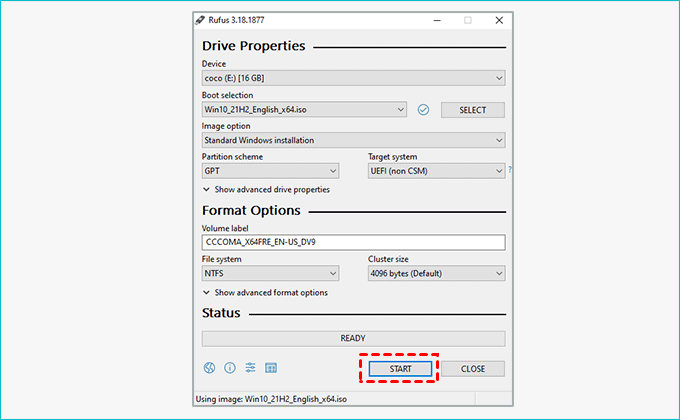
1. Insert your USB storage medium and launch Rufus. Select the target drive from the Device dropdown menu.
2. Click the SELECT button and browse to your downloaded Windows ISO file.
3. Locate the crucial Image option dropdown menu:
- Choose Standard Windows installation if you are preparing a traditional system installer.
- Choose Windows To Go if you are building a persistent, portable operating system drive.
4. Set your partition scheme according to your target hardware: GPT for modern UEFI firmware systems, or MBR for legacy BIOS architectures.
Step 3: Execute and Flash
Click the START button. A customized Windows User Experience dialog box will appear, allowing you to bypass strict Microsoft account requirements, privacy prompts, or hardware checks (like TPM 2.0 and Secure Boot). Review your selections, click OK, and allow Rufus to format and deploy the image.
Conclusion
Choosing between Rufus Windows to Go vs Standard depends entirely on whether you need a permanent internal operating system deployment or a portable workspace that runs across multiple PCs. Evaluate your hardware capabilities, follow the proper Rufus configuration steps, and always back up your vital data using a reliable tool like CBackup before modifying partitions.
FAQs
Can I use a cheap plastic USB flash drive for Windows To Go?
Does Windows To Go support system updates?
Will my internal hard drive be wiped when using Windows To Go?
Can I use Windows To Go to bypass system hardware requirements?
What should I do if my Rufus Windows To Go drive fails to boot?
Free Get CBackup Now

Secure & Free