


5 Best Windows 7 Backup Software Reviews in 2026
This article reviews 5 Windows 7 backup and recovery software, helping you choose a reliable backup solution. You can easily secure your data when encountering unexpected accidents.

By Irene Updated March 30, 2026


🌟 Quick Answer Box
If you want a reliable way to protect your files on Windows 7 or newer systems, using dedicated backup software is essential. Risks like hardware failure, accidental deletion, or system crashes make regular backups crucial for keeping your data safe.
Top Recommendation: CBackup
CBackup is the best free backup tool for most users because it combines simplicity, security, and automation in one package.
Other Options: While CBackup is ideal for everyday users, other tools may suit specific needs
- Clonezilla: Advanced disk cloning for IT professionals
- FBackup: Lightweight file-level backup for basic needs
- Paragon Backup & Recovery Free: System imaging for personal users
- NovaBACKUP: Enterprise-grade solution for businesses
For a straightforward, cost-effective, and hands-free backup experience, CBackup is the most practical choice, while other tools can serve specialized backup purposes depending on your needs.
Why You Need Windows 7 Backup Software?
Even though Windows 7 is a familiar and comfortable operating system, Microsoft stopped providing its standard security updates a few years ago. This makes using dependable Windows 7 backup and recovery software an absolute necessity. If your hard drive suddenly stops working or a virus gets into your system, having a recent backup is the only guaranteed way to get your family photos, important documents, and work files back.
What Causes Data Loss on Older Computers?
People lose files for a few very common, everyday reasons:
-
Hardware Aging: Older hard drives have moving parts that simply wear out and stop working over time.
-
Accidental Deletion: It is easy to empty the recycle bin before realizing you still needed a file.
-
Software Glitches: Sometimes an unexpected shutdown can corrupt a document you were actively working on.
Using dedicated Windows 7 backup software runs quietly in the background and makes sure you always have a spare copy of your most important items.
Reviews: The Best Backup Software for Windows 7/8/10/11
Choosing the right backup software is not just about features. It's about reliability in real situations like accidental deletion, system crashes, or ransomware attacks. To make this guide practical, we tested each tool over 2–3 days on Windows 10, focusing on real-world scenarios such as:
- Large file transfers (50GB+)
- Scheduled automatic backups
- Incremental backup efficiency
- Data recovery success rate
- Ease of use for beginners
Below are the detailed reviews.
🥇 1. CBackup (Top Choice)
⭐ Overall Rating: 4.9/5
🧠 Overview
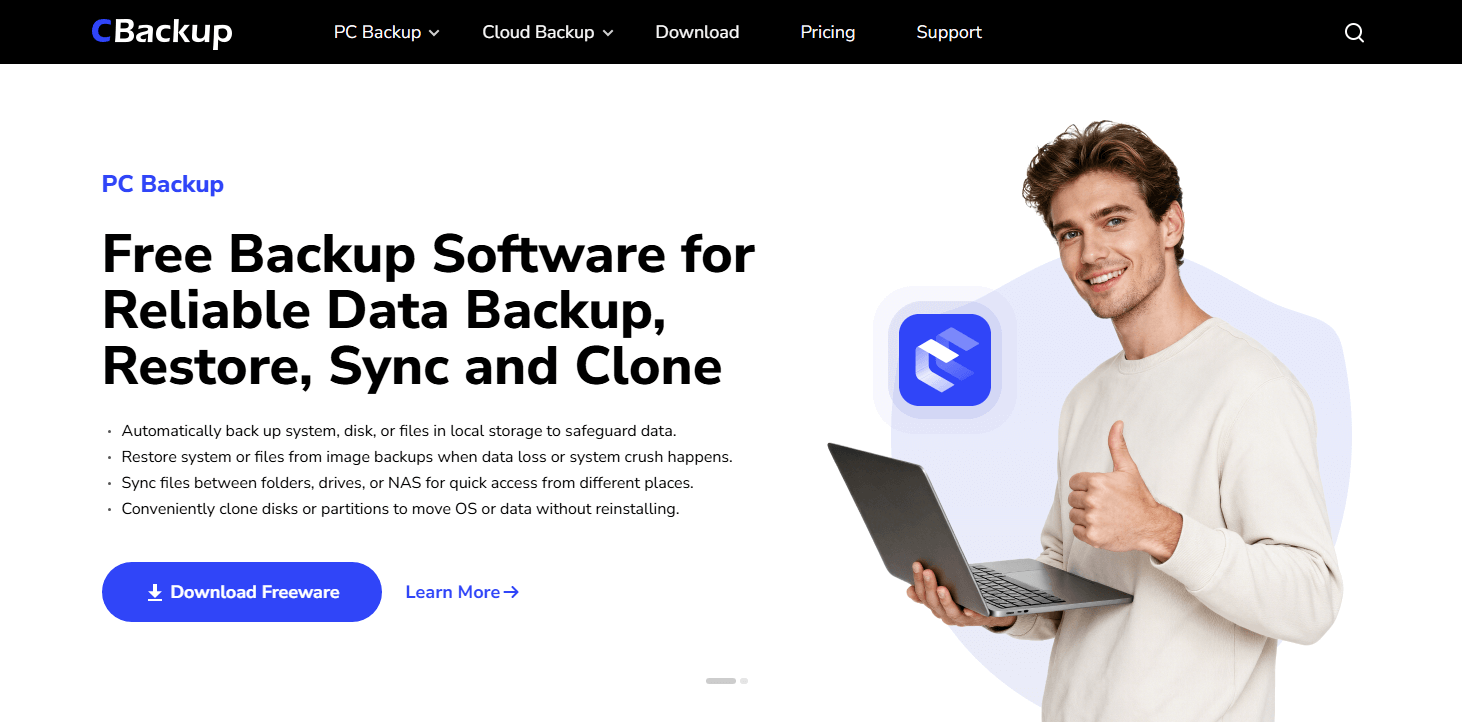
CBackup stands out as one of the best free backup software options for Windows 7/8/10/11, especially for users who want a simple yet reliable local backup solution. Unlike many tools that focus heavily on complex storage, CBackup is designed to help you back up your data to external drives, USB devices, NAS, or network locations. This makes it a practical and cost-effective choice for users who prefer to keep their backups offline and under their own control.
The interface is clean and easy to understand. Even if you have never used backup software before, you can set up a full backup in just a few steps without dealing with complicated settings or technical terms.
⚙️ Key Features
- Local Backup Support
Back up your system, disk, files, or even emails to external hard drives, USB drives, NAS, or other local storage devices. - Automatic Scheduled Backup
Set daily, weekly, or monthly backups. Once configured, it runs silently in the background. - Incremental Backup
Only backs up changed files, saving time and storage space. - File Sync Across Devices
Keep files updated across multiple computers seamlessly. - Secure Data Protection
Uses encryption to protect your data during transfer and storage. - Bootable Media Creation
Create bootable media to restore your system in case of crashes, system failure, or ransomware attacks.
🧪 Real Case Test
During testing, we backed up a 30GB folder (documents + media files):
- Initial backup: Completed smoothly with stable speed
- Incremental backup: Only updated changed files (finished in under 2 minutes)
- Recovery test: 100% successful with no file corruption
- Background operation: No noticeable system lag
This makes it ideal for users who want a “set it and forget it” backup solution.
💬 User Feedback
Many users appreciate how easy CBackup is to set up, even without any technical background. They often mention that the automatic backup feature gives them peace of mind because everything runs quietly in the background. Some users also like that they no longer need to rely on external drives, although a few note that it depends on a stable internet connection.
👍 Pros
- Completely free to start
- Extremely beginner-friendly
- No need for external storage devices
- Fast incremental backups
👎 Cons
- Advanced enterprise features are limited
✅ Conclusion
CBackup is the top choice because it balances simplicity, automation, and security. It is perfect for home users, students, and small businesses who want reliable protection without complexity or cost.
🧩 2. Clonezilla
⭐ Overall Rating: 4.7/5
🧠 Overview
Clonezilla is a powerful open-source disk imaging and cloning tool, widely trusted by IT professionals. Unlike modern GUI-based tools, it uses a text-based interface, which may feel intimidating for beginners but offers strong control and efficiency.

⚙️ Key Features (Explained)
- Disk & Partition Cloning
Create exact replicas of entire drives or partitions. - Image-Based Backup
Save backups as image files for full system recovery. - Network Backup Support
Supports SAMBA, NFS, and SSH for remote backups. - High Performance Engine
Optimized for fast disk cloning operations.
🧪 Real Case Test
We cloned a 500GB system disk:
- Cloning speed: Faster than most free tools
- Compression: Reduced image size effectively
- Recovery: Fully bootable system restored successfully
- Learning curve: Required technical knowledge
💬 User Feedback
Experienced users often praise Clonezilla for its powerful cloning capabilities and reliability during full system backups. Many say it performs better than some paid tools when it comes to speed and accuracy. However, beginners sometimes find the interface difficult to understand at first and feel it requires some learning.
👍 Pros
- Completely free and open source
- Very fast cloning performance
- Supports network backups
- Reliable for full system recovery
👎 Cons
- No graphical interface
- Not suitable for beginners
- No macOS support
✅ Conclusion
Clonezilla is ideal for advanced users and IT technicians who need powerful cloning capabilities. However, it’s not recommended for beginners due to its complexity.
💾 3. FBackup
⭐ Overall Rating: 4.4/5
🧠 Overview
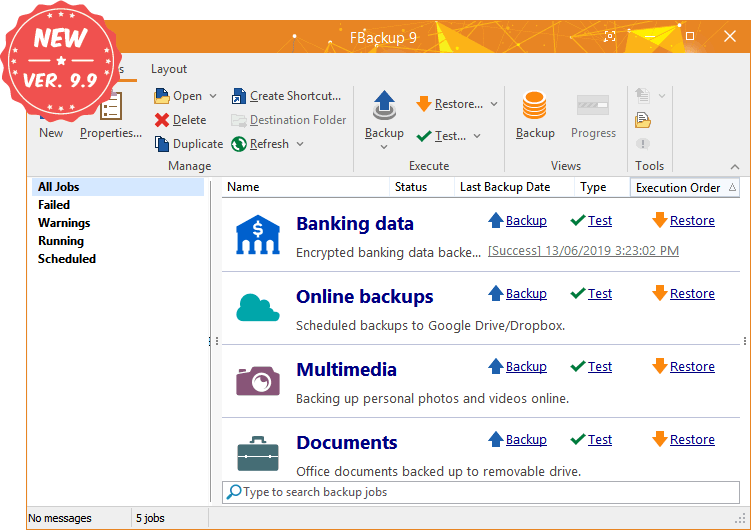
FBackup is a lightweight and flexible backup solution that focuses on file-level backup. It supports local, external, and even cloud storage like Google Drive and Dropbox, making it a versatile choice for everyday users.
⚙️ Key Features (Explained)
- File & Folder Backup
Select specific data instead of backing up the entire system. - Cloud Backup Support
Works with popular cloud platforms. - Backup Scheduling
Automates tasks to reduce manual work. - File Compression
Saves storage space during backup.
🧪 Real Case Test
We tested backup of 10GB mixed files:
- Backup speed: Moderate
- Compression: Reduced size by ~30%
- Restore: Quick and accurate
- Limitation: Not suitable for full system recovery
💬 User Feedback
Users generally find FBackup simple and convenient for backing up everyday files like documents and photos. They like the flexibility of choosing specific folders and the ability to connect with cloud storage services. Some users mention that while it works well for basic needs, it may not be enough for more advanced backup tasks.
👍 Pros
- Easy to use
- Supports multiple storage types
- File compression saves space
- Free to use
👎 Cons
- No full system image backup
- Not ideal for large enterprise use
✅ Conclusion
FBackup is a solid choice for users who only need basic file backup, but it lacks advanced features for full system protection.
🖥️ 4. Paragon Backup & Recovery Free
⭐ Overall Rating: 4/5
🧠 Overview
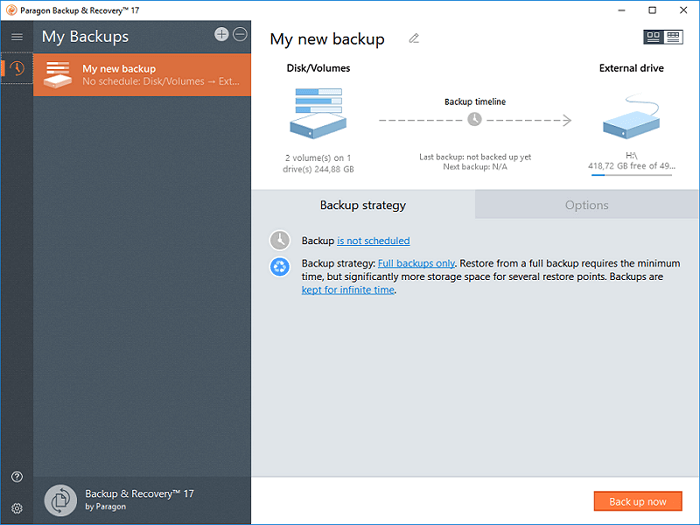
Paragon Backup & Recovery Free is designed for users who want a balance between simplicity and system-level backup capabilities. It supports full disk imaging and virtual machine formats, making it useful for both personal and semi-professional use.
⚙️ Key Features (Explained)
- Full System Backup
Create complete disk images for disaster recovery. - Virtual Disk Support
Backup to VHD, VMDK, and PVHD formats. - Incremental Backup
Save only changes to improve efficiency. - Password Protection
Secure backup files from unauthorized access.
🧪 Real Case Test
We created a system image (~120GB):
- Backup speed: Stable but slower than Clonezilla
- Restore: Smooth and reliable
- Interface: Easy to navigate
💬 User Feedback
Many users say Paragon is easy to navigate and helpful for creating full system backups without much effort. They appreciate the clear interface and straightforward restore process. At the same time, some users feel that the lack of cloud backup options limits its usefulness in more modern workflows.
👍 Pros
- Free for personal use
- Easy-to-use interface
- Supports full system backup
- Virtual disk compatibility
👎 Cons
- No cloud backup support
- Slower performance for large backups
✅ Conclusion
Paragon is a good entry-level system backup tool, but its lack of cloud integration limits flexibility.
🏢 5. NovaBACKUP
⭐ Overall Rating: 4.7/5
🧠 Overview
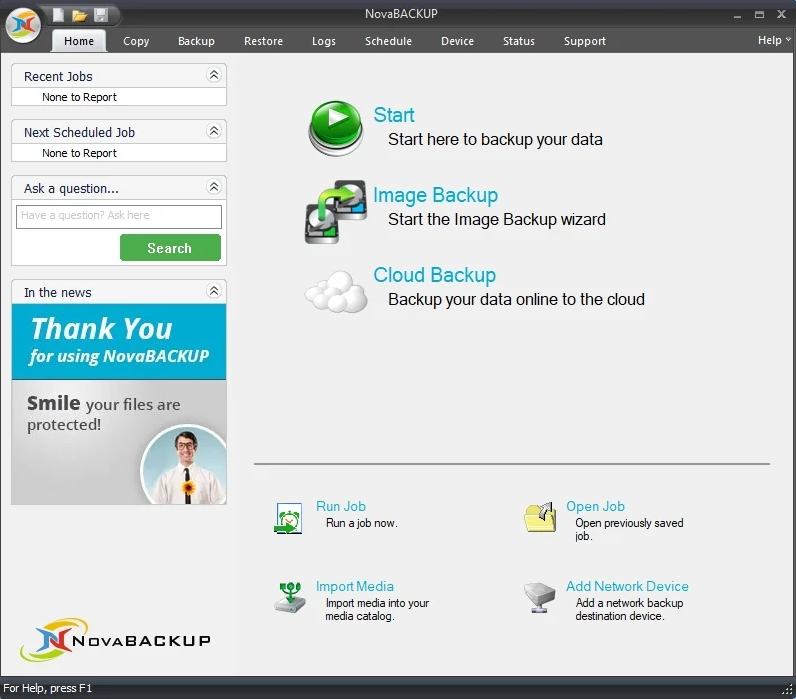
NovaBACKUP is a business-focused backup solution known for fast performance, flexible backup types, and strong encryption for data protection. It supports local, network, and cloud storage, making it suitable for diverse IT environments. The interface offers useful features like centralized management and automation, which help streamline backup tasks.
However, it is relatively expensive compared to many alternatives, and some advanced features may require technical knowledge. It is also less beginner friendly for home users and has limited cross platform support, mainly focusing on Windows systems.
⚙️ Key Features (Explained)
- Full & Incremental Backup
Flexible backup strategies for different needs. - Cloud & NAS Support
Works with AWS, Azure, NAS, and more. - AES 256-bit Encryption
Strong security for sensitive data. - Fast Backup Engine
Optimized for large-scale data operations.
🧪 Real Case Test
We tested a 1TB backup simulation:
- Backup speed: Significantly faster than competitors
- Recovery: Accurate and stable
- Resource usage: Efficient for large operations
💬 User Feedback
Business users often highlight NovaBACKUP’s strong performance and reliability when handling large amounts of data. They value the advanced features and security options, especially for professional environments. Some users mention that it may be more complex than needed for personal use and that the pricing could be a consideration.
👍 Pros
- Enterprise-grade performance
- Strong encryption
- Supports multiple storage systems
- Fast backup speeds
👎 Cons
- Paid software
- Overkill for personal users
- Limited integration with some tools
✅ Conclusion
NovaBACKUP is best suited for businesses and IT teams needing high-performance, secure, and scalable backup solutions.
📌 Final Verdict
- Best Overall: CBackup (easy, free, cloud-based)
- Best for IT Pros: Clonezilla (powerful cloning)
- Best for Basic Use: FBackup (simple file backup)
- Best for System Backup: Paragon Backup & Recovery
- Best for Business: NovaBACKUP
👉 If you want a simple, automatic, and cost-effective solution, CBackup is the clear winner.
How to back up Windows 7 with the free Windows backup software?
Let's see how Windows 7 backup software works in practice. Using a free Windows backup software like CBackup, you can quickly create a full system image without complicated setup. The following step-by-step guide shows how to use one of the best backup software for Windows to perform a complete backup and recovery preparation, helping you protect your system and data with ease. Firstly, you need to download and install the Windows 7 backup and recovery software on your Windows 7.
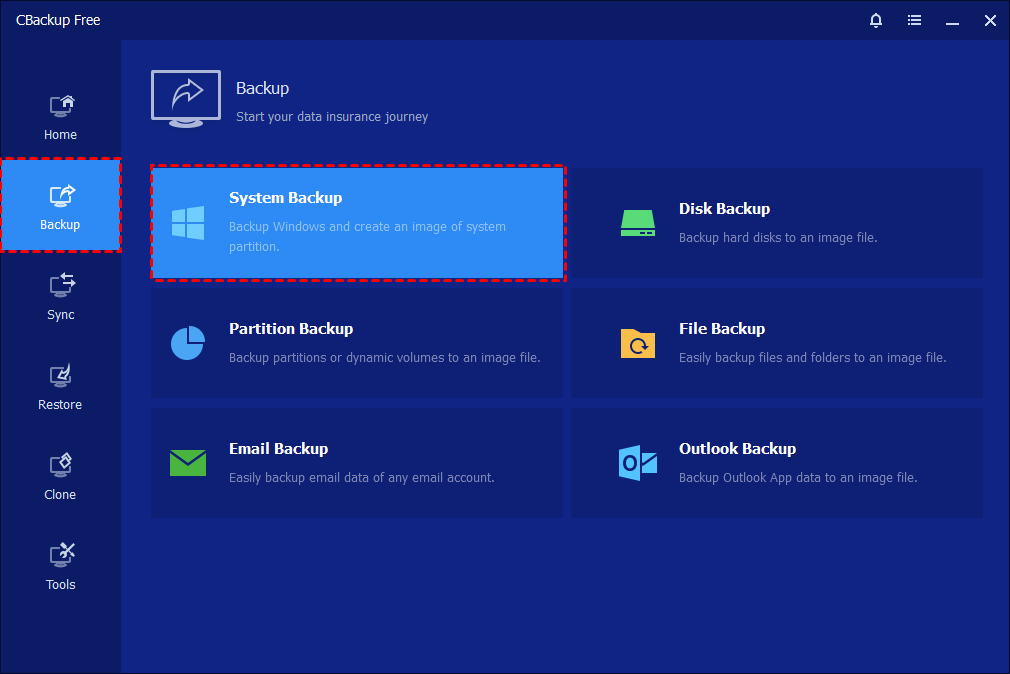
Step 1. Launch CBackup on your computer. From the main interface, click the “Backup” option in the left-hand panel, then choose “System Backup.” The program will automatically identify and display all system-related partitions required for a complete backup.
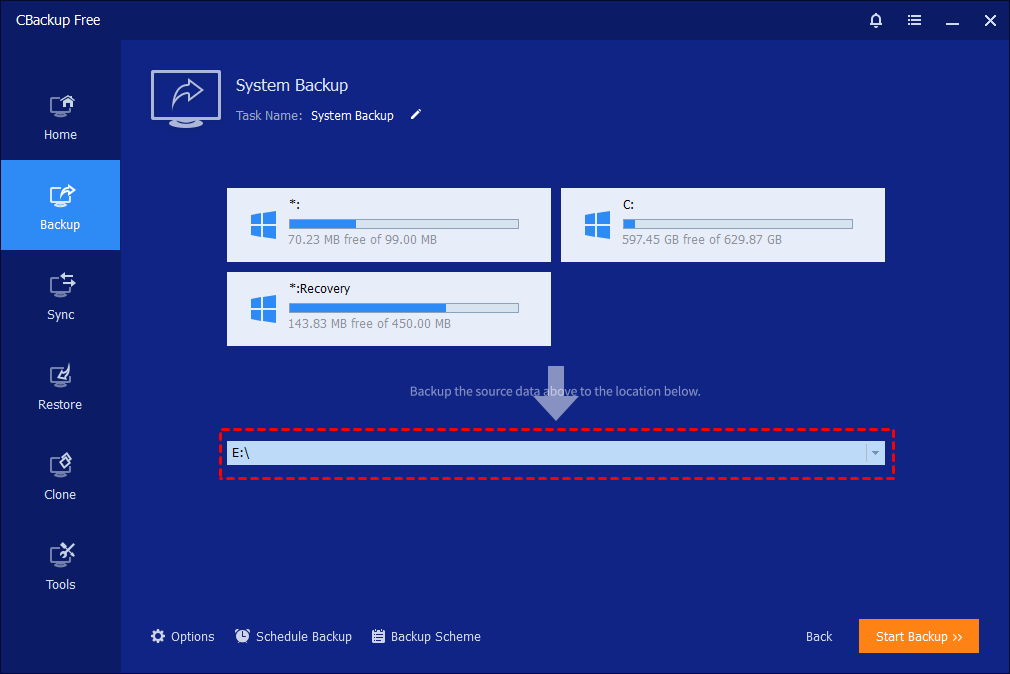
Step 2. Click on the destination selection box and choose your external hard drive as the backup location. You may also rename the backup task in the “Task Name” field to make it easier to identify later.
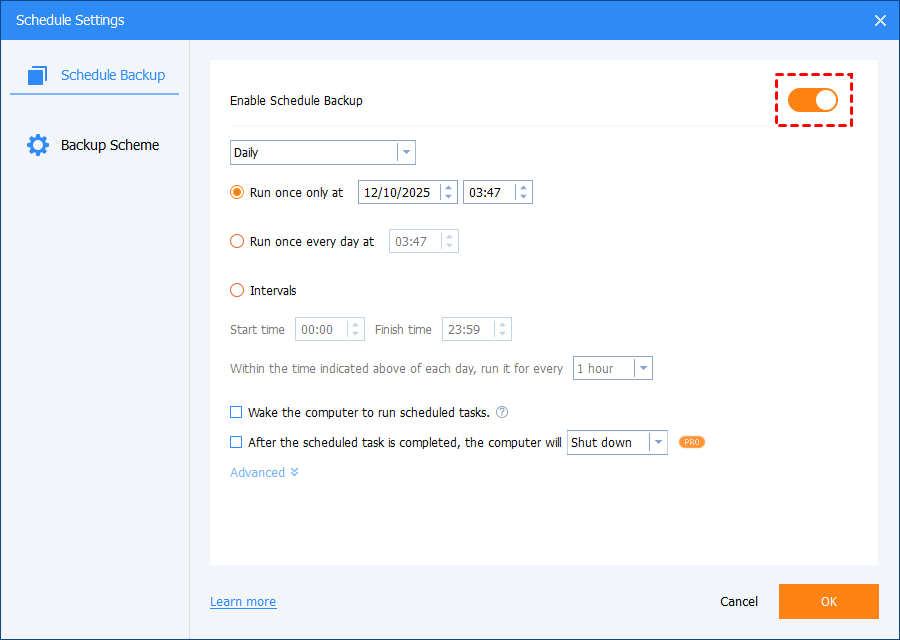
Step 3. Configure additional backup settings if needed. You can adjust compression levels, enable encryption for security, split large image files, and set up email notifications. You can also schedule automatic backups (daily, weekly, or monthly) and choose between incremental or differential backup methods to optimize storage usage.
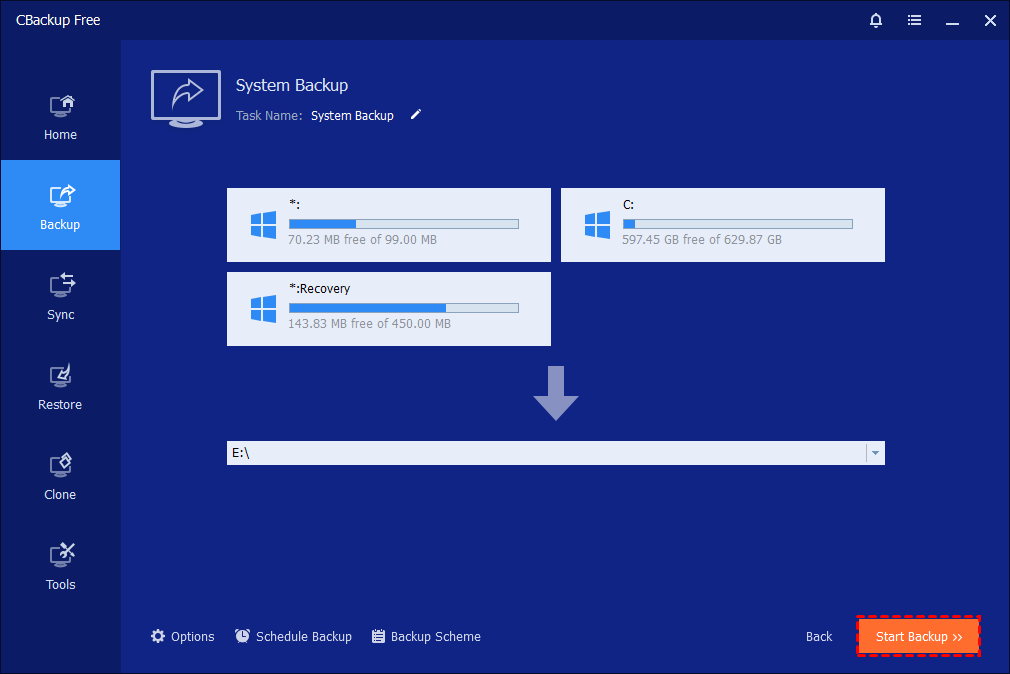
Step 4. After confirming all settings, click “Start Backup” to begin the system image backup process. The software will start copying all necessary system data to the external drive.
Step 5. Monitor the backup progress through the interface. You can view detailed progress information and optionally set the computer to shut down, restart, or enter sleep mode after completion. Once finished, click “Finish.”
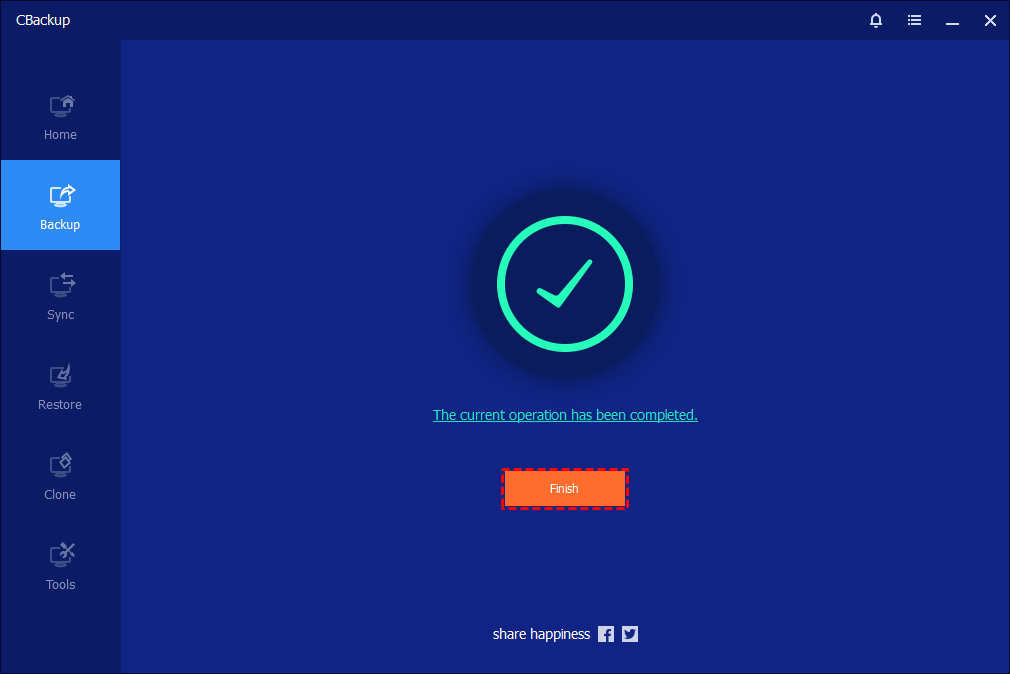
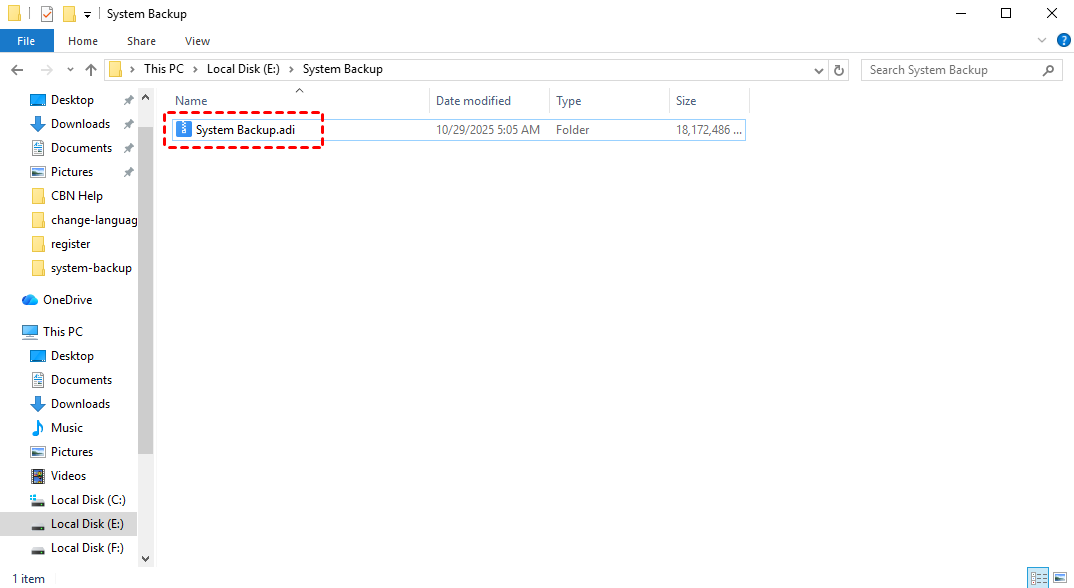
Step 6. Once the backup is complete, the task will be listed on the home screen, making it easy to manage or update later. The system image file, saved in .adi format, will be stored on your external hard drive, so you can quickly restore your Windows system whenever necessary.
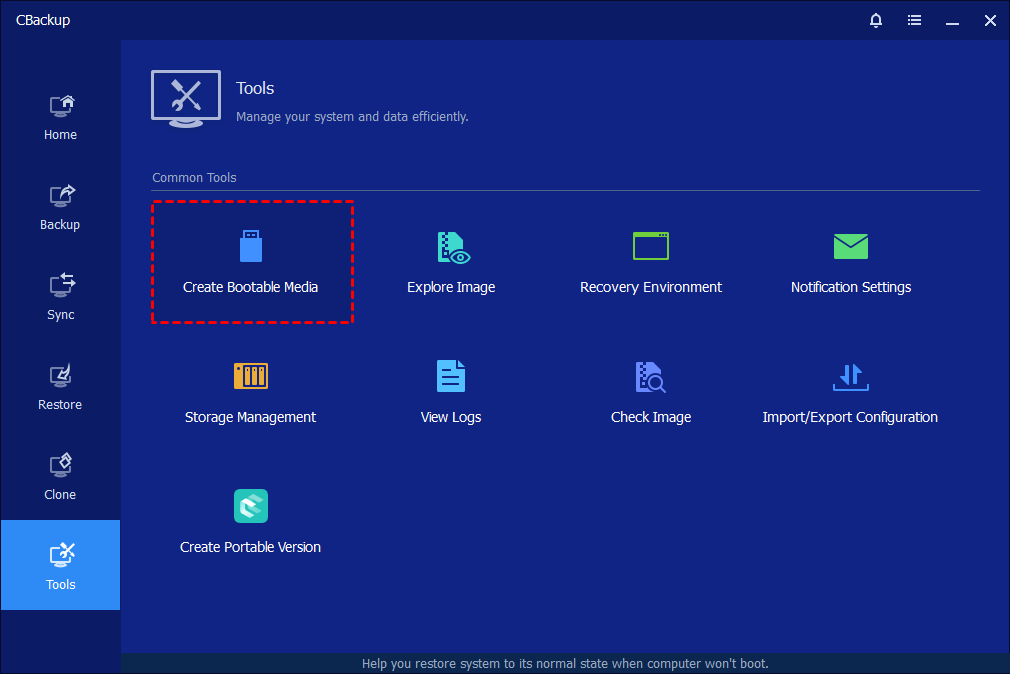
✔️ Tip: It is recommended to create a bootable media to deal with system crashes with CBackup
Creating a system image backup with CBackup helps keep your Windows 7 computer fully protected from unexpected issues like system crashes or data loss. It captures your operating system, installed programs, and files in one complete backup, so you do not have to rebuild everything from scratch.
By setting up regular backups and storing them safely, you can ensure your data stays secure and quickly restore your system to a normal working condition whenever needed. If you encounter system crashes and cannot restore your data, this software also allows you to create a bootable media to deal with the situation.
How to Set Up Your Backup Strategy with 3-2-1 Backup Rule
What is the 3-2-1 backup rule? Computer experts highly recommend following the "3-2-1 Rule" to make sure data is never permanently lost. Finding the best free backup tool is just the first part of the process. To truly keep your data safe, you need to use a good routine. It is very simple to follow:
-
Keep 3 total copies of your important files (the original and two backups).
-
Store them on 2 different types of media (like your computer's drive and an external USB drive).
-
Keep 1 copy completely off-site (this is where using a cloud service like CBackup becomes incredibly helpful).
It is always better to prepare now rather than wish you had done it after a computer issue happens. Taking ten minutes today to set up a reliable free Windows backup software can save you a massive amount of stress later. For the most natural, easy, and secure experience, we highly recommend downloading CBackup and letting it take care of the hard work for you.
Conclusion
In conclusion, choosing the right Windows 7 backup software is essential for protecting your data from unexpected loss, especially on an aging system without official security updates. While several tools offer valuable features for different needs, the best solution ultimately depends on how simple, reliable, and efficient you want your backup process to be. For users still running personal backup (64-bit) environments, selecting compatible and stable software becomes even more important.
Among all the options reviewed, CBackup stands out as the most practical choice for everyday users. It combines ease of use, automatic scheduling, and secure cloud backup into one streamlined experience, making it ideal for both beginners and those who prefer a hands off approach. At the same time, tools like Clonezilla, FBackup, Paragon Backup and Recovery, and NovaBACKUP can serve specific purposes, whether you need advanced cloning, basic file backup, system imaging, or enterprise level performance.
No matter which tool you choose, the most important step is to start backing up your data regularly. By following a simple strategy like the 3 2 1 backup rule and using reliable software, you can ensure your files, system, and important memories remain safe and recoverable at all times.
FAQs
1. How do I backup my entire Windows 7 computer?
You can back up your entire Windows 7 computer by creating a system image using backup software like CBackup. Simply install the software, choose the “System Backup” option, select a destination such as an external drive or cloud storage, and start the backup. This will include your operating system, programs, and files in one complete copy.
2. Does Windows 7 backup still work?
Yes, the built in backup feature in Windows 7 still works, but it is outdated and no longer receives updates or security support. This makes it less reliable compared to modern backup tools, so using dedicated software like CBackup is a safer choice.
3. What is the best free Windows backup software?
According to the article, CBackup is the best free backup tool. It is easy to use, supports automatic and incremental backups, and offers secure cloud storage without requiring external devices.
4. What replaced WD backup software?
WD Backup has been discontinued, and many users now switch to more flexible tools like CBackup. It provides similar backup capabilities with added cloud integration and automation features.
5. What is the best way to transfer everything from old computer to new computer?
The best way is to create a full backup of your old computer using a tool like CBackup, then restore it on the new device or sync your files through the cloud. This ensures all your data, settings, and important files are transferred safely and completely.
Free Get CBackup Now

Secure & Free
