


3 Proven Solutions for External Hard Drive Backup
This guide explains how to set up an automatic external hard drive backup for your PC. We compare Windows built-in features like File History with professional backup software for external hard drive to help you keep your files safe and accessible.

By Ellie Updated February 10, 2026


Why Use an External Hard Drive for PC Backups?
In an era where our digital lives, from irreplaceable family photos to critical work documents, reside on our computers, a hardware failure or a ransomware attack can be devastating.
To ensure complete peace of mind, establishing a reliable external hard drive backup strategy is no longer just an option; it is a necessity. Performing a hard drive backup for PC using physical hardware remains the "gold standard" for several key reasons:
- Speed: Transferring large amounts of data is significantly faster via USB 3.0 or USB-C than over Wi-Fi.
- Cost: You pay once for the drive, avoiding monthly subscription fees.
- Security: Offline storage (cold storage) keeps your data safe from hackers when the drive is unplugged.
Whether you are looking for a manual solution or the best auto backup software for external hard drive use, this guide covers everything you need to know.
How to Use an External Hard Drive for Backup [3 Methods]
When deciding on a hard drive backup for PC, choosing the right tool is essential. Windows provides built-in utilities, but many users turn to professional software to backup hard drive data for more flexibility. Below is a comparison of Backup and Restore, File History, and CBackup to help you determine which fits your needs.
Comparison Table: Which Method Should You Choose?
| Feature | Backup and Restore | File History | CBackup (Professional Software) |
| Best For | Full System Images | Individual File Versions | Comprehensive & Scheduled Backups |
| Speed | Slow | Fast | Very Fast |
| Storage | Efficiency Low (Large Images) | Low (No Compression) | High (Compressed Images) |
| Backup Scope | Full Disk/Partitions | Selected User Folders | Files, Folders, Partitions, & OS |
Method 1: Automatically Back Up Files via Windows Backup and Restore
Windows Backup and Restore (Windows 7) is a native tool that allows you to create an automatic hard drive backup plan. It can capture specific files or an entire system image at fixed intervals.
Pros & Cons
- Pros: Free, built-in, and highly portable.
- Cons: Large image sizes (nearly 1:1 with source files) and slower performance.
How to Set Up an Auto Backup Plan:
Step 1. Ensure your external drive remains connected during the process.
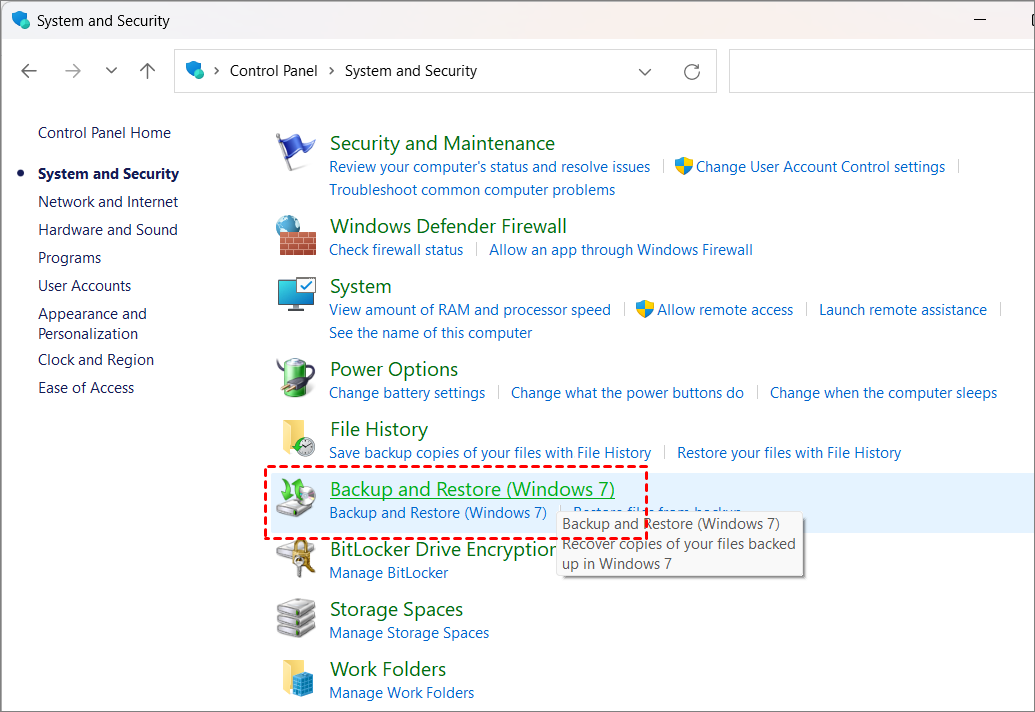
Step 2. Navigate to Settings > System and Security > Backup and Restore (Windows 7).
Step 3. Click "Change settings".
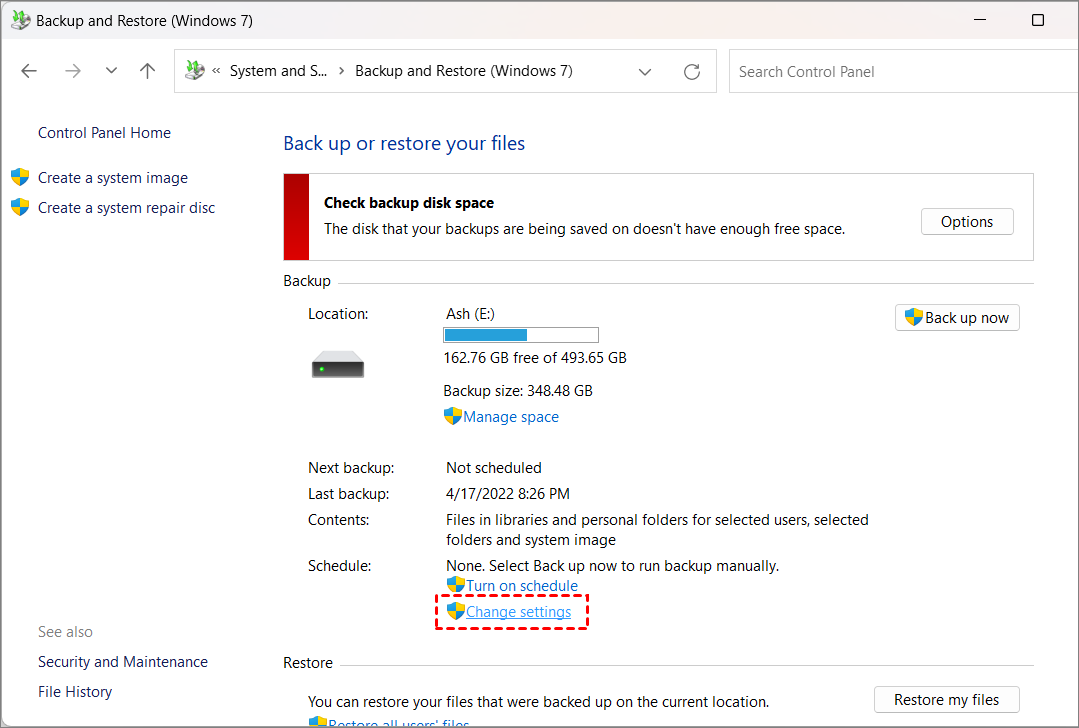
Step 4. Select your external hard drive as the destination.

Step 5. Choose "Let me choose" to specify the exact files or partitions you want to protect.
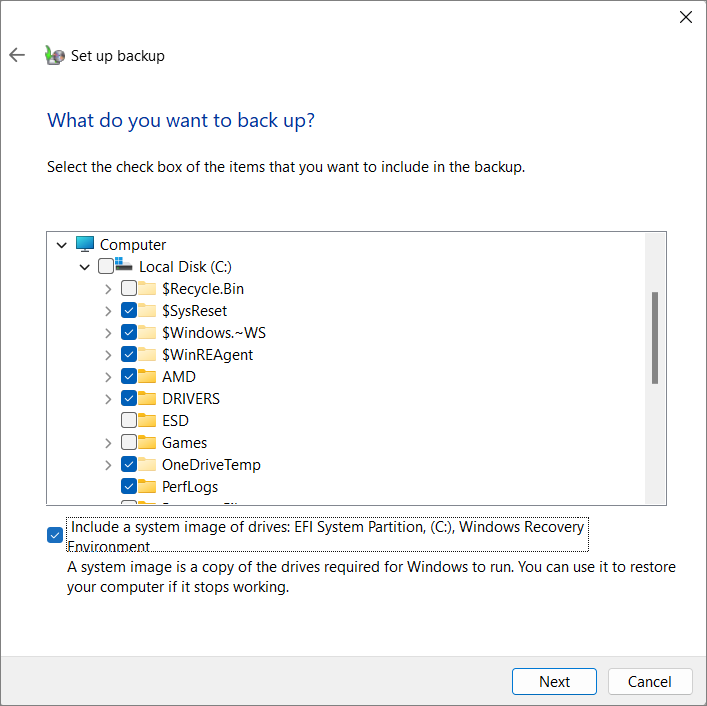
Step 6. Click "Change schedule" to set your external hard drive back up to run daily, weekly, or monthly.
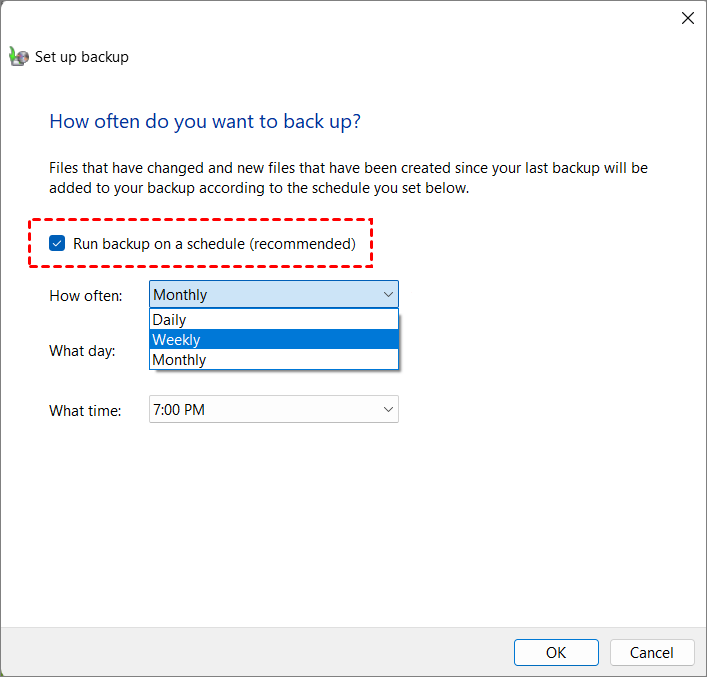
Step 6. Save settings and run the initial backup.
Method 2: Use Windows File History for Continuous Protection
Windows File History is a built-in automatic hard drive backup tool designed for users who need to save multiple versions of their personal files (Documents, Pictures, Desktop, etc.).
Pros & Cons
- Pros: Free and fast for document versioning.
- Cons: High storage consumption; primarily limited to system drive (C:) folders.
How to Automate Backups with File History:
Step 1. Open the Control Panel and select File History.
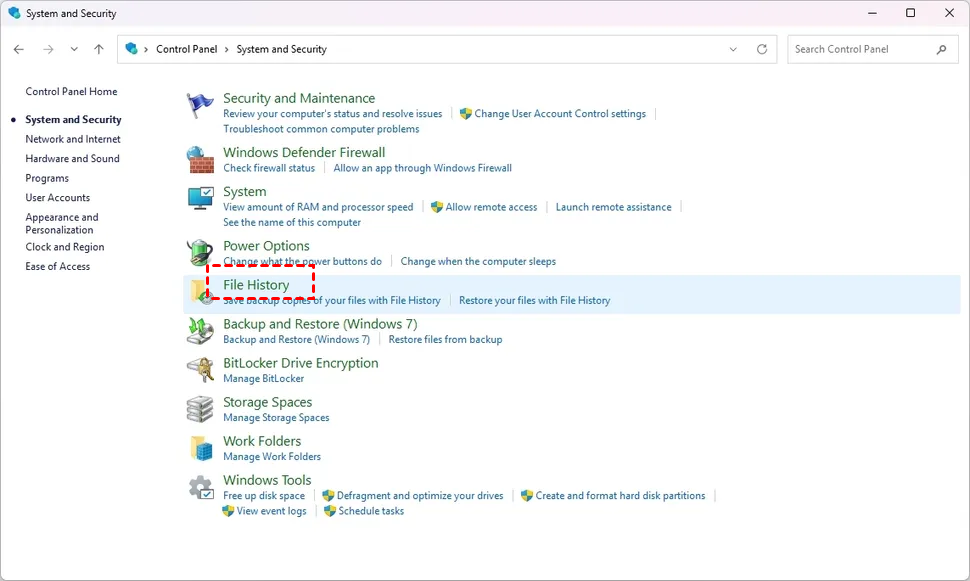
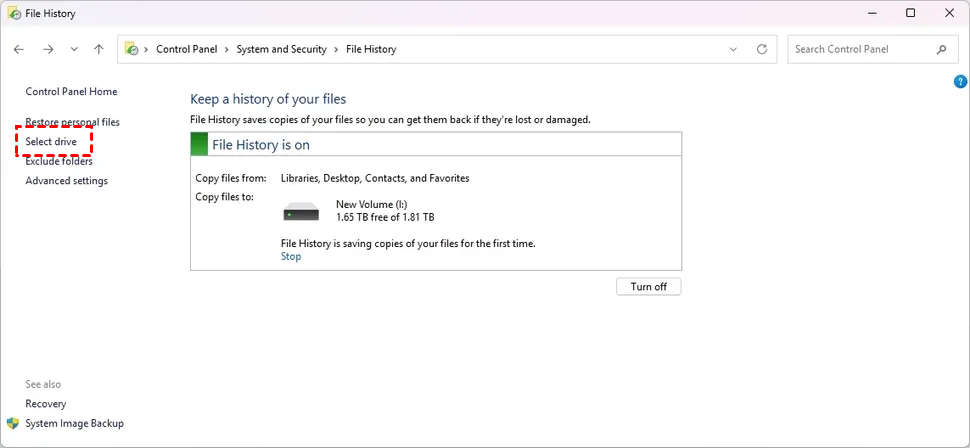
Step 2. Click Select drive from the left-hand menu.
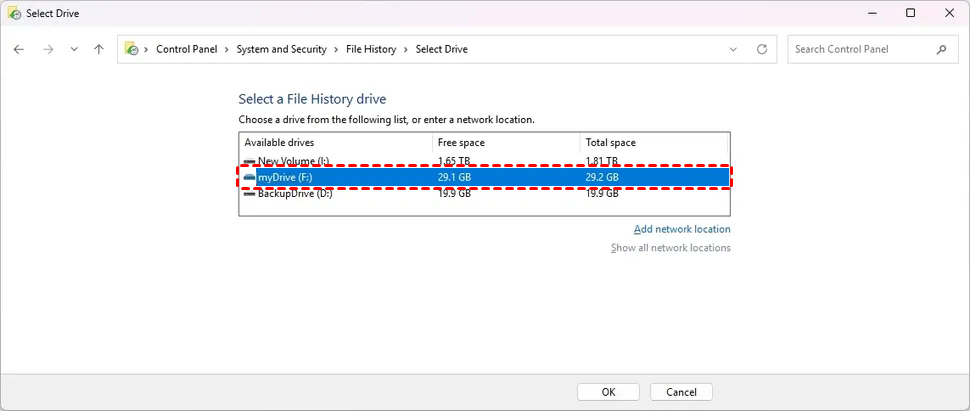
Step 3. Choose your external hard drive and click OK.
Step 4. In Advanced Settings, define how often the software should save copies (ranging from every few minutes to daily).
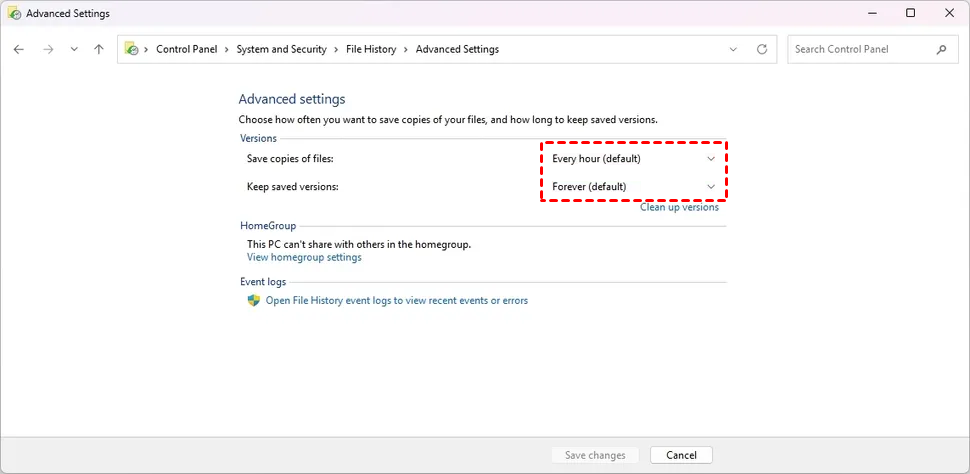
Step 5. Click Run now to start the sync.
Method 3: Use CBackup – Professional Auto Backup Software
For users who want a "set it and forget it" experience, CBackup is the best professional-grade backup software for Windows PC and Server for external hard drive use. Unlike Windows built-in tools which are often prone to errors or limited in scope, CBackup is designed specifically for high-speed data protection.
It provides a centralized interface to manage local, external, and even cloud backups, ensuring your data is redundant and safe. Whether you need to back up specific work folders or create a full disk image, CBackup handles it with superior efficiency.
Pros & Cons
- Pros: Fast, user-friendly, high compression (small image size), and highly versatile.
- Cons: Advanced features may require a paid version.
Steps to Configure CBackup for External Drives:
Step 1. Ensure the external hard drive is plugged into a high-speed USB port.
Step 2. Open CBackup and select Disk Backup. If you only need to back up specific files, you can choose File Backup instead.
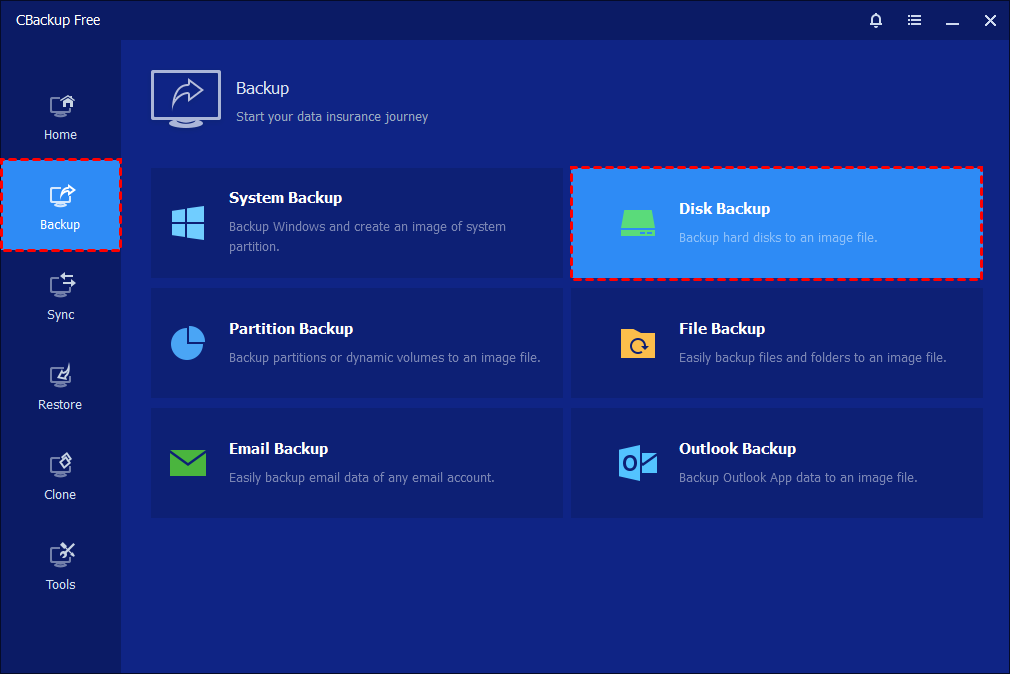
Step 3. Click Add Disk to select the disk you want to back up.
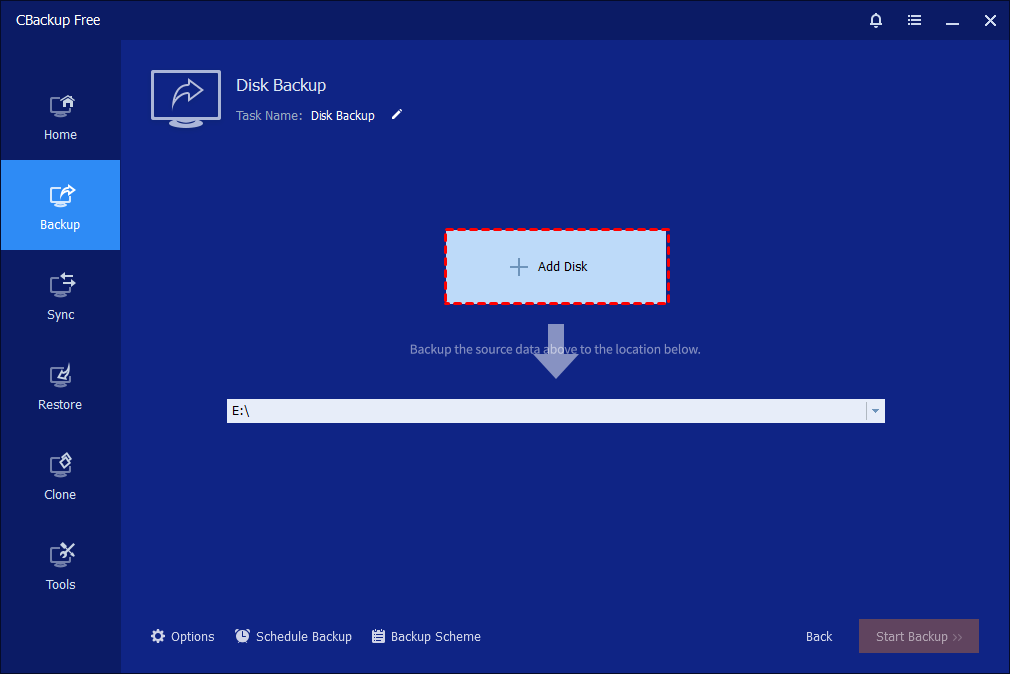
Step 4. In the pop-up window, select the source disk you want to back up. You can add multiple disks to a single disk backup task if needed.
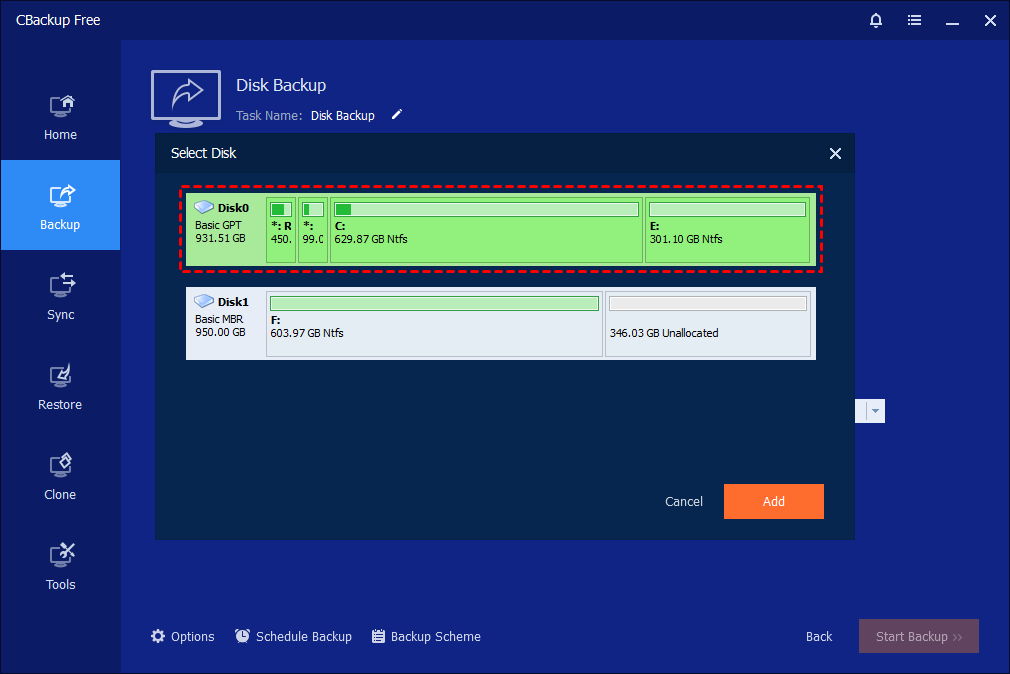
Step 5. Under the destination column, choose your external hard drive to store the backup. Click Start Backup to run the backup task.
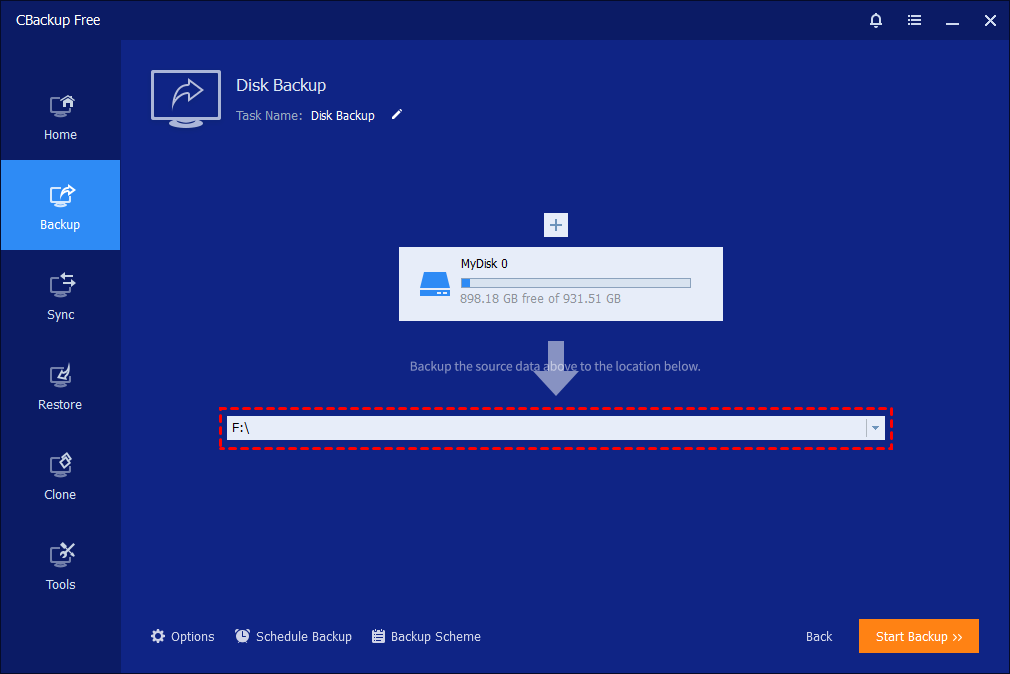
Step 6. Wait for the backup process to finish, then click Finish.

-
To truly “set it and forget it,” you can schedule automatic backups to run daily, weekly, or monthly. You can even have them start automatically as soon as your external drive is connected, keeping your data protected without any manual effort.
Summary
Protecting your data with a reliable external hard drive backup is the best way to prevent permanent data loss. While Windows provides basic utilities, CBackup offers the most robust and space-efficient way to manage an external hard drive backup. Its ability to perform incremental backups and compress data makes it the "gold standard" for users who take their data security seriously.
By setting up an automatic hard drive backup today, you ensure your files are safe without the hassle of manual updates. Don't wait for a system failure; choose a hard drive backup for PC solution now and gain peace of mind knowing your digital life is secure.
FAQs
What is the best way to perform an external hard drive backup for a PC?
Is an automatic hard drive backup better than a manual one?
Can I use Windows File History as my primary hard drive backup for PC?
How often should I perform an external hard drive back up?
Will using software to backup hard drive data slow down my computer?
Do I need to keep my drive plugged in for an automatic hard drive backup to work?
Free Get CBackup Now

Secure & Free
