
How to Image Multiple Computers at Once
Imaging a room of PCs is not the same as cloning one drive repeatedly. This guide shows IT administrators, school technicians, and small-business teams how to build a clean reference computer, generalize Windows, capture a reusable image, deploy it over a wired network, and validate every endpoint. It also explains when multicast helps, when unicast is safer, and how a pre-deployment backup reduces the cost of mistakes.

By Ellie Updated August 31, 2026


The Short Answer: Use a Generalized Image and Network Deployment
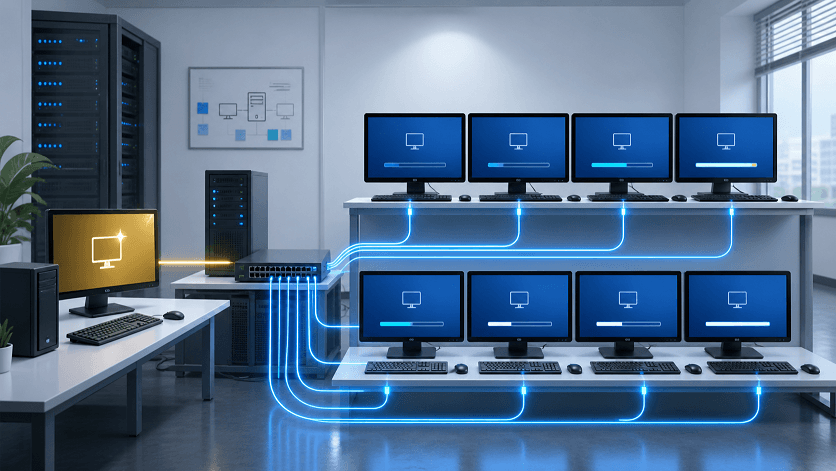
If you are searching for how to image multiple computers at once, the reliable method is to prepare one reference PC, remove machine-specific information with Sysprep, capture the disk or Windows partition, and deploy that image to target PCs through PXE. For a room of similar machines, multicast lets one network stream serve many clients. For mixed hardware or smaller batches, grouped unicast jobs are often easier to troubleshoot.
Before any destructive restore, protect user files and confirm that every target is authorized. CBackup can create system, disk, partition, or file backups on Windows and schedule backups to local, NAS, or supported cloud destinations. That makes it useful as a safety layer before reimaging, even though a dedicated PXE/multicast platform is still needed for simultaneous bare-metal deployment.
Choose the Right Imaging Method Before You Start
The word image covers several jobs. A disk clone copies one source directly to another drive. A system image is a reusable recovery artifact. Mass deployment adds orchestration: clients boot into a temporary environment, receive the image, write it to disk, and then complete device-specific setup.
|
Method |
Best for |
Main advantage |
Main limitation |
|
USB restore |
2-5 PCs or isolated sites |
Simple infrastructure |
Manual and slow at scale |
|
Grouped unicast |
Small mixed batches |
Each client has an independent stream |
Bandwidth rises with every client |
|
Multicast over PXE |
Labs and same-model fleets |
One stream reaches many PCs |
Requires multicast-ready wired networking |
|
Cloud provisioning |
Distributed modern devices |
Works beyond one LAN |
Not a traditional sector-level image |
How to Image Multiple Computers at Once Step by Step
1. Inventory the Target Hardware and Network
Group computers by model, storage controller, firmware mode, disk size, and network adapter. A single image is easiest when the targets are identical. Mixed models may require additional drivers, separate images, or a task sequence that installs drivers after Windows starts. Use gigabit Ethernet where possible; PXE and multicast over Wi-Fi are fragile because clients must boot and join the session before an operating system wireless stack is available.
- Confirm every destination disk is at least large enough for the captured layout or supported resizing method.
- Enable network boot in UEFI/BIOS and verify DHCP, PXE, and imaging-server reachability on a test VLAN.
- Check Windows licensing, application licensing, domain-join policy, Secure Boot, and BitLocker handling.
2. Build and Test a Clean Reference Computer
Install Windows, approved updates, core applications, and organization-wide settings on a reference device or virtual machine. Keep user data, personal accounts, endpoint-specific certificates, and secrets out of the master. Apply only drivers needed by the intended hardware family, then run health checks and remove temporary files. A smaller, clean image transfers faster and fails less often than a years-old technician workstation.
3. Generalize Windows Before Capture
Microsoft requires a Windows installation intended for another computer to be generalized with Sysprep, even when the destination hardware is the same. The usual workflow is Audit Mode, then Sysprep with /generalize, OOBE, and shutdown. Generalization removes computer-specific state so each restored machine can specialize on first boot. Do not restart the reference PC into Windows after the shutdown; capture it from the imaging environment.
4. Capture and Store the Master Image
Boot the reference PC into WinPE or the capture environment supplied by your imaging platform. Capture the required partitions, not merely the visible C: drive if the boot and recovery layout also matters. Microsoft documents a WIM workflow using DISM capture and apply. FOG and Clonezilla use their own image formats and capture processes. Name the image with OS edition, architecture, model family, and revision date, then record its hash and test restore result.
5. Create a Pilot Deployment Group
Start with two or three nonproduction PCs. PXE boot them, assign the image, and run unicast first. Verify that the devices boot, receive drivers, activate correctly, obtain unique names, join management systems, and apply current security policies. A successful write to disk is not the same as a successful deployment.
6. Launch a Multicast Session for the Full Batch
For many computers on the same wired LAN, use a platform designed for simultaneous delivery. Clonezilla Server Edition supports multicast mass cloning. FOG multicast sessions send one image stream that all joined clients write to disk. Set the expected client count and a sensible waiting period, boot every target, and begin only after the dashboard shows the right machines. A late client cannot recover image blocks it missed and should be deployed in a new session.
Multicast usually stays within a local routed boundary. For separate sites, place a local imaging or storage node at each site and start a separate session there. If the network team cannot enable IGMP snooping or multicast safely, cap concurrent unicast jobs instead of flooding the LAN.
Estimate capacity before the production run. The compressed image size is only part of the equation: the server must read it steadily, the switch must forward the stream correctly, and the slowest target disk can determine when the room finishes. Run a timed pilot with the same switch path, firmware settings, and target model. Record transfer time, first-boot time, and the number of manual exceptions. Those measurements are more useful than a vendor speed claim because they reflect your image, hardware, and network.
7. Validate Every Computer and Record Exceptions
After first boot, automate post-deployment checks but review exceptions manually. Confirm the following before releasing the computers:
- A unique computer name, identity, and management record
- Correct UEFI boot, recovery partition, disk capacity, and encryption state
- Network, graphics, audio, docking, and storage drivers without device errors
- Windows and application activation under your organization’s licenses
- Endpoint protection, patches, policies, certificates, and required business apps
- A successful reboot and a documented rollback path
Keep the previous approved image until the new revision has completed a full batch and passed application-owner checks. If the new build fails, redeploying a known-good image is usually faster and safer than repairing dozens of endpoints individually. Archive the image manifest, Sysprep answer file, driver set, checksums, and deployment log together so another technician can reproduce the result.
Where CBackup Fits in a Multi-PC Imaging Workflow
Mass imaging overwrites destination disks, so the costliest mistake is discovering afterward that a target contained the only copy of a user profile or local project. CBackup is a practical recommendation for Windows teams that need to protect data before deployment and retain recovery copies afterward.
- Back up a system, disk, partition, or selected files before a destructive imaging task.
- Send backups to local storage, NAS, or supported cloud destinations according to the selected workflow.
- Schedule incremental backups and restore selected files when a full image rollback is unnecessary.
- Use Universal Restore when restoring a supported CBackup backup to different hardware, after confirming the current edition and license requirements.
Use CBackup’s Windows backup and restore tools to create the safety copy, then use FOG, Clonezilla SE, or another deployment platform for PXE orchestration and multicast delivery. CBackup also provides disk cloning, but direct disk-to-disk cloning is better suited to migrations and individual machines than imaging an entire classroom at once. Always test a restore; an untested backup is only an assumption.
Common Mass-Imaging Failures and How to Prevent Them
|
Failure |
Likely cause |
Practical fix |
|
Cloned PCs have identity or setup problems |
Image was captured without generalization |
Rebuild or recapture after Sysprep /generalize. |
|
Some PCs do not boot |
UEFI/legacy mode, storage driver, or partition mismatch |
Standardize firmware and maintain model-specific drivers/images. |
|
Multicast stalls or misses clients |
Client joined late, or traffic does not cross the network boundary |
Wait for all clients; create one session per site/VLAN. |
|
Deployment saturates the LAN |
Too many unicast streams or poor switch configuration |
Use multicast with network-team approval or limit concurrency. |
|
The image is already outdated |
Too many apps and patches baked into a static image |
Use a thin image plus automated post-deployment updates. |
|
User data disappears |
The destination was not backed up or was misidentified |
Inventory devices, label targets, and verify backups before wiping. |
Final Recommendation
For repeatable mass imaging, standardize the hardware groups, generalize one tested reference build, capture it once, pilot with unicast, and scale through controlled multicast sessions on wired networks. Keep post-deployment configuration and validation automated, but never skip exception review. Before wiping any destination, create a verified CBackup backup of the data that must survive. This two-layer approach separates deployment speed from data protection and gives the team a realistic recovery path when a target, driver, or image behaves differently than expected.
Frequently Asked Questions
Can I image multiple computers simultaneously with a USB drive?
Do the computers need identical hardware?
Should I use multicast or unicast?
Is Sysprep really necessary for identical PCs?
Can CBackup deploy one image to many PCs at once?
How do I avoid losing files during reimaging?
Free Get CBackup Now

Secure & Free