
Acronis True Image vs Time Machine: Which Backup Is Better for Your Mac?
Choosing a backup tool is less about finding a universal winner and more about matching recovery needs to the right storage model. This guide compares Acronis and Time Machine across setup, restore options, cloud protection, security, and platform support. It also explains where CBackup fits for Windows PCs in a mixed-device household, so you can build a practical backup plan without assuming one app must protect everything.

By Ellie Updated September 18, 2026


Choosing a backup tool is less about finding a universal winner and more about matching recovery needs to the right storage model and hardware architecture. This guide compares Acronis True Image and Time Machine across setup, restore options, Apple Silicon and APFS integration, cloud protection, security, and platform support.
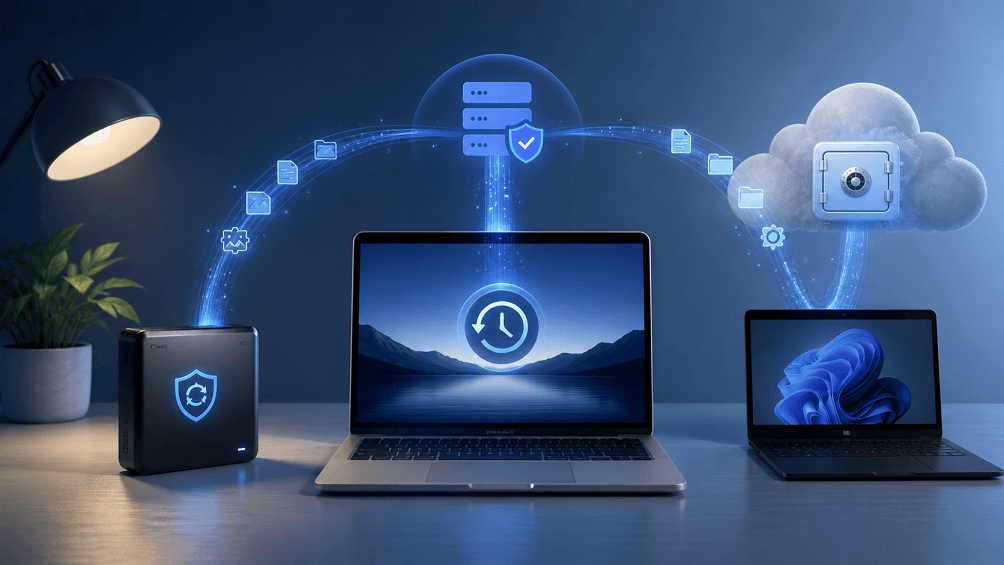
It also explains where CBackup fits for Windows PCs in a mixed-device household, so you can build a practical 3-2-1 backup plan without assuming one single application must protect every operating system.
Acronis vs Time Machine: Quick Answer
Key Takeaways
- Time Machine is the best starting point for most Mac users who need simple, automatic local backups. It is deeply integrated into macOS, native to APFS and Apple Silicon, and works seamlessly with Migration Assistant.
- Acronis True Image is the superior choice for users requiring complete full-disk imaging, cloud destinations, cross-platform protection (macOS/Windows/mobile), and advanced security features in a single suite.
- Mixed-Device Households: Time Machine handles native Mac local restores, while Windows PCs in the same environment can leverage CBackup for cost-effective Windows system, disk, and cloud-to-cloud backup workflows.
Detailed Comparison: Acronis True Image vs. Time Machine
Choosing between Acronis True Image and Time Machine comes down to your specific operational needs, device ecosystem, and recovery requirements. Below is a comprehensive breakdown across feature sets, disaster recovery scenarios, long-term costs, and technical macOS integration.
1. Feature & Capability Breakdown
This overall breakdown compares core platform availability, backup storage targets, system support, and primary security features.
| Decision Factor | Time Machine | Acronis True Image |
| Best Fit | Mac users wanting zero-cost, effortless local file & OS recovery | Users needing flexible local/cloud backup, disk cloning, & multi-OS protection |
| Supported Platforms | macOS only | macOS, Windows, iOS, Android (features vary by OS) |
| Hardware Architecture | Native integration with Apple Silicon & Intel Macs | macOS client available (certain low-level tools differ from Windows) |
| File System & Snapshots | Native APFS support with automatic local APFS snapshots | APFS supported; uses proprietary backup format (.tibx) |
| Storage Destinations | Local external drives, SMB/AFP NAS, Time Capsule | Local drives, NAS, Network shares, Acronis Cloud |
| System Recovery Method | macOS Recovery + Migration Assistant | Bootable Rescue Media / Acronis Survival Kit / File Restore |
| Encryption Support | FileVault / Native APFS XTS-AES-128/256 Encryption | AES-256 backup encryption + Cyber Protection features |
| Cost Model | Free (Included with macOS; hardware separate) | Paid Commercial Subscription (Annual fee per machine/cloud tier) |
2. Disaster Recovery & System Reconstruction
When disaster strikes—whether it is a corrupted volume, an unbootable Mac, or an accidental file deletion—the recovery experience varies significantly between these two solutions.
| Crisis / Recovery Scenario | Time Machine | Acronis True Image |
| Accidental File Reversion | Best-in-class (Interactive graphical timeline inside Finder) | Good (Search/extract files via the Acronis app or cloud console) |
| Bare-Metal System Crash | Native (Boot into macOS Recovery directly; restore whole system/APFS volume) | Requires Rescue Media (Must pre-create an Acronis Survival Kit or bootable USB) |
| New Mac Migration | Native Leader (macOS Migration Assistant reads drives natively) | Manual / Image Overwrite (Requires base OS setup or full partition replacement) |
| Apple Silicon (M-Series) Booting | 100% Native (No Secure Enclave bypass or SSV signing issues) | Layered Adaptation (Subject to macOS Signed System Volume restrictions) |
| Offline Recovery (No External Drive) | Supported (Restores via local APFS snapshots while disconnected) | Not Supported (Requires active connection to an external disk or Acronis Cloud) |
3. Pricing & Total Cost of Ownership (TCO)
Evaluating backup tools requires weighing initial software cost against ongoing subscription and storage expenses over time.
| Decision Vector | Time Machine | Acronis True Image |
| Software Licensing | Free (Built natively into macOS) | Paid Subscription ($49.99 – $124.99+/year based on seat count and cloud storage) |
| Hardware / Storage Costs | External storage required (USB-C SSD/HDD or NAS) | External drive required; cloud storage is bundled or expanded via subscription |
| Cloud Storage Expenses | No native cloud storage (requires manual cloud drive/NAS syncing) | Bundled/Add-on Acronis Cloud tiers (e.g., 50GB / 500GB / 1TB / 5TB increments) |
| Multi-Device Expansion | $0 (Protects multiple Macs to a shared external drive or NAS) | Per-device annual fee (Every additional Mac or Windows PC requires an extra seat) |
| 5-Year Total Cost of Ownership (TCO) | Low (One-time external drive purchase: ~$60 – $150 total) | Moderate to High (Cumulative subscription & cloud fees: ~$250 – $600+) |
4. macOS Native Technical Integration & Security
For tech-conscious users and system administrators, low-level compatibility with macOS file systems, encryption, and active security measures is a key consideration.
| Deep-Tech / Security Feature | Time Machine | Acronis True Image |
| APFS Snapshot Architecture | Deeply integrated (Uses native space-efficient APFS copy-on-write snapshots) | Supported (Saves proprietary .tibx container images onto APFS drives) |
| FileVault System Encryption | Native integration (Inherits system-level XTS-AES-128/256 encryption seamlessly) | Independent (Provides standalone client-side AES-256 backup encryption) |
| Network Reliability (NAS/SMB) | Basic SMB support (Long-term network .sparsebundle images can risk corruption) | High (Employs custom transport protocols with auto-resume technology) |
| Active Cyber Protection | Passive (Focuses strictly on backup & versioning) | Active (Includes AI-based real-time ransomware & cryptojacking protection) |
5. Household & Workflow Deployment Fit
Matches the right tool to specific user personas, multi-device environments, and hardware setups.
| User Scenario / Device Fleet | Optimal Strategy | Recommended Infrastructure Setup |
| Mac-Only General User | Time Machine | External USB-C/Thunderbolt SSD (capacity = 2x internal Mac storage). |
| Mac Power User / Freelancer | Time Machine + Off-site Cloud | Local Time Machine + secondary encrypted cloud storage for redundancy. |
| Mixed Household (Mac + Windows) | Time Machine + CBackup |
Macs: Time Machine (Local/NAS). Windows PCs: CBackup (System/Disk imaging & free Cloud-to-Cloud sync). |
| Cross-Platform Small Office | Acronis True Image | Centralized commercial subscription for multi-endpoint (macOS/Win/Mobile) admin. |
What Time Machine Does Best: Seamless macOS Integration
Time Machine’s greatest strength is its deep, low-level integration with macOS. Once assigned to a backup disk, it runs quietly in the background, keeping hourly backups for the past 24 hours, daily backups for the past month, and weekly backups for earlier months until the destination drive is full.
1. APFS Snapshots and Apple Silicon Synergy
On modern macOS versions using the APFS file system, Time Machine creates local APFS snapshots. If your external backup drive is unplugged when you accidentally modify or delete a file, Time Machine can revert to a local snapshot instantly without needing external hardware connected. On Apple Silicon Macs (M1/M2/M3/M4), this integration operates with minimal CPU and energy overhead.
2. FileVault Encryption and macOS Recovery
Time Machine fully respects FileVault (XTS-AES 128/256) encryption. When backed up, data remains encrypted on the destination disk. In disaster scenarios:
- macOS Recovery: On Apple Silicon Macs, holding the Power button (or Command + R on Intel Macs) boots into Recovery mode, allowing you to restore the entire operating system and user volume directly from a Time Machine backup drive.
- Migration Assistant: When setting up a new Mac, macOS Migration Assistant natively recognizes Time Machine drives and transfers user accounts, applications, settings, and personal files within minutes.
Key Limitations of Time Machine
- No Native Off-site Cloud Destination: Time Machine cannot natively stream backups to cloud storage providers (like Google Drive or S3). A drive physically sitting next to your Mac remains vulnerable to theft, fire, or hardware failure.
- NAS & Network Destinations: While Time Machine supports SMB network backup, using network-attached storage (NAS) requires strict SMB protocol configuration. Network drops or unstable sparse bundles (.sparsebundle) can occasionally corrupt network backup chains, requiring a fresh re-index.
What Acronis True Image Does Better: Advanced Control & Multi-Platform Power
Acronis True Image is engineered for users who require granular control, off-site protection, and multi-platform management across a single dashboard.
1. Full-Disk Imaging and Cloud Backup
Acronis True Image creates exact sector-by-sector or file-level disk images (.tibx). Unlike Time Machine, eligible Acronis True Image plans include built-in cloud storage options, ensuring your primary local copies are automatically mirrored off-site to protect against physical disaster.
2. Multi-OS Protection & Cyber Security
Acronis True Image combines backup with active cyber protection, including real-time ransomware defense and cryptojacking blocking. For homes or small offices managing both macOS and Windows systems, a single subscription manages all endpoints.
What Features Does Acronis True Image Lack on macOS vs. Windows?
While Acronis True Image is powerful on macOS, its Mac client is not feature-identical to its Windows version due to macOS kernel and security restrictions (especially on Apple Silicon):
- No Try&Decide Feature: The sandbox feature that lets Windows users test untrusted software without altering the OS is unavailable on macOS.
- WinPE Environment Excluded: Windows users get customized WinPE recovery creation; Mac users rely on the Acronis Mac Survival Kit / macOS Recovery extensions.
- System-Level Disk Cloning Restrictions: On recent macOS releases with Secure Enclave and Signed System Volumes (SSV), live system drive cloning is restricted. Mac users must often perform full-image backup and restore rather than direct disk-to-disk live cloning.
- Cyber Protection Scope: Advanced vulnerability scanning and patch management available on Windows are limited or absent on macOS.
When CBackup Is the Recommended Alternative (Mixed-Platform Setup)
If your environment consists purely of Macs, Time Machine combined with an off-site cloud mirror is ideal. However, if your household or office operates a mixed Mac and Windows ecosystem, forcing a single Mac-centric or expensive multi-device tool onto every PC is unnecessary.
CBackup serves as a specialized, low-friction Windows backup and cloud backup recommendation for the Windows PCs in your environment:
- Tailored for Windows Protection: Supports Windows 11/10/8.1/8/7 systems, partition, disk, and file-level backups.
- Cloud & NAS Storage Aggregation: Allows Windows users to back up directly to cloud storage (OneDrive, Google Drive, Dropbox) or combine multiple free cloud accounts into a larger virtual storage pool.
- Cloud-to-Cloud Backup: Easily migrate or back up data between cloud drives automatically without stressing your local Internet bandwidth.
Keep Time Machine on your Mac devices for native local recovery, and deploy CBackup on your Windows desktop or laptop for automated system, file, and cloud protection. You can start with the permanent free tier or upgrade to a CBackup Professional Plan for unlimited cloud data transfer and priority customer support.
Final Verdict
Choose Time Machine if you are a typical Mac user who values automatic local protection and a familiar restore experience. Choose Acronis if you need full-image recovery, cloud options, security capabilities, or coverage across several operating systems and are comfortable managing more settings. In many cases, the strongest design uses a local Mac backup plus a separate off-site copy rather than replacing one tool with another.
For Windows computers in the same environment, explore CBackup's backup features as a recommended complementary solution. Keep the platform boundary clear: verify Mac support before choosing any product for macOS, and test every recovery path before trusting it with essential data.
Frequently Asked Questions
Is Acronis better than Time Machine?
Can Acronis and Time Machine be used together?
Does Time Machine back up to the cloud?
Can Time Machine restore an entire Mac?
Is CBackup available for Mac?
What is the biggest mistake when choosing backup software?
Free Get CBackup Now

Secure & Free