


How to View Logs in CBackup Easily
View Logs contains a list of operations performed on the backup tasks.

by PublicOwin Lasted Updated January 21, 2026


This option provides information about the results of the backup tasks performed. It displays the operation type, the operation result, error code, etc. It is very useful to check the result of a backup when it has been scheduled, for example, and you do not have a result screen to confirm the completion of the operation.
How to View logs
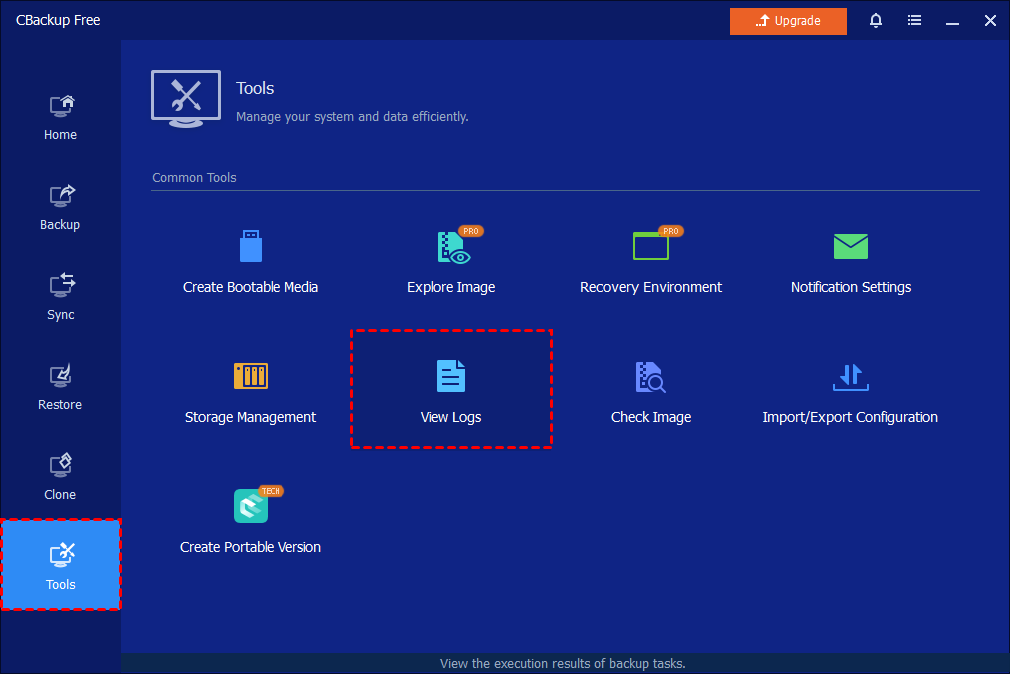
Step 1: Initiate View Logs Tool
In the left Tab, select Home, and then select Tools-->View Logs.
Step 2: View Task Logs
When a backup is completed, you can view the task log in the View Logs window.
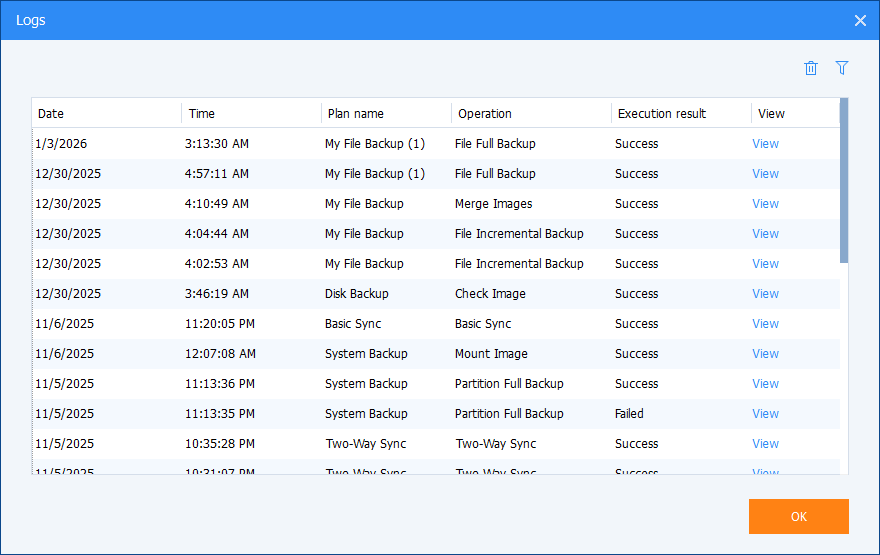
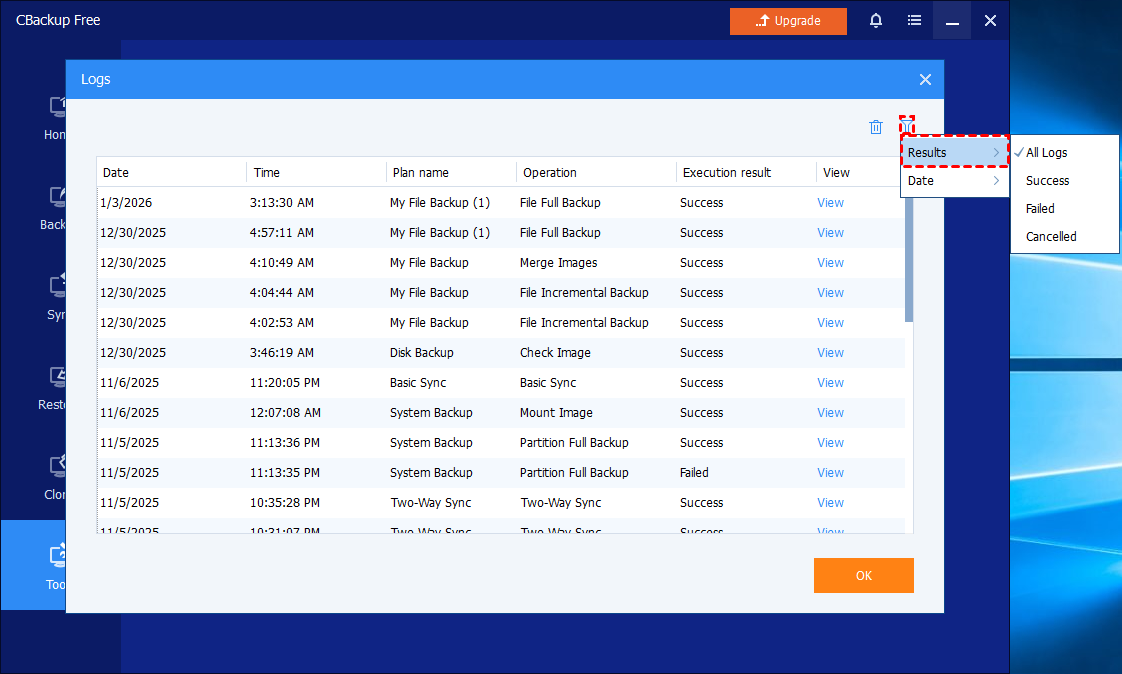
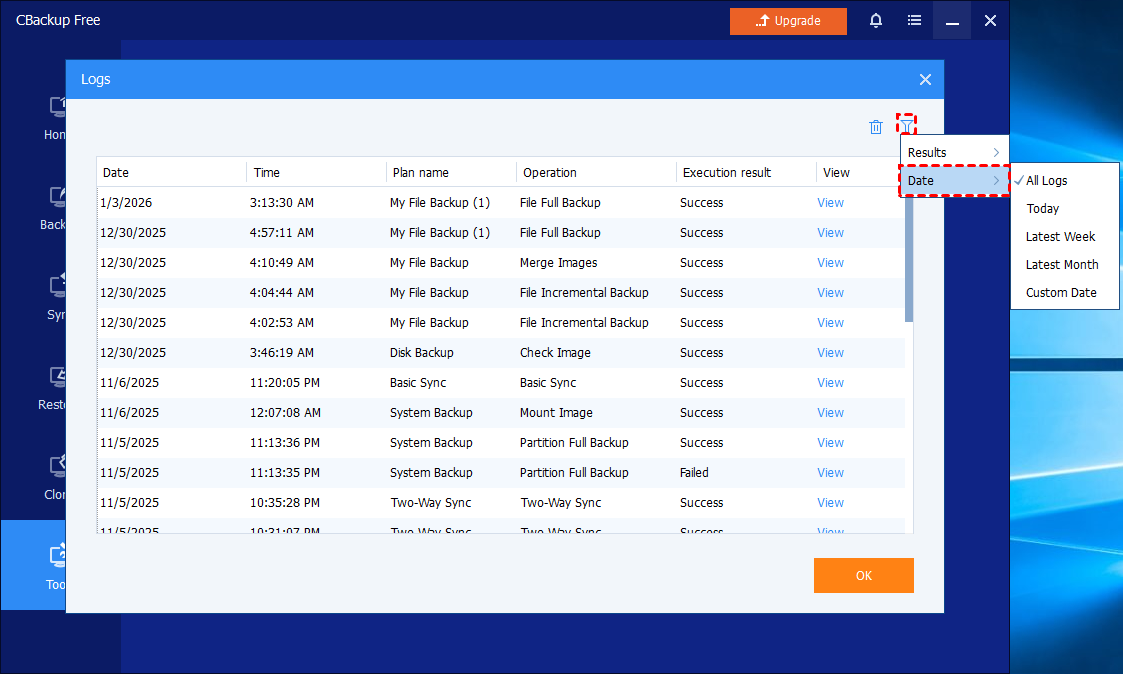
You can filter your logs by Result and Date:
-
Results: All Logs, Success, Failed, and Cancelled
- Date: All Logs, Today, Latest Week, Latest Month, and Custom Date
- If the operation failed, you can find and forward the "log" folder under the installation directory of CBackup to the CBackup Support Team to further analyze the log and find solutions.
- The "log" folder is under the installation directory of CBackup. If you install the program on your C:, you can find the "log" folder under the path C:\Program Files (x86)\CBackup for Computer\, or you can simply right-click the CBackup shortcut on the desktop and select "Open file location" to find the "log" folder.
Free Get CBackup Now

Secure & Free
