


How to Burn ISO File to Disc - CBackup
The ISO file actually is an image file, used by CD, DVD or Blu-ray Disc.

by PublicOwin Lasted Updated February 6, 2026


The ISO file, also called disc image, is a copy of an entire data CD or DVD. After making a CBackup bootable ISO file, you will first need to burn the ISO file to a CD/DVD or USB flash drive before you can use it. This article will show you how to burn ISO files to USB flash drive and CD/DVD with various burning software.
Before you do
- Download a CD, DVD, or Blu-Ray burning software (here we take UltraISO, BurnAware, and Free ISO Burner for demonstration).
- Prepare a USB flash drive or a recordable CD, DVD, Blu-Ray disc.
- Make sure your computer has a CD, DVD, or Blu-Ray burner.
How to Burn Bootable CD with Free ISO Burner
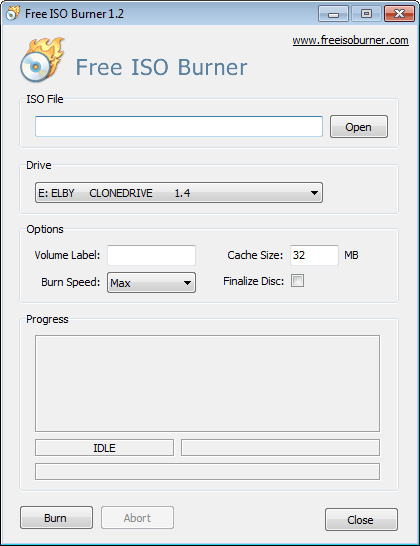
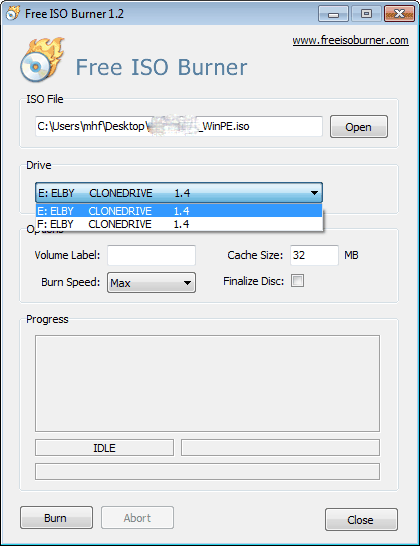
1. Insert your CD-ROM, and then launch Free ISO Burner. Click the "Open" button to add the ISO file, and choose your disc (CD/DVD or Blu-ray Disc) in the Drive section.
2. Click "Burn" to burn the ISO file. After a while, it will be completed.
How to Burn CBackup Bootable Disc with UltraISO
Burn a bootable USB flash drive
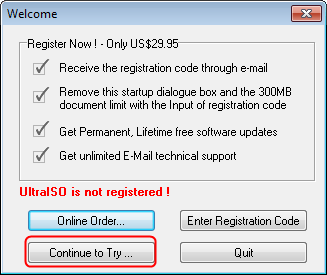
1. Download and install UltraISO. Start the software and click "Continue to Try" to use the trial version.
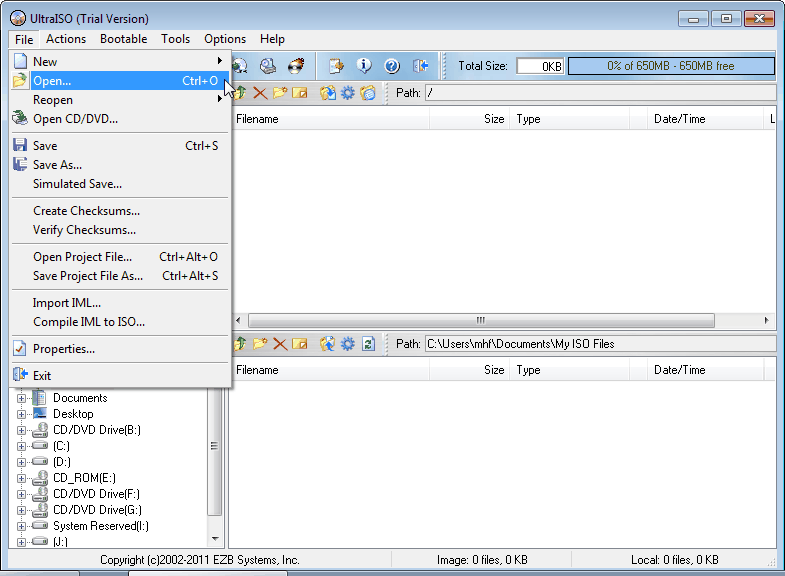
2. In the main menu, select "File"->"Open" to add the CBackup ISO file to the project.
3. Insert your USB drive.
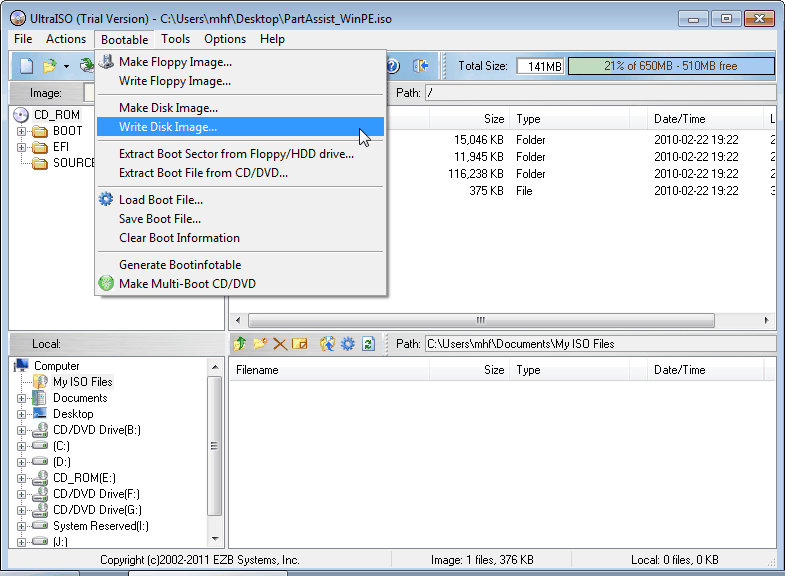
4. In the main menu, select "Bootable"->"Write Disk Image".
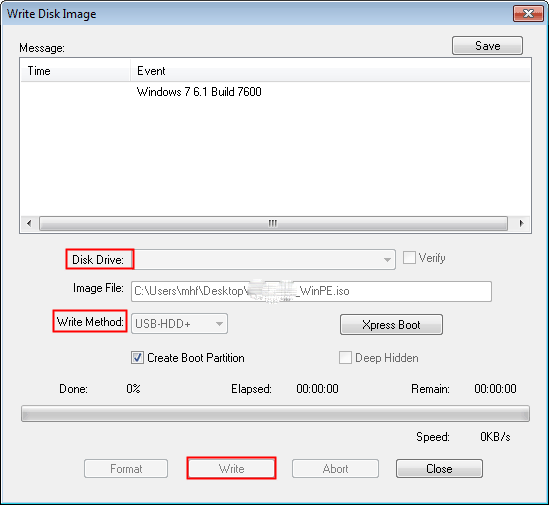
5. In the pop-up window, choose your USB flash drive, select a "write method", and then start writing.
Burn Bootable CD/DVD
1. The first three steps are the same as "burn bootable USB flash drive".
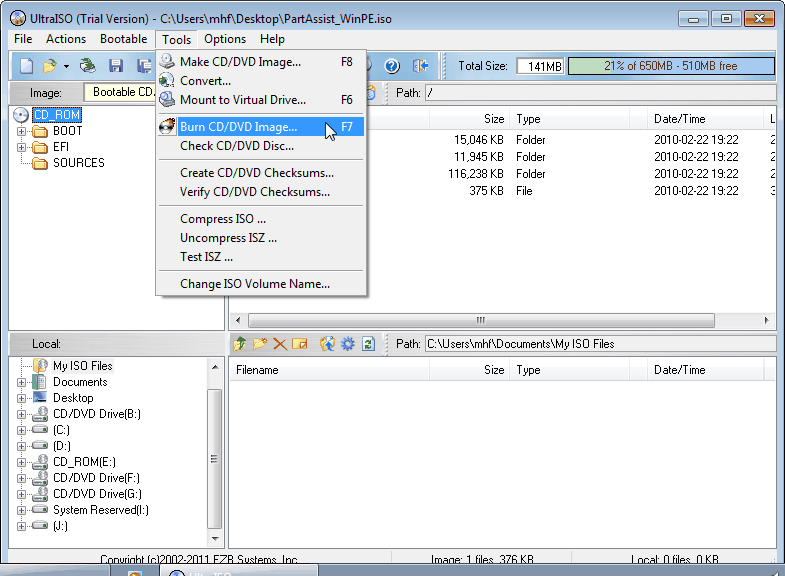
2. In the main menu, select "Tools"->"Burn CD/DVD Image".
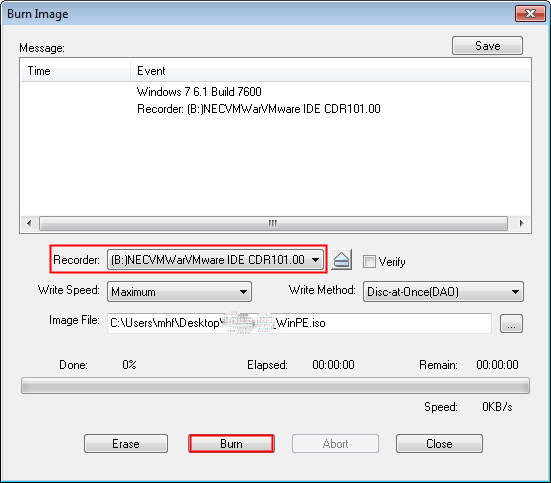
3. In the pop-up window, choose your disc (CD/DVD or Blu-ray Disk), and then click the "Burn" button to start burning.
At last, you can use the bootable CD or USB flash drive to back up and restore.
How to Burn Bootable CD with BurnAware
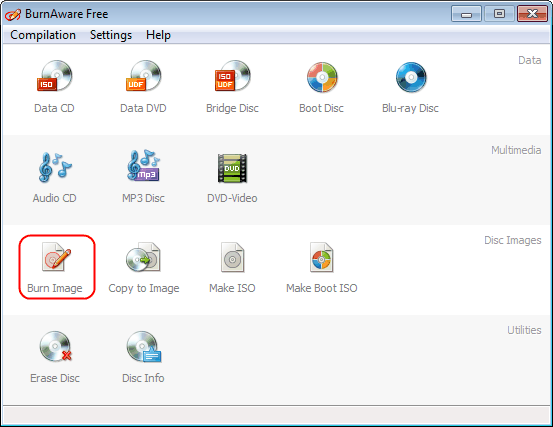
1. Launch BurnAware and insert your CD. Select "Burn Image" in the main window.
2. In the pop-up window, choose your disc (CD/DVD or Blu-ray Disk) and click the "Browse" button to add the ISO file.
3. Finally, click the "Burn" button to burn the ISO file. Then you could use the bootable disc to back up and restore.
Free Get CBackup Now

Secure & Free
