


Enable Email Notification for Quick Notification
To play unattended operation, you may concern about the result of backup plans, so this function is very important for you. You can use it to send a report of execution result to the email address you set before.

by PublicOwin Lasted Updated January 21, 2026


In unattended operations, you may wish to be advised about the results of backup plans. This function can be used to send a report of the execution result to an email address you provide.
How to Configure Email Notification
Step 1: Enable Email Notifications
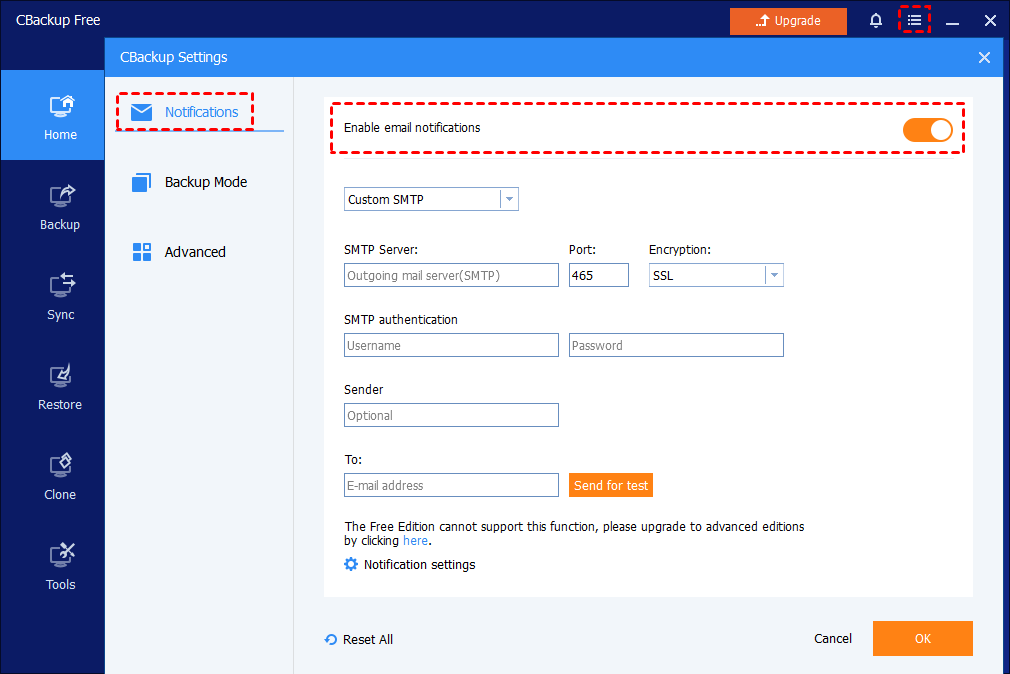
Click "Menu" in the title bar-->select "Settings,”-->select "Notifications"--> Turn on "Enable email notification" to set up your email configuration information.
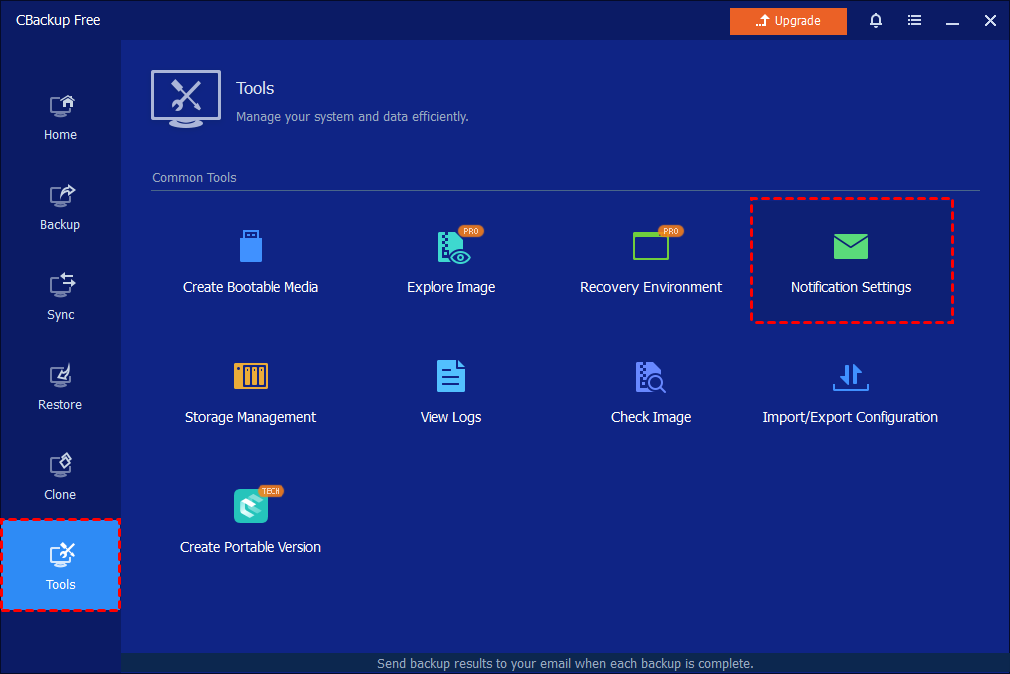
Or, you can directly click the "Tools" bar and select "Notification Settings" to enable email notification.
Step 2: About Email Servers
A custom SMTP server can be used for sending the notification email.
Custom SMTP: You can specify your own email SMTP server to send the email notification.
- SMTP Server: Specify the email SMTP server depending on your mail service.
- Port: Enter the port number of your email server, e.g. 465.
- Encryption: Supports plain text, SSL, and TLS.
- Of course, you also need to input your account for the SMTP authentication.
Step 3: Notification Settings (Optional)
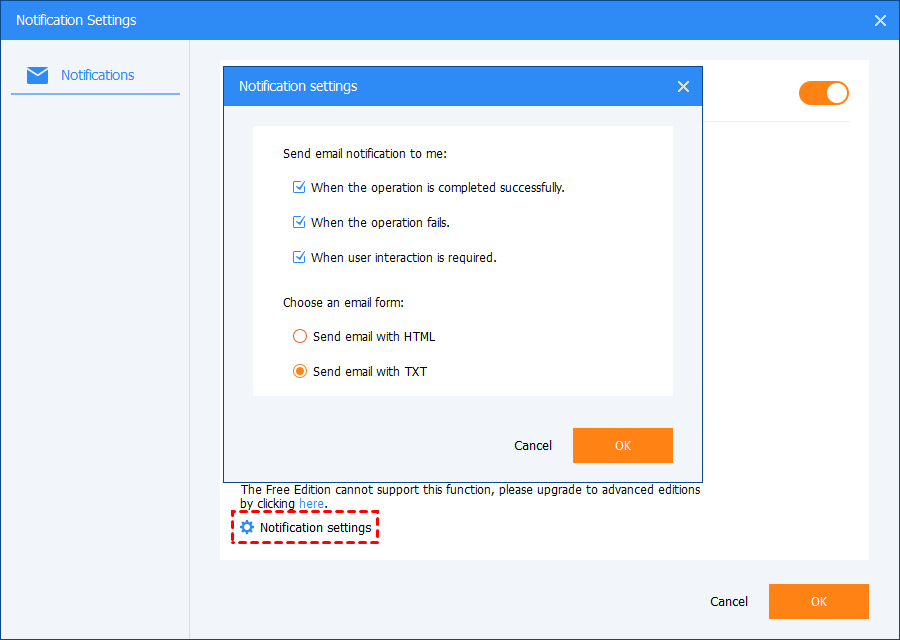
1. Specify the conditions for sending email notifications:
- When the operation is completed successfully.
- When the operation fails.
- When user interaction is required.
2. Choose the email form for email notification.
- Send email with HTML: the notification message will be encoded as HTML.
- Send email with TXT: the notification message will be encoded as TXT.
Tips:
-
It is a paid feature. If you use the free edition and would like to use the email notification, please upgrade it to the CBackup Professional or Technician version.
-
All of the notification conditions for sending email notifications are selected in the notifications settings by default. So you will get a report on whether the operation is completed successfully or not.
-
To verify if your settings are correct or not, CBackup will send a test message to your mailbox when you click "Send for test".
Step 4: Enable Email Notification for Backup Task (Necessary)
1. Enable email notification during creating a backup task
You are able to toggle "Enable email notification" in the "General" tab of "Options" on the Backup page.
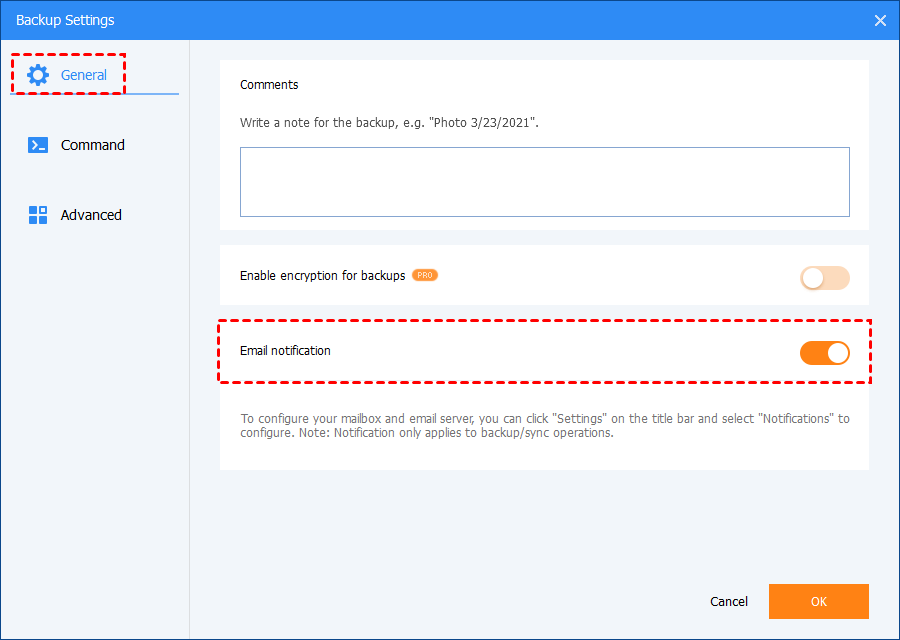
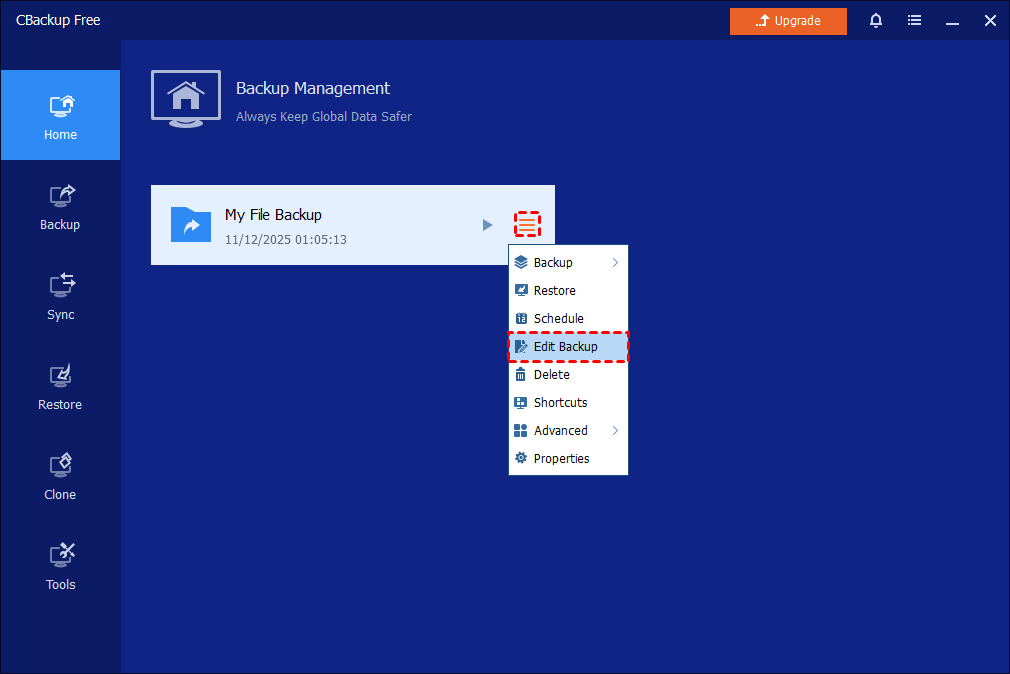
2. Enable email notification for the existing backup task
In the Home screen, select "Edit Backup" of one task, and then click "Options" and toggle "Email notification".
Free Get CBackup Now

Secure & Free
