


Edit Partitions
This option can edit the partition size on the destination disk according to personal needs. It has three choices available.
by PublicOwin Lasted Updated January 21, 2026


Edit Partitions
You can adjust the partition size or location on the destination disk in Disk Restore/Disk Clone mode. On the "Operation Summary" page, click the "Edit Partitions" button.
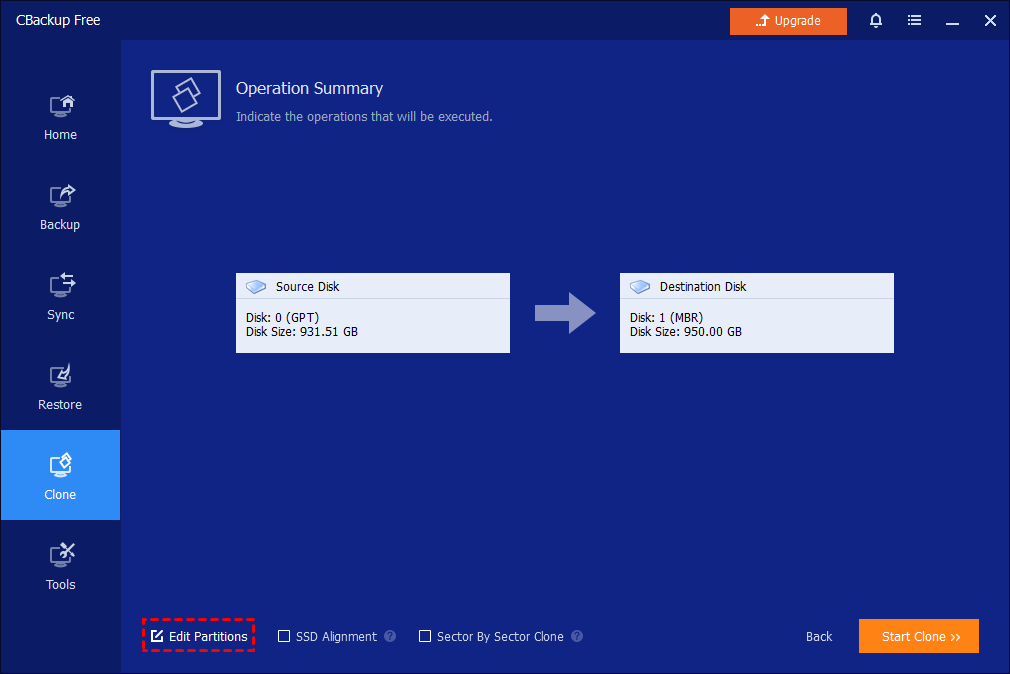
In the Edit Partitions dialog, three further options are provided:
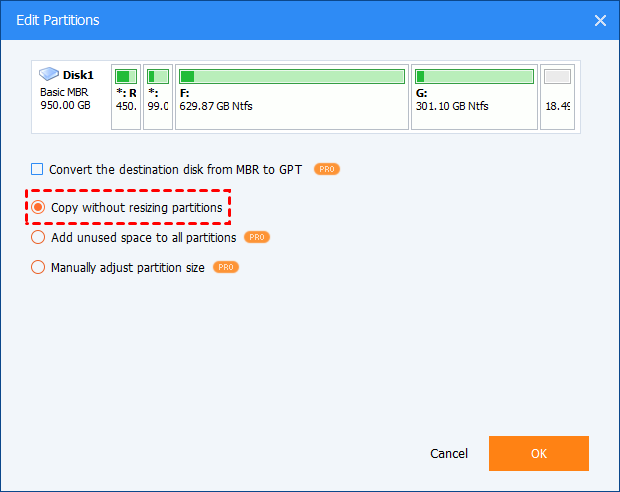
- Convert the destination disk from MBR to GPT: 1. If the source disk is GPT but the destination disk is MBR, please tick this option so the destination MBR drive will be converted to GPT after the clone. In this way, it is able to boot from the cloned drive after the disk clone. 2. If the source disk is GPT but the destination disk is MBR, the option will be "Convert the destination disk from GPT to MBR". Please tick this option so the destination GPT disk will be converted to MBR after the clone. In this way, it is able to boot from the cloned drive after the disk clone. 3. If the source disk and the destination disk are both MBR/GPT, please do not tick this option.
-
Copy without resizing partitions: Do not change anything.
-
Add unused space to all partitions: The destination disk partitions will be automatically resized to the entire disk, appropriate for the disk size.
-
Manually adjust partition size: Manually adjust the partition size and location by dragging the slider bar.
Notes:
1. If a restore system/partition image includes multiple partitions, CBackup doesn't support editing partitions on the Operation Summary page.
2. Clone system with multiple partitions, CBackup doesn't support editing partitions on the Operation Summary page.
3. If using sector by sector mode in disk restore/clone, "Edit partitions on the destination disk" button is unavailable.
Free Get CBackup Now

Secure & Free
