


How to Restore Disk Backup Image with CBackup?
This option can help to restore hard drive image to a right status when the disk is broken, or you want to replace it with a new HDD.

by PublicOwin Lasted Updated February 6, 2026


When the hard drive corrupts or damages, we should think about the possibility of recovery disk backup image that contains the operating system, installed software, games, applications as well as personal files.
In general, we need to do disk restore in the following situations:
-
Your system files have been damaged by a virus or malware and cannot boot normally.
-
Your current hard drive has failed or is showing signs of failing and you want to replace it.
-
Your current hard drive is too small and you want to change to a bigger one.
-
Your data on the hard disk has been lost and you want to recover it.
-
You want to replace hard drive with SSD and benefit from new technology.
All these situations are based on one thought: you don't want to reinstall everything. As long as you have a backup image of the hard drive, you can achieve this.
How to Restore Disk with CBackup in Windows Step by Step
Prerequisites for disk restore
Before restoration, there are some things you need to know.
CBackup disk restore is based on CBackup disk backup. You should already have at least one disk image made by CBackup (whatever the source disk is, the current crashed one or a disk on another computer). Even if you have several Windows backup points, it won't work. CBackup does not recognize disk images made by Windows or other software.
If you haven't created a disk backup with CBackup, you can create one based on another working disk. However, after restoration, the disk of the recovered computer will be a copy of the disk you just backed up, not the crashed one. You can choose this method if viable.
Nominally, users should recover using the disk Backup image created on their current failed disk. If the PC fails to boot or has crashed, you can create a WinPE bootable media using CBackup on another healthy computer and then boot the crashed PC from the WinPE bootable media to run the disk restore under WinPE.
We strongly recommend that users create a WinPE bootable media once they start to use CBackup. Such bootable media should be created and kept in a safe place in order to boot a failed computer. Otherwise, not having the required bootable media might result in not being able to recover your computer at all.
If you don't have these items, please download CBackup and prepare what you need.
Step 1: Initialize Restore
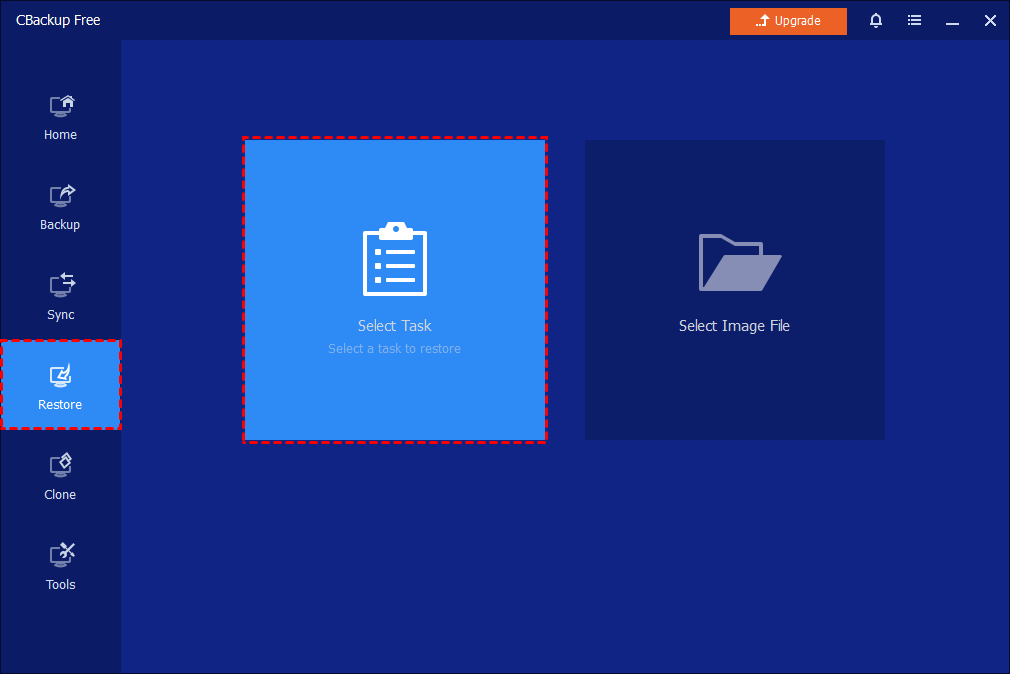
Ensure the storage device containing the disk backup image is connected to the computer and detected. In the left tab, click Restore and select the required task. If the image file is not detected, please click Select Image File to manually navigate to the storage device containing the backup.
Step 2: Select Task or Image
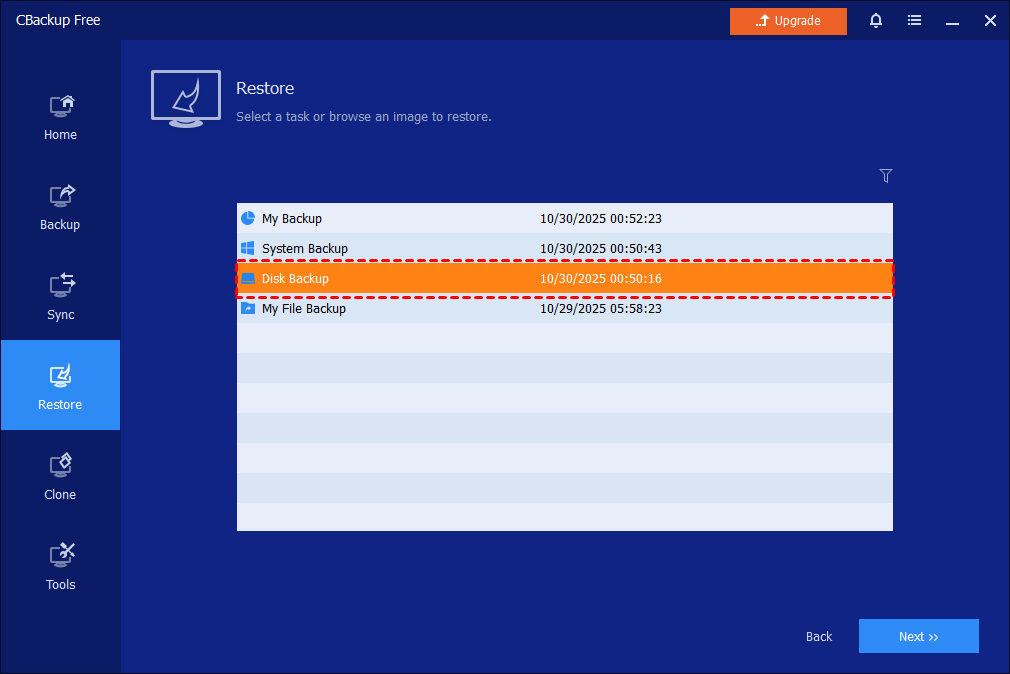
Select a partition backup task or image and click the Next button.
Step 3: Select Source
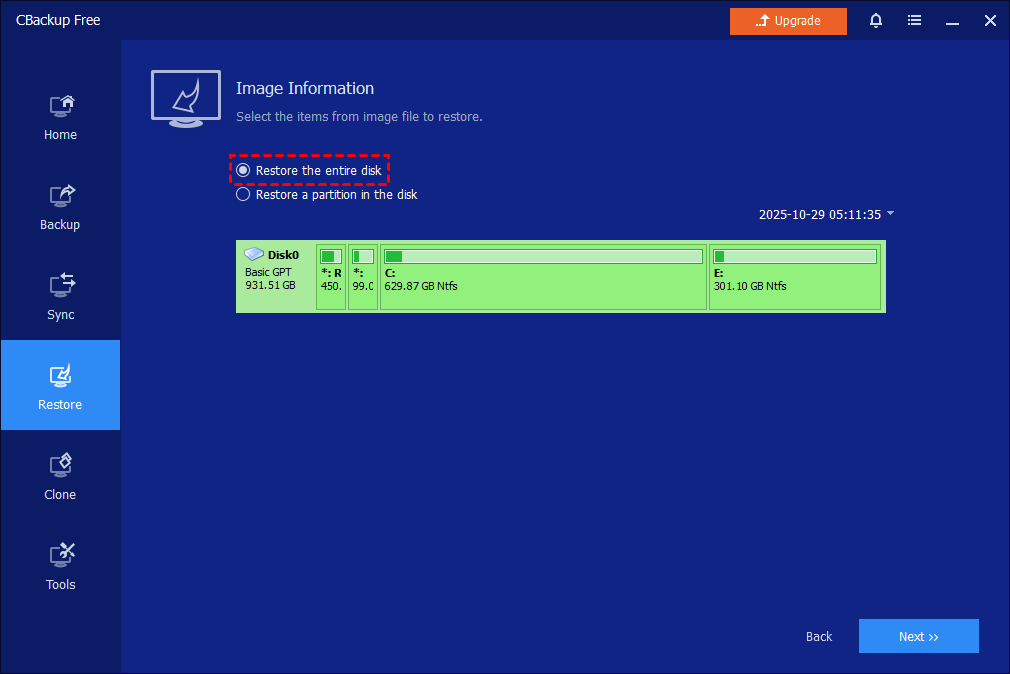
Select to restore the entire disk or a partition and then click Next.
Tips: If it is a system disk backup, to make a bootable restore, please select "Restore the entire disk".
Step 4: Select Destination
Select a destination disk to restore the backup image to.
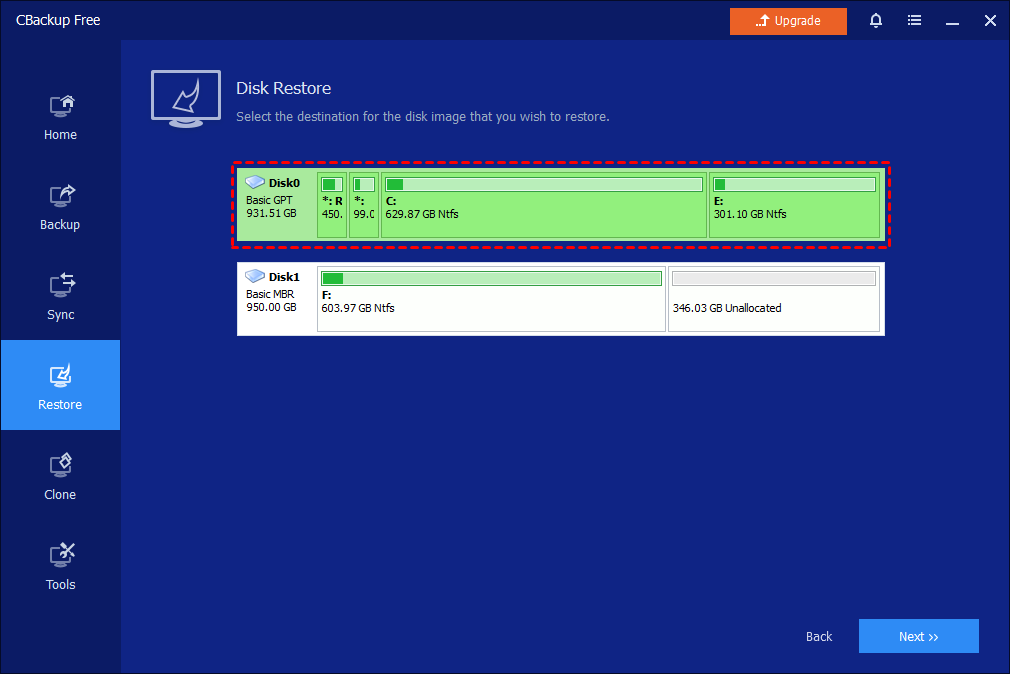
Tips: The destination partition will be overwritten. Please back up files in advance.
Step 5: Start Restore
In the "Operation Summary" page, preview the operation that will be executed. Click Start Restore after confirmation.
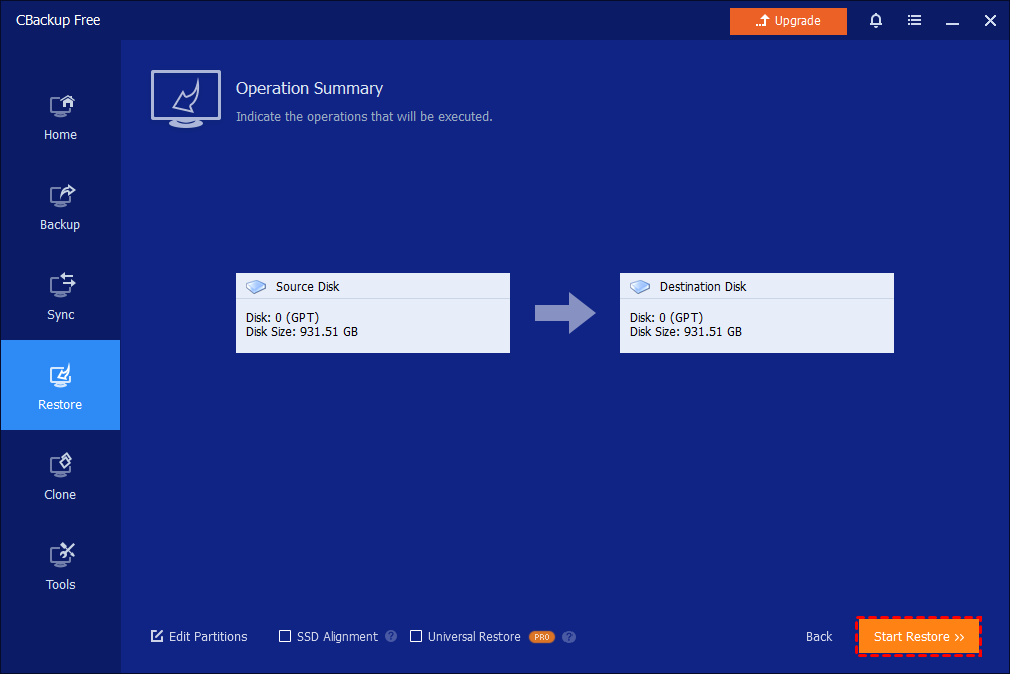
Tips: You can also do "Universal Restore" if you want to restore one PC system disk backup to another machine with dissimilar hardware.
How to Restore System under WinPE
If the PC fails to boot or has been crashed, you need to create a WinPE bootable media with CBackup and boot your PC into WinPE to run the disk restore.
Please follow the steps below:
( It is mainly used for the current system disk backup image, so you can boot your system after image restore.)
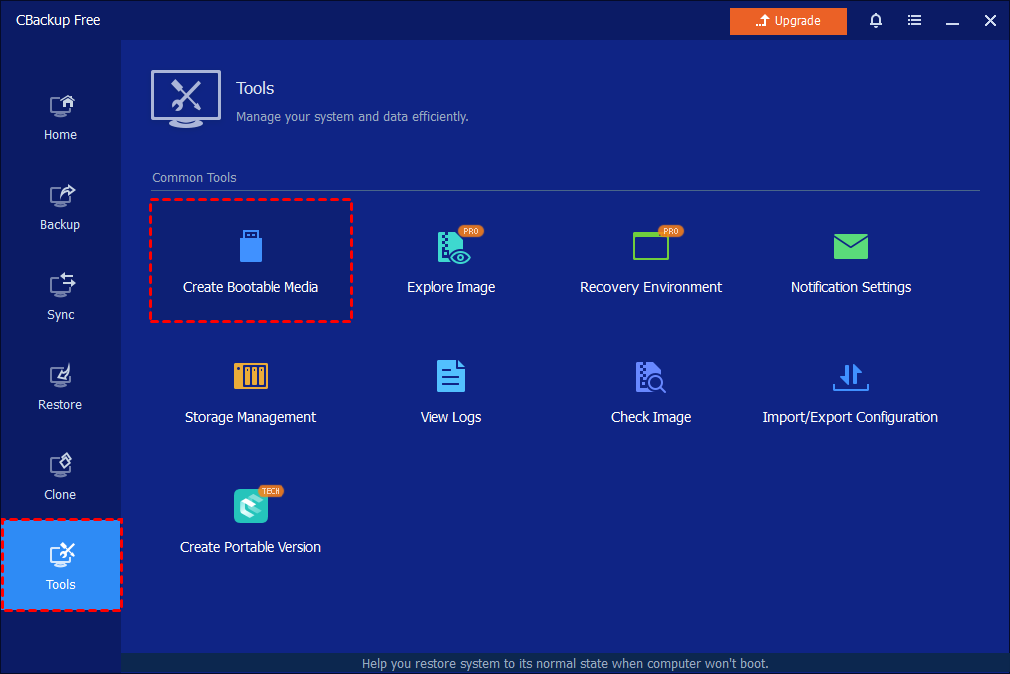
Step 1: Create Bootable Media on Working PC
Please create a WinPE bootable media using CBackup on another healthy computer.
Step 2: Boot the Failed PC
Then, insert the bootable media into the failed computer and boot from it. ( You may need to change the boot sequence and Boot Mode in the PC's BIOS (Also referred to as UEFI).
Step 3: Restore Disk in WinPE
When the PC boots up successfully, CBackup (already installed on the bootable device) will run automatically, allowing you to start the disk recovery just as the process under Windows.
Step 4: Boot after Successful Restore
Remove the bootable media and restart your PC after the disk restore is finished successfully. ( You may still need to change the boot sequence and Boot Mode in the PC's BIOS (Also referred to as UEFI).
Notes:
-
If you back up the disk in incremental mode, please prepare the full backup and all related incremental images; If you back up the disk in differential mode, please prepare the full backup and the latest differential image; If you just back up the disk once, only the full backup image is required.
-
If you regularly back up your disks, each backup will generate an image at a given time, so there may be multiple time points to choose from.
-
The destination disk/partition will be totally overwritten. If the destination contains any important data, it should first be copied to another location.
-
If any applications are running on the destination partition/disk, CBackup will require you to restart the computer and execute the restore operation in "Restart Mode".
-
When you restore the disk image from a GPT format disk with 5 (or more) partitions to an MBR format disk, it will prompt you that only 3 partitions can be restored because MBR disks only support 4 primary partitions; however, CBackup can’t convert primary partitions to logical ones automatically. In this case, you can convert the target MBR disk to GPT with Windows Disk Management and then restore.
-
If you back up multiple disks to an image file, you can only select one disk to restore at a time.
-
For Disk Backup, you can select a single partition from the disk image to restore.
Conclusion
Disk Restore can help you recover data, restore systems, perform disaster recovery, simplify system migrations and upgrades, and save time and costs. It is an effective method of data recovery and system maintenance, providing you with the security to ensure the safety, reliability, and continuity of your data and systems.
FAQs
Q: Why is there no "Universal Restore" when restoring a disk image?
A: Please check if the disk you backed up is a system disk; if not, "Universal Restore" is unavailable when do a restore.
Free Get CBackup Now

Secure & Free
