


Check Image with CBackup to Ensure Data Intact
Check Image feature checks whether you will be able to recover the data from a specific backup image file.

by PublicOwin Lasted Updated January 21, 2026


The Check Image feature ensures that your backup data can be recovered. During the validation process, unique checksum values are compared, if all values are matched, then the backup file is valid for recovery.
How to Validate a Backup Image File
Step 1: Initiate Check Image Tool
You can either open CBackup and select Advanced on the main tab, then select Check Image.
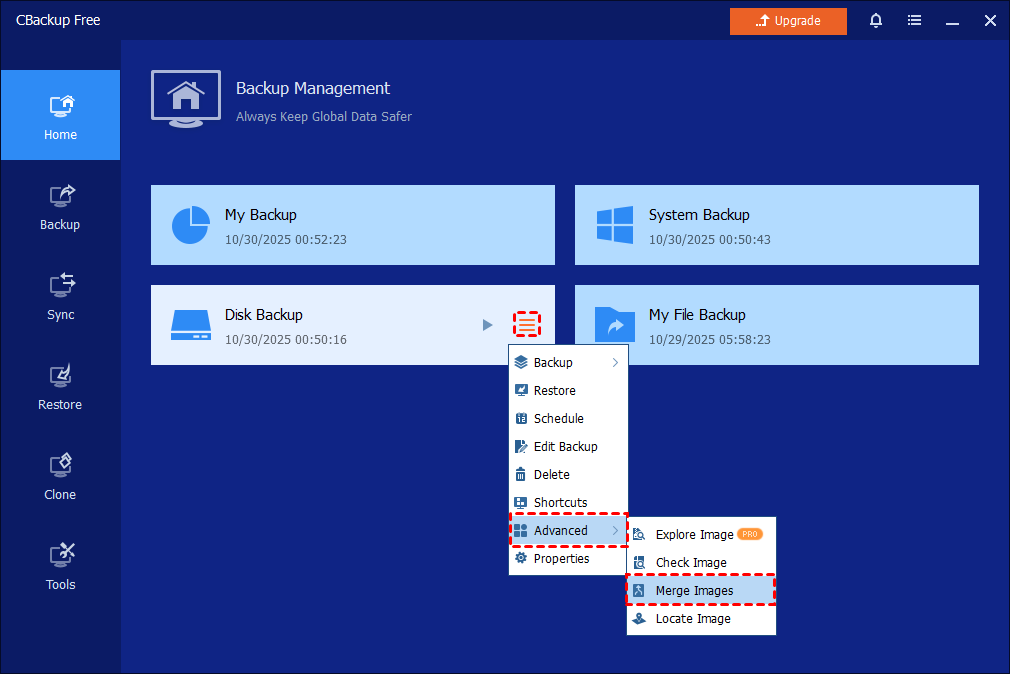
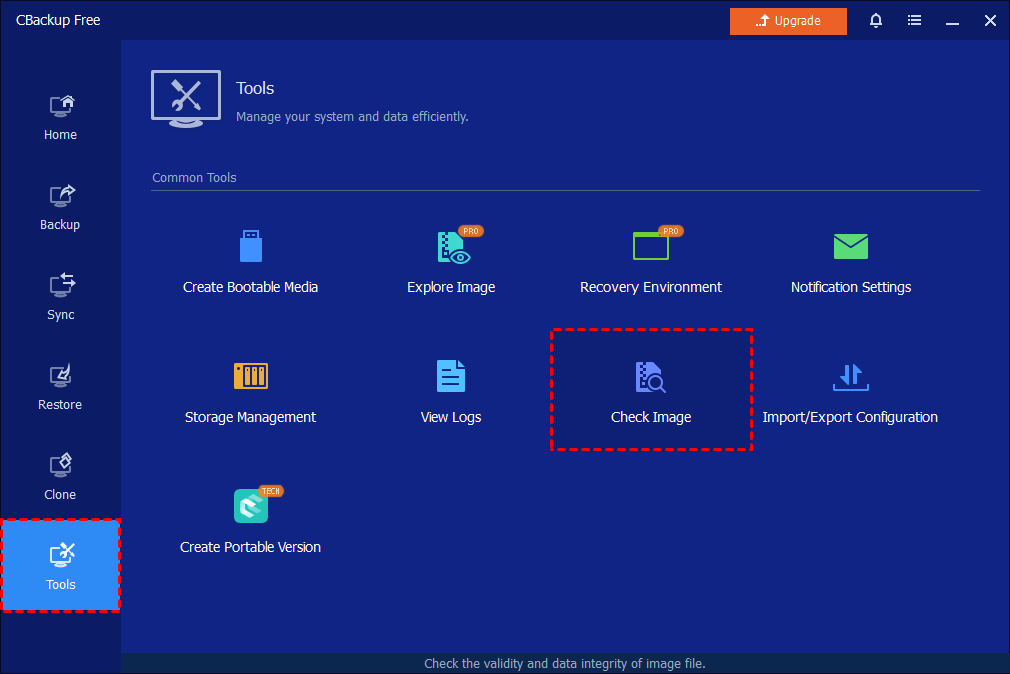
Or, you can directly tick the button "Tools"-"Check Image" and choose the backup image in a certain location to validate. (You can simply check a backup image even the backup task is not listed in the "Home" tab.)
Step 2: Select Backup Point and Start Validating
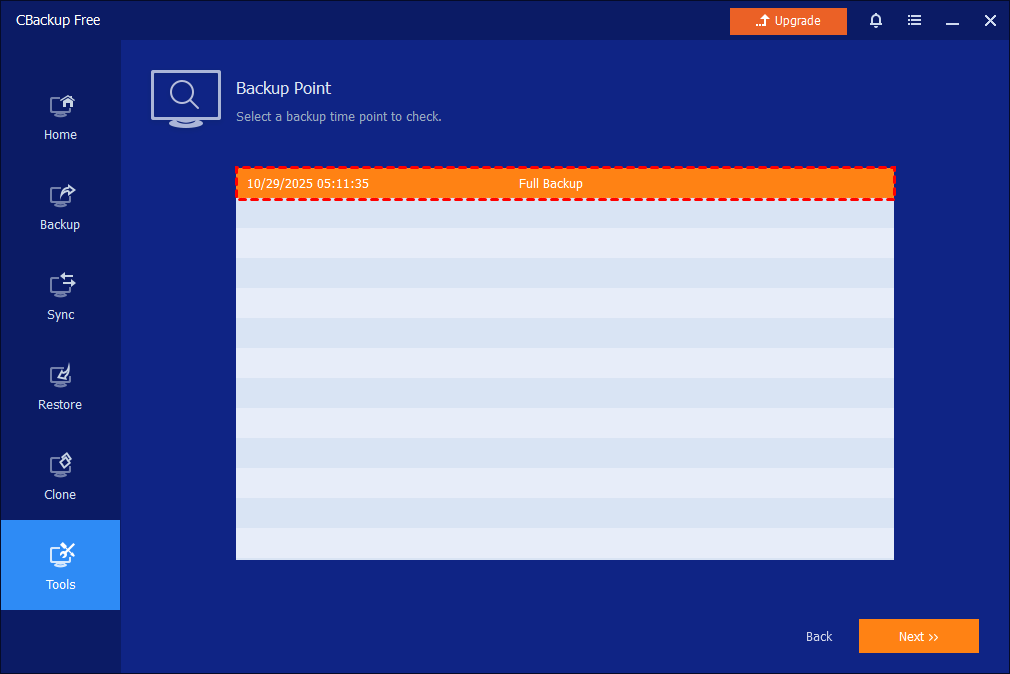
Select a backup point from the desired backup task and click the Next button to start validating.
Step 3: Check Image Result
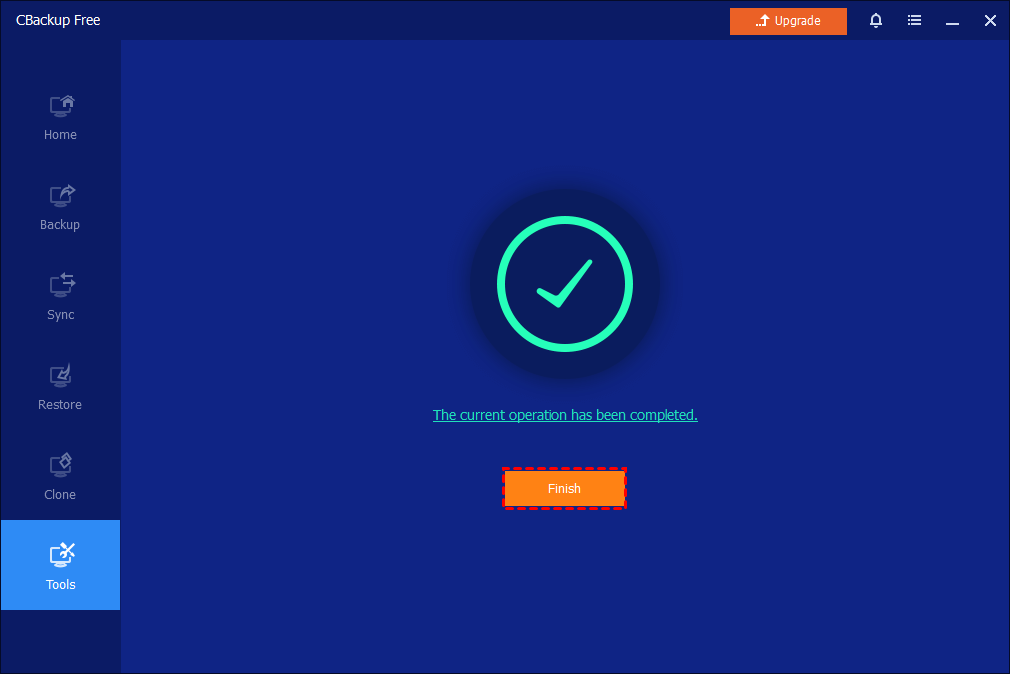
Wait for the process to complete, and then click Finish.
Notes: You can also automatically have CBackup check the backup image immediately after the backup is complete (recommended), by selecting "Automatically check the backup on completion" option under Menu-> Other.
Free Get CBackup Now

Secure & Free
