


How to Run Basic Sync with CBackup
If you want to back up your data and want to see the backup contents at any time, but do not like to create an image file, you can choose to use the Basic Sync feature.

by PublicOwin Lasted Updated January 21, 2026


Basic Sync is a feature which allows you to synchronize folders to other locations, such as an external hard drive, NAS, removable USB flash drive, etc. For Basic Sync, it is like Window's "copy" feature and it would not create image file after sync process is done so you can view your contents at any time.
Here are some examples of situations where basic synchronization may be needed for file operations:
- File Backup: Copying a file from one location to another is a common backup strategy for protecting data from accidental deletion, damage, or loss. By creating a copy of the file, it allows for recovery in case the original file becomes compromised or lost.
- File Migration: When there is a need to move a file from one storage device, server, or system to another, file copying is often performed. This can include transferring files from a local computer to a network shared drive or from one cloud storage service to another.
- File Sharing: When there is a need to share a file with others, copying the file from a personal computer or specific location to a shared folder, network drive, or cloud storage service is often done. This enables others to access, view, or modify a copy of the file without affecting the original.
- Multiple Uses: Sometimes, the same file needs to be used in different applications or environments, but each application or environment may require different modifications or configurations. In such cases, copying the file to different locations and making the necessary modifications and configurations to meet the requirements of each use is common.
- File Sharing Permissions: When sharing files, it may be necessary to apply different access permissions based on different users or user groups. By copying the file to directories for each user or user group and applying appropriate permission settings, fine-grained access control can be achieved.
How to Run Basic Sync with CBackup in Windows 10 Step by Step
Prerequisites for Basic Sync
- Download free file sync software CBackup Standard first and then install it on your Windows computer.
Step 1: Initiate Basic Sync
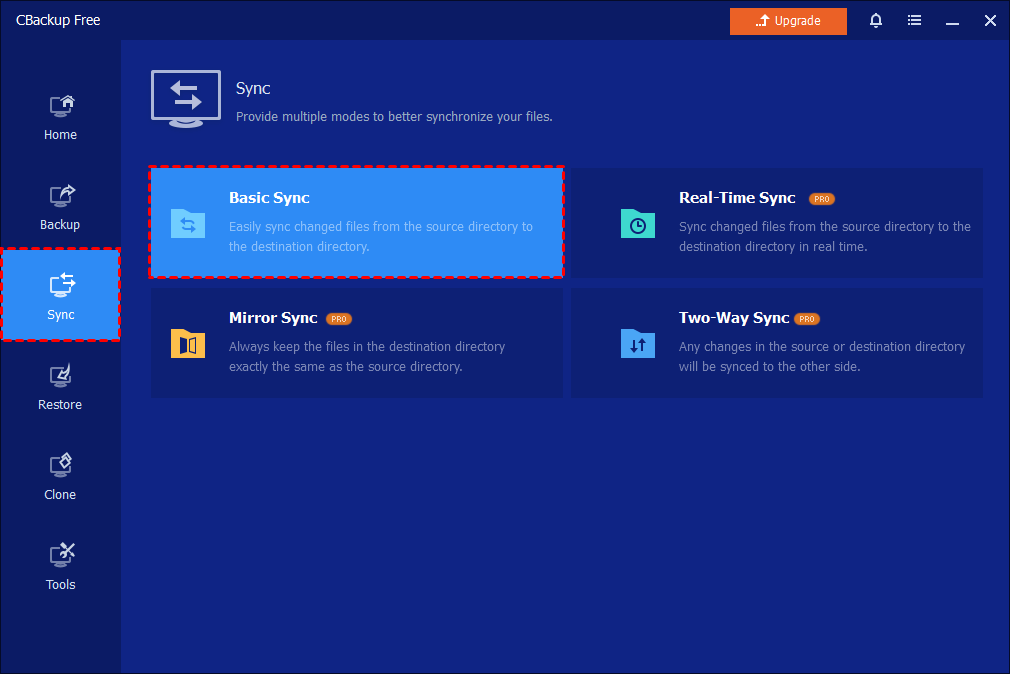
Click the "Sync" tab on the left sides and then select "Basic Sync".
Step 2: Add Folder as Source
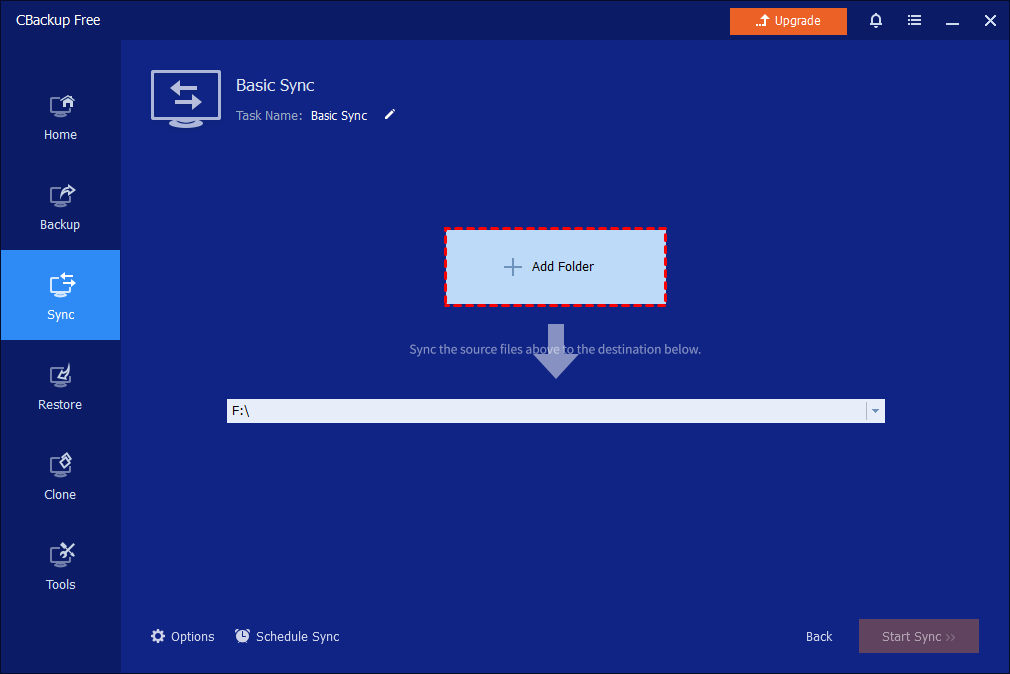
You can name this backup using the Basic Sync Task field to help you distinguish it from other sync tasks. Click "Add Folder" to select the folder that you want to synchronize. You can click the "plus" icon to add more folders to sync.
About File Filter Settings
When needing to filter files after you add the folders, you can click the "funnel" icon to open the "Filter Settings".
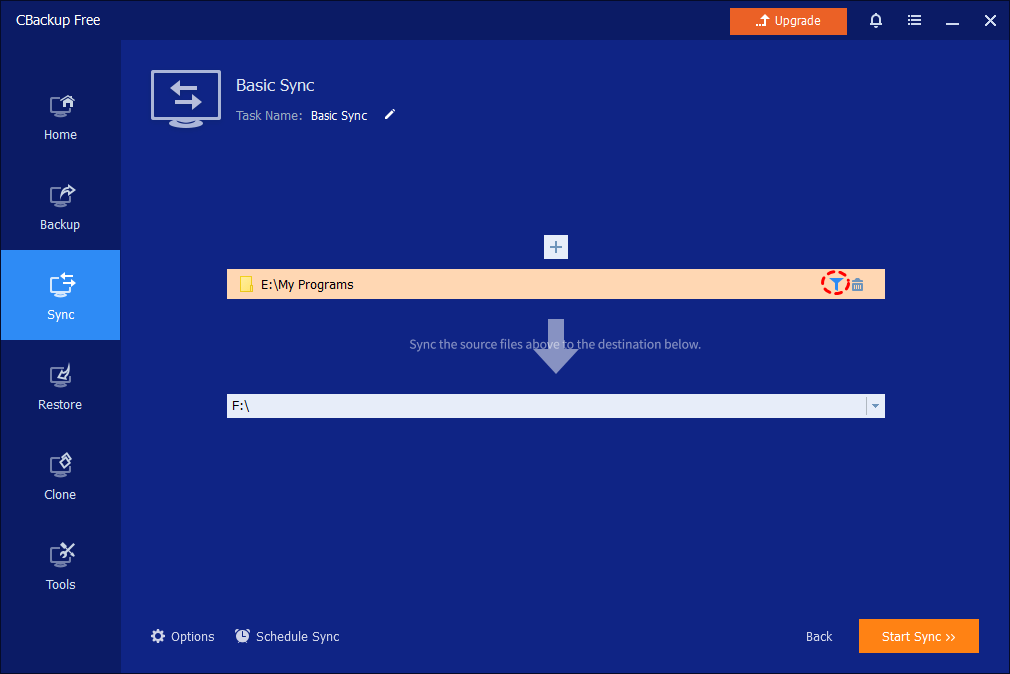
The feature "Filter Settings" can be set after you add source folders. (Only available for paid versions)
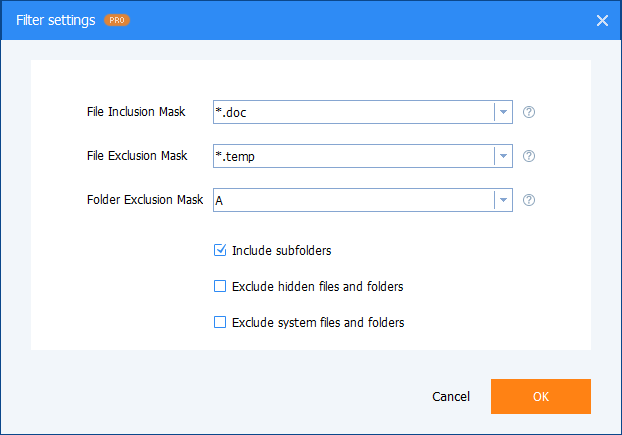
1) The File Inclusion Mask can specify the files that you need to sync. Wildcards are supported and separate multiple masks with a semi-colon(*.doc;*.xls;*.ppt ).
With this mask, you can configure, including sync according to file extensions, such as .doc, .xls, .ppt and so on. So, only files with the same extensions will be synced to the target path.
For example, you would like to only sync .doc files in the selected source folders. You can just configure "*.doc" in the mask. (If you would like to include more extensions, please separate the formats with semi-colons).
2) The File Exclusion Mask specifies the files that you need to exclude. Wildcards are supported and separate multiple masks with semi-colon(*.temp;*.tmp;*.bak;*~*).
With this mask, you can configure to exclude according to file extensions, such as .temp, .tmp, .bak and so on. As a result, all files with the same extensions will not be synced to the destination location.
For example, you would like to only exclude .temp files in the selected source folders. You can just configure "*.temp" in the mask. (If you would like to include more extensions, please separate the formats with semi-colons).
3) The Folder Exclusion Mask specifies the folders that you need to exclude. Wildcards are supported and separate multiple masks with a semi-colon.
With this mask, you can configure to exclude folders with the same name. Therefore, all folders with the same name will not be synced to the destination location.
For example, you would like to only exclude folder "A" in the selected source folders. You can just configure "A" in the mask. (If you would like to include more folder names, please separate the names with semi-colons).
You can also tick the bottom three boxes as you need. After the "Filter settings" option is set, please click "OK".
Please check the 3 filter example settings below:
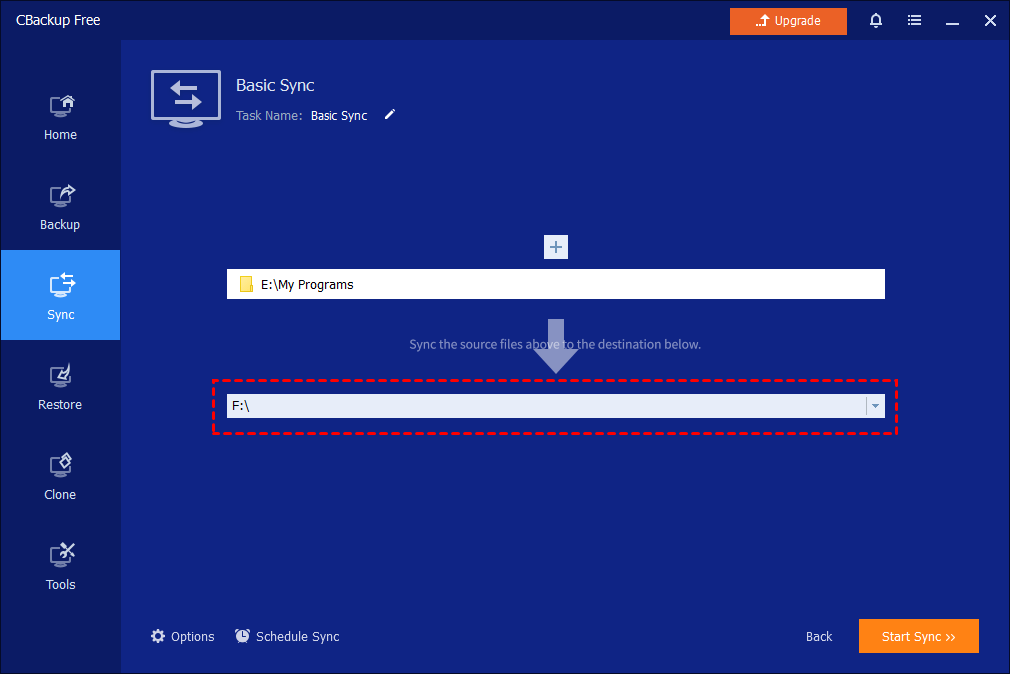
Step 3: Select Destination Location
Select a destination location to store the folder, then click "Start Sync" to perform the operation.
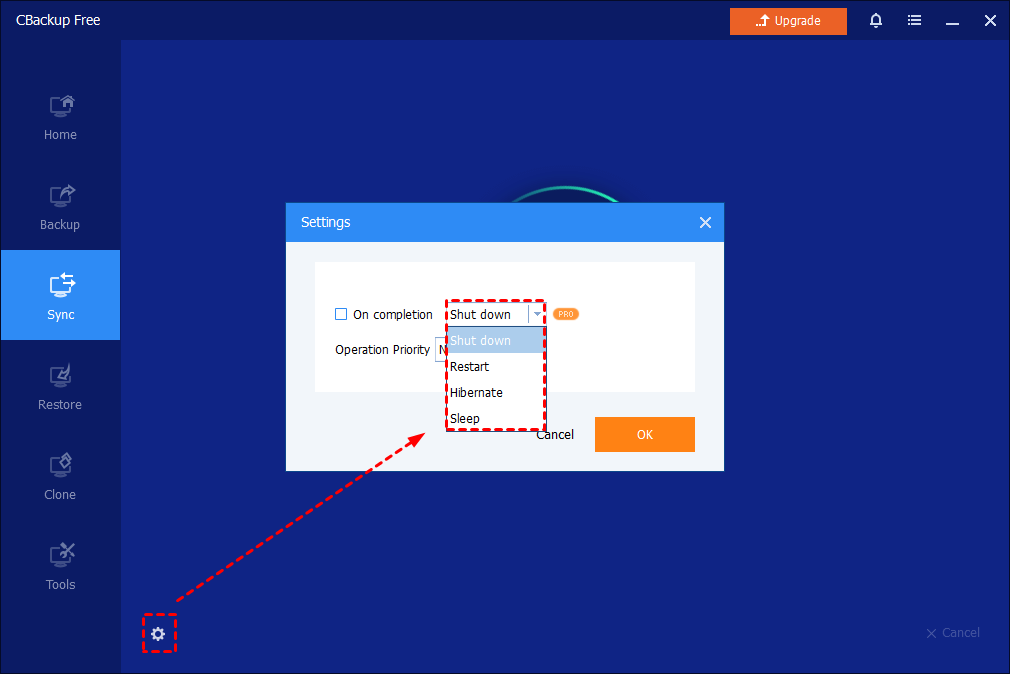
Tips: While sync is running, you can click an icon in the lower-left corner to set to Shut down/Restart/Hibernate/Sleep PC after sync completion.
Step 4: View Sync Process
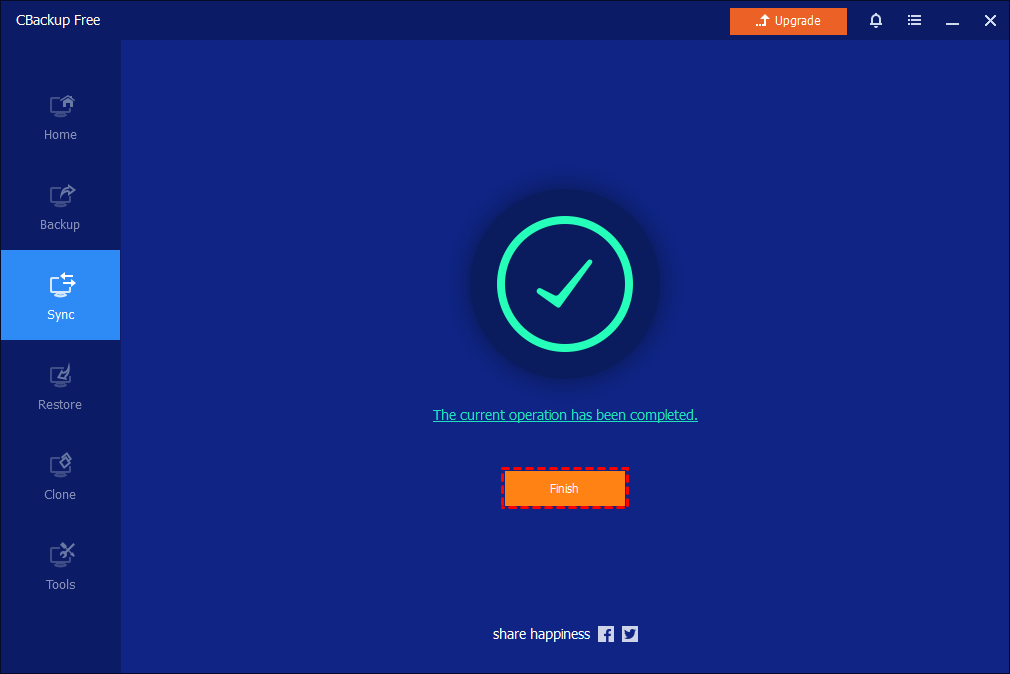
When the sync is running, you can also click the underlined sentence to check the sync process in detail. And, please kindly wait for the sync process to complete and then click the "Finish" button.
Step 5: Sync Result
As a result, you can view the data directly on the destination location.
Tips: When you run the Basic Sync task again, the added and changed data from the source directory will sync to the destination. If you need the files to be deleted from the destination location when they are deleted from the source folder, please tick "Sync the deletions in the source directory to destination" option under Options->General.
Sync Settings (Optional)
When creating a new Basic Sync task, you will find a "Options" button in the lower-left corner of the interface.
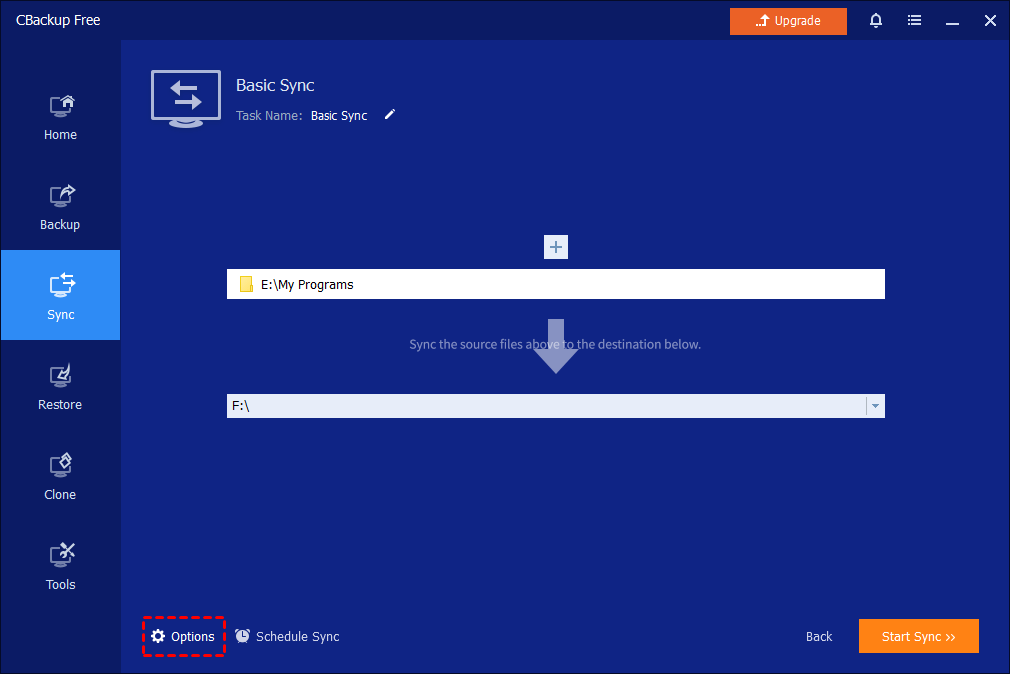
Click the button and you will show "General", "Command", and "Advanced" options.
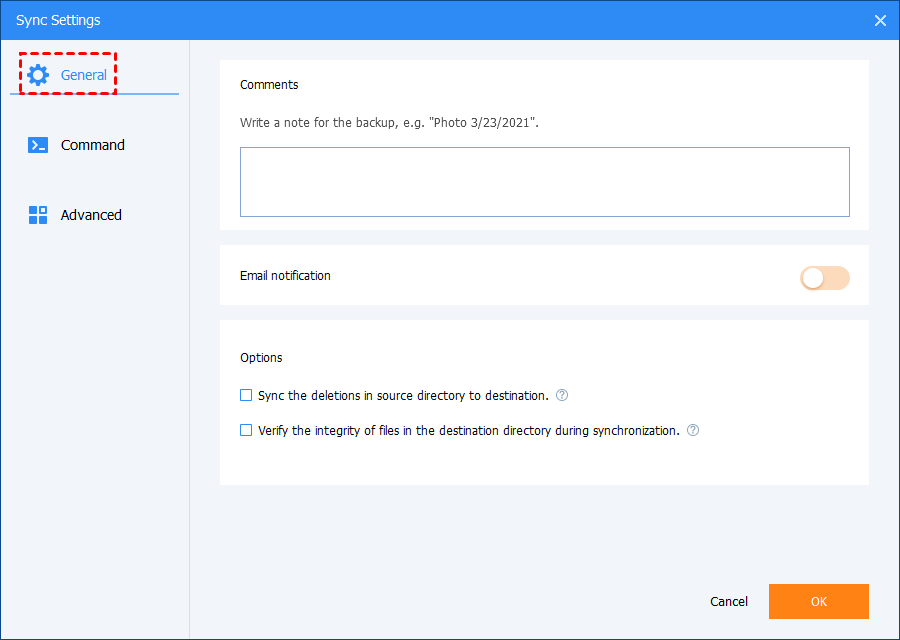
General
-
Comments: Write a note for your task to help you distinguish it from other backup tasks.
-
Email notification: In unattended operations, a notification can be emailed containing the result of each backup.
-
Sync the deletions in the source directory to the destination: When files are deleted from the source directory, the same files in the destination directory will also be deleted.
-
Verify the integrity of files in the destination directory during synchronization: If a file in the source directory does not exist in the destination directory, the missing files will be synced to the destination directory to ensure the integrity of files. (e.g., files in the destination directory are deleted manually.) Tick this option will also increase the sync time.
Command
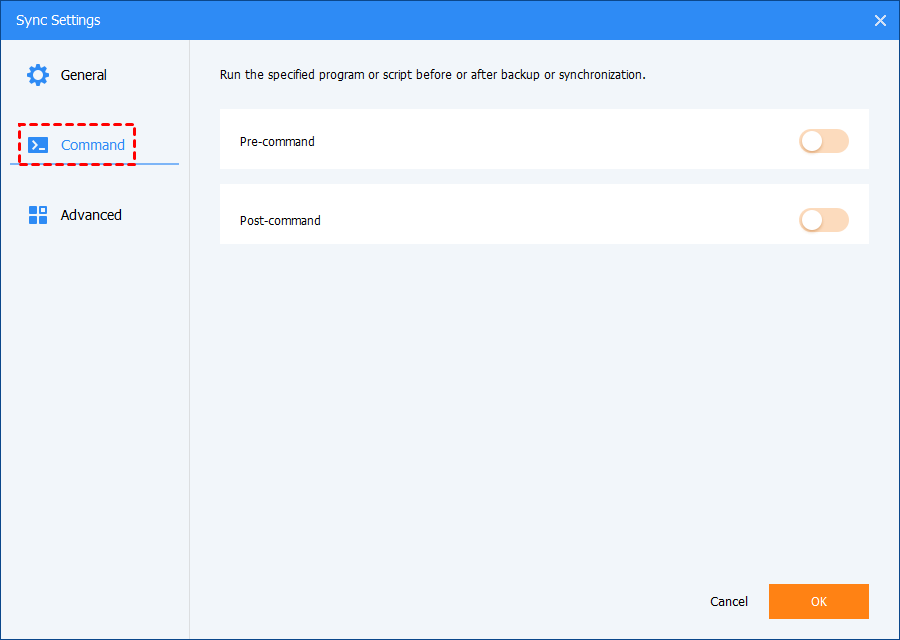
In this option, you can set the pre-command and post-command.
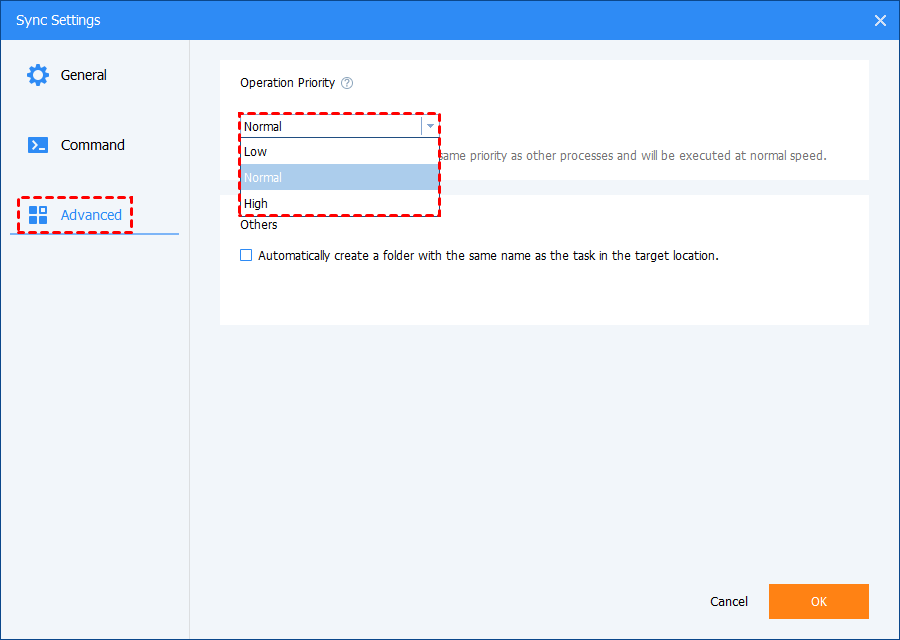
Advanced
-
Operation Priority: Please select the operation priority of the task. The higher the priority it is, the faster the task execution speed will be.
-
Others: If you need the same name as the Basic Task folder in the destination, you need to tick the box "Automatically create a folder with the same as the task in the target location" before you create the basic sync task. (This option is unticked by default.)
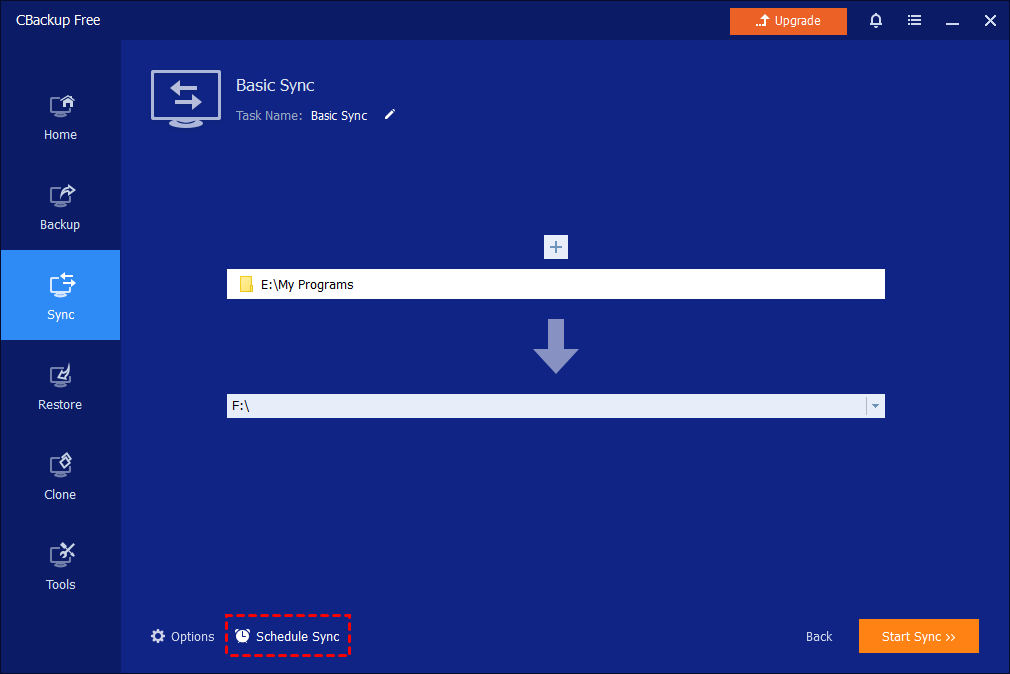
Schedule Sync
Select the "Schedule" option, upon which a dialog box will appear. Schedule the required sync task to sync files Daily, Weekly, Monthly, etc. Also, Event triggers and USB Plug in can be used as a sync method. Please click here to know more details.
Notes:
-
The Basic Sync feature will copy the whole source folder by default (including subfolders and files) to the destination directory unless you configure to include or exclude some files and folders in the "Filter Settings".
-
Please don't modify the folder name of the source folder(s) once basic sync has been set up; otherwise, the sync process can not function properly.
-
For a new basic sync process, if the source file name is the same as one of the destinations that have been synced before, the destination copy will be overwritten. There is no way to keep a different version of a file using the same names.
-
The maximum file path of basic sync is restricted by the maximum path length allowed by the Windows API to 256 characters. So, please check the names of folders you are going to synchronize and shorten them when it's necessary. CBackup can't synchronize folders that have special characters in their names.
-
When performing the Basic Sync operation, CBackup can only sync the contents of folders that have not been renamed or moved. If you wish to change the name or location of the source folders (s) then you must modify the sync task to reflect this.
-
The Basic Sync is a one-way sync. After modifying the source files, it will be synced to the target directory. But if you delete some source files, they will not be synced to the target directory. And if you delete a file in the target directory, it will not be deleted in the source directory, too.
-
If you synchronize the C drive to another disk, it is impossible to boot from the disk you sync to because CBackup only copies all data under the C: drive to another disk, and it does not copy the special boot configuration of your system.
-
Basic Sync supports VSS(Volume Shadow Copy Service). This allows files to synchronize that are being used by other programs. However, you need to make sure that the "Volume Shadow Copy" service on your computer is enabled. If some files are in use by other programs exclusively, they are not synchronized.
-
If there are some special system files or folders with special security attributes in the source folders, they won't be synchronized, and the program will prompt you to skip them.
-
The main function of Basic Sync is to help you synchronize working files and user data files; however, if there are some special system files or files with special security attributes in the source folders (e.g., C:\boot\bcd, C:\Windows\CSC), they are not synchronized.
-
If the target path is located on a FAT/FAT 32 partition, any files larger than 4 GB won't be synced to the target path because a single file larger than 4 GB cannot be stored on FAT/FAT 32 partitions.
-
After synchronizing folders, any changes made directly by the user to the files or folders stored under the destination location will cause inconsistencies between source and destination data.
Conclusion
It is important to note that file syncing can consume storage space and may take time, especially when dealing with large files or a significant number of files. Additionally, ensuring the accuracy and integrity of the sync operation is crucial to avoid data loss or corruption.
FAQs
Q: Why was the source folder created in the destination location?
A: This is the design mechanism for CBackup In order to distinguish the original file in the target location from the file from the source location, a folder with the same name as the original path will be automatically created to contain the synchronized files to prevent confusion with the original file in the target path.
Q: Why are changed/new files not synced to the destination?
A: Please check that you have performed the sync task after the file has been changed.
Q: When files are deleted from the source location, why are they not synced to the destination again?
A: For common/schedule sync, CBackup currently doesn't support deleting files from the destination when deleting from the source. You can try to use Real-time sync and check the "target files will be deleted when deleting the source files" option in the real-time sync settings.
Free Get CBackup Now

Secure & Free
