


How to add Gmail mailbox in CBackup
This article will describe how to add Gmail mailboxes into CBackup.

by PublicOwin Lasted Updated January 21, 2026


When you use CBackup to back up Gmail, you need to add Gmail mailboxes to CBackup first. Please follow the steps below to add Gmail to CBackup.
How to Back Up Email in CBackup
Initiate Email Backup
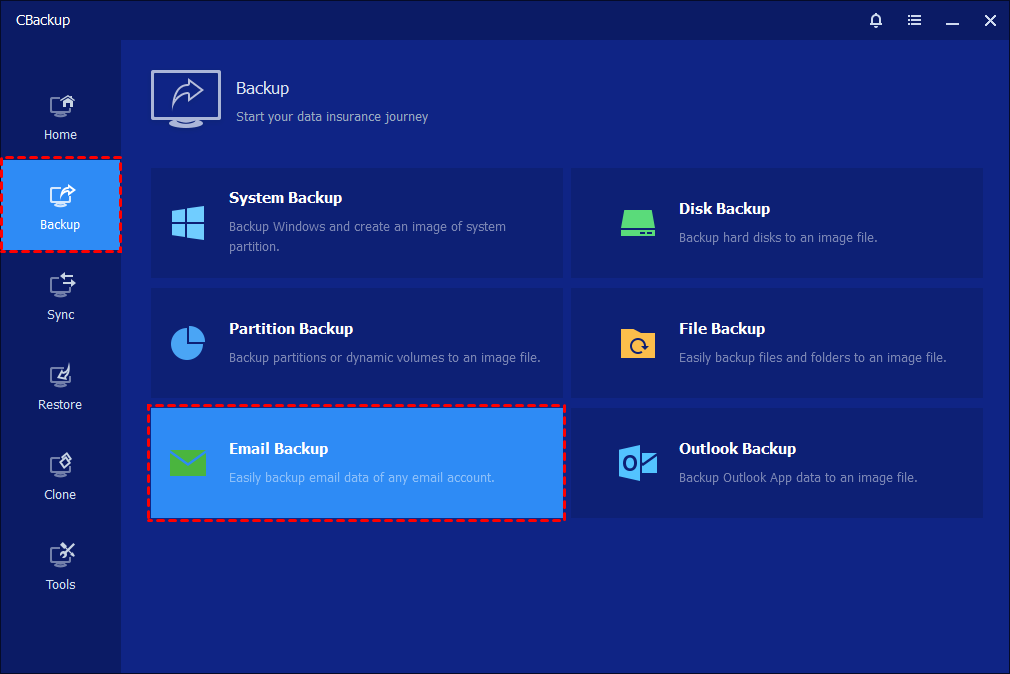
In the left tab page, select "Backup" followed by "Email Backup".
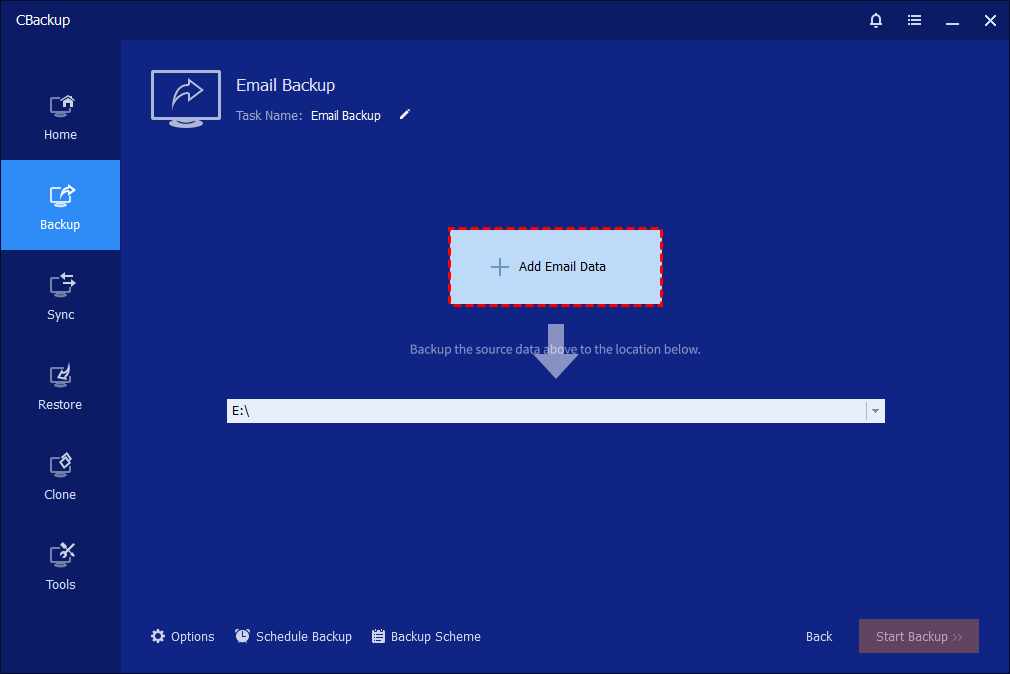
Add Email Data
Click "Add Email Data" to add emails.
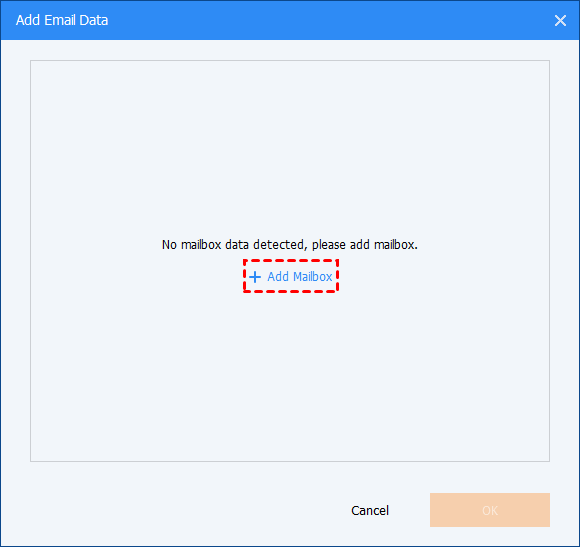
and then click "Add Mailbox" to add one or multiple Gmail mailboxes that you’d like to back up.
Enter Gmail Parameters
Type into the related parameters of Gmail.
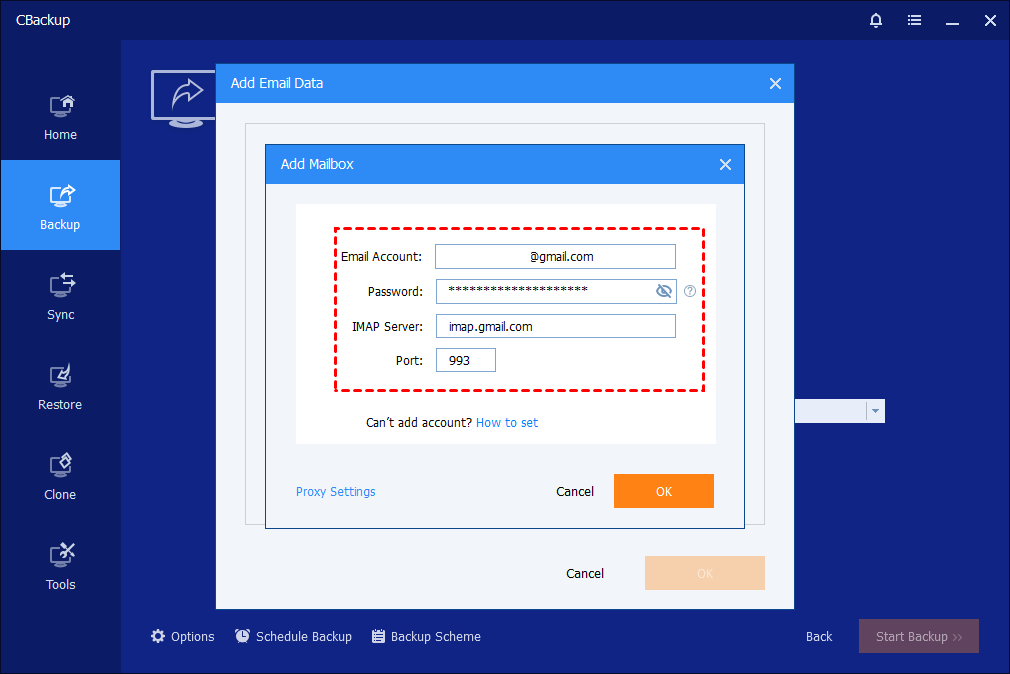
Email Account: Please continue to type into the Gmail address.
Password: Please type the App Password of your Google account here.
How to Enable App Password on Google
Log in Google Account
To enable the app password, please follow the steps below:
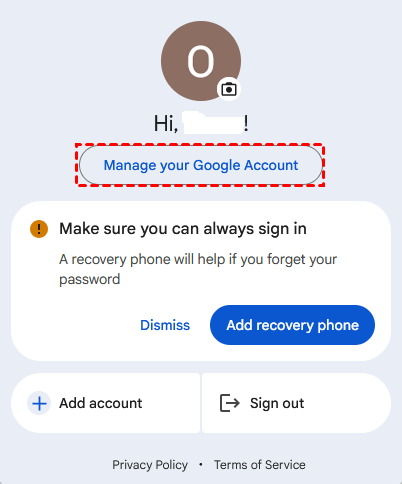
Log in to your Google account first, and then click "Manage your Google Account".
Turn on 2-Step Verification
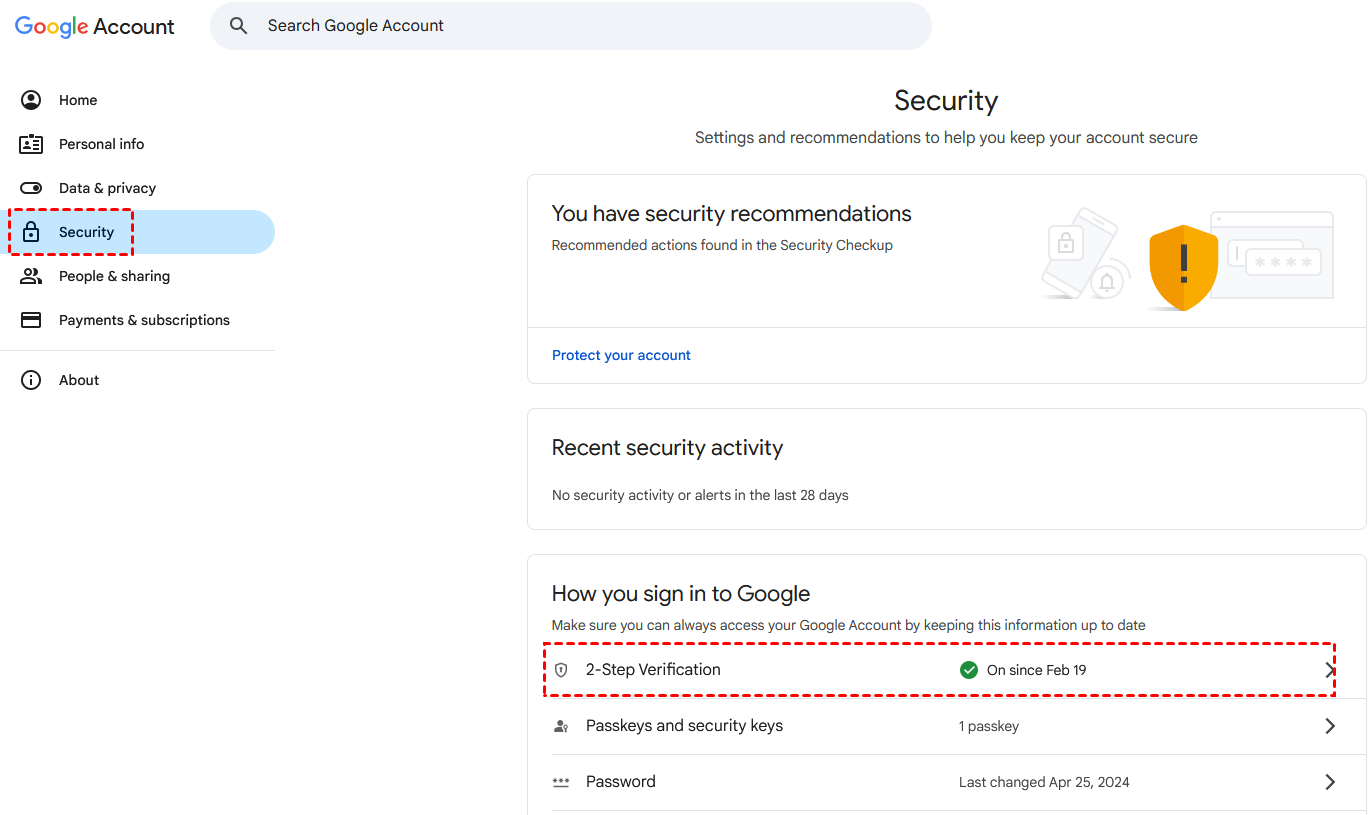
Click "Security" and check if you have turned on the 2-Step Verification. If not, please first turn it on.
Search App Passwords
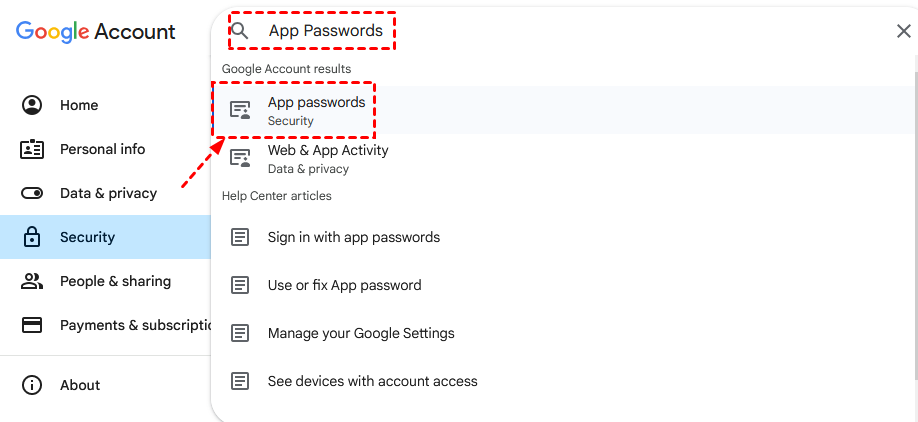
Then, you can just search "App Passwords" in the search box and then select the listed "App passwords" option.
Create App Passwords
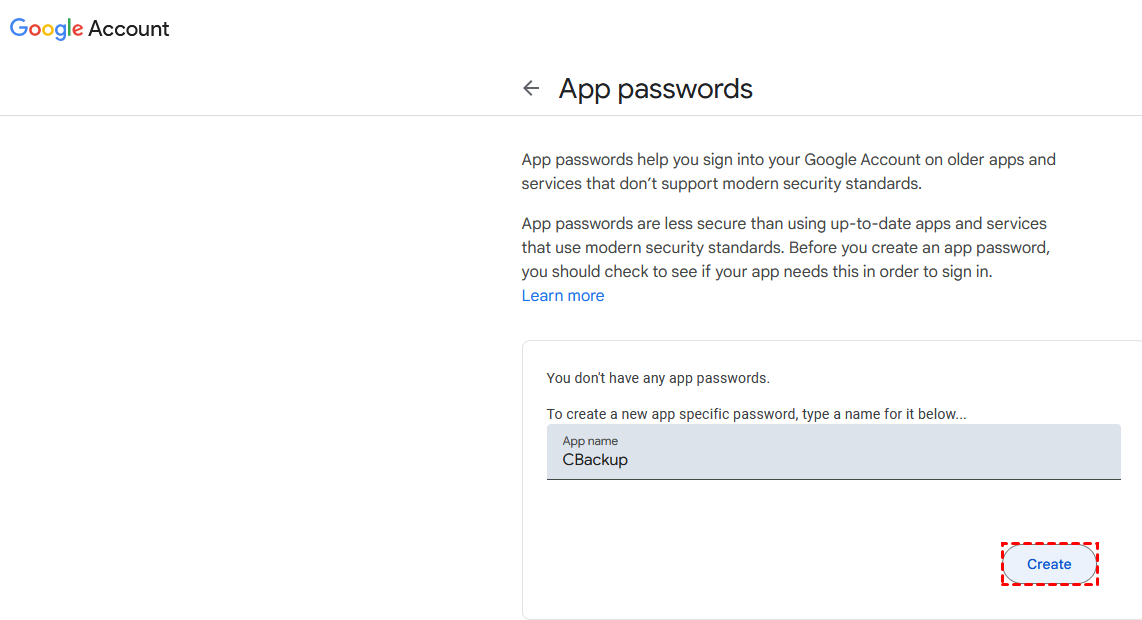
After the account is verified, you can create the App passwords. For example, you can enter "CBackup" and then click the "Create" button.
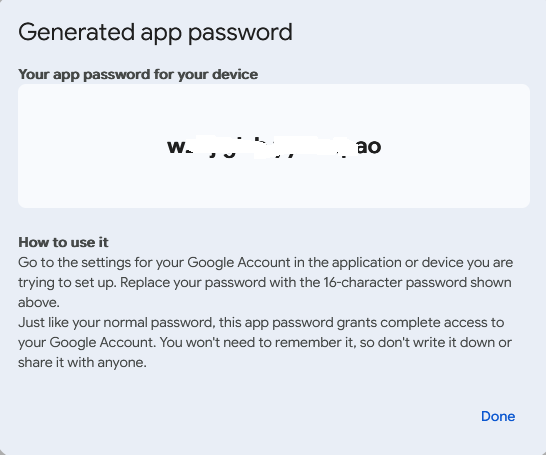
Finally, you will get the generated App Password.
IMAP Server: IMAP stands for Internet Message Access Protocol, a type of Internet protocol. It is used to access emails stored on the server. Its main function is that mail clients can get mail messages from mail servers and download them through IMAP protocol. The IMAP server for this option will automatically match the user's mailbox format.
Port: The mailbox port for this option is also automatically matched to the user's mailbox format.
Tips: If you need to use a Proxy, you can enable "Proxy Settings" to set a Proxy based on your needs.
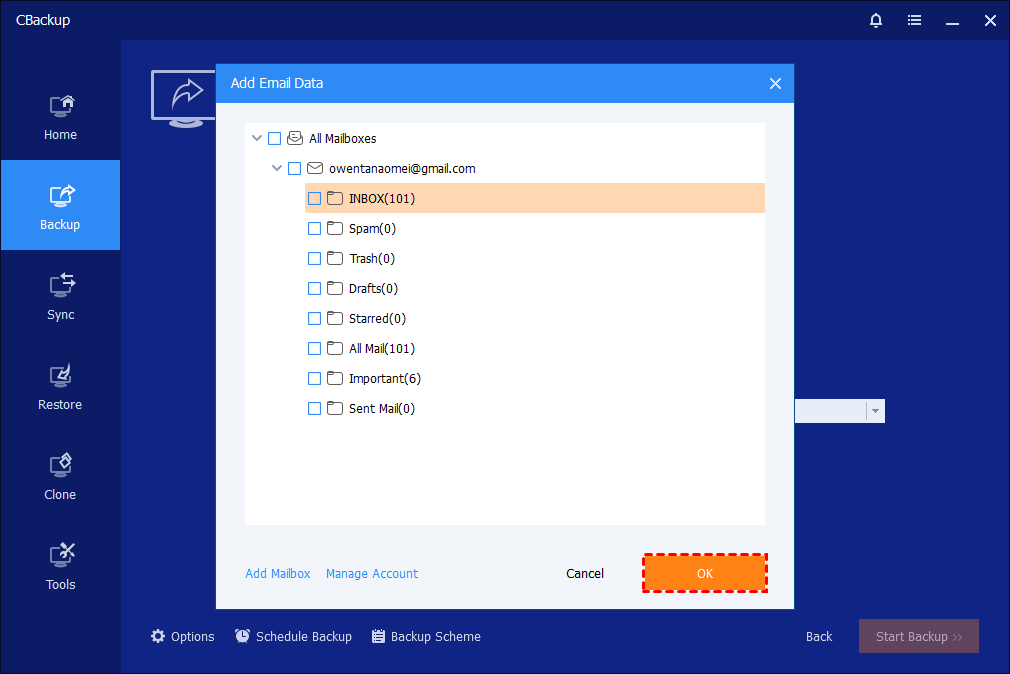
Click "OK", then your Gmail mailbox has been added successfully.
Above are the detailed steps to add Gmail to CBackup.
You can back up your emails in Gmail after adding them.
Free Get CBackup Now

Secure & Free
