
Conventional Way to Restore iPhone from iCloud
Before going straight to the solutions on how to restore iPhone from iCloud without resetting, Let’s know the conventional ways for iCloud to iPhone data restore. There are 2 solutions for how to restore iPhone from iCloud Backup. You can perform them on your mobile or computer.
Solution 1: On Mobile
Step 1: Turn on your iPhone to see the Hello Screen. Then, finish other settings until the “Apps & Data” page and choose “Restore from iCloud Backup”.
Step 2: Sign in to iCloud with your Apple ID and password.
Step 3: Select the most relevant backup from the list of available backups and wait for the restoration process to complete.

Solution2: On Computer
Step 1: Connect your iPhone to the Mac with a cable and trust this computer on your iPhone pop-up window.
Step 2: Open Finder and select iPhone on the left sidebar.
Step 3: Click on the “Restore Backup…” button. Then, select the latest backup date and enter your password.
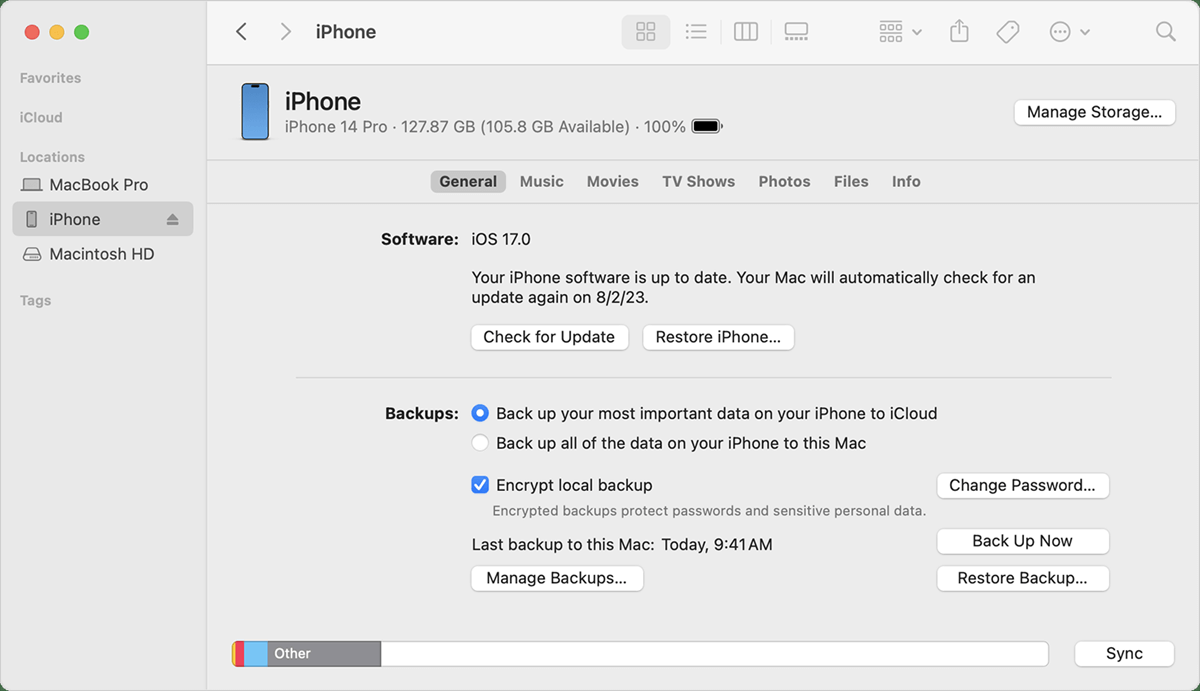
Step 4: Tap on “Restore” and wait for the restore task to finish.
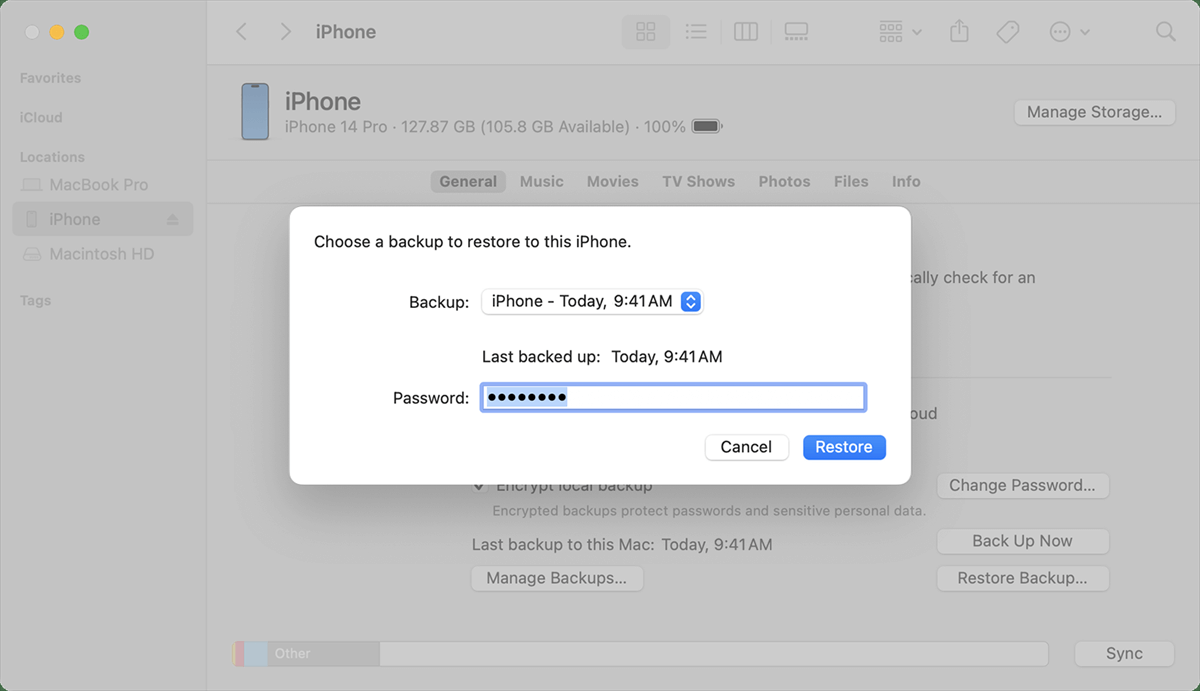
Although these 2 methods can restore data from iCloud to iPhone, you may face data loss when using them since the process will replace the current iPhone data. Also, if you want to utilize the first method after setting up, you have to erase all data on your iPhone to see the Hello Screen.
Therefore, if you want to restore some data deleted from your iPhone but saved in iCloud without making changes to the existing data on your iPhone, you can try the steps in the following parts to achieve restoration without resetting.
How to Restore iPhone from iCloud without Resetting via iCloud.com
Unfortunately, there is no perfect way to restore iCloud to your iPhone. But you can take advantage of iCloud.com and download some data from iCloud to the iPhone, such as your photos, notes, documents, contacts, reminders, and emails. The benefit of using iCloud.com is that it can be accessed on any browser with a network connection on both macOS and Windows computers. As long as you backed up the desired iPhone data to iCloud, you can find the data on this website and download it.
It is simple to download data from iCloud.com. Here are the steps for downloading photos from iCloud to iPhone on iCloud.com.
Step 1: Connect your iPhone to the computer with a cable.
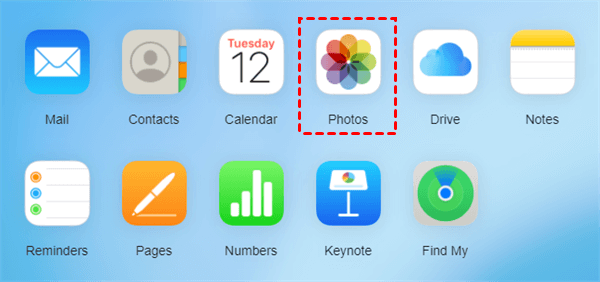
Step 2: Enter iCloud.com and choose the Photos logo.
Step 3: Select the photos you want to download and click the download icon (a cloud with a downward arrow).
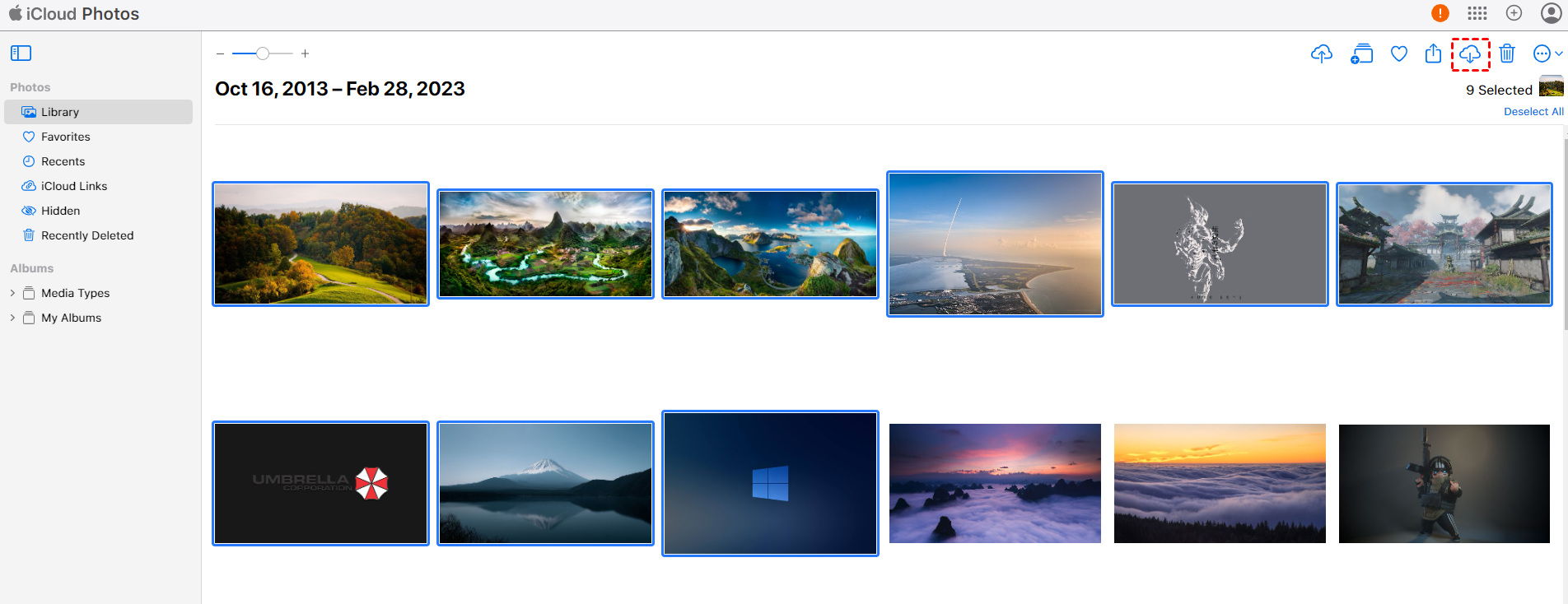
Step 4: Choose your iPhone as the download destination and wait for the downloading process to complete.
How to Restore iPhone from iCloud without Resetting via MultCloud
If you only need to restore iCloud Drive documents or iCloud Photos pictures to your iPhone without resetting, you can also try MultCloud. It is a multiple cloud storage manager and supports 30+ cloud drives, including iCloud Drive and iCloud Photos. After you add your iCloud Drive and iCloud Photos accounts, you can download files from these 2 clouds easily.
Download from iCloud Drive or iCloud Photos to iPhone on MultCloud
Step 1: Connect your iPhone to the computer with a cable.
Step 2: Open your preferred browser and change the downloading destination to the iPhone in your browser settings.
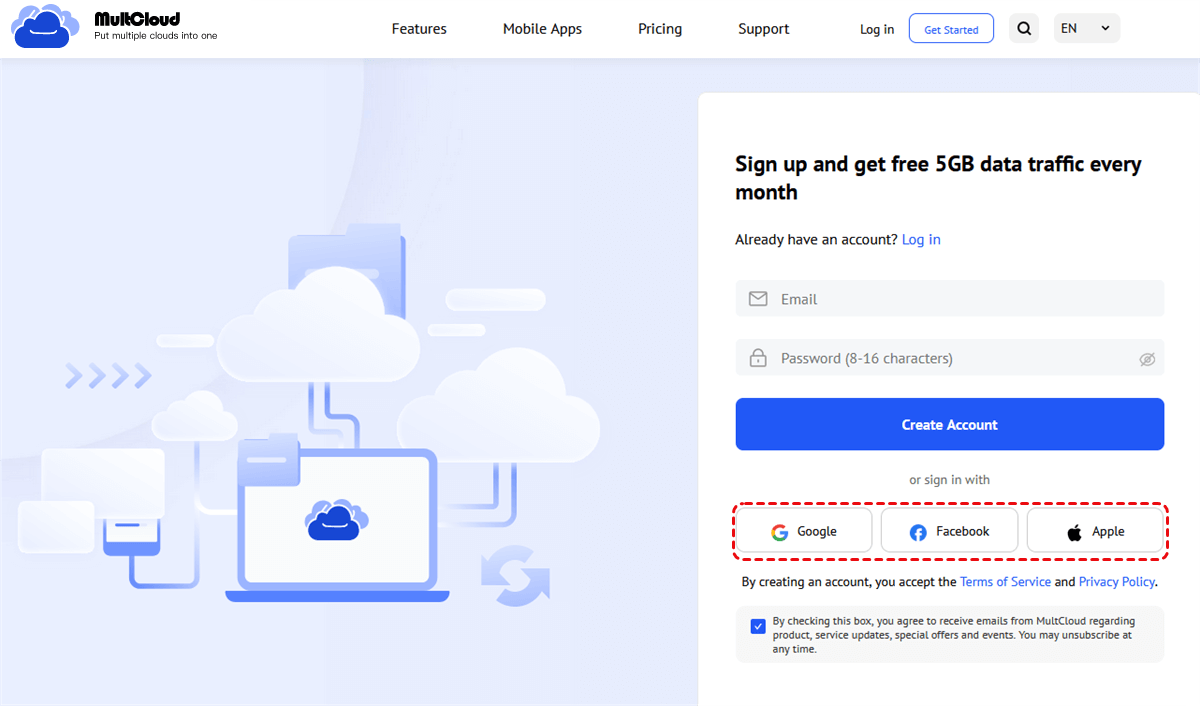
Step 3: Enter MultCloud and sign up for a free MultCloud account.
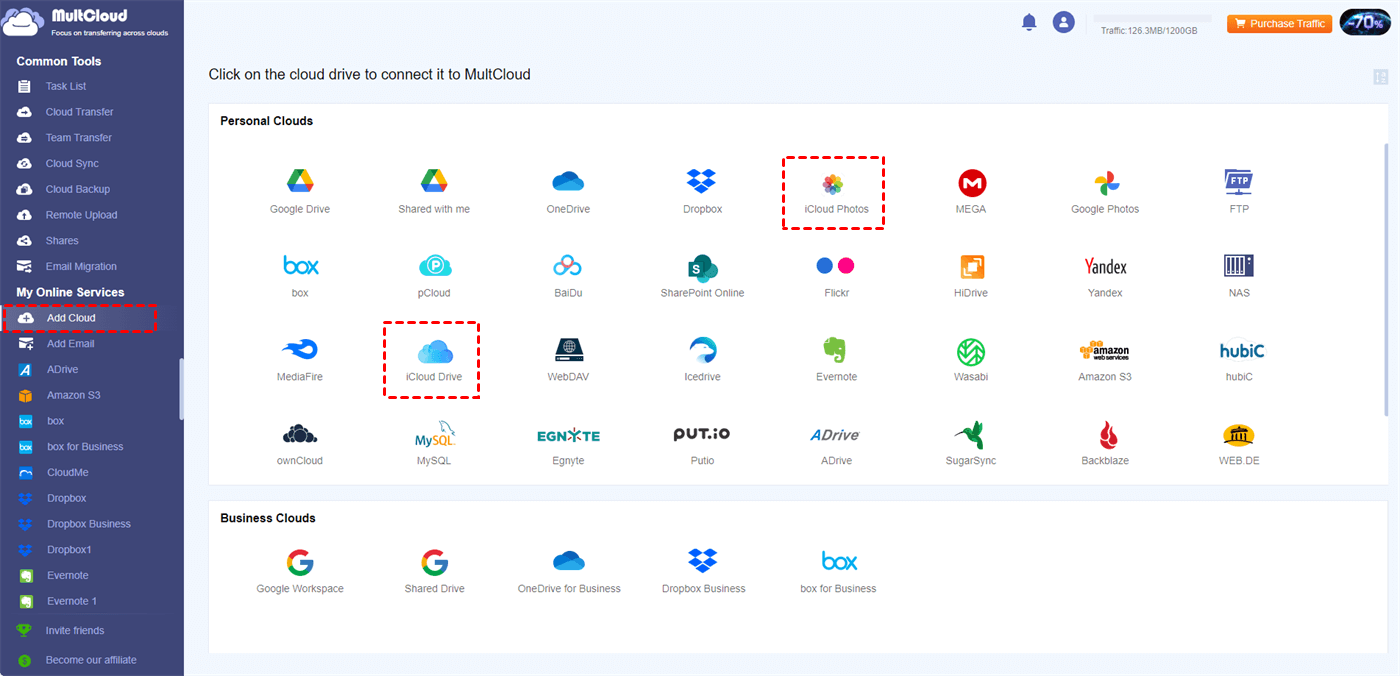
Step 4: Add iCloud Drive or iCloud Photos to MultCloud by clicking “Add Cloud” and their logo. Then, go through the two-factor authentication to log in to your iCloud Drive or iCloud Photos account.
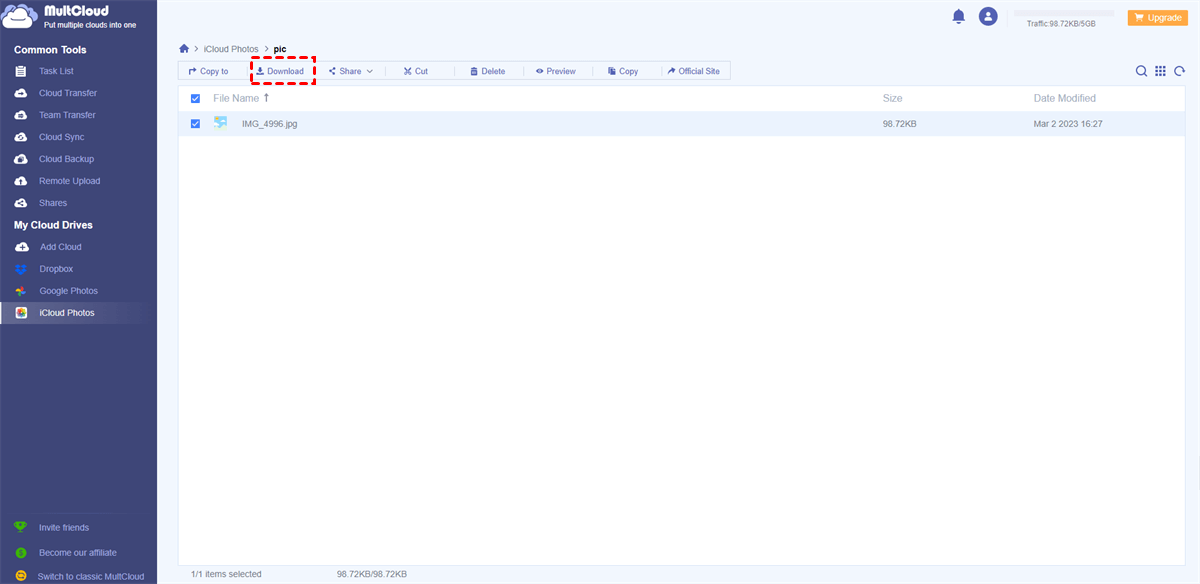
Step 5: Open iCloud Drive or iCloud Photos on MultCloud, select the files you want to download, and click on “Download” in the upper bar to start this task.
Bonus Tip: Backup iCloud to Another Cloud via MultCloud
Since iCloud may store a lot of important files, it is a good choice to backup these files. In this regard, you can consider backing up them to another cloud. Backup up files to a cloud drive instead of a hard drive can benefit by saving local storage and files can be accessed on any device.
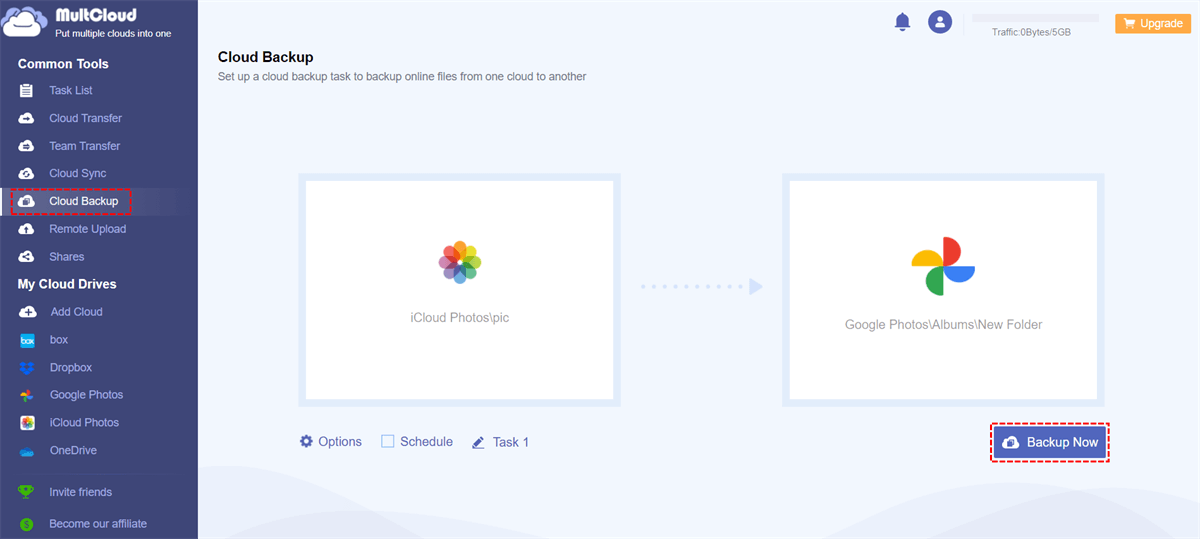
To perform cloud-to-cloud backup. MultCloud can also play a role. Its Cloud Backup function can help backup and restore iCloud Drive documents or iCloud Photos pictures with Google Drive, Google Photos, OneDrive, Dropbox, Box, or others. You can see the easy steps for backing up iCloud Photos to Google Photos by Cloud Backup below.
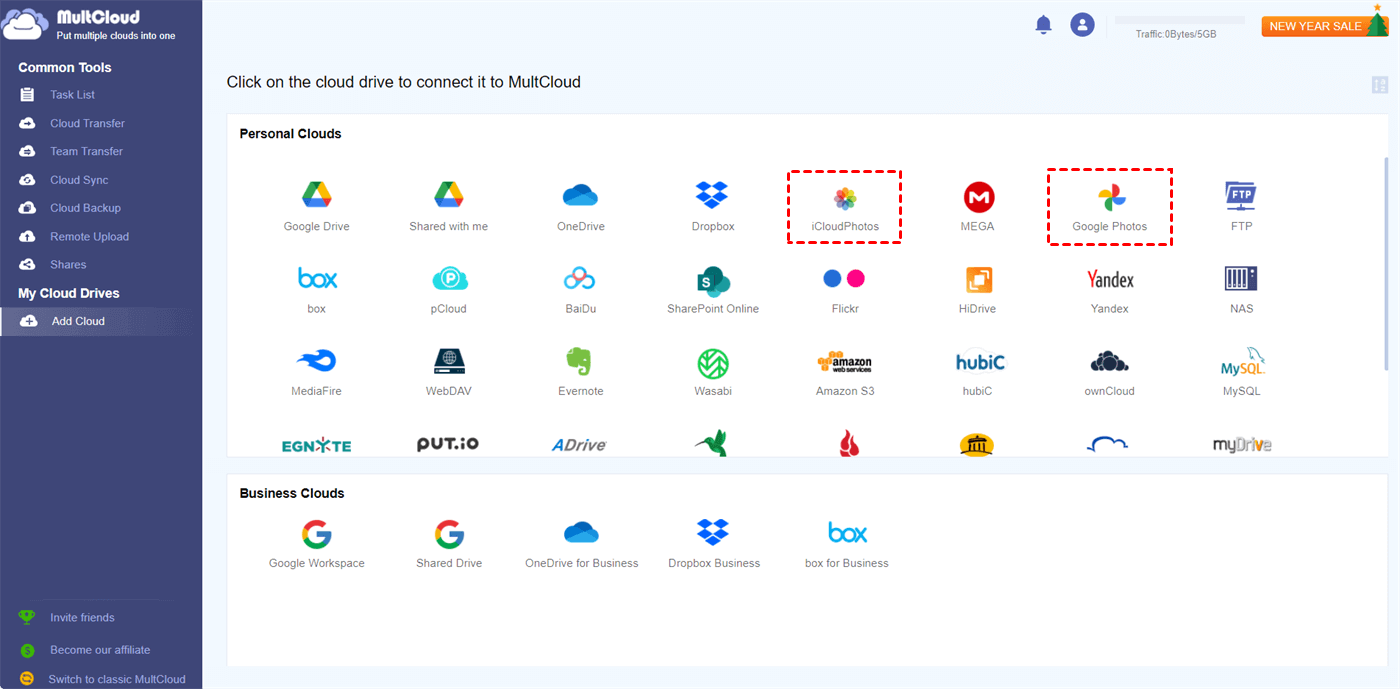
Step 1: Sign up and add iCloud Photos and Google Photos to MultCloud.
Step 2: Select “Cloud Backup” in the left sidebar and choose iCloud Photos as the source and Google Photos as the target. Then, tap “Backup Now” to start this task.
Step 3: If you want to restore, enter “Task List”, find the backup task, and click the 3-line icon. Then, choose “Restore” in the dropdown menu, and select the file version and restore destination. Finally, choose to save in a new folder or the original folder, and click “Restore” to start transferring.
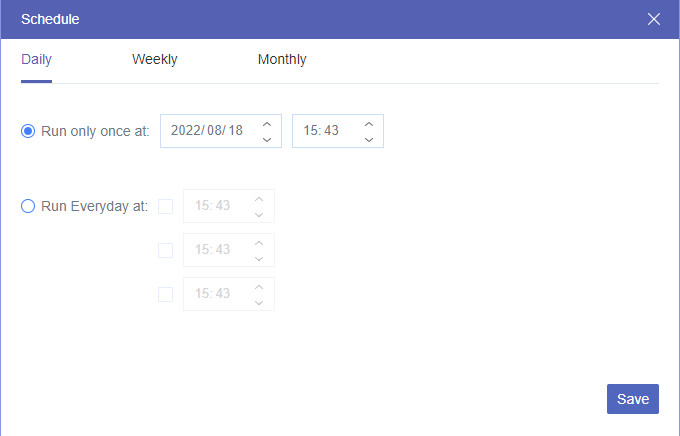
Note: If you want the backup task to run regularly, you can use “Schedule” to set a backup frequency.
Conclusion
As you can see, if you want to restore complete data from iCloud to the iPhone, you may have to use the conventional ways to reset your iPhone which may result in data loss. However, if you try the solution on how to restore iPhone from iCloud without resetting it, you can only restore parts of data from iCloud to the iPhone. It depends on your requirements to choose which methods to utilize.
Additionally, if you want to backup iCloud Drive or iCloud Photos to another account or cloud, don’t miss MultCloud Cloud Backup. It can automate the backup process and allow you to restore different versions of files.
MultCloud Supports Clouds
-
Google Drive
-
Google Workspace
-
OneDrive
-
OneDrive for Business
-
SharePoint
-
Dropbox
-
Dropbox Business
-
MEGA
-
Google Photos
-
iCloud Photos
-
FTP
-
box
-
box for Business
-
pCloud
-
Baidu
-
Flickr
-
HiDrive
-
Yandex
-
NAS
-
WebDAV
-
MediaFire
-
iCloud Drive
-
WEB.DE
-
Evernote
-
Amazon S3
-
Wasabi
-
ownCloud
-
MySQL
-
Egnyte
-
Putio
-
ADrive
-
SugarSync
-
Backblaze
-
CloudMe
-
MyDrive
-
Cubby

Save Email as PDF
After adding Gmail or Outlook to MultCloud, it can convert emails to PDF and save them on your device or cloud storage.
Get Started for Free