


Best Acronis Alternatives in 2026: Backup Tools Compared
You may want to seek an Acronis alternative for system backups. This article evaluates the best Acronis True Image alternatives, detailing both premium and free alternatives to Acronis True Image for Windows

By Irene Updated June 9, 2026


🌟 TL;DR: 6 Best Acronis Alternatives
Many users are seeking alternatives to Acronis due to high system resource usage, complex features, and subscription pricing. This article reviews CBackup, Macrium Reflect, Veeam, Nakivo, Carbonite, and Clonezilla to help you find a lighter, more cost-effective data protection solution. Here is a table to help you quickly find the Acronis alternative.
| Software | Best For | Overall Rating |
|---|---|---|
| CBackup | Most Windows users | ⭐ 4.9 |
| Macrium Reflect | Disk imaging | ⭐ 4.8 |
| Veeam | Enterprise backup | ⭐ 4.7 |
| Nakivo | SMB virtualization | ⭐ 4.6 |
| Carbonite | Cloud backup | ⭐ 4.5 |
| Clonezilla | Free disk cloning | ⭐ 4.5 |
While advanced users and large enterprises will benefit from specialized tools like Macrium or Veeam, CBackup stands out as the ultimate choice for everyday Windows users wanting the perfect balance of simplicity, cloud flexibility, and reliability.
6 best Acronis alternatives reviews
🥇 CBackup
CBackup has become one of the most recommended Acronis True Image alternatives for Windows users who want reliable backup protection without dealing with complicated setup processes or heavy system resource usage. Instead of trying to combine too many unnecessary tools into one package, CBackup focuses on what most users actually need: stable backups, smooth recovery, and simple day-to-day management. This balanced approach makes it especially appealing to home users, remote workers, and small businesses looking for dependable data protection without technical frustration.
One of the most noticeable advantages during testing is how lightweight the software feels during normal operation. Many backup applications continue running aggressive background services that slow down startup times or increase CPU usage during scheduled tasks. CBackup handles backup operations much more efficiently, even on older laptops and office computers with limited hardware resources. Backups can run quietly in the background while users continue working, streaming, gaming, or editing files with very little impact on overall system performance.
CBackup also makes backup automation simple and effective. Users can easily schedule daily, weekly, or monthly backups, helping prevent data loss caused by forgotten manual backups, hard drive failure, or accidental deletion.
It also works well for disk backup and system migration. It is alsoreliablesynchronization software. File sync features are useful for keeping files and folders updated across different storage locations.
Its clean and beginner-friendly design is another key benefit. Even people with limited technical knowledge can set up and run their first backup in just a few steps. For Windows users looking for an Acronis True Image alternative free of complex configurations, CBackup offers dependable backup protection while keeping the process simple and easy to manage.
📊 Review Summary
| Category | Details |
|---|---|
| ⭐ User Reviews | 200+ positive reviews across software communities and tech blogs |
| 💻 Best For | Windows users, home users, small businesses |
| ☁️ Cloud Support | Yes |
| 🔄 Backup Types | System, disk, partition, file sync |
| 🧩 Ease of Use | Excellent |
| 💰 Free Version | Yes |
⚙️ Key Features
✔️ System backup and disk cloning for Windows PCs
✔️ File synchronization to local and cloud destinations
✔️ Automatic scheduled backups
✔️ Combined cloud storage management
✔️ Lightweight background performance
✔️ SSD and HDD migration support
👍 Pros
✅ Extremely beginner friendly interface
✅ Very low CPU and RAM usage
✅ Reliable automated scheduling
✅ Generous free features compared with competitors
✅ Excellent value for cloud backup users
👎 Cons
❌ Advanced enterprise virtualization features are limited
❌ No native macOS version currently available
💬 User Real Experience Sharing
“I switched after Acronis slowed down my gaming PC badly. CBackup feels much lighter and easier to manage. My backups now run automatically every night without interrupting my work.”
“I combined several free cloud accounts and saved a lot of money on backup subscriptions. The setup process was surprisingly easy.”
⭐ Overall Rating
4.9/5
🥈 Macrium Reflect
Macrium Reflect has earned a strong reputation among IT professionals and advanced users who prioritize dependable disk imaging and disaster recovery. Unlike many modern backup suites that try to combine antivirus tools, cloud storage, and optimization utilities into one bloated package, Macrium remains highly focused on imaging accuracy and recovery reliability.
One area where Macrium Reflect performs exceptionally well is bare metal recovery. Users who experience drive failures frequently mention how quickly they can restore an entire operating system without corruption or missing files. This reliability has made Macrium especially popular among technicians, developers, and workstation users handling sensitive projects.
Many users look for backup software that can operate smoothly without putting too much strain on system resources. Macrium Reflect stands out with its lightweight architecture, helping maintain good system performance even during large disk image creation tasks. For those seeking an Acronis True Image alternative free of unnecessary system overhead, it offers an efficient backup experience with minimal impact on everyday computer use.
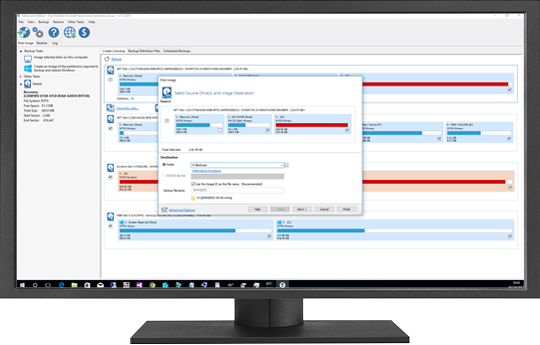
Macrium Reflect also includes advanced features such as image verification and recovery to different hardware. This is especially helpful when upgrading to a new PC or replacing old hardware. Many experienced users see these tools as major advantages.
However, beginners may find the interface more technical than simpler cloud based backup solutions. Although the software is powerful and reliable, some users may need extra time to learn backup imaging and recovery settings.
📊 Review Summary
| Category | Details |
| ⭐ User Reviews | 200+ strong reviews from IT professionals |
| 💻 Best For | Advanced users and technicians |
| 🔄 Backup Types | Full imaging and recovery |
| ⚡ Performance | Lightweight and efficient |
| 💰 Licensing | Perpetual licensing available |
⚙️ Key Features
✔️ Full system imaging
✔️ Bare metal recovery
✔️ Image verification technology
✔️ Recovery on dissimilar hardware
✔️ Rescue media creation
👍 Pros
✅ Highly reliable recovery performance
✅ Lightweight system impact
✅ Trusted by IT professionals worldwide
✅ Excellent imaging speed
👎 Cons
❌ Interface may overwhelm beginners
❌ Limited built in cloud backup features
💬 User Real Experience Sharing
“My workstation SSD failed unexpectedly. Macrium restored everything perfectly in under half an hour. It saved weeks of work.”
“I appreciate that it focuses on backup reliability instead of stuffing the software with unnecessary extras.”
⭐ Overall Rating
4.8/5
🥉 Veeam
Veeam is considered one of the strongest enterprise grade alternatives to Acronis, particularly for organizations operating virtualized environments. Businesses using VMware and Hyper V infrastructures frequently choose Veeam because of its outstanding recovery speed and centralized management tools.
One of the biggest concerns for enterprise administrators is downtime. Veeam directly addresses this issue through instant virtual machine recovery, allowing businesses to restore critical services within minutes after a server failure. This capability significantly reduces operational interruptions and financial losses.
Security is another major factor driving Veeam’s popularity. Many companies now prioritize ransomware protection, and Veeam’s immutable backup storage has become a highly valued feature for safeguarding sensitive infrastructure.
Veeam also excels in granular recovery tasks. Instead of restoring entire servers, administrators can recover individual emails, database objects, or files quickly. This saves tremendous amounts of time during daily IT operations.
Although Veeam delivers exceptional performance, it is primarily designed for medium and large businesses. Smaller companies and home users may find the pricing and deployment complexity excessive for simple personal backups.
📊 Review Summary
| Category | Details |
| ⭐ User Reviews | 200+ enterprise level reviews |
| 💻 Best For | Large businesses and virtualization |
| ☁️ Cloud Integration | Extensive |
| 🛡️ Security | Strong ransomware protection |
| ⚡ Recovery Speed | Excellent |
⚙️ Key Features
✔️ Instant VM recovery
✔️ Immutable backup storage
✔️ VMware and Hyper V integration
✔️ Granular file recovery
✔️ Centralized backup management
👍 Pros
✅ Enterprise grade reliability
✅ Excellent virtualization support
✅ Powerful recovery capabilities
✅ Strong ransomware defense
👎 Cons
❌ Expensive for home users
❌ Requires IT knowledge for deployment
💬 User Real Experience Sharing
“When one of our production servers failed, Veeam restored operations within minutes. The downtime was minimal, which protected our business.”
“Managing hundreds of virtual machines became much easier after migrating to Veeam.”
⭐ Overall Rating
4.7/5
🛡️ Nakivo Backup and Replication
Nakivo Backup and Replication has become increasingly popular among small and medium sized businesses searching for affordable enterprise style backup protection. It delivers many advanced virtualization and cloud backup features while maintaining a much lower cost than larger enterprise competitors.
One of the strongest aspects of Nakivo is deployment simplicity. Small IT teams often mention how quickly they can configure automated backup tasks without spending days on setup procedures. Its browser based management console is especially appreciated for remote administration.
Nakivo also performs strongly in ransomware protection through immutable repository support. With cyberattacks becoming more common, businesses value the additional protection layer against backup tampering and encryption.
Performance optimization is another frequently praised benefit. Incremental backups complete quickly, reducing network strain and improving overall backup efficiency.
While Nakivo is excellent for virtualized environments, users focused purely on desktop backup solutions may find some features unnecessary compared with simpler consumer focused software.
📊 Review Summary
| Category | Details |
| ⭐ User Reviews | 200+ business focused reviews |
| 💻 Best For | SMBs and virtual environments |
| ☁️ Cloud Support | Yes |
| 🛡️ Security | Strong ransomware protection |
| 💰 Affordability | Excellent |
⚙️ Key Features
✔️ VMware and Hyper-V support
✔️ Immutable repositories
✔️ Instant granular recovery
✔️ Web-based administration
✔️ Incremental backup acceleration
👍 Pros
✅ Affordable enterprise features ✅ Fast installation process ✅ Good ransomware protection ✅ Efficient incremental backups
👎 Cons
❌ Less ideal for casual home users
❌ Smaller community support ecosystem
💬 User Real Experience Sharing
“Our small company needed enterprise protection without huge licensing fees. Nakivo delivered far more value than expected.”
“The browser interface made remote backup management incredibly convenient.”
⭐ Overall Rating
4.6/5
☁️ Carbonite
Carbonite is one of the most recognized cloud backup alternatives to Acronis for users who prefer simplicity over technical configuration. It focuses heavily on automatic cloud based file protection, making it ideal for busy professionals and home users.
Many people struggle to remember manual backups. Carbonite solves this issue through continuous background synchronization that automatically uploads modified files to the cloud. Once configured, most users rarely need to interact with the software again.
Another reason Carbonite remains popular is its unlimited cloud storage plans. Google users frequently search for backup services that will not force expensive storage upgrades after their photo and video collections grow larger. Carbonite’s flat pricing model helps reduce this frustration.

Remote accessibility is another strong advantage. Users can access backed up files from virtually anywhere using web browsers or mobile devices. This flexibility becomes especially useful for remote workers or travelers.
However, Carbonite is primarily designed for file level cloud backup rather than advanced disk imaging or operating system migration tasks.
📊 Review Summary
| Category | Details |
| ⭐ User Reviews | 200+ cloud backup reviews |
| 💻 Best For | Home users and remote workers |
| ☁️ Storage | Unlimited cloud plans |
| 📱 Remote Access | Yes |
| 🧩 Ease of Use | Excellent |
⚙️ Key Features
✔️ Continuous cloud backup
✔️ Automatic file synchronization
✔️ Remote file access
✔️ File version history
✔️ Unlimited cloud storage plans
👍 Pros
✅ Very easy for beginners
✅ Fully automated protection
✅ Unlimited backup space available
✅ Accessible from multiple devices
👎 Cons
❌ Requires stable internet connection
❌ Limited full system imaging tools
💬 User Real Experience Sharing
“My laptop was stolen while traveling. Carbonite allowed me to recover all my files on a replacement device almost immediately.”
“I finally stopped worrying about forgetting backups because everything happens automatically.”
⭐ Overall Rating
4.5/5
🛠️ Clonezilla
Clonezilla remains one of the most respected free and open source disk imaging tools available today. It is particularly favored by technicians, repair shops, and advanced users who need fast bare metal cloning without licensing costs.
One reason Clonezilla has built such a loyal following is speed. Unlike many commercial tools that clone unused sectors, Clonezilla copies only active data sectors whenever possible, dramatically reducing imaging time.
Privacy-conscious users also appreciate that Clonezilla operates completely offline. Since it boots directly from USB media, users can clone or recover systems without installing software into the operating system itself.

Another standout feature is multicasting support, which allows administrators to deploy one system image across multiple computers simultaneously. Schools, offices, and repair businesses frequently rely on this capability during large deployments.
The biggest drawback remains usability. New users often find the text based interface intimidating, especially compared with modern graphical backup software. However, experienced users generally consider the learning curve worthwhile because of its performance and flexibility.
📊 Review Summary
| Category | Details |
| ⭐ User Reviews | 200+ technical community reviews |
| 💻 Best For | Technicians and advanced users |
| 💰 Pricing | Completely free |
| ⚡ Speed | Extremely fast |
| 🔒 Privacy | Fully offline capable |
⚙️ Key Features
✔️ Bare metal disk cloning
✔️ USB boot environment
✔️ Multicasting deployment
✔️ Broad file system support
✔️ Offline imaging capability
👍 Pros
✅ Completely free and open source
✅ Very fast cloning performance
✅ Excellent for SSD migration
✅ Strong privacy protection
👎 Cons
❌ Difficult for beginners
❌ No modern graphical interface
❌ Limited automation features
💬 User Real Experience Sharing
“I use Clonezilla almost daily in my repair shop. It remains one of the fastest cloning tools available for SSD upgrades.”
“The interface looks old, but the reliability is incredible once you learn it.”
⭐ Overall Rating
4.6/5
Comprehensive comparison of Acronis alternatives
To help you narrow down the options, we created this quick comparison covering the most important factors, including features, ease of use, pricing, and ideal use cases. The tables below provide a fast way to identify the best Acronis alternative based on your backup and recovery needs.
Part 1. Quick Comparison of the Best Acronis Alternatives
As different backup solutions are designed for different users and environments. Some prioritize simple backup and recovery, while others focus on cloud storage, disk imaging, or enterprise data protection. To help you evaluate the available options more efficiently, we've compared the leading Acronis True Image alternatives across key criteria such as features, pricing, ease of use, and target use cases. This quick overview can help you identify which solution best matches your backup requirements.
| Category | Acronis | CBackup | Macrium | Veeam | Nakivo | Carbonite | Clonezilla |
|---|---|---|---|---|---|---|---|
| Best For | Advanced Users | Everyday Users | Imaging Experts | Enterprise | SMBs | Cloud Backup | Technicians |
| Ease of Use | Medium | Very Easy | Medium | Difficult | Medium | Easy | Difficult |
| Free Version | Limited | Yes | Limited | No | Trial | Trial | Yes |
| Cloud Backup | Yes | Yes | Limited | Yes | Yes | Yes | No |
| System Backup | Yes | Yes | Yes | Yes | Yes | No | Yes |
| Resource Usage | High | Low | Low | Medium | Medium | Low | Very Low |
| Pricing | High | Affordable | Medium | High | Medium | Medium | Free |
Part 2. Feature Comparison of Acronis Alternatives
Core backup capabilities are often the deciding factor when choosing among the best Acronis alternatives. While most solutions offer basic backup and recovery functions, significant differences exist in areas such as system imaging, cloud backup, file synchronization, scheduling, and disaster recovery. This feature comparison examines the essential tools provided by each platform, helping users determine which alternative to Acronis delivers the functionality they actually need without paying for unnecessary extras.
| Features | 🏅Acronis | 👍CBackup | Macrium | Veeam | Nakivo | Carbonite | Clonezilla |
|---|---|---|---|---|---|---|---|
| System Backup | ✓ | ✓ | ✓ | ✓ | ✓ | ✗ | ✓ |
| Disk Imaging | ✓ | ✓ | ✓ | ✓ | ✓ | ✗ | ✓ |
| Cloud Backup | ✓ | ✓ | Limited | ✓ | ✓ | ✓ | ✗ |
| Incremental Backup | ✓ | ✓ | ✓ | ✓ | ✓ | ✗ | ✗ |
| Differential Backup | ✓ | ✓ | ✓ | ✓ | ✓ | ✗ | ✗ |
| Scheduled Backup | ✓ | ✓ | ✓ | ✓ | ✓ | ✓ | ✗ |
| File Sync | ✓ | ✓ | ✗ | Limited | Limited | ✓ | ✗ |
| SSD Migration | ✓ | ✓ | ✓ | Limited | Limited | ✗ | ✓ |
| Bootable Media | ✓ | ✓ | ✓ | ✓ | ✓ | ✗ | ✓ |
Part 3. Pricing Comparison
Pricing is also one of the main reasons users start searching for an Acronis alternative. While Acronis offers a comprehensive backup platform, its subscription costs may not be the best fit for every budget, especially for home users and small businesses. Some Acronis True Image alternatives provide similar backup and recovery capabilities at a lower cost, while others offer generous free plans. This pricing comparison highlights the differences in licensing models, entry-level costs, and overall value to help you make a more informed decision.
| Software | Free Plan | Entry Price | Best Value For |
|---|---|---|---|
| Acronis | Limited | High | Advanced users |
| 👍CBackup | Yes | Low | Most users |
| Macrium | Limited | Medium | Imaging |
| Veeam | No | High | Enterprise |
| Nakivo | Trial | Medium | SMB |
| Carbonite | Trial | Medium | Cloud backup |
| 🌟Clonezilla | Free | Free | Technicians |
Part 4. Security Comparison of Acronis Alternatives
Security is an important consideration when comparing Acronis True Image alternatives, especially if you are backing up important personal files, business documents, or entire systems. While backup software is designed to keep data protected, the level of security can vary from one solution to another. Features such as encryption, backup verification, ransomware protection, and account security all contribute to a safer backup experience. To help you make a more informed choice, we compared the key security features offered by leading Acronis True Image competitors based on publicly available product information.
| Security Feature | Carbonite | CBackup | Macrium Reflect | 🔥Veeam | 👍Nakivo |
|---|---|---|---|---|---|
| AES Encryption | ✔ | ✔ | ✔ | ✔ | ✔ |
| Secure Cloud Storage | Limited | ✔ | Limited | ✔ | ✔ |
| Version History | ✔ | ✔ | Limited | ✔ | ✔ |
| Backup Verification | ✔ | ✔ | ✔ | ✔ | ✔ |
| Ransomware Protection | Limited | ✔ Advanced | Limited | ✔ Advanced | ✔ Advanced |
| MFA Support | ✔ | ✔ | Limited | ✔ | ✔ |
| Data Integrity Checks | ✔ | ✔ | ✔ | ✔ | ✔ |
| Encrypted Backup Transfer | ✔ | ✔ | ✔ | ✔ | ✔ |
| Access Control Management | Limited | Limited | Limited | ✔ Advanced | ✔ Advanced |
| Compliance-Oriented Features | ✔ | Limited | Limited | ✔ | ✔ |
Part 5.Performance Comparison of Acronis Alternatives
Backup performance is about more than just how fast a task finishes. In everyday use, factors such as system responsiveness, resource consumption, and background impact can be just as important as backup and recovery speeds. To provide a more practical comparison of these Acronis alternatives, we evaluated how each solution performed during typical backup operations under the same testing conditions.
Test Environment
- Windows 11 Pro
- Intel Core i7 Processor
- 32GB RAM
- 1TB NVMe SSD
- 100GB Mixed File Backup
- Local External SSD Destination
- Three Consecutive Test Runs
Here is the table for the results of the performance comparison:
| Test Category | Acronis | 👍CBackup | 🌟Macrium Reflect | Veeam |
|---|---|---|---|---|
| Resource Consumption | High | Low | Low | Medium |
| CPU Usage During Backup | Moderate to High | Low | Low to Moderate | Moderate |
| Memory Usage | High | Low | Moderate | Moderate |
| Backup Responsiveness | Excellent | Excellent | Excellent | Excellent |
| Restore Reliability | Excellent | Excellent | Excellent | Excellent |
| Background Operation | Noticeable | Lightweight | Lightweight | Moderate |
| Startup Impact | Noticeable | Minimal | Minimal | Moderate |
| Installation Footprint | Large | Small | Medium | Large |
| Ease of Deployment | Moderate | Easy | Moderate | Advanced |
| Performance on Older PCs | Fair | Fair | Fair | Fair |
Why are more people seeking Acronis alternatives?
Many businesses started looking for alternatives to Acronis because their backup needs became more complex while IT environments continued to age. Although Acronis Cyber Protect offers many features in one platform, not every company benefits from an all-in-one solution. In some cases, it can create extra management and performance issues instead of simplifying protection.
| Main Concern | Why It Becomes a Problem |
|---|---|
| High system resource usage | The software combines backup, security, patching, and monitoring services into one agent, which may slow down older Windows systems or industrial computers. |
| Subscription-based pricing | Many organizations using long-life equipment prefer one-time purchases instead of paying ongoing subscription fees for 10 to 20 years. |
| Heavy cloud reliance | Some factories, industrial sites, and secure environments work offline or behind strict firewalls, making cloud-dependent management difficult. |
| Restore reliability concerns | Businesses want confidence that backups can fully restore systems, especially when recovering older machines or different hardware setups. |
Another reason companies switch is the need for simpler backup management. Many IT teams prefer lightweight backup software focused mainly on stable imaging, fast recovery, and easy deployment. For industrial environments, reliability is often more important than having multiple extra security functions bundled together.
As a result, more organizationsare choosing backup solutions that are easier to manage, consume fewer system resources, and provide more dependable recovery performance for both modern and legacy systems.
How to use the best Acronis alternative for backup and recovery?
CBackup makes disk backup and recovery easy, especially when dealing with unexpected system crashes or boot failures. After installing the software, you can choose to back up the entire disk, only the Windows system, or specific files based on your needs. This flexible backup method helps save storage space while still protecting important data and system settings. Simply select the backup source, choose a destination drive, and start the process with a few clicks.
For better protection, CBackup also supports automatic scheduled backups to keep your system and files always up to date. If your computer suddenly crashes, fails to boot, or loses important data, you can quickly restore the system or recover files without complicated steps. Its simple interface and reliable recovery tools make CBackup a practical choice for both everyday users and professionals.
Step 1. Install reliable software to create a complete system backup or full Windows backup. Then connect your external hard drive to a stable high-speed USB port to ensure the entire backup process runs smoothly without interruption. Many users choose an Acronis alternative for a simpler and more lightweight backup experience.
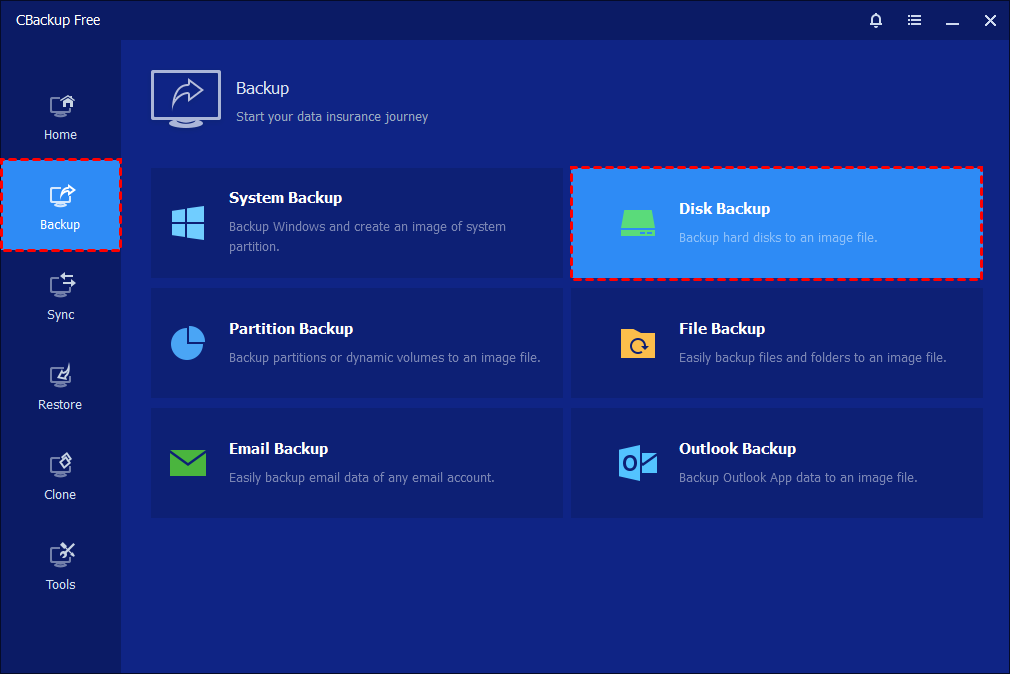
Step 2. Open CBackup and select Disk Backup. If you only need to back up specific files, you can choose File Backup instead.
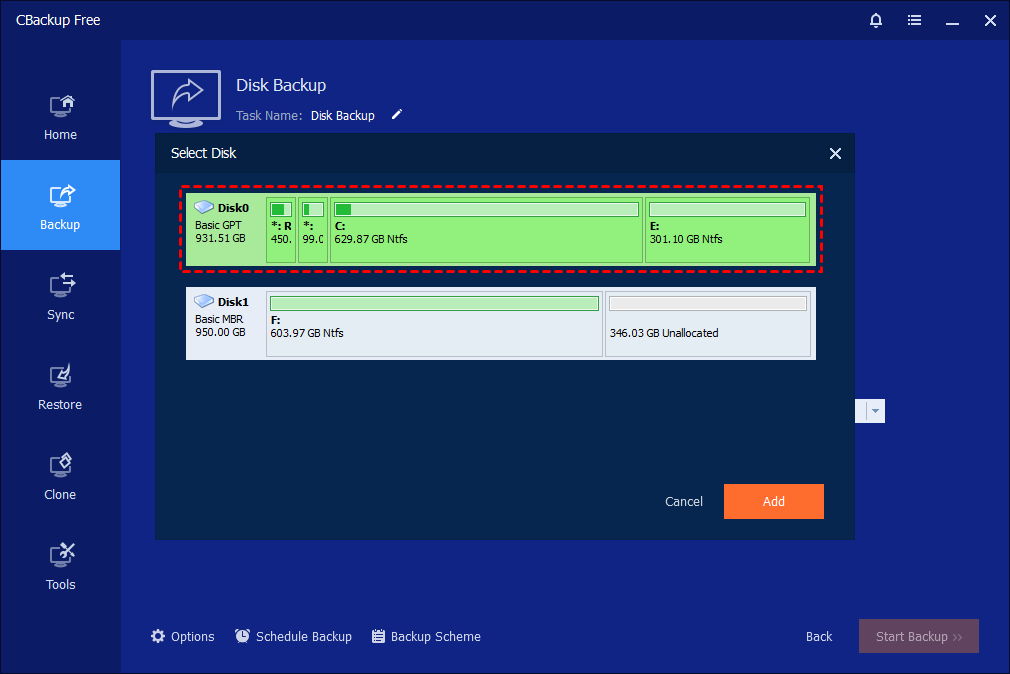
Step 3.Click Add Disk to select the disk you want to back up.
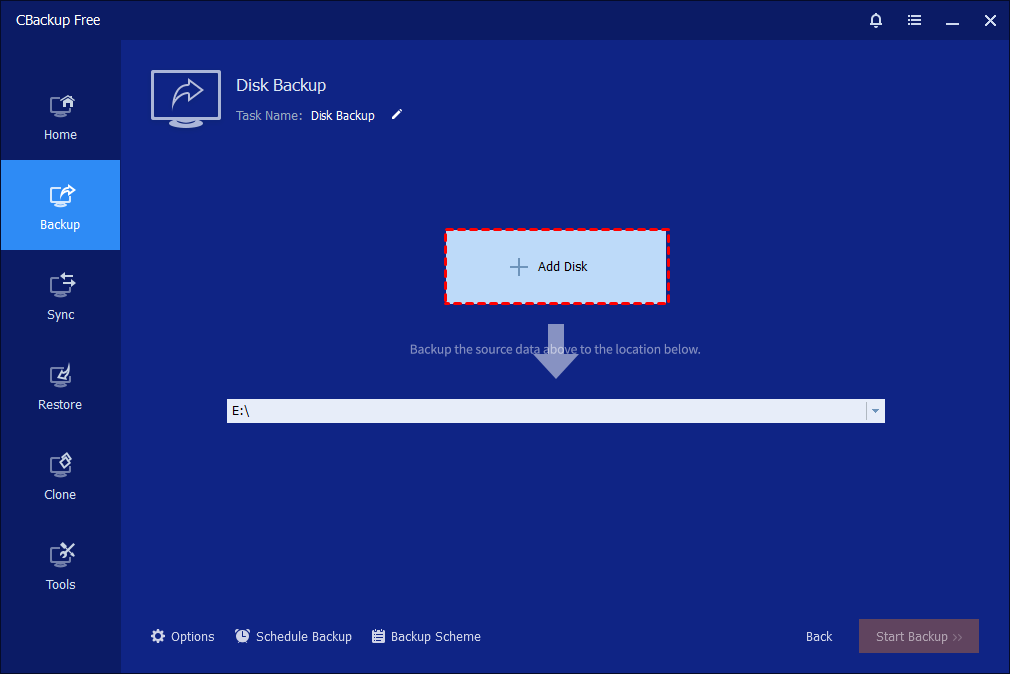
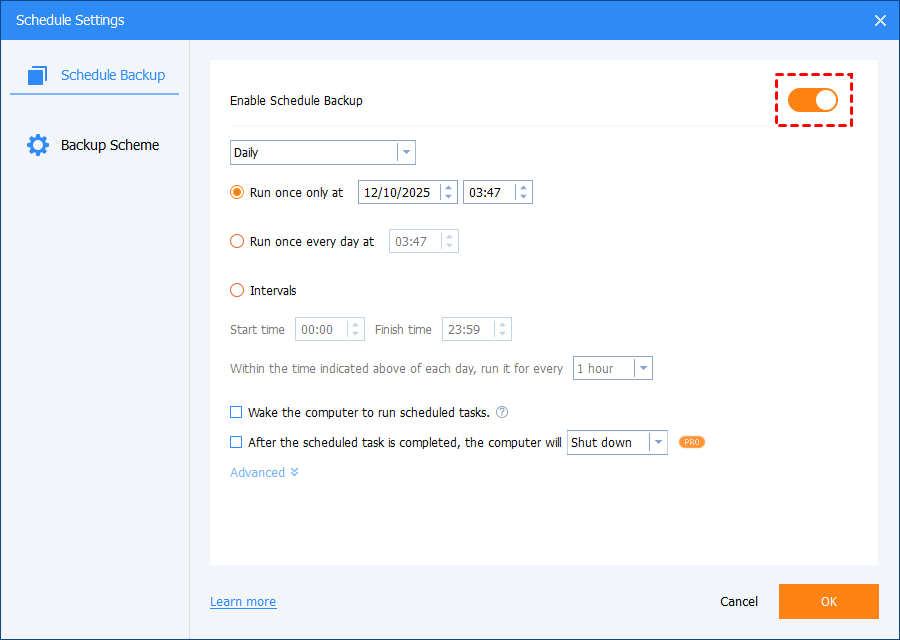
To manage automated computer backups, go to the Schedule Backup settings at the bottom of the interface.
Click Enable Schedule Backup to turn it on. Once enabled, the PC backup software will automatically run your Windows full backup or complete system backup based on the schedule you set, ensuring your entire hard drive is regularly backed up to an external hard drive.
If you disable Schedule Backup, the task will stop running automatically, and your hard drive backup will no longer follow the planned schedule. This is one reason many users look for alternatives to Acronis True Image for Windows that offer more flexible backup management.
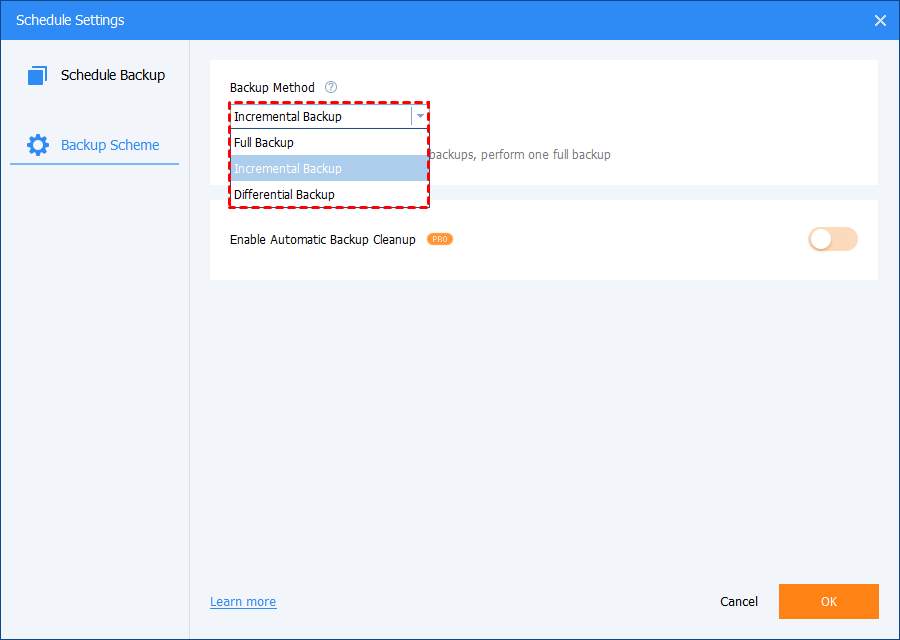
There are three backup methods: Full Backup, Incremental Backup, and Differential Backup. As for the differences between the three backup methods, please refer to Differences between Backup Methods.
Step 4. In the pop-up window, select the source disk you want to include in your entire hard drive backup. You can also add multiple disks to a single task, allowing the PC backup software to create a complete system backup or Windows full backup in one operation.
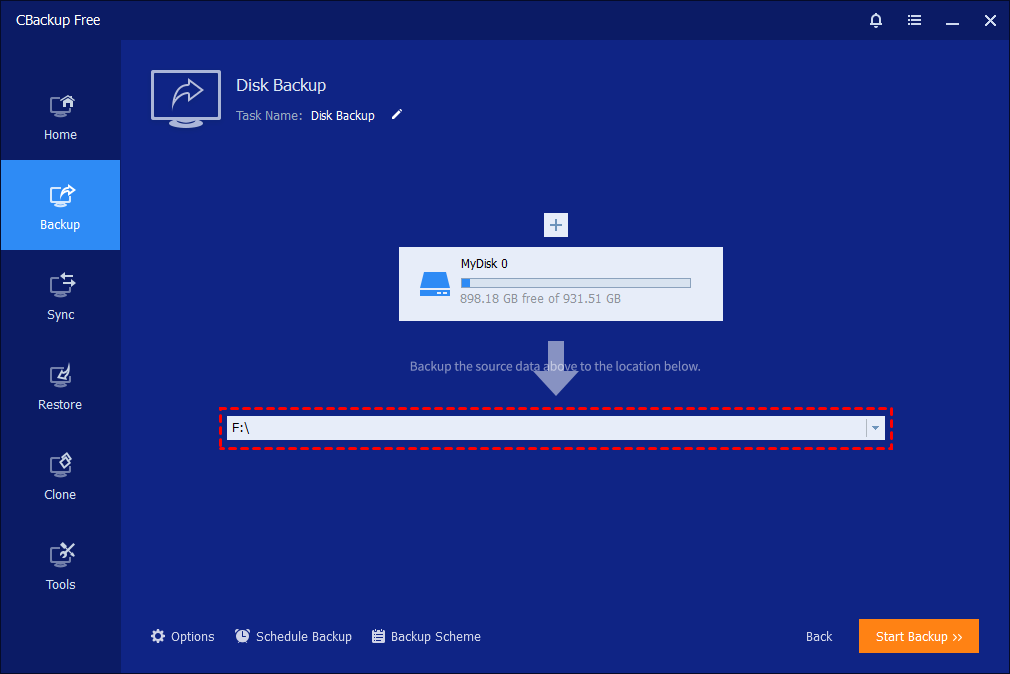
Step 5. Under the destination column, choose your external hard drive to store the backup. Click Start Backup to run the backup task.
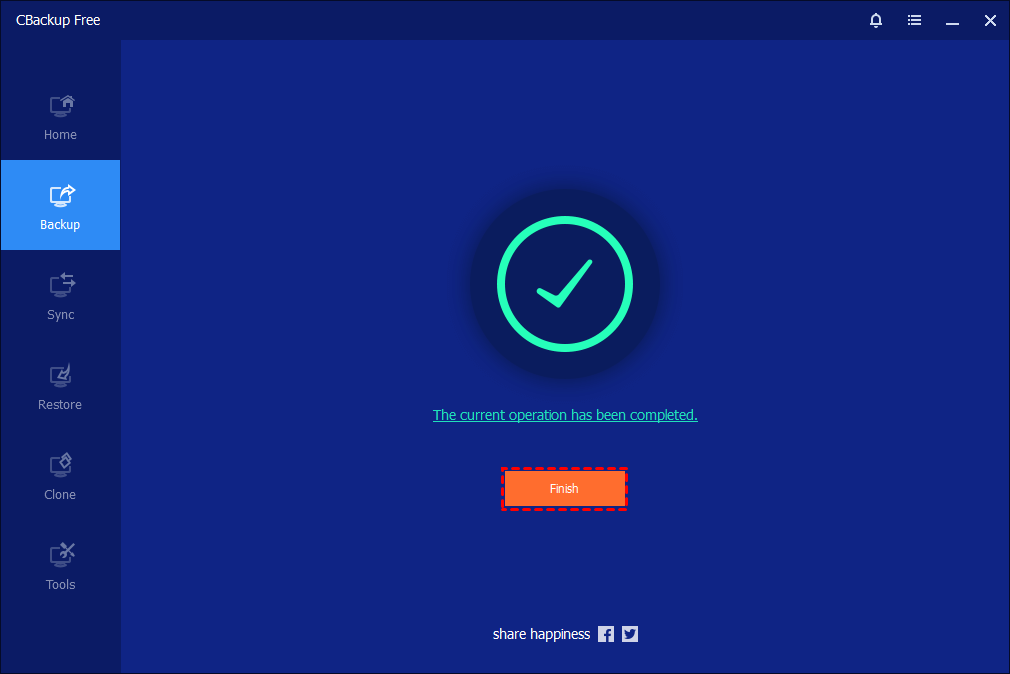
Step 6. Wait for the backup process to finish, then click Finish.
Final Verdict
If you want the best balance between simplicity, reliability, cloud flexibility, and affordable backup protection, CBackup remains the strongest overall alternative to Acronis True Image for most Windows users. It combines lightweight performance, automated scheduling, cloud integration, and beginner friendly design into one highly practical solution.
For enterprise virtualization, Veeam and Nakivo are outstanding choices. Advanced technical users may prefer Macrium Reflect or Clonezilla for imaging precision and recovery control. Meanwhile, Carbonite excels for users who simply want effortless cloud protection.
No matter which solution you choose, protecting your files before disaster strikes is far easier than recovering lost data later.
FAQs
🗨️ What is the best Acronis alternative for Windows backup and recovery?
Many users are searching for backup software that is simpler to manage, more budget-friendly, and lighter on system resources than Acronis. CBackup is a popular choice among beginners thanks to its straightforward approach to system backup, file backup, cloud backup, and recovery. Without requiring complex configurations, it helps users safeguard their Windows computers against system failures, disk damage, and unexpected data loss. For those looking for a free alternative to Acronis True Image, CBackup provides a practical and easy-to-use backup solution.
🗨️ Are there any free alternatives to Acronis True Image?
Yes, several free alternatives to Acronis True Image are available for Windows users. Some backup software provides free plans with basic disk imaging, system backup, and file recovery features. Powerful toollike CBackupare commonly chosen by users who need reliable backup protection without paying for a subscription.
🗨️ Why are users searching for alternatives to Acronis True Image?
Many users move to other backup solutions because they feel Acronis has become too expensive, too complex, or too heavy on system resources. Some users also report concerns about high CPU usage, background services, or unnecessary security features. As a result, they prefer lightweight Acronis True Image competitors that focus mainly on backup and recovery performance.
🗨️ Which Acronis True Image alternative is best for beginners?
For beginners, the best Acronis alternatives are usually software with a clean interface, simple backup setup, and automatic scheduling features. Users often prefer tools that can create system images, restore files easily, and support one-click backup tasks without technical knowledge. Backup software with straightforward recovery options is especially important during system crashes or Windows boot problems.
🗨️ What features should I look for in the best Acronis alternative?
When comparing Acronis alternatives, users usually focus on system backup, disk cloning, incremental backup, cloud backup, bootable recovery media, and fast restore speed. Good backup software should also support automatic scheduled backups and provide reliable recovery when Windows cannot boot normally. Compatibility with Windows 10 and Windows 11 is another major concern for many users.
Free Get CBackup Now

Secure & Free
